📘 PlayCool manuals • Free online PDFs
PlayCool logo

PlayCool Manuals & User Guides

PlayCool specializes in high-performance wireless gaming controllers and charging stations compatible with PlayStation, PC, Android, and iOS devices.

Tip: include the full model number printed on your PlayCool label for the best match.

About PlayCool manuals on Manuals.plus

PlayCool Gaming Accessories

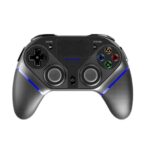
PlayCool is a dedicated gaming accessory brand that focuses on delivering high-performance wireless controllers and charging solutions for gamers. Their product lineup includes the Elite Wireless Gaming Controller and Tri-Protection Charging Stations, which are designed to support a wide range of platforms such as PlayStation 4, PlayStation 5, PC, Android, and iOS devices.

Featuring ergonomic designs, Bluetooth connectivity, multi-axis gyro sensors, and built-in adjustable RGB lighting, PlayCool accessories strive to enhance the modern competitive and casual gaming experience.

PlayCool manuals

Najnovejši priročniki od manuals+ izbrano za to blagovno znamko.

PlayCool support FAQ

Pogosta vprašanja o priročnikih, registraciji in podpori za to blagovno znamko.

  • How do I connect the PlayCool controller to a PS4 console?

    For the first use, connect the controller to your PS4 using the provided Type-C data cable. Once connected, press the HOME/PS button. You can then unplug the cable to use it wirelessly.

  • How do I pair my PlayCool controller with an Android or iOS device?

    Turn on the controller, then press and hold SHARE + HOME until the LED indicator light flashes intermittently. Go to your device's Bluetooth settings, search for 'PS4010', and click to pair.

  • What does the PlayCool warranty cover?

    PlayCool offers a 1-year warranty from the date of purchase. It requires proof of purchase and does not cover damage from misuse, wearable goods, customer neglect, or incorrect repair.

  • How do I reset my PlayCool gaming controller if it malfunctions?

    Insert a slender object into the Reset hole located on the back of the Gamepad and press the Reset button to restore its state.