1. Uvod
This manual provides essential instructions for the safe and efficient operation, setup, and maintenance of your Procolored F13 Panda DTF Printer. Please read this manual thoroughly before using the printer to ensure optimal performance and longevity.
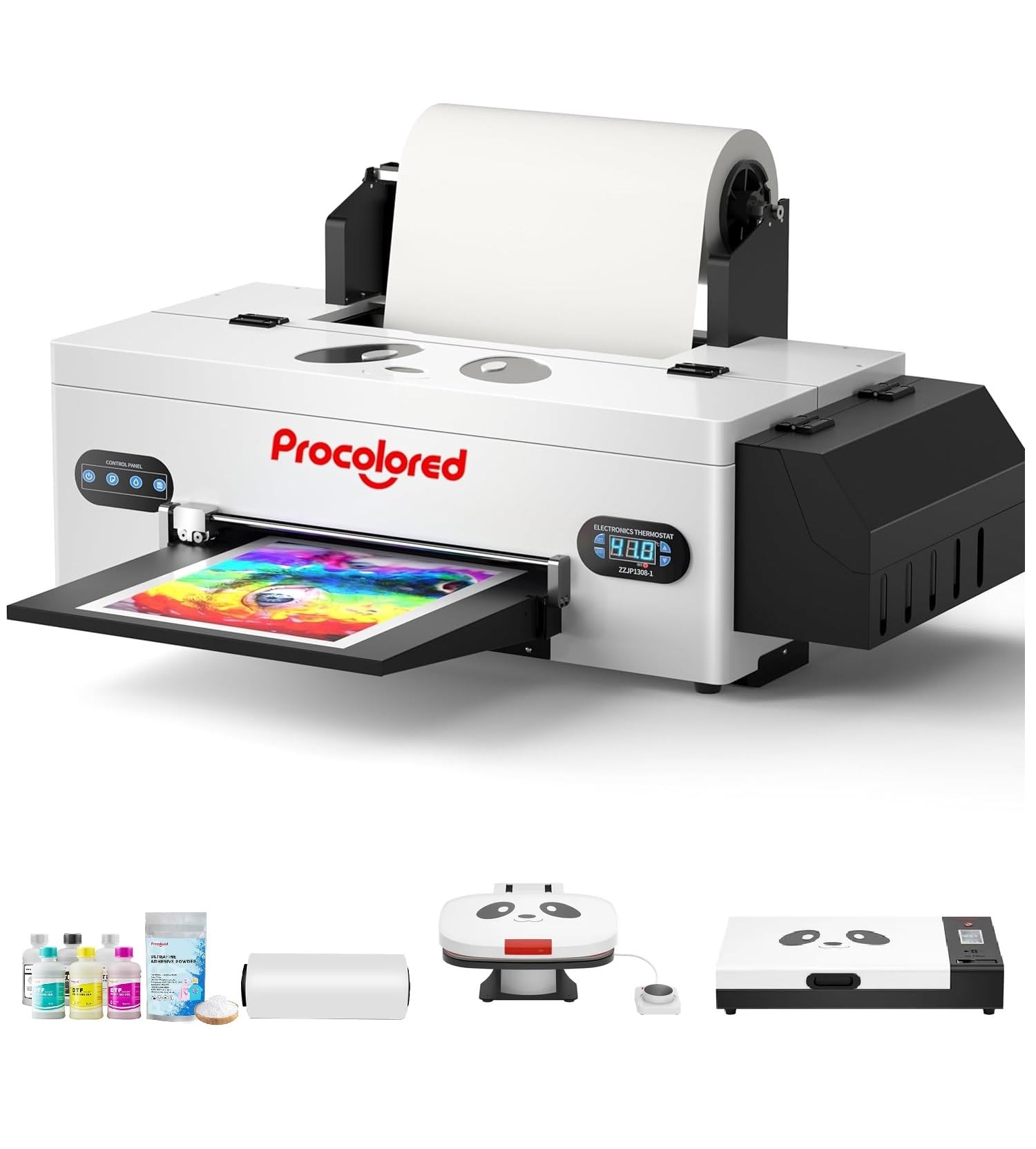
Figure 1: Procolored F13 Panda DTF Printer.
2. Varnostne informacije
Vedno upoštevajte naslednje varnostne ukrepe, da preprečite poškodbe ali škodo na tiskalniku:
- Prepričajte se, da je tiskalnik postavljen na stabilno in ravno površino.
- Connect the printer to a grounded power outlet with the correct voltage (AC 100–230 V).
- Tiskalnika ne izpostavljajte vodi ali prekomerni vlagi.
- Med delovanjem držite roke proč od gibljivih delov.
- Use only recommended inks and cleaning solutions.
- Hraniti izven dosega otrok.
3. Vsebina paketa
Preverite, ali so v paketu prisotni vsi elementi:
- Procolored F13 DTF Printer
- Roll Film 13"
- DTF Ink Set (CMYK+WW)
- Nozzle Protection Fluid
- DTF Powder
- Plastična podpora
- Data Cable (USB)
- Napajalni kabel
- Moisturizing Device
- Odpadna steklenica
- Kartuša
- Spare Ink Tube
- Valjčni nosilec
- Blazinica s črnilom
- Brisalec
- Rezilo za rezanje
- USB ključ
- Brizga
- Izvijač
- Roller Bar
- Podaljšek cevi
- Needle Hub
- Pomlad
- Bris

Figure 2: Included accessories for the Procolored F13 DTF Printer.
4. Navodila za namestitev
4.1 Razpakiranje in začetna namestitev
Carefully remove the printer and all components from the packaging. Place the printer on a sturdy, level surface in a well-ventilated area.
Video 1: Procolored F13 DTF Printer Unboxing. This video demonstrates the unboxing process and initial setup steps for the printer.
4.2 Film Roll Installation
Install the 13-inch DTF film roll onto the designated holder at the rear of the printer. Ensure the film feeds smoothly into the printer mechanism.
4.3 Ink System Setup
Fill the ink tanks with the corresponding DTF pigment inks (Cyan, Magenta, Yellow, Black, White, Light Cyan). Ensure the white ink circulation system is properly connected and functioning to prevent clogging.

Figure 3: Illustration of the advanced white ink system, showing circulation, siphon effect, and automatic cleaning.
4.4 Power Connection and Software Installation
Connect the power cable to the printer and a suitable power outlet. Install the Procolored RIP software (compatible with Windows 7/10/11) on your computer. Follow the on-screen instructions for software installation and driver setup.
Slika 4: Konecview of the Procolored RIP software interface and available tutorials.
5. Navodila za uporabo
5.1 Preparing for Print
- Power on the printer using the main switch.
- Ensure the DTF film is correctly loaded and aligned.
- Open the Procolored RIP software on your computer.
- Import your design and adjust settings such as size, resolution (up to 1440x1440dpi), and color profile.
5.2 Postopek tiskanja
Initiate the print job from the software. The printer will feed the film and apply ink. The built-in cutter will automatically trim the film after printing, optimizing material usage.
Video 2: Procolored F13 DTF Printer in operation. This video demonstrates the printing process, including film feeding and ink application.
5.3 Post-Printing
After printing, apply DTF powder to the wet ink and cure it using a DTF oven or heat press. Once cured, the design is ready for transfer to textiles.

Slika 5: Npramples of versatile applications for DTF prints, including shirts, flags, tote bags, and caps.
6. Vzdrževanje
6.1 Avtomatski čistilni sistem
The F13 Panda DTF Printer features an automatic cleaning system that operates even when the printer is powered on. This system helps prevent print head clogs and ensures consistent print quality. Regular use of this feature is recommended.
6.2 White Ink Circulation
The printer includes a white ink circulation system with a siphon filtration diaphragm pump. This system minimizes blockages and maintains the quality of white ink. Ensure the system is always active during operation.
Video 3: F13 L1800 DTF Apparel Printer features. This video highlights the white ink circulation and automatic cleaning functions.
6.3 Generalno čiščenje
Zunanjost tiskalnika redno čistite z mehko,amp cloth. Refer to the software's maintenance section for specific print head cleaning procedures if needed.
7. Odpravljanje težav
Če imate težave s tiskalnikom, razmislite o naslednjih pogostih rešitvah:
- Težave s kakovostjo tiskanja: Perform a nozzle check and head cleaning through the software. Ensure ink levels are sufficient.
- Film Feeding Problems: Check for obstructions in the film path and ensure the film roll is correctly installed and aligned.
- Napake programske opreme: Restart the software and the printer. Ensure your software and drivers are up to date.
- Težave s povezljivostjo: Verify USB cable connection and ensure the printer is powered on.
For persistent issues, contact Procolored customer service.
8. Specifikacije
| Funkcija | Specifikacija |
|---|---|
| Znamka | Probarvano |
| Ime modela | F13-XMJZ |
| Tehnologija povezljivosti | USB |
| Tehnologija tiskanja | Inkjet |
| Posebna funkcija | Prenosni |
| Izhod tiskalnika | barva |
| Največja hitrost tiskanja (barvno) | 1 ppm |
| Največja hitrost črno-belega tiskanja | 1 ppm |
| Mere izdelka (D x Š x V) | 16.53"D x 34.25"Š x 16.4"V |
| Barva črnila | Cyan, Magenta, Yellow, Black, White, Light Cyan |
| Resolucija | 1440 x 1440 dpi |
| Največja velikost medija | A3 (13 Inches) |
| Programska podpora | Windows 7/10/11 |
| Posebne uporabe za izdelek | Textile Printing |
9. Garancija in podpora
Your Procolored F13 Panda DTF Printer comes with a comprehensive warranty:
- Print Head and Related Components: Six-month warranty.
- Drugi dodatki: Enoletna garancija.
Our dedicated customer service team is available 24/6 to address any queries or technical issues you may encounter. Please refer to your purchase documentation for specific contact details.


