1. Uvod
The TABWEE 10.1 Inch WiFi Digital Calendar, Model P10, is an interactive touchscreen display designed to streamline family organization. It integrates calendars, task management, meal planning, and digital photo frame capabilities into a single device. This manual provides detailed instructions to help you set up and utilize all features of your new digital calendar.

Slika 1.1: The TABWEE Digital Calendar in use, showcasing its calendar interface and mobile app synchronization.
2. Varnostne informacije
- Napravo postavite na stabilno, ravno površino, da preprečite nenamerne padce.
- Use only the provided power adapter. Using unauthorized adapters may damage the device and void the warranty.
- Napravo hranite ločeno od vode, vlage in ekstremnih temperatur.
- Do not attempt to open or repair the device yourself. Refer to qualified service personnel for any maintenance or repair needs.
- Hranite izven dosega majhnih otrok, da preprečite nenamerno zaužitje majhnih delcev ali poškodbo naprave.
3. Vsebina paketa
Preverite, ali so v paketu prisotni vsi elementi:
- TABWEE 10.1 Inch WiFi Digital Calendar (Model P10)
- Napajalni adapter
- Uporabniški priročnik (ta dokument)
4. Izdelek je končanview
Familiarize yourself with the physical components of your TABWEE Digital Calendar.

Slika 4.1: Technical details and component layout of the TABWEE Digital Calendar.
- Gumb za vklop / izklop: Located on the side for turning the device on or off.
- Gumbi za povečanje / zmanjšanje glasnosti: Prilagodite zvočni izhod naprave.
- Svetlobni senzor: Samodejno prilagodi svetlost zaslona glede na osvetlitev okolice.
- Podporno stojalo: Integrated stand for desk placement.
5. Nastavitev
5.1 Začetni vklop
- Connect the provided power adapter to the device's power port.
- Plug the adapter into a standard electrical outlet. The device will automatically power on.
- Sledite navodilom na zaslonu, da izberete jezik in regijo.
5.2 Omrežna povezava
- On the initial setup screen, select your Wi-Fi network from the list.
- Enter your Wi-Fi password and tap 'Connect'.
- Ensure the device is connected to a stable internet connection for full functionality.
5.3 Namestitev aplikacije in ustvarjanje računa
To fully utilize the calendar's features, download and set up the companion 'eCalendar' app on your smartphone (iOS or Android).

Slika 5.1: Steps for downloading and creating an account on the eCalendar app.
- Scan the QR code displayed on the calendar screen or search for 'eCalendar' in your device's app store (Google Play Store for Android, Apple App Store for iOS).
- Prenesite in namestite aplikacijo.
- Open the eCalendar app and follow the prompts to create a new account or log in if you already have one.
- Strinjam se z uporabniško pogodbo in politiko zasebnosti.
5.4 Device Linking
Link your TABWEE Digital Calendar to your eCalendar app account.

Slika 5.2: Linking the calendar device to the eCalendar app and setting up your unique calendar email.
- In the eCalendar app, select the option to 'Add Device' or 'Activate a new eCalendar Frame'.
- Follow the on-screen instructions to pair your device. This may involve scanning a QR code displayed on the calendar or entering a pairing code.
- Once linked, you can set up your unique calendar email address within the app.
6. Delovanje
6.1 Osnovna navigacija
The TABWEE Digital Calendar features a responsive touchscreen. Navigate through menus and features by tapping, swiping, and pinching as you would on a tablet device.
6.2 Upravljanje koledarja
The core function of your device is calendar management, allowing for seamless synchronization and event organization.
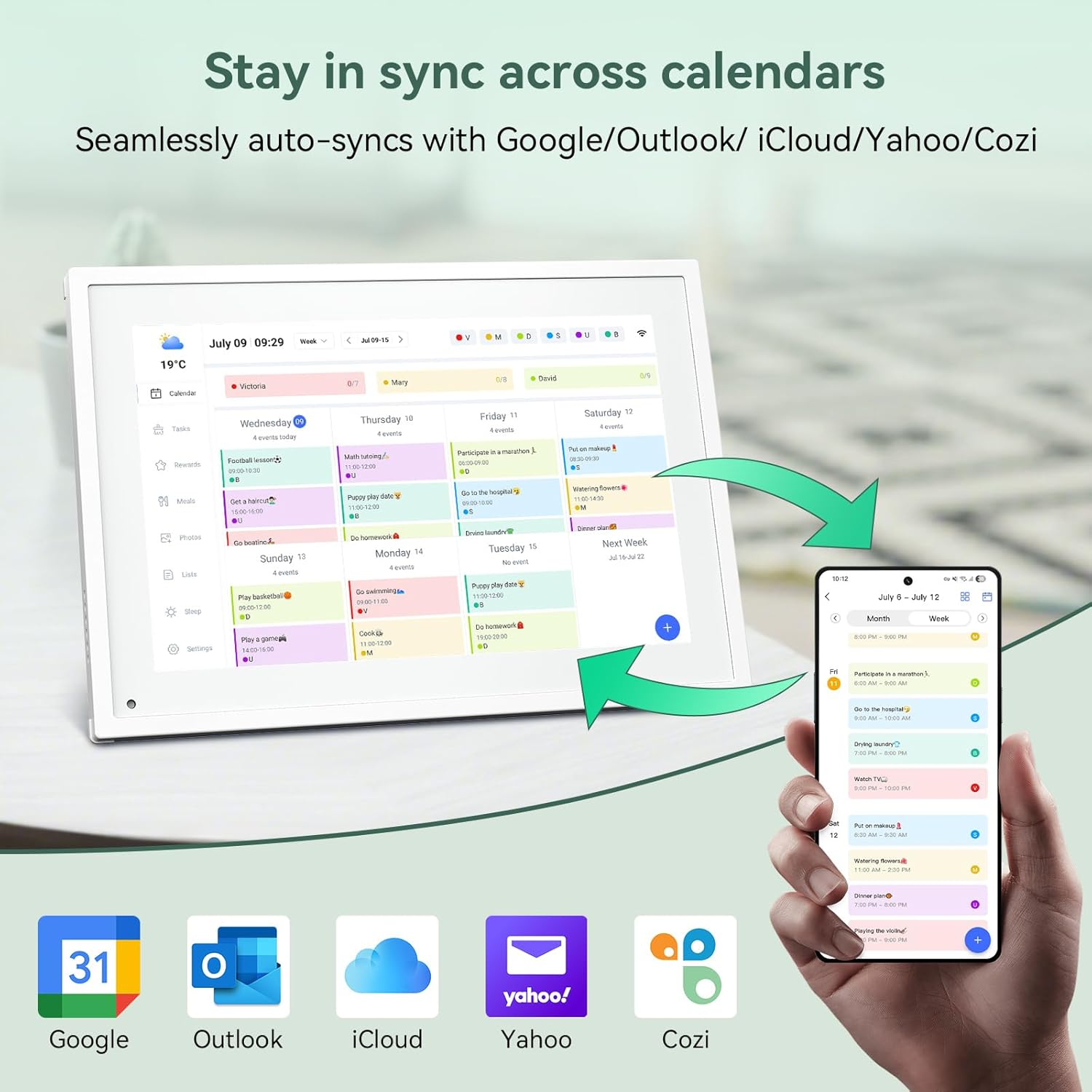
Slika 6.1: Seamless synchronization of the digital calendar with various external calendar services.
- Syncing External Calendars: Within the eCalendar app settings, you can link your Google, Apple, Outlook, Yahoo, or Cozi calendars. Events from these linked accounts will automatically appear on your TABWEE Digital Calendar.
- Adding/Editing Events: Tap on a date or time slot on the calendar display or use the eCalendar app to add new events. You can specify event details, set reminders, and assign participants.
- Prilagojeno Views: Switch between day, week, or month views directly on the device or through the app.
6.3 Task Management (Chore Chart)
Organize tasks and chores for family members with a built-in reward system.
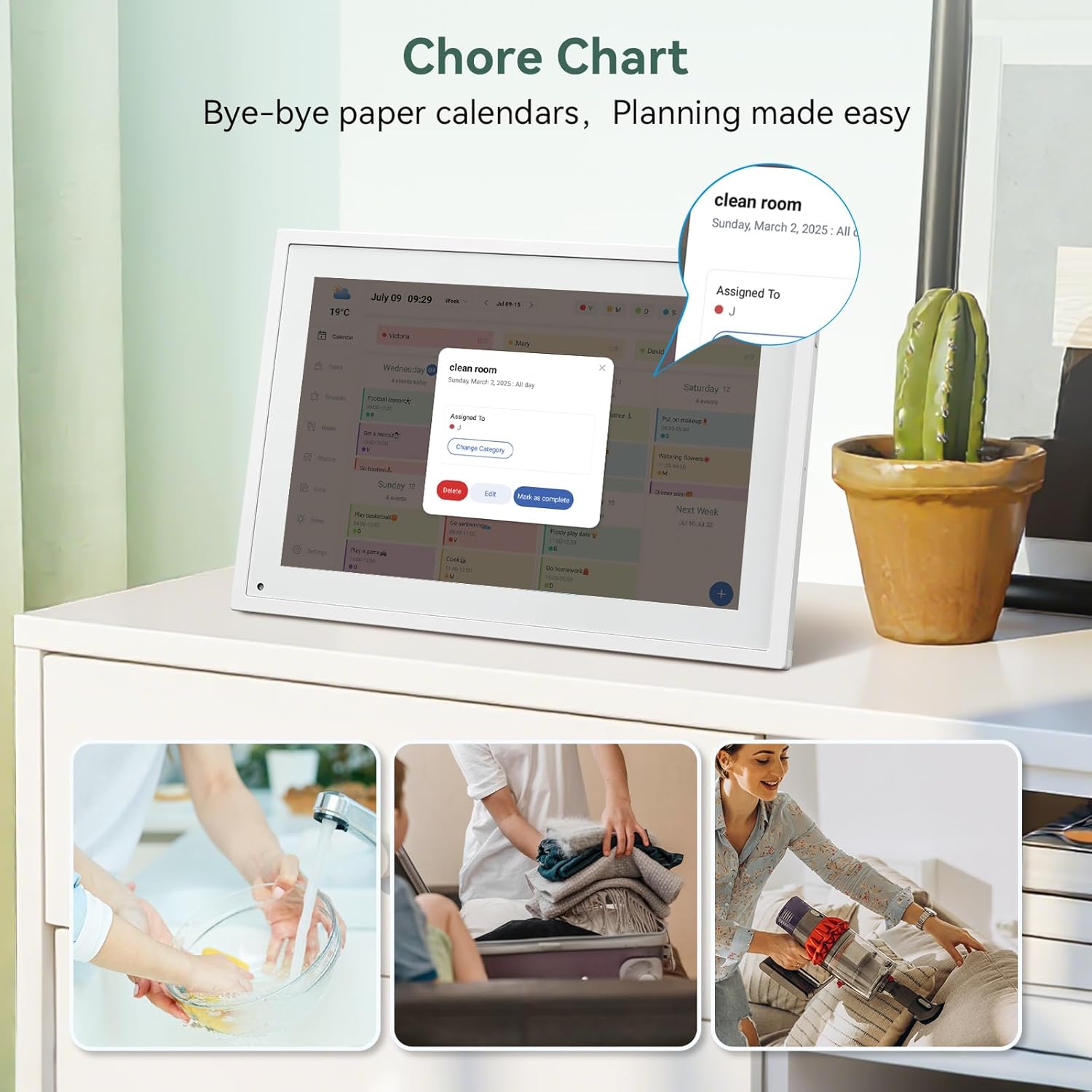
Slika 6.2: Managing tasks and chores on the digital calendar interface.
- Ustvarjanje nalog: Use the 'Tasks' section on the device or app to create new tasks. Assign them to specific individuals, set due dates, and configure recurring tasks.
- Spremljanje napredka: Users can mark tasks as complete. The system tracks completion and can be configured to award points.
- Sistem nagrajevanja: Set up a star-point reward system within the app. Points earned from completed tasks can be redeemed for custom rewards, encouraging participation.

Slika 6.3: The task manager and rewards interface, designed for engaging users.
6.4 Načrtovanje obrokov
Plan your meals directly on the device or through the app.

Slika 6.4: Visual meal planning interface on the digital calendar.
- Create Meal Plans: Access the 'Meals' section to plan breakfasts, lunches, dinners, and snacks for the week.
- Recepti po meri: Upload and store your favorite recipes.
- Grocery Lists: Generate grocery lists based on your meal plans.
6.5 Digital Photo Frame Functionality
The device can also function as a digital photo frame.

Slika 6.5: The digital calendar switching between calendar and photo frame modes, in both landscape and portrait orientations.
- Preklopni načini: Navigate to the 'Photos' section on the device or app to activate the digital photo frame mode.
- Nalaganje fotografij: Upload your favorite memories directly from your smartphone via the eCalendar app.
- Orientacija: The device supports both landscape and portrait orientations, automatically adjusting the display.
6.6 Druge funkcije
The TABWEE Digital Calendar includes additional smart features to enhance usability.
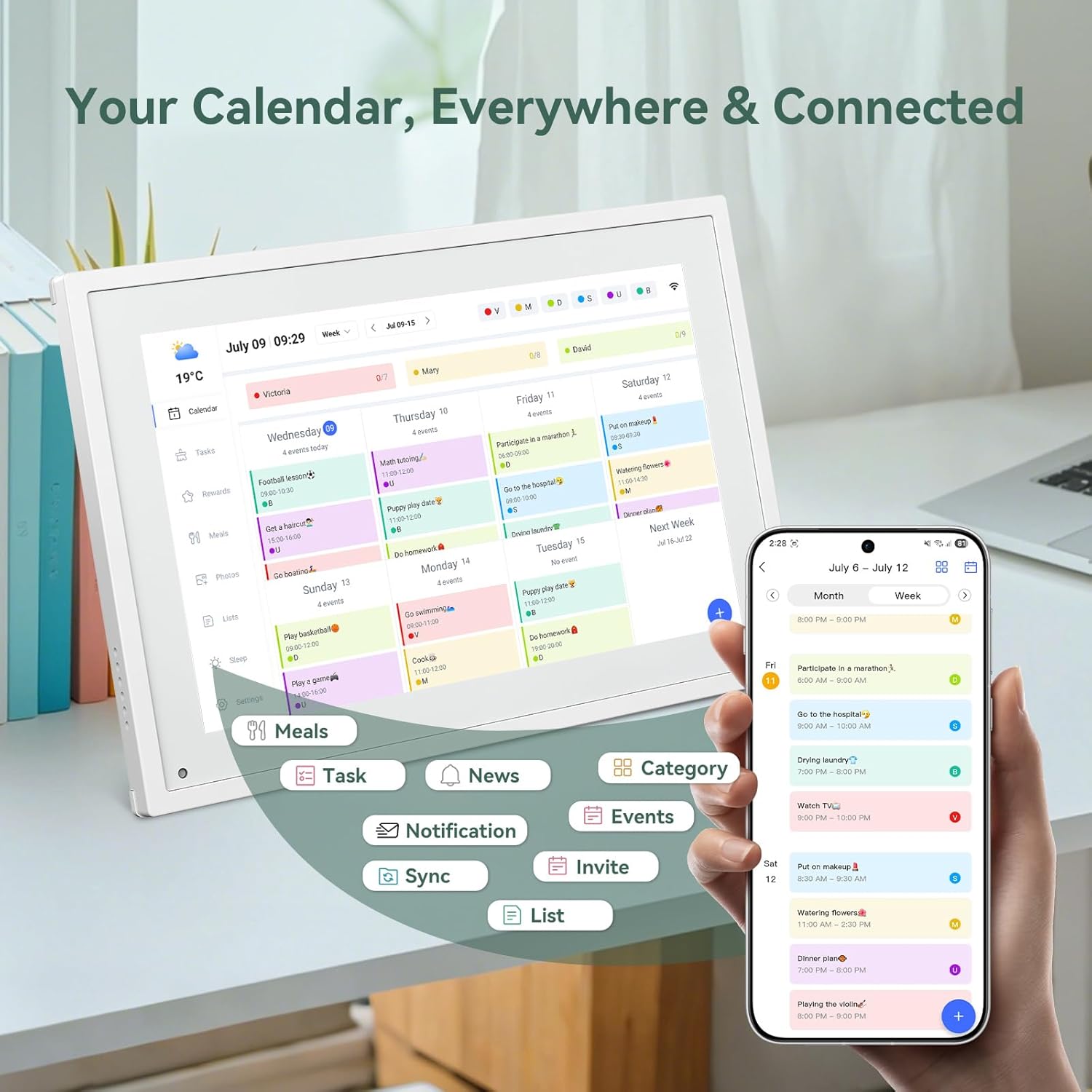
Slika 6.6: konecview of smart features and app connectivity.
- Live Weather Forecasts: Prikazuje trenutne vremenske razmere in napovedi.
- Samodejna svetlost: The built-in light sensor automatically adjusts screen brightness for optimal viewing.
- Spanje: Configure scheduled times for the device to enter a low-power sleep mode.
- Custom Lists: Create and manage various lists (e.g., shopping lists, packing lists).
- Barvno kodiranje: Assign different colors to events or tasks for easy visual identification.
7. Vzdrževanje
7.1 Čiščenje naprave
- Zaslon nežno obrišite z mehko krpo, ki ne pušča vlaken. Za trdovratne madeže rahlo obrišiteampkrpo obrišite z vodo ali raztopino za čiščenje zaslona.
- Izogibajte se uporabi agresivnih kemikalij, abrazivnih materialov ali aerosolnih razpršil neposredno na napravi.
- Pred čiščenjem se prepričajte, da je naprava izklopljena in izklopljena.
7.2 Posodobitve programske opreme
Naprava lahko občasno prejema posodobitve programske opreme za izboljšanje delovanja in dodajanje novih funkcij. Za prejemanje teh posodobitev se prepričajte, da je naprava povezana z omrežjem Wi-Fi. Običajno boste na zaslonu obveščeni, ko bo posodobitev na voljo.
8. Odpravljanje težav
| Težava | Možen vzrok | rešitev |
|---|---|---|
| Naprava se ne vklopi. | Napajalnik ni priključen ali je pokvarjen. | Prepričajte se, da je napajalnik varno priključen na napravo in delujočo električno vtičnico. |
| Ni mogoče vzpostaviti povezave z Wi-Fi. | Napačno geslo, izven dosega ali težava z omrežjem. | Verify Wi-Fi password. Move the device closer to the router. Restart your router. |
| Calendar events are not syncing. | App not linked, external calendar not connected, or internet issue. | Check app-device linking. Ensure external calendars are correctly linked in the eCalendar app. Verify internet connection. |
| Zaslon se ne odziva. | Začasna programska napaka. | Napravo znova zaženite tako, da pritisnete gumb za vklop, dokler se ne izklopi, nato pa jo ponovno vklopite. |
9. Specifikacije
| Funkcija | Podrobnost |
|---|---|
| Številka modela | P10 |
| Velikost zaslona | 10.1 palcev |
| Vrsta zaslona | Zaslon na dotik |
| Povezljivost | WiFi |
| Dimenzije izdelka | 10.51 x 0.91 x 7.32 palcev (26.7 x 2.3 x 18.6 cm) |
| Teža predmeta | 2.58 funtov (1.17 kg) |
| Vrsta namestitve | Desk Mount (not wall-mountable) |
| Vir napajanja | Plug-in (no internal battery) |
| barva | Bela |
10. Garancija in podpora
The TABWEE Digital Calendar comes with a standard manufacturer's warranty. For specific warranty terms and conditions, please refer to the warranty card included in your product packaging or visit the official TABWEE webmesto.
For technical support, troubleshooting assistance, or any inquiries regarding your product, please contact TABWEE customer service through their official webspletnega mesta ali kontaktnih podatkov, navedenih v dokumentaciji izdelka.


