1. Uvod
This manual provides instructions for the setup, operation, maintenance, and troubleshooting of your CRUA 27-inch 240Hz QHD IPS Gaming Monitor. This monitor features a 2560x1440 QHD resolution, a 240Hz refresh rate, an IPS panel for wide viewing angles, AMD FreeSync support, a blue light filter for eye protection, and built-in speakers. Please read this manual thoroughly before using the product.
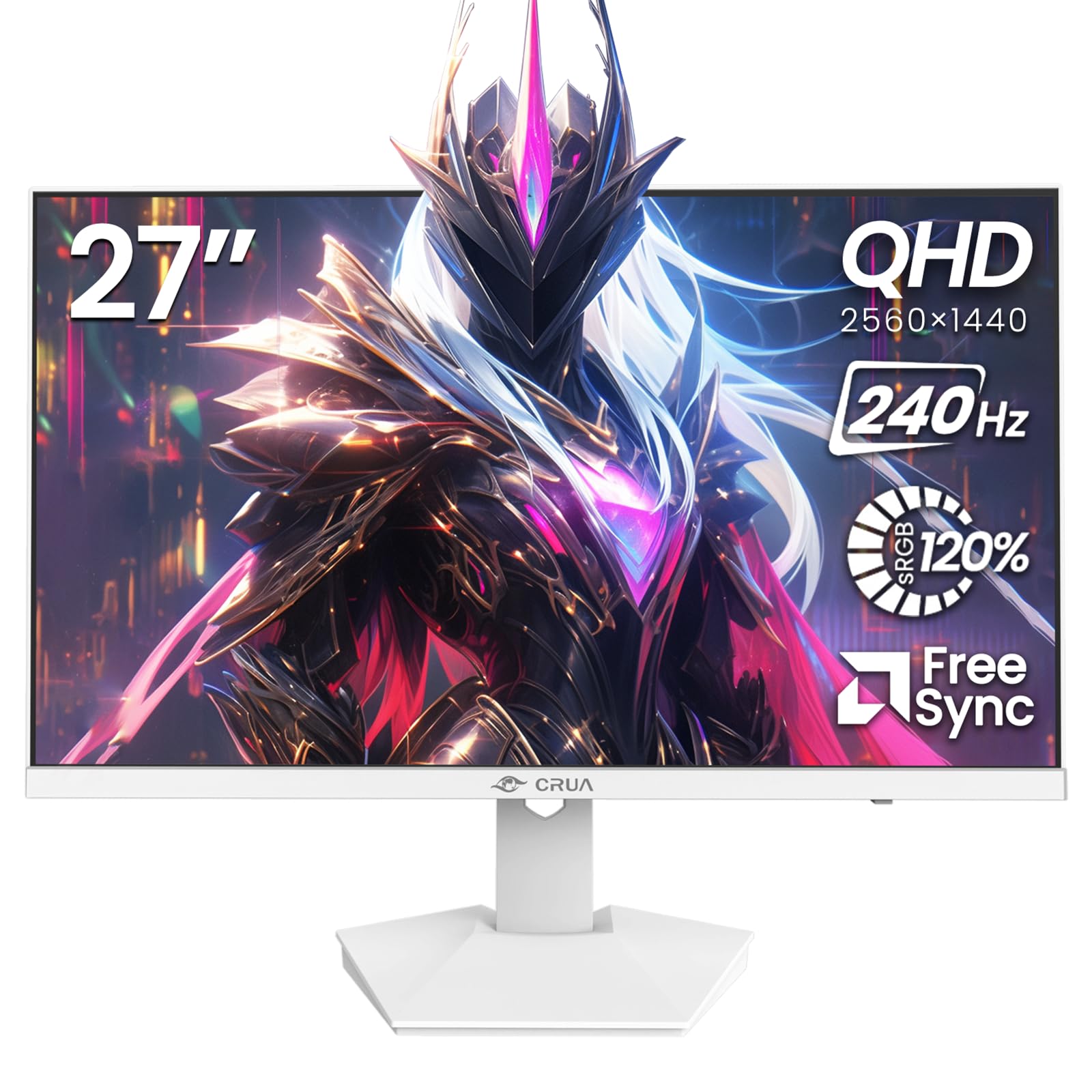
Slika: spredaj view of the CRUA 27-inch 240Hz QHD IPS Gaming Monitor.
2. Vsebina paketa
Preverite, ali so v paketu prisotni vsi elementi:
- CRUA 27-inch 240Hz QHD IPS Gaming Monitor
- Stojalo za monitor (podstavek in vrat)
- Napajalnik in kabel
- HDMI kabel
- Kabel DisplayPort (DP)
- Uporabniški priročnik (ta dokument)
3. Nastavitev
3.1 Sestavljanje stojala
- Monitor previdno vzemite iz embalaže in ga položite z zaslonom navzdol na mehko, čisto površino, da preprečite praske.
- Pritrdite vrat stojala na ploščo monitorja. Prepričajte se, da se varno zaskoči.
- Pritrdite podstavek stojala na vrat stojala. Privijte vse vijake, če so priloženi.
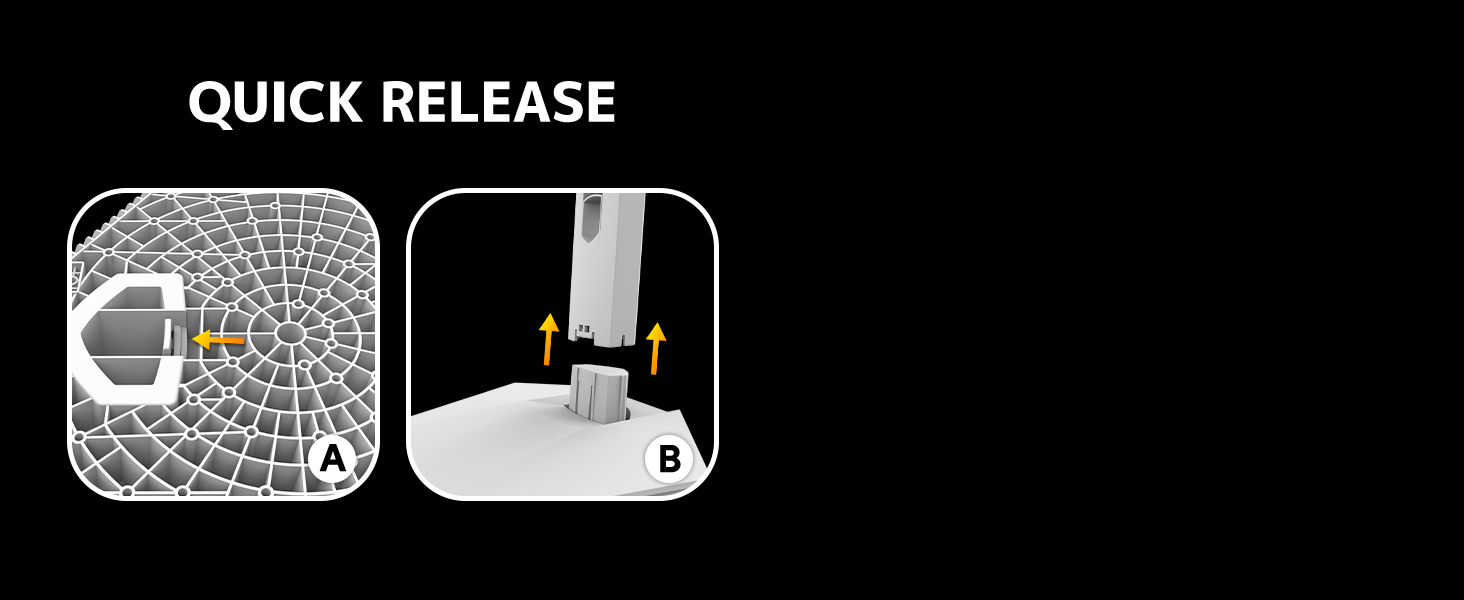
Image: Diagram illustrating the quick release stand assembly.
3.2 Stenska montaža (neobvezno)
The monitor supports VESA wall mounting (75mm x 75mm). To wall mount:
- Če je stojalo že pritrjeno, ga odstranite z monitorja.
- Attach a VESA-compatible wall mount bracket (not included) to the monitor using appropriate screws.
- Za varno namestitev sledite navodilom, ki so priložena stenskemu nosilcu.

Slika: Zadaj view of the monitor showing VESA mount points (75x75mm) and built-in speakers.
3.3 Povezava z računalnikom
Monitor priključite na računalnik na enega od naslednjih načinov:
- DisplayPort (DP 1.4): For optimal performance, especially at 240Hz QHD resolution, use the included DisplayPort cable.
- HDMI (HDMI 2.0): Use an HDMI cable for QHD resolution at up to 144Hz.
Priključite napajalnik na vhod za napajanje monitorja in ga nato priključite v električno vtičnico.

Slika: Zadaj view of the monitor displaying the input ports, including HDMI and DisplayPort.
4. Navodila za uporabo
4.1 Vklop/izklop
Press the power button located on the back of the monitor to turn it on or off. The power button may resemble a joystick for OSD navigation.
4.2 Zaslonski meni (OSD)
The OSD menu allows you to adjust various monitor settings. Use the joystick-like button on the back of the monitor to navigate the menu:
- Pritisni gumb: Odpre OSD meni.
- Premik gor/dol: Navigacija po možnostih menija.
- Premik levo/desno: Adjusts selected settings or enters sub-menus.
- Ponovno pritisnite: Confirms selection or exits a sub-menu.
4.3 Nastavitve zaslona
Within the OSD menu, you can adjust:
- Svetlost/kontrast: Prilagodite splošno svetilnost in kontrastno razmerje.
- Barvne nastavitve: Fine-tune color temperature, hue, and saturation. The monitor offers 120% sRGB color coverage for accurate and vibrant visuals.
- Vir vhoda: Manually select between HDMI and DisplayPort inputs.

Image: Details on true color accuracy, including 120% sRGB, 8-bit color depth, and 16.7 million colors.
4.4 Igralne funkcije
- Hitrost osveževanja: The monitor supports up to 240Hz refresh rate for smooth motion. Ensure your graphics card and cable support this rate.
- AMD FreeSync: Enable FreeSync in the OSD menu and on your AMD graphics card settings to eliminate screen tearing and stuttering.

Image: Visual comparison demonstrating the smoothness of 240Hz refresh rate versus 60Hz.

Image: Illustrates the effect of Adaptive Sync (FreeSync) on reducing screen tearing and stuttering.
4.5 Zaščita oči
The monitor includes a built-in blue light filter to reduce eye strain during extended use. This feature can be enabled or adjusted through the OSD menu.
5. Vzdrževanje
Za ohranjanje delovanja in videza monitorja:
- Čiščenje zaslona: Zaslon nežno obrišite z mehko krpo, ki ne pušča vlaken. Za trdovratne madeže uporabite čistilno raztopino za monitorje, ki jo nanesete na krpo in ne neposredno na zaslon.
- Čiščenje C-jaasing: Za brisanje monitorja uporabite mehko, suho krpo.asing. Izogibajte se abrazivnim čistilom ali topilom.
- Ugasniti: Always turn off the monitor and unplug it from the power outlet before cleaning.
6. Odpravljanje težav
| Težava | Možen vzrok | rešitev |
|---|---|---|
| Na zaslonu ni slike | Monitor is off or not receiving signal. | Ensure power cable is connected and monitor is on. Check video cable connection (HDMI/DP) to both monitor and computer. Select correct input source via OSD. |
| Utripanje ali trganje slike | FreeSync not enabled or incompatible settings. | Enable FreeSync in the monitor OSD and your graphics card control panel. Ensure your graphics card drivers are up to date. |
| Poor picture quality (blurry, incorrect colors) | Incorrect resolution, color settings, or faulty cable. | Set display resolution to 2560x1440. Adjust brightness, contrast, and color settings in the OSD. Try a different video cable. |
| Ni zvoka iz vgrajenih zvočnikov | Volume too low, incorrect audio output selected. | Increase monitor volume via OSD. Ensure the monitor is selected as the audio output device in your computer's sound settings. |
| Mrtve piksle | Proizvodna napaka. | Refer to warranty information for pixel policy. Contact customer support if within warranty. |
7. Specifikacije
| Funkcija | Specifikacija |
|---|---|
| Številka modela | CR270I |
| Velikost zaslona | 27 palcev |
| Vrsta plošče | IPS |
| Resolucija | 2560 x 1440 (QHD) |
| Hitrost osveževanja | 240Hz |
| Razmerje stranic | 16:9 |
| Barvna lestvica | 120 % sRGB |
| Svetlost | 300 cd/m² |
| Kontrastno razmerje | 1000:1 |
| Viewkota | 178° (vodoravno/navpično) |
| Video vhodi | HDMI 2.0, DisplayPort 1.4 |
| Avdio | Vgrajeni zvočniki |
| VESA nosilec | 75 mm x 75 mm |
| Dimenzije izdelka | 1.78 x 24 x 14 palcev |
| Teža predmeta | 12.62 funtov |
8. Garancija in podpora
CRUA provides high-quality computer monitors and premium services. If you have any questions or require assistance, please contact CRUA customer support. Refer to your purchase documentation for specific warranty terms and contact information.


