Uvod
This manual provides essential information for the proper setup, operation, maintenance, and troubleshooting of your KTC H27T27 27-inch WQHD IPS Flat Monitor. Please read this manual thoroughly before using the product to ensure optimal performance and safety.
The KTC H27T27 monitor features a 27-inch WQHD (2560x1440) IPS panel with a 100Hz refresh rate, designed to deliver clear and detailed images with smooth motion. It includes FreeSync technology for enhanced visual fluidity during dynamic content. The IPS panel ensures vivid colors and wide viewing kotov.

Figure 1: KTC H27T27 27-inch WQHD IPS Flat Monitor Front View
Nastavitev
1. Razpakiranje
Previdno odstranite vse komponente iz embalaže. Prepričajte se, da so vsi predmeti, navedeni na pakirnem seznamu, prisotni in nepoškodovani. Originalno embalažo shranite za morebitne prihodnje transportne ali servisne potrebe.
2. Montaža stojala
- Monitor postavite z zaslonom navzdol na mehko, čisto površino, da preprečite praske.
- Podstavek stojala pritrdite na vrat stojala s priloženimi vijaki.
- Align the assembled stand with the mounting slot on the back of the monitor and secure it firmly.
3. Pritrditev VESA (neobvezno)
The monitor supports VESA 100x100mm mounting. If using a VESA mount, remove the stand and attach the VESA compatible bracket to the monitor's rear panel using appropriate screws.
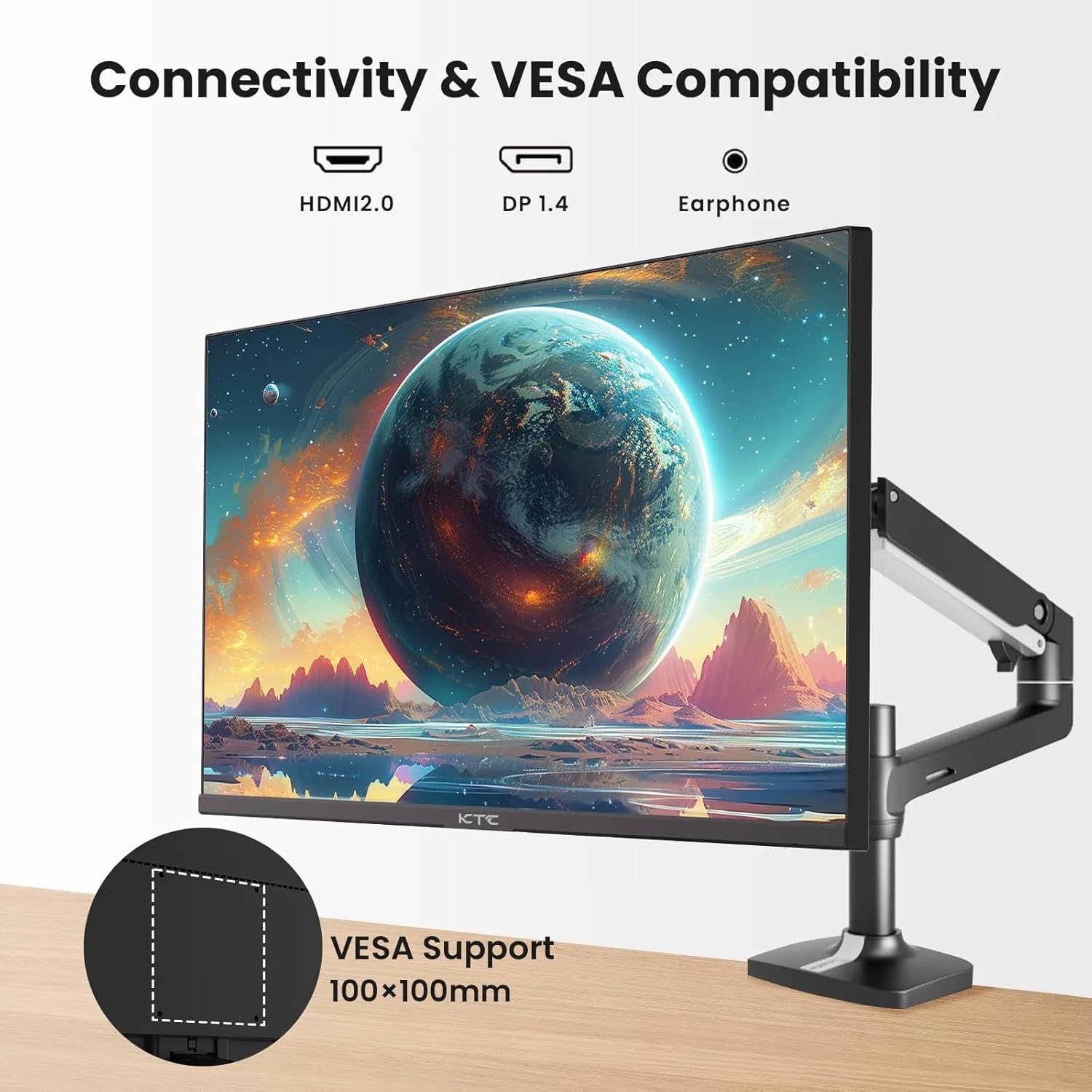
Figure 2: VESA Compatibility and Connectivity Ports
4. Priključni kabli
Priključite potrebne kable na monitor in računalnik ali druge naprave. Prepričajte se, da so vse povezave varne.
- Napajalni kabel: Connect the power adapter to the monitor's DC input port, then plug the power cable into a power outlet.
- Video kabel: Connect either an HDMI cable (HDMI 2.0) or a DisplayPort cable (DP 1.4) from your computer's graphics card to the corresponding input port on the monitor.
- Avdio izhod: If desired, connect headphones or external speakers to the 3.5mm audio output jack.

Slika 3: Vhodna vrata monitorja
5. Začetni vklop
Press the power button on the monitor. The power indicator light will illuminate. If no image appears, ensure your computer is powered on and the correct input source is selected on the monitor.
Delovanje
1. Vklop/izklop
Press the power button located on the monitor to turn it on or off. The power indicator will show the monitor's status.
2. Zaslonski meni (OSD).
V zaslonskem meniju lahko prilagodite različne nastavitve monitorja. Za navigacijo po meniju uporabite kontrolne gumbe (običajno se nahajajo na zadnji ali spodnji strani monitorja).
- Pritisnite gumb, da aktivirate zaslonski meni.
- Use the navigation buttons to move through menu options.
- Press a selection button to enter a sub-menu or confirm a setting.
- Press an exit button to close the OSD menu.
3. Prilagajanje nastavitev
Pogoste nastavljive nastavitve vključujejo:
- Svetlost/kontrast: Prilagodite splošno svetlost in razliko med svetlimi in temnimi območji.
- Barvne nastavitve: Spremenite barvno temperaturo, gamo in posamezne vrednosti RGB.
- Vir vhoda: Manually select between HDMI 1, HDMI 2, or DisplayPort inputs.
- Način slike: Select predefined display modes (e.g., Standard, Game, Movie).
4. Hitrost osveževanja
The KTC H27T27 supports a 100Hz refresh rate, providing smoother motion compared to standard 60Hz displays. Ensure your graphics card and operating system are configured to output at 100Hz for the best experience.

Figure 4: 100Hz Refresh Rate Benefit
5. FreeSync Technology
This monitor is compatible with AMD FreeSync technology, which synchronizes the monitor's refresh rate with your graphics card's frame rate. This helps eliminate screen tearing and stuttering for a smoother gaming and video experience. Ensure FreeSync is enabled in both the monitor's OSD menu and your graphics card's control panel.
Slika 5: Tehnologija FreeSync v praksi
Vzdrževanje
1. Čiščenje zaslona
- Izklopite monitor in izključite napajalni kabel.
- Zaslon nežno obrišite z mehko krpo, ki ne pušča vlaken.
- Za trdovratne madeže rahlo obrišiteampkrpo obrišite z vodo ali specializiranim čistilom za zaslone (ne pršite neposredno na zaslon).
- Izogibajte se uporabi abrazivnih čistil, alkohola ali raztopin na osnovi amoniaka, saj lahko poškodujejo površino zaslona.
2. Splošna nega
- Monitorja ne izpostavljajte neposredni sončni svetlobi, prekomerni vročini in vlagi.
- Zagotovite zadostno prezračevanje okoli monitorja, da preprečite pregrevanje.
- Izogibajte se postavljanju težkih predmetov na monitor ali njegove kable.
Odpravljanje težav
Če imate težave z monitorjem, si oglejte naslednje pogoste težave in rešitve:
- Brez napajanja:
- Ensure the power cable is securely connected to both the monitor and the power outlet.
- Verify the power outlet is functional. - Brez signala:
- Check that the video cable (HDMI or DisplayPort) is securely connected to both the monitor and your computer.
- Ensure your computer is powered on and not in sleep mode.
- Select the correct input source via the monitor's OSD menu. - Utripajoča ali popačena slika:
- Check the video cable for damage or loose connections.
- Adjust the refresh rate settings on your computer.
- Disable or enable FreeSync in the OSD menu and graphics card settings to test. - Napačne barve:
- Reset color settings to factory defaults in the OSD menu.
- Adjust color temperature or individual RGB values.
Če težava po poskusu teh rešitev še vedno obstaja, se obrnite na podporo strankam.
Specifikacije
| Funkcija | Specifikacija |
|---|---|
| Znamka | KTC razširitev |
| Številka modela | H27T27 |
| Velikost zaslona | 27 palcev |
| Resolucija | 2560 x 1440 (WQHD) |
| Hitrost osveževanja | 100 Hz |
| Vrsta zaslona | IPS |
| Odzivni čas | 7 milisekund |
| Prilagodljiva sinhronizacija | FreeSync |
| Povezljivost | 2x HDMI 2.0, 1x DisplayPort 1.4, 1x 3.5mm Audio Out |
| Razmerje stranic | 1.78:1 |
| Površina zaslona | Mat |
| Mere predmeta (D x Š x V) | 1.85"D x 24.25"Š x 14.33"V |
| Teža predmeta | 4 kilogramov |
Garancija in podpora
Informacije o garanciji
This KTC monitor is covered by a manufacturer's warranty. Please refer to the warranty card included in your product packaging for specific terms, conditions, and duration of coverage. Keep your purchase receipt as proof of purchase for warranty claims.
Podpora uporabnikom
For technical assistance, warranty service, or any product-related inquiries, please contact KTC customer support. Contact details can typically be found on the official KTC webspletnem mestu ali na garancijskem listu.
When contacting support, please have your monitor's model number (H27T27) and serial number ready.


