1. Uvod
This manual provides detailed instructions for the setup, operation, maintenance, and troubleshooting of your Phomemo D520BT Bluetooth Thermal Label Printer. Please read this manual thoroughly before using the device to ensure proper functionality and to extend the product's lifespan.

Figure 1: Phomemo D520BT printer in purple, printing a shipping label, with a smartphone displaying a label design connected via Bluetooth. This image illustrates the printer's compact design and wireless printing capability.
2. Vsebina paketa
Preverite, ali so v paketu vsi spodaj navedeni predmeti. Če kateri koli predmet manjka ali je poškodovan, se obrnite na podporo strankam.
- Phomemo D520BT Thermal Printer
- Roll Label (sample)
- Vodnik za hiter začetek
- Navodila za uporabo (ta dokument)
- Napajalni kabel
- USB kabel
- Adapter tipa C
- Napajalni adapter

Figure 2: All components included in the Phomemo D520BT product package.
3. Navodila za namestitev
3.1 Razpakiranje
- Previdno vzemite tiskalnik in vso dodatno opremo iz embalaže.
- Remove any protective films or packing materials from the printer.
3.2 Nalaganje oznak
The Phomemo D520BT supports both roll paper and folding paper labels.
- Open the printer cover by gently lifting it.
- For Roll Paper: Place the label roll into the internal paper holder, ensuring the labels feed from the bottom and the printing side faces upwards. Guide the first label through the output slot until it is slightly visible.
- For Folding Paper: Place the stack of folding labels behind the printer, ensuring the labels feed smoothly into the rear input slot and the printing side faces upwards. Guide the first label through the output slot until it is slightly visible.
- Trdno zaprite pokrov tiskalnika.

Figure 3: The Phomemo D520BT printer supports both folding paper and roll paper labels.
3.3 Priključitev tiskalnika
The D520BT offers both USB and Bluetooth connectivity.
3.3.1 USB Connection (Windows, Mac, Chrome OS, Linux)
- En konec kabla USB priključite na tiskalnik, drugega pa na računalnik.
- Priključite napajalnik na tiskalnik in ga vtaknite v električno vtičnico.
- Vklopite tiskalnik.
- Install the necessary printer drivers for your operating system. Drivers can typically be found on the official Phomemo webmesto.
3.3.2 Bluetooth Connection (Android, iOS, iPad)
- Priključite napajalnik na tiskalnik in ga vtaknite v električno vtičnico.
- Vklopite tiskalnik.
- Prenesite in namestite “Labelife” aplikacijo iz trgovine z aplikacijami v vaši napravi.
- Open the Labelife app and follow the in-app instructions to pair your device with the D520BT printer via Bluetooth.

Figure 4: The Phomemo D520BT supports both Bluetooth and USB connectivity for various devices and operating systems.
4. Navodila za uporabo
4.1 Vklop/izklop
- Vklop: Press the power button located on the printer. The indicator light will illuminate.
- Ugasniti: Pritisnite in držite gumb za vklop, dokler se indikatorska lučka ne izklopi.
4.2 Printing a Label
- Ensure the printer is powered on and connected to your device (computer via USB or mobile device via Bluetooth).
- Odprite dokument ali aplikacijo, iz katere želite tiskati.
- Select the Phomemo D520BT as your printer.
- Adjust print settings as needed (e.g., label size, orientation). The printer supports a width range of 1 to 4.6 inches.
- Zaženite ukaz za tiskanje.
The Labelife app provides various free templates for customizing shipping labels, address labels, barcode labels, and thank-you stickers.
4.3 Ključne lastnosti
- High Speed Printing: The D520BT can print up to 72 labels per minute (150mm/s), suitable for high-volume printing tasks.
- Visoka ločljivost: Prints at 203 DPI, ensuring sharp and precise details on each label.
- Wide Printing Range: Supports label widths from 1 inch to 4.6 inches, accommodating various label types including 4x6 inch shipping labels.
- Ink-Free Thermal Technology: Utilizes direct thermal printing, eliminating the need for ink or toner cartridges.
- Dizajn, ki prihrani prostor: Features a built-in paper holder, reducing the need for external label racks and optimizing desktop space.
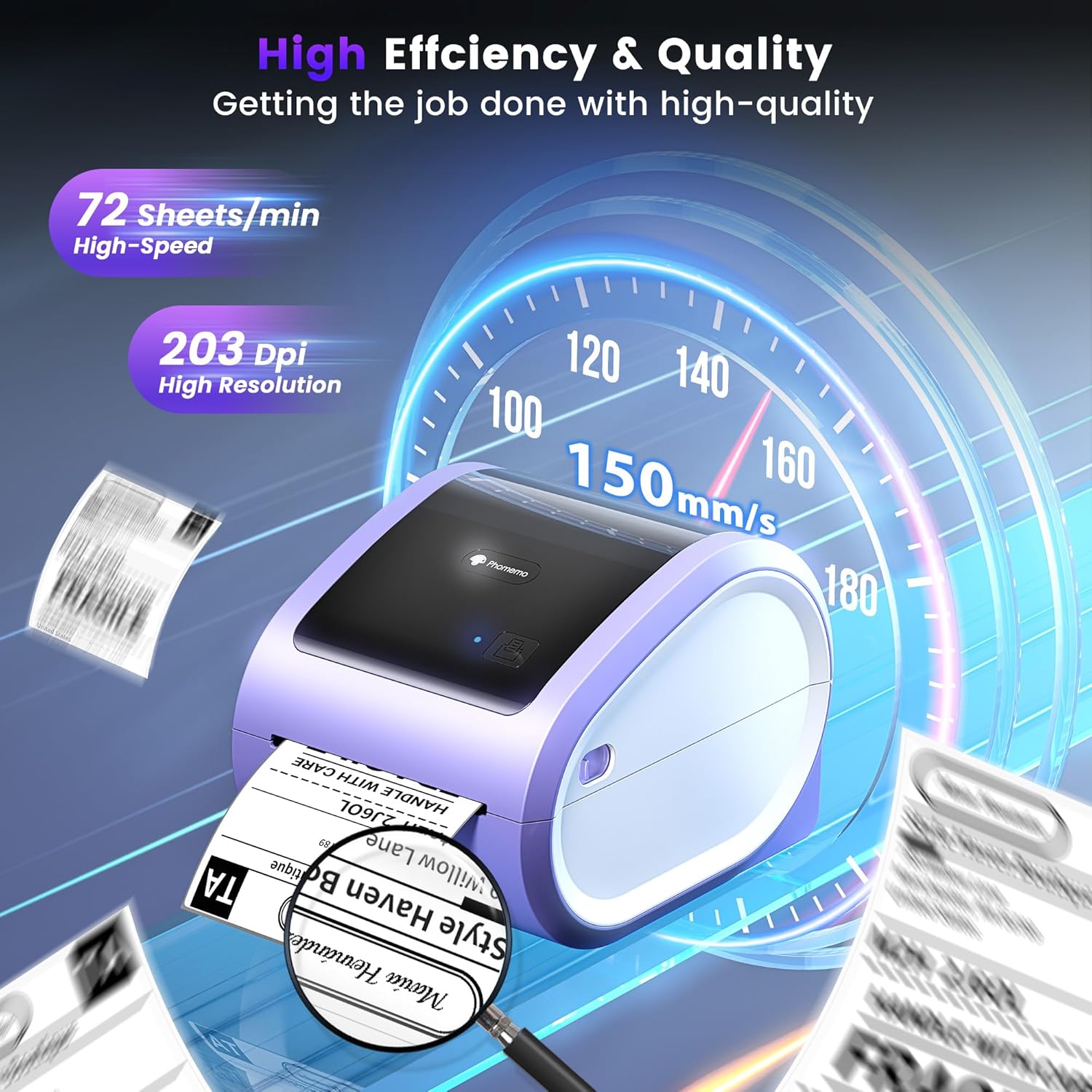
Figure 5: The Phomemo D520BT offers high efficiency and quality with a print speed of 150mm/s and 203 DPI resolution.

Figure 6: The Phomemo D520BT is compatible with various label sizes, from 1 inch to 4.6 inches wide.

Figure 7: The Phomemo D520BT supports multi-scenario applications for various labeling needs.

Figure 8: The Phomemo D520BT is compatible with all major shipping and sales platforms.
5. Vzdrževanje
5.1 Čiščenje tiskalne glave
Regular cleaning of the print head ensures optimal print quality and extends the printer's life.
- Izklopite tiskalnik in izvlecite napajalni kabel.
- Odprite pokrov tiskalnika.
- Gently wipe the print head with an alcohol swab or a soft, lint-free cloth lightly dampz izopropilnim alkoholom.
- Preden zaprete pokrov in vklopite tiskalnik, pustite, da se tiskalna glava popolnoma posuši.
5.2 Shranjevanje
Store the printer in a cool, dry place away from direct sunlight and extreme temperatures. Avoid exposing the printer to dust or moisture.
6. Odpravljanje težav
If you encounter issues with your Phomemo D520BT printer, refer to the following common problems and solutions:
- Tiskalnik se ne vklopi:
- Prepričajte se, da je napajalnik varno priključen tako na tiskalnik kot v delujočo električno vtičnico.
- Preverite, ali je gumb za vklop trdno pritisnjen.
- Labels not printing or feeding incorrectly:
- Verify that labels are loaded correctly with the printing side facing up.
- Ensure there are no obstructions in the label path.
- Check if the label roll or stack is depleted.
- Poor print quality (faded, streaky, or blank labels):
- Očistite tiskalno glavo, kot je opisano v poglavju 5.1.
- Prepričajte se, da uporabljate visokokakovostne termične etikete.
- Check print density settings in your printer preferences.
- Težave s povezavo Bluetooth:
- Ensure Bluetooth is enabled on your mobile device and the printer.
- Znova zaženite tiskalnik in mobilno napravo.
- Ensure you are within the Bluetooth range.
- Re-pair the printer through the Labelife app.
- Težave s povezavo USB:
- Preverite, ali je kabel USB varno priključen tako na tiskalnik kot na računalnik.
- Ensure the correct printer drivers are installed.
- Poskusite z drugimi vrati USB ali kablom.
For further assistance, refer to the detailed video tutorials and user manuals available online, or contact Phomemo customer support.
7. Specifikacije
| Funkcija | Specifikacija |
|---|---|
| Znamka | Phomemo |
| Ime modela | D520BT |
| Tehnologija povezljivosti | Bluetooth, USB |
| Tehnologija tiskanja | Toplotna |
| Posebna funkcija | Portable, Built-in Holder |
| Izhod tiskalnika | Enobarvno |
| Največja hitrost tiskanja | 150 mm/s (72 labels/min) |
| Ločljivost tiskanja | 203 DPI |
| Največja širina tiskanja | 4.6 palcev |
| Teža predmeta | 2.4 funta |
| Dimenzije izdelka | 10.31"D x 10.31"Š x 7.87"V |
8. Garancija in podpora
Phomemo provides customer support to assist with any questions or issues you may encounter. For detailed warranty information, please refer to the warranty card included with your product or visit the official Phomemo website. Our customer support team is available via phone, email, or remote support.
For additional resources, including video tutorials and updated user manuals, please visit the Phomemo support page.


