1. Uvod
This user manual provides comprehensive instructions for the setup, operation, maintenance, and troubleshooting of your Thomson 27-inch QHD Gaming Monitor (Model: M27QG5Y14). This monitor is designed to deliver a superior visual experience with its QHD resolution, 180Hz refresh rate, and IPS panel technology, making it ideal for gaming and multimedia applications.

Slika 1.1: Spredaj view of the Thomson 27-inch QHD Gaming Monitor, showcasing its sleek design and display area.
2. Varnostne informacije
Pred uporabo monitorja natančno preberite vsa varnostna navodila. Ta priročnik shranite za poznejšo uporabo.
- vir energije: Uporabljajte samo napajalnik, ki je priložen monitorju. Prepričajte se, da je vtičnica pravilno ozemljena.
- Prezračevanje: Ne blokirajte prezračevalnih odprtin. Okoli monitorja pustite dovolj prostora za pravilen pretok zraka, da preprečite pregrevanje.
- Tekočina in vlaga: Keep the monitor away from water, rain, or excessive moisture. Do not place objects filled with liquids on the monitor.
- Čiščenje: Disconnect the power cable before cleaning. Use a soft, dry cloth. Do not use liquid cleaners or aerosol cleaners.
- Umestitev: Monitor postavite na stabilno, ravno površino. Izogibajte se neposredni sončni svetlobi ali bližini virov toplote.
- Ravnanje: Z monitorjem ravnajte previdno. Pazite, da vam ne pade ali da ga ne izpostavljate močnim udarcem.
- Servisiranje: Monitorja ne poskušajte servisirati sami. Vsa servisna dela prepustite usposobljenemu serviserju.
3. Vsebina paketa
Preverite, ali so v paketu vsi predmeti. Če kateri koli predmet manjka ali je poškodovan, se obrnite na prodajalca.
- Thomson 27-inch QHD Gaming Monitor
- Stojalo za monitor (podstavek in vrat)
- Napajalnik in napajalni kabel
- HDMI kabel
- DisplayPort (DP) Cable (may vary by region)
- Kabel USB-B do USB-A (za delovanje vozlišča USB)
- Uporabniški priročnik (ta dokument)
- Vijaki za montažo stojala
4. Nastavitev
4.1. Sestavljanje stojala za monitor
- Monitor previdno vzemite iz embalaže in ga položite z zaslonom navzdol na mehko, čisto površino, da preprečite praske.
- Pritrdite vrat stojala na ploščo monitorja s priloženimi vijaki.
- Attach the stand base to the stand neck and secure it with the designated screw.
- Once assembled, carefully lift the monitor and place it on a stable desk or table.

Image 4.1: Monitor dimensions and stand assembly overview. The monitor measures approximately 61 cm wide, 54 cm high (with stand), and 24 cm deep (with stand).
4.2. Priključitev monitorja
Priključite potrebne kable na vhodna vrata monitorja. Lokacije vrat si oglejte na spodnji sliki.
- Napajalni priključek: Connect the power adapter to the "DC IN" port on the monitor, then plug the power cable into a power outlet.
- Video vhod:
- Connect an HDMI cable from your computer's graphics card to an "HDMI 2.1" port on the monitor.
- Alternatively, connect a DisplayPort (DP) cable from your computer's graphics card to a "DP 1.2" port on the monitor.
- USB zvezdišče: To enable the monitor's USB 3.0 ports, connect a USB-B cable from the "USB 3.0 B" port on the monitor to a USB-A port on your computer.
- Avdio izhod: Connect headphones or external speakers to the "Earphone Plug" (3.5mm audio jack) for audio output.

Image 4.2: Rear panel of the monitor displaying the various input and output ports for connectivity.
4.3. Ergonomske prilagoditve
Stojalo za monitor omogoča različne nastavitve za optimizacijo vašega viewudobje:
- Nagib: Adjust the screen's vertical angle (up or down).
- Vrtljiva: Zasukajte zaslon vodoravno (levo ali desno).
- Vrtenje: Zasuknite zaslon za 90 stopinj za pokončni način viewing.
- Nastavitev višine: Dvignite ali spustite monitor na želeno višino oči.
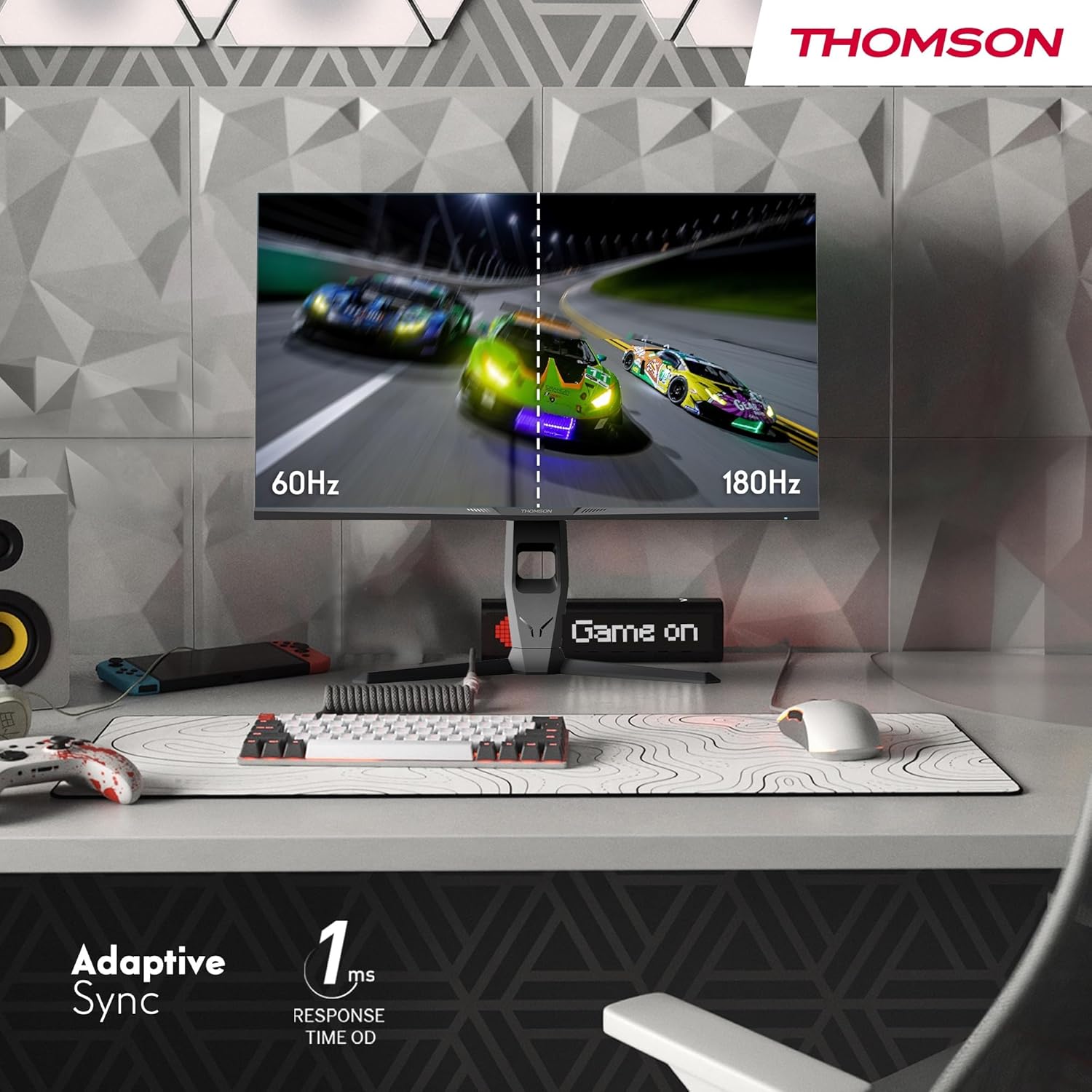
Image 4.3: Demonstrations of the monitor's ergonomic capabilities, including tilt, swivel, and pivot for optimal viewing kotov.
4.4. Pritrditev VESA
The monitor is compatible with VESA 100x100mm mounting standards. To mount the monitor on a wall or an alternative stand, remove the original stand and attach the VESA-compatible mount (sold separately) using appropriate screws.
5. Navodila za uporabo
5.1. Vklop/izklop
Pritisnite gumb za vklop, ki se običajno nahaja na zadnji ali spodnji strani monitorja, da ga vklopite ali izklopite. Lučka indikatorja napajanja sveti, ko je monitor vklopljen.
5.2. Zaslonski meni (OSD).
The OSD menu allows you to adjust various monitor settings. Use the joystick or buttons (location may vary) on the monitor to navigate the menu.
- Nastavitve slike: Prilagodite svetlost, kontrast, ostrino, barvno temperaturo in gamo.
- Barvne nastavitve: Fine-tune RGB levels, saturation, and hue.
- Izbira vnosa: Ročno preklapljanje med vhodoma HDMI in DisplayPort.
- Avdio: Prilagodite glasnost vgrajenih zvočnikov ali izhoda za slušalke.
- Nastavitve OSD: Spremenite jezik, prosojnost in časovno omejitev zaslonskega menija.
- Nastavitve za igre: Access features like Adaptive Sync, response time (OD), and crosshair overlays.
5.3. Igralne funkcije
- Hitrost osveževanja 180 Hz: Provides smoother motion and reduced input lag, especially beneficial for fast-paced games. Ensure your graphics card and cable support this refresh rate.
- 1ms Response Time (OD): Minimizes motion blur and ghosting for clear, crisp images during rapid movements.
- Prilagodljiva sinhronizacija: Synchronizes the monitor's refresh rate with your graphics card's frame rate, eliminating screen tearing and stuttering. Enable this feature in the OSD menu and your graphics card control panel.

Image 5.1: Visual comparison illustrating the difference between 60Hz and 180Hz refresh rates, highlighting the smoother motion provided by the higher refresh rate, alongside the Adaptive Sync feature.
5.4. Funkcije za nego oči
- Tehnologija proti utripanju: Reduces screen flickering, which can cause eye strain during prolonged use.
- Način nizke modre svetlobe: Filters out harmful blue light emissions to protect your eyes and reduce fatigue. This mode can be activated through the OSD menu.
- Anti-Glare Screen: The matte screen surface minimizes reflections from ambient light, providing clear visuals without distraction.

Image 5.2: Depiction of the monitor's eye comfort features, including an anti-glare screen and technologies like Anti-Flicker and Low Blue Light for reduced eye strain.
5.5. RGB ambientalna osvetlitev
The monitor features integrated RGB ambient lighting on the rear. This lighting can be customized via the OSD menu to enhance your gaming environment or match your setup's aesthetics.
6. Vzdrževanje
6.1. Čiščenje monitorja
- zaslon: Zaslon nežno obrišite z mehko krpo, ki ne pušča vlaken. Za trdovratne madeže rahlo obrišiteampen the cloth with water or a specialized screen cleaner (ensure it's safe for LCD/IPS panels) and wipe gently. Never spray liquid directly onto the screen.
- Casing: Za brisanje monitorja uporabite mehko, suho krpo.asing. Izogibajte se uporabi abrazivnih čistil ali topil.
- Pred čiščenjem vedno izključite napajalni kabel.
6.2. Shranjevanje
Če monitor shranjujete dalj časa, odklopite vse kable, ga zapakirajte v originalno embalažo (če je na voljo) in ga shranite na hladnem in suhem mestu, stran od neposredne sončne svetlobe in ekstremnih temperatur.
7. Odpravljanje težav
Ta razdelek obravnava pogoste težave, na katere lahko naletite. Če težava ne izgine, se obrnite na podporo strankam.
| Težava | Možen vzrok | rešitev |
|---|---|---|
| Brez moči | Power cable not connected; Power outlet faulty; Monitor off. | Ensure power cable is securely connected. Test the power outlet. Press the monitor's power button. |
| Ni signala / Prazen zaslon | Video kabel ni priključen; Izbran je napačen vhod; Računalnik ne oddaja signala. | Check HDMI/DP cable connections. Select the correct input source via OSD. Ensure computer is on and outputting video. |
| Distorted image / Flickering | Incorrect resolution/refresh rate; Faulty cable; Graphics driver issue. | Set display resolution to 2560x1440 and refresh rate to 180Hz. Try a different video cable. Update graphics drivers. |
| Ni zvoka iz zvočnikov/slušalk | Glasnost je prenizka; Zvočni kabel ni priključen; Na računalniku je izbran napačen zvočni izhod. | Increase monitor volume via OSD. Ensure headphones/speakers are connected. Select monitor as audio output device in PC settings. |
8. Specifikacije
Detailed technical specifications for the Thomson M27QG5Y14 monitor.
| Funkcija | Specifikacija |
|---|---|
| Znamka | Thomson |
| Model | M27QG5Y14 |
| Velikost zaslona | 27 palcev |
| Vrsta plošče | IPS |
| Resolucija | 2560 x 1440 (QHD) |
| Hitrost osveževanja | 180 Hz |
| Odzivni čas | 1 Millisecond (OD) / 5 Milliseconds (GtG) |
| Svetlost | 350 gnid |
| Kontrastno razmerje | 1200:1 |
| Viewkota | 178 stopinj (vodoravno/navpično) |
| Barvna lestvica | 120 % sRGB |
| Podpora za HDR | HDR10 (10-bit) |
| Prilagodljiva sinhronizacija | ja |
| Povezljivost | 2x HDMI 2.1, 1x DisplayPort 1.2, 1x USB 3.0 Type-B (upstream), 3x USB 3.0 Type-A (downstream), 1x Earphone Plug (3.5mm) |
| Vgrajeni zvočniki | Yes (2x2W) |
| Združljivost z nosilci VESA | 100x100 mm |
| Dimenzije izdelka (s stojalom) | 61 x 54 x 24 cm (Š x V x G) |
| Teža (s stojalom) | 7.3 kg |
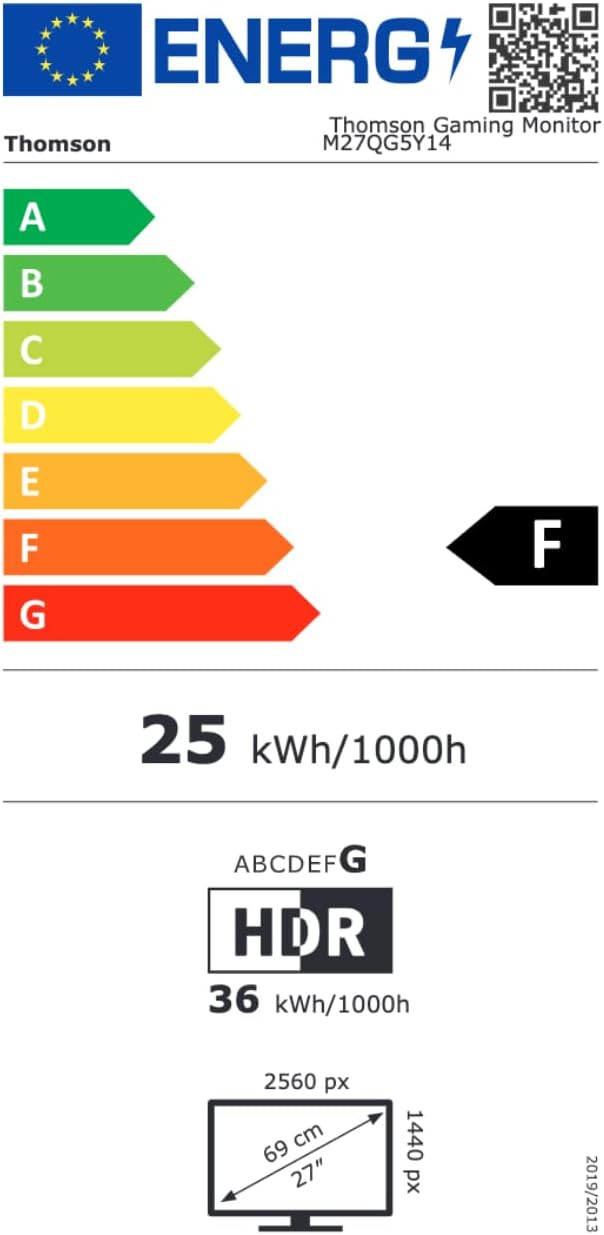
Image 8.1: EU Energy Label for the Thomson M27QG5Y14 monitor. For more details, visit the Baza podatkov EPREL.
9. Garancija in podpora
Thomson products are designed for reliability and performance. This monitor typically comes with a 3-letna garancija od datuma nakupa, ki krije proizvodne napake. Prosimo, shranite dokazilo o nakupu za uveljavljanje garancije.
For technical assistance, troubleshooting beyond this manual, or warranty inquiries, please contact Thomson customer support or your local retailer. Refer to the official Thomson webZa kontaktne podatke obiščite spletno mesto ali embalažo izdelka.
You can also visit the official Thomson store on Amazon for more information: Thomson Store.