1. Uvod
The Canon PIXMA TS3750i is a compact, affordable, and user-friendly multifunction inkjet printer designed for home and small office use. It offers versatile functionalities including printing, copying, and scanning. This printer supports wireless connectivity, enabling convenient operation from various devices, and features borderless photo printing. It is also compatible with the PIXMA Print Plan for automated ink delivery.
2. Varnostne informacije
Pred uporabo tiskalnika preberite vsa varnostna navodila, da zagotovite varno in pravilno delovanje. Ta priročnik shranite za poznejšo uporabo.
- Tiskalnika ne postavljajte na nestabilne lokacije.
- Keep the printer away from water or moisture.
- Uporabljajte samo napajalni kabel, ki je priložen tiskalniku.
- Tiskalnika ne poskušajte razstavljati ali spreminjati.
- Pred čiščenjem ali če tiskalnika dalj časa ne boste uporabljali, ga izključite iz električne vtičnice.
3. Vsebina paketa
Preverite, ali so v vašem paketu priloženi vsi naslednji elementi:
- Canon PIXMA TS3750i Printer
- Inkjet Cartridges (initial set)
- Napajalni kabel
- Setup CD-ROM (for Windows only)
- Priročniki in drugi dokumenti
4. Nastavitev
4.1 Razpakiranje in namestitev
- Tiskalnik vzemite iz embalaže in odstranite vse zaščitne trakove in embalažni material.
- Tiskalnik postavite na stabilno, ravno površino z dovolj prostora okoli njega za prezračevanje in delovanje.
4.2 Napajalni priključek
- Connect the supplied power cable to the printer's power input.
- Drugi konec napajalnega kabla priključite v stensko vtičnico.
- Pritisnite gumb za vklop, da vklopite tiskalnik.
4.3 Namestitev kartuše s črnilom
- Open the printer's top cover to access the cartridge holder.
- Remove the protective tape from the ink cartridges.
- Insert the color and black ink cartridges into their respective slots until they click into place.
- Zaprite zgornji pokrov.
4.4 Nalaganje papirja
- Odprite podporo za papir in izvlecite izhodni pladenj za papir.
- Load paper (e.g., A4, photo paper) into the rear paper tray, ensuring it is aligned with the paper guides.
- Vodila za papir prilagodite širini papirja.
4.5 Software and Wireless Setup
For initial setup and to enable wireless printing, follow these steps:
- Za PC: Insert the Setup CD-ROM (Windows only) and follow the on-screen instructions to install drivers and software.
- For PC/Mac/Mobile: Obiščite Canon website for your region and download the latest drivers and the Canon PRINT Inkjet/SELPHY app.
- Follow the instructions within the software or app to connect the printer to your Wi-Fi network. The printer supports one-touch wireless connectivity for easier setup.
- For mobile devices, ensure your device is connected to the same Wi-Fi network as the printer.
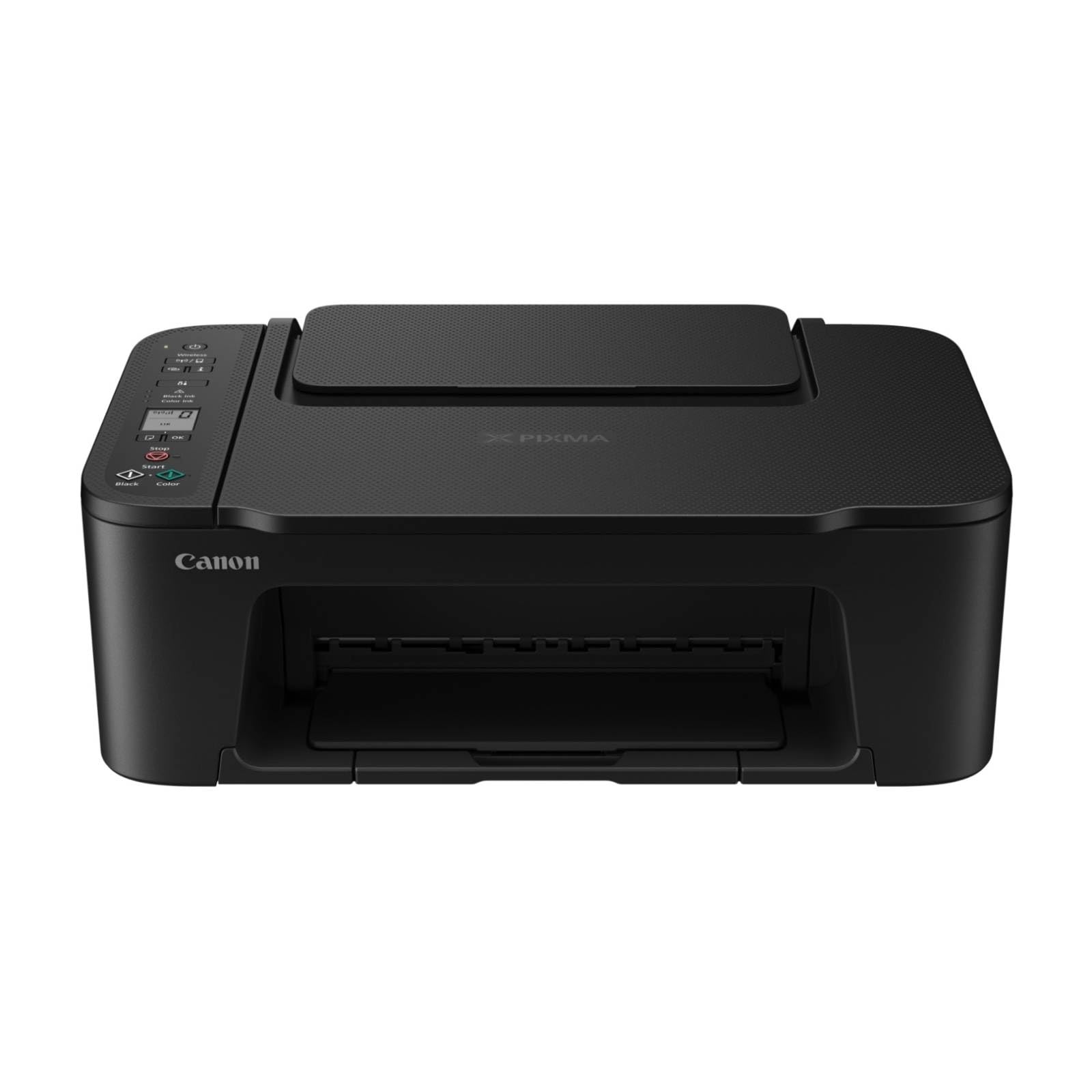
Slika 1: Spredaj view of the Canon PIXMA TS3750i printer, showing its compact design and control panel.
5. Navodila za uporabo
5.1 Tiskanje dokumentov in fotografij
- Ensure the printer is powered on and connected to your device (via Wi-Fi or USB).
- V zadnji pladenj za papir naložite ustrezno vrsto in velikost papirja.
- Odprite dokument ali fotografijo, ki jo želite natisniti, v računalniku ali mobilni napravi.
- V aplikaciji izberite možnost tiskanja.
- In the print dialog, select the Canon PIXMA TS3750i as your printer. Adjust settings such as paper size, media type, print quality, and borderless printing (for photos up to 12.7 x 18 cm).
- Kliknite »Natisni«.
5.2 Kopiranje dokumentov
- Dvignite pokrov optičnega bralnika.
- Dokument položite z licem navzdol na steklo optičnega bralnika in ga poravnajte z oznako za poravnavo.
- Nežno zaprite pokrov skenerja.
- On the printer's control panel, press the Black button for a monochrome copy or the Color button for a color copy.
- To make multiple copies (up to 20), press the desired copy button repeatedly for the number of copies needed.
5.3 Skeniranje dokumentov in fotografij
- Ensure the printer is connected to your computer or mobile device.
- Dokument ali fotografijo položite na steklo optičnega bralnika z licem navzdol.
- On your computer, open the scanning software (e.g., Canon IJ Scan Utility) or on your mobile device, open the Canon PRINT Inkjet/SELPHY app.
- Select the scan option and adjust settings such as document type, resolution, and destination folder.
- Initiate the scan. The scanned image will be saved to your specified location.
5.4 Mobile Printing and Scanning
The Canon PIXMA TS3750i supports printing and scanning directly from smartphones and tablets using the Canon PRINT Inkjet/SELPHY app or Apple AirPrint. Ensure your mobile device and printer are connected to the same Wi-Fi network.
- Canon PRINT Inkjet/SELPHY App: Download and install the app from your device's app store. Use the app to select photos or documents for printing, or to initiate scans directly to your mobile device.
- Apple AirPrint: For iOS devices, you can print directly from AirPrint-enabled applications without installing additional drivers. Select the print option from the app and choose your PIXMA TS3750i printer.
- Wi-Fi PictBridge: Connect directly to compatible cameras for photo printing.
6. Vzdrževanje
6.1 Čiščenje tiskalnika
- Zunanjost: Zunanjost tiskalnika obrišite z mehko,amp, krpo, ki ne pušča vlaken. Ne uporabljajte abrazivnih čistil ali topil.
- Steklo optičnega bralnika: Gently clean the scanner glass with a soft, lint-free cloth moistened with a small amount of glass cleaner. Ensure no residue is left behind.
- Tiskalna glava: If print quality declines (e.g., streaks, faded colors), perform a print head cleaning from the printer's utility software on your computer or through the Canon PRINT Inkjet/SELPHY app.
6.2 Zamenjava kartuš s črnilom
- When an ink cartridge is low or empty, a message will appear on the printer's display or in the software.
- Open the printer's top cover. The cartridge holder will move to the replacement position.
- Pritisnite prazno kartušo, da jo sprostite, nato pa jo izvlecite.
- Unpack the new Canon genuine ink cartridge and remove the protective tape.
- Insert the new cartridge into the correct slot until it clicks firmly into place.
- Zaprite zgornji pokrov. Tiskalnik bo izvedel postopek inicializacije.
6.3 Odstranjevanje zastojev papirja
- If a paper jam occurs, an error message will appear.
- Izklopite tiskalnik in izvlecite napajalni kabel.
- Carefully open the printer covers (top cover, rear cover if applicable) to locate the jammed paper.
- Gently pull the jammed paper out in the direction of the paper path. Avoid tearing the paper.
- Ensure all torn pieces of paper are removed.
- Zaprite vse pokrove, priključite napajalni kabel in vklopite tiskalnik.
7. Odpravljanje težav
Refer to the following common issues and their solutions. For more detailed troubleshooting, consult the Canon support webmesto.
- Printer is not turning on: Ensure the power cable is securely connected to both the printer and a working electrical outlet.
- Cannot print:
- Check if the printer is powered on and connected to your device (Wi-Fi or USB).
- Verify that ink cartridges are installed correctly and have sufficient ink.
- Prepričajte se, da je papir pravilno naložen v pladenj za papir.
- Restart your computer/mobile device and the printer.
- Check printer drivers and software for updates.
- Slaba kakovost tiska:
- Čiščenje tiskalne glave in preverjanje šob izvedite v orodju za tiskalnik.
- Prepričajte se, da uporabljate originalne kartuše s črnilom Canon.
- Check print settings for appropriate paper type and print quality.
- Težave z brezžično povezavo:
- Ensure the printer and your device are on the same Wi-Fi network.
- Restart your wireless router, printer, and device.
- Re-run the wireless setup process.
- Check for any firewall settings blocking communication.
- Zastoj papirja: Follow the instructions in Section 6.3 to clear any jammed paper.
8. Specifikacije
| Ime modela | PIXMA TS3750i |
| Tehnologija tiskanja | Inkjet |
| Funkcije | Tiskanje, kopiranje, skeniranje |
| Tehnologija povezljivosti | USB, Wi-Fi |
| Največja hitrost tiskanja (enobarvno) | 7.7 ppm |
| Največja hitrost tiskanja (barvno) | 4 ppm |
| Izhod tiskalnika | barva |
| Dvostransko tiskanje | ja |
| Največja velikost medija | A4 |
| Podpora za velikost listov | A4, A5, B5, Custom (Width 89 mm - 215.9 mm, Length 127 mm - 676 mm) |
| Največja vhodna zmogljivost | 60 listov |
| Vrsta optičnega bralnika | Ravna ploščad |
| Največje število kopij na zagon | 20 |
| Združljive naprave | Prenosniki, osebni računalniki, pametni telefoni, tablice |
| Posebne lastnosti | Borderless printing, Lightweight, Auto Power On, Display screen |
| Mere izdelka (D x Š x V) | 32.7 x 43.5 x 14.5 cm |
| Teža izdelka | 4.19 kg |
| Poraba energije | 9 vatov |
9. Garancija in podpora
This Canon PIXMA TS3750i printer comes with a standard manufacturer's warranty. Please refer to the warranty card included in your package for specific terms and conditions, including warranty period and coverage details.
For technical support, product registration, driver downloads, and additional troubleshooting resources, please visit the official Canon support website for your region. You can also find contact information for customer service there.
- Spletna podpora: www.canon.com/support (Please replace with your regional Canon support link)
- Registracija izdelka: Registering your product helps Canon provide you with better service and support.


