Uvod
This manual provides essential instructions for setting up, operating, maintaining, and troubleshooting your OPPO Reno 12 F 5G CPH2637 smartphone. Please read this guide thoroughly to ensure proper use and to maximize the device's capabilities.
1. Nastavitev
1.1 Razpakiranje in začetni pregled
Previdno vzemite vse predmete iz embalaže. Preverite, ali so prisotni naslednji sestavni deli:
- Pametni telefon OPPO Reno 12 F 5G CPH2637
- USB Type-C kabel
- Napajalni adapter
- Orodje za izmet kartice SIM
- Vodnik za hiter začetek (ta dokument)
Pred nadaljevanjem preverite napravo glede morebitnih fizičnih poškodb.
1.2 Vstavljanje SIM kartic
The OPPO Reno 12 F 5G CPH2637 supports Dual SIM functionality.
- Poiščite pladenj za kartico SIM na strani naprave.
- Vstavite orodje za izmet SIM kartice v majhno luknjo poleg pladnja in nežno pritisnite, da pladenj izskoči.
- Vstavite kartice Nano-SIM v predvidene reže na pladnju in pazite, da so zlati kontakti obrnjeni navzdol.
- Pladenj previdno potisnite nazaj v napravo, dokler ni poravnan s stranico.
1.3 Polnjenje naprave
Pred prvo uporabo je priporočljivo, da napravo popolnoma napolnite.
- Kabel USB Type-C priključite na polnilni priključek na spodnji strani telefona.
- Drugi konec kabla priključite na napajalnik.
- Priključite napajalnik v stensko vtičnico.
- Indikator polnjenja se bo prikazal na zaslonu.
1.4 Vklop in začetna konfiguracija
To power on the device, press and hold the Power button located on the side until the OPPO logo appears. Follow the on-screen instructions to complete the initial setup, including language selection, Wi-Fi connection, Google account setup, and security settings.
2. Navodila za uporabo
2.1 Osnovna navigacija
The OPPO Reno 12 F 5G CPH2637 features a touchscreen interface. Use gestures such as tapping, swiping, pinching, and spreading to interact with the device. The navigation bar at the bottom of the screen typically includes Back, Home, and Recent Apps buttons.
2.2 Klici in pošiljanje sporočil
Če želite opraviti klic, odprite Telefon aplikacijo, vnesite številko in tapnite ikono za klic. Če želite poslati sporočilo, odprite Sporočila app, tap the new message icon, enter the recipient and your message, then tap send.
2.3 Povezovanje z omrežji
Your device supports both Wi-Fi and 5G cellular networks.
- Wi-Fi: Pojdi na Nastavitve > Wi-Fi, vklopite Wi-Fi, izberite želeno omrežje in po potrebi vnesite geslo.
- 5G Cellular Data: Ensure your SIM card has an active 5G plan. Go to Settings > Mobile Network > Data usage to manage your cellular data.
2.4 Uporaba kamere
Odprite Kamera app from your home screen or app drawer. Tap the shutter button to take a photo. Swipe left or right to switch between different camera modes such as Photo, Video, Portrait, and Night. Tap on the screen to focus on a specific area.
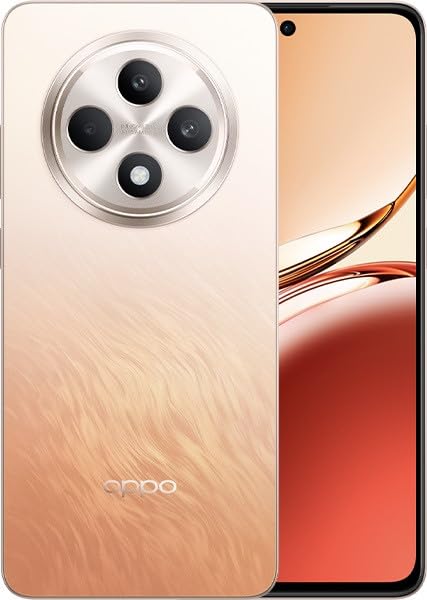
Image: OPPO Reno 12 F 5G CPH2637 smartphone in Amber Orange. This image displays the front and back of the device, highlighting its design and camera module.
2.5 Varnostne funkcije
The device offers various security options to protect your data:
- Odklepanje prstnih odtisov: Registrirajte svoje prstne odtise v Settings > Password & Biometrics > Fingerprint.
- Odklepanje z obrazom: Nastavite prepoznavanje obraza v Settings > Password & Biometrics > Face.
- Zaklepanje zaslona: Choose a PIN, pattern, or password for screen lock in Settings > Password & Biometrics > Lock screen password.
3. Vzdrževanje
3.1 Čiščenje naprave
Use a soft, lint-free cloth to clean the screen and body of your phone. Avoid using harsh chemicals, abrasive materials, or aerosol sprays, as these can damage the device's finish and coatings. For stubborn smudges, slightly dampen krpo z vodo.
3.2 Posodobitve programske opreme
Redno preverjajte in nameščajte posodobitve programske opreme, da zagotovite optimalno delovanje, varnost in dostop do novih funkcij. Pojdite na Nastavitve > O napravi > Posodobljeno da preverite, ali so na voljo posodobitve.
3.3 Skrb za baterije
To prolong battery life, avoid exposing the device to extreme temperatures. It is recommended to keep the battery charge between 20% and 80% for daily use. Avoid leaving the phone plugged in for extended periods after it is fully charged.
3.4 Upravljanje shranjevanja
Občasno ponovnoview in izbrišite nepotrebne files, apps, and media to free up storage space. You can check storage usage in Nastavitve > O napravi > Shranjevanje.
4. Odpravljanje težav
4.1 Naprava se ne vklopi
If your device does not turn on, ensure it is sufficiently charged. Connect it to the charger for at least 15 minutes, then try pressing and holding the Power button again for 10-15 seconds.
4.2 Težave z omrežno povezljivostjo
If you experience issues with cellular data or Wi-Fi:
- Vklop in izklop letalskega načina.
- Ponovno zaženite napravo.
- For cellular issues, ensure your SIM card is properly inserted and your plan is active.
- For Wi-Fi issues, restart your router and ensure you are within range.
4.3 Zrušitve ali zamrznitev aplikacij
If an app is not responding, try force-closing it from the Recent Apps screen. If the issue persists, clear the app's cache and data in Settings > Apps > [App Name] > Storage usageV skrajnem primeru odstranite in znova namestite aplikacijo.
4.4 Ponastavitev na tovarniške nastavitve
A factory reset will erase all data on your device and restore it to its original factory settings. Back up all important data before performing a factory reset. Pojdi na Settings > System settings > Back up and reset > Reset phone > Erase all data.
5. Specifikacije
| Funkcija | Specifikacija |
|---|---|
| Znamka | OPPO |
| Ime modela | Reno 12 F 5G |
| Številka modela | CPH2637 |
| Zmogljivost pomnilnika | 256 GB |
| Velikost nameščenega RAM-a | 12 GB |
| Celična tehnologija | 5G |
| Tehnologija povezljivosti | 5G |
| Število rež za SIM-kartice | Dvojna kartica SIM |
| barva | Jantarno oranžna |
| Vnos človeškega vmesnika | Zaslon na dotik |
| Faktor oblike | Skrilavec |
6. Garancija in podpora
Your OPPO Reno 12 F 5G CPH2637 is covered by a limited warranty. Please refer to the warranty card included in your product packaging for specific terms and conditions, including warranty period and coverage details. For technical support, service inquiries, or further assistance, please visit the official OPPO support website or contact their customer service hotline in your region.


