1. Uvod
This manual provides detailed instructions for the safe and efficient operation of your MARKLIFE P50 Portable Bluetooth Thermal Label Maker Machine. Please read this manual thoroughly before using the device and retain it for future reference. The P50 is designed for creating various labels using thermal printing technology, connecting wirelessly via Bluetooth to mobile devices or via USB to Windows PCs.
2. Vsebina paketa
Preverite, ali so v paketu vsi spodaj navedeni predmeti. Če kateri koli predmet manjka ali je poškodovan, se obrnite na podporo strankam.
- Stroj za izdelavo etiket MARKLIFE P50
- 3 Label Tapes (2 rolls of 1.57" x 1.18" white gap labels, 1 roll of 2" x 2" circle gap labels)
- Polnilni kabel USB-C
- Uporabniški priročnik (ta dokument)
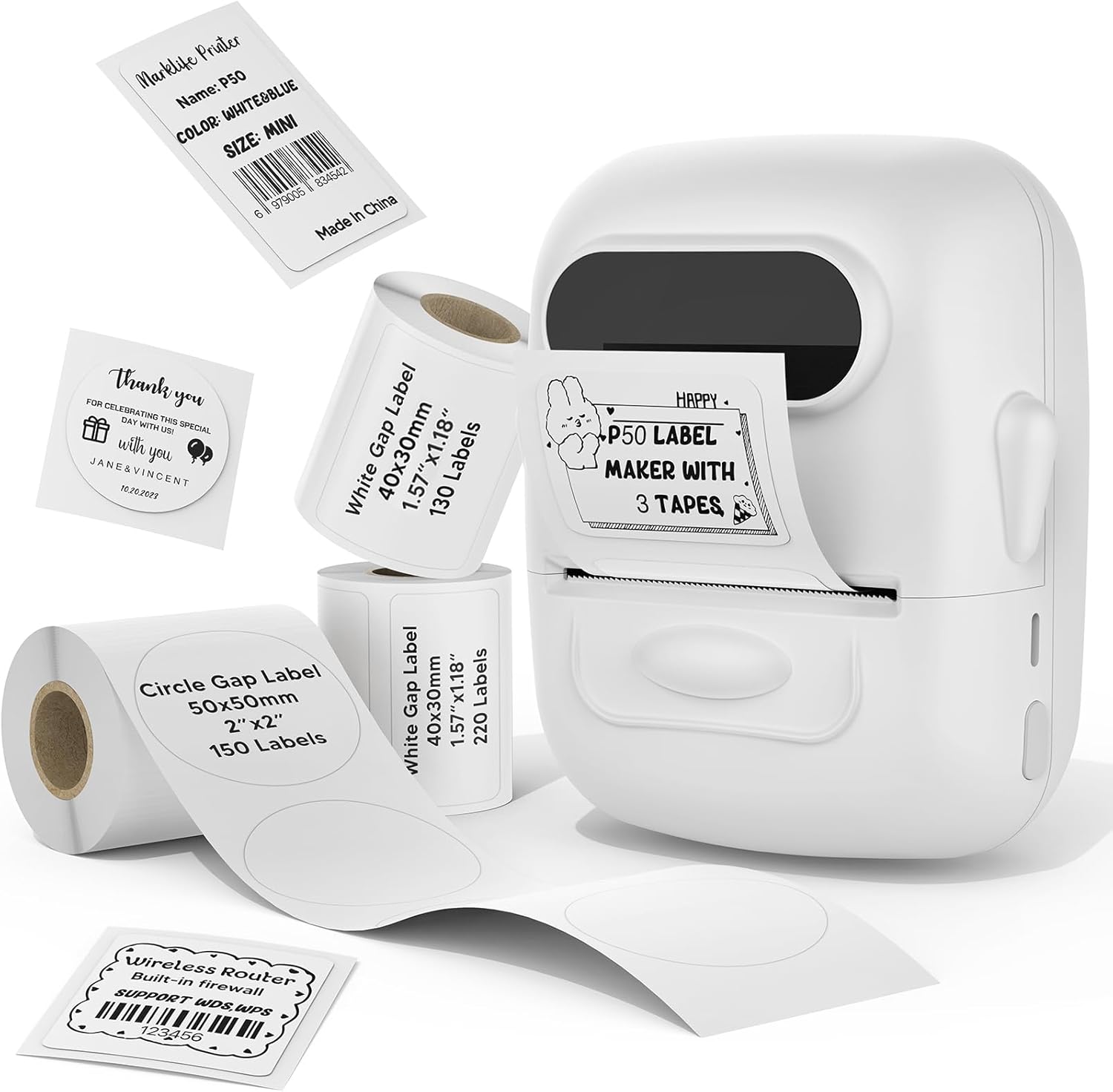
Image: The MARKLIFE P50 label maker machine shown with various label rolls and printed labels, including a barcode label (example: 6979005834542) and a "Thank You" label. This illustrates the device and its primary function of printing labels.
3. Izdelek je končanview
The MARKLIFE P50 is a compact and portable thermal label printer designed for various labeling needs. It connects wirelessly via Bluetooth to your smartphone or tablet, and also supports USB connection to Windows PCs. The device utilizes thermal printing technology, meaning it does not require ink cartridges, only thermal label paper.
Ključne značilnosti:
- Termalni tisk: No ink required, prints in black and white.
- Brezžična povezljivost: Bluetooth 4.0 for mobile devices (Android & iOS).
- Združljivost z računalnikom: USB connection and online software for Windows PCs.
- Združljivost široke oznake: Supports label widths from 0.59 inches to 2.24 inches.
- Prenosna zasnova: Lightweight and equipped with a built-in 1200mAh rechargeable battery for on-the-go use.
- Smart App Functions: Features voice and image recognition, barcode scanning, PDF batch printing, and photo printing on labels.

Image: A hand placing the compact MARKLIFE P50 label maker into a small handbag, emphasizing its portable design. Icons indicate its portability, built-in 1200mAh battery, and Type-C charging capability.
4. Nastavitev
4.1 Polnjenje naprave
Before initial use, fully charge the P50 label maker. Connect the provided USB-C cable to the charging port on the device and the other end to a compatible USB power adapter (not included) or a computer USB port. The charging indicator light will provide status feedback.
4.2 Nalaganje zvitkov etiket
- Odprite pokrov predala za nalepke.
- Insert the label roll with the printing surface facing upwards, ensuring it is aligned correctly within the guides.
- Pull a small portion of the label paper out past the printing slot.
- Close the label compartment cover firmly.
- Press the power button twice quickly to initiate automatic label calibration. The printer will feed a small amount of label paper to detect the label size.

Image: A visual guide demonstrating the process of loading label rolls into the P50 label maker. It also illustrates the compatible label widths, ranging from 0.59 inches to 2.24 inches, and contrasts it with fixed-size label makers.
4.3 Namestitev aplikacije in seznanjanje prek Bluetootha
- Prenesite aplikacijo: Iskanje "MARKLIFE" in your mobile device's app store (iOS App Store or Google Play Store) and install the official application.
- Vklop: Press and hold the power button on the P50 label maker until the indicator light turns on.
- Omogoči Bluetooth: Prepričajte se, da je Bluetooth omogočen na vaši mobilni napravi.
- Seznanjanje: Open the MARKLIFE app. The app should automatically detect the P50 printer. Follow the on-screen prompts to connect. No Wi-Fi connection is required for mobile pairing.
5. Navodila za uporabo
5.1 Basic Label Creation and Printing (Mobile App)
- Ensure the P50 is powered on and connected to the MARKLIFE app via Bluetooth.
- Within the app, select a template or create a new label design. The app offers various templates for clothing labels, price labels, cable labels, jewelry labels, address labels, and ingredient labels.
- Prilagodite svojo etiketo z besedilom, slikami, črtnimi kodami ali QR kodami.
- Adjust print density and photo quality settings as needed.
- Prejview nalepko, da se zagotovi točnost.
- Tap the "Print" button in the app to send the design to the P50 label maker.

Image: The P50 label printer positioned next to a laptop and a smartphone, demonstrating its connectivity with both mobile and PC devices. The laptop screen displays label design software, and the smartphone shows the MARKLIFE app interface.
5.2 Napredne funkcije aplikacije
- Voice and Image Recognition: Convert spoken words or images into editable text for your labels.
- Skeniranje črtne kode: Scan existing barcodes (e.g., 0123456789005) to generate new ones or integrate them into your designs.
- PDF Batch Printing: Print multiple labels from a PDF document.
- Tiskanje fotografij: Insert and print photos directly onto labels.
- OCR Scanner: Use your phone's camera as an OCR scanner within the app to extract text from documents for labeling.
- Shramba v oblaku: Save your label designs to the cloud for easy access and reprinting.
5.3 Povezava z računalnikom (Windows)
For Windows PC users, connect the P50 label maker via the USB-C cable. Download and install the dedicated software from the official MARKLIFE website. This software allows for label design and printing directly from your computer.
5.4 Paketno tiskanje
The P50 supports batch printing, allowing you to print multiple copies of the same label or a series of different labels efficiently. This feature is managed through the MARKLIFE app or PC software.

Image: The P50 label maker actively printing a continuous roll of labels, demonstrating its batch printing capability. The labels shown are price tags with barcodes (example: 123456), indicating efficient production for business use.
6. Vzdrževanje
- Čiščenje tiskalne glave: Termično tiskalno glavo redno čistite z mehko krpo, ki ne pušča vlaken, in jo rahloampened with isopropyl alcohol. Ensure the device is powered off and cool before cleaning.
- Čiščenje zunanjosti: Zunanjost naprave obrišite z mehko, suho krpo. Izogibajte se uporabi abrazivnih čistil ali topil.
- Shranjevanje: Napravo za označevanje shranjujte na hladnem in suhem mestu, stran od neposredne sončne svetlobe in ekstremnih temperatur.
- Vzdrževanje baterije: Da podaljšate življenjsko dobo baterije, se izogibajte pogostemu popolnemu praznjenju baterije. Napravo redno polnite, tudi če je dalj časa ne uporabljate.
- Shranjevanje etiket: Store thermal labels in a cool, dark place to prevent premature fading or degradation.
7. Odpravljanje težav
7.1 Pogoste težave in rešitve
| Težava | Možen vzrok | rešitev |
|---|---|---|
| Tiskalnik se ne vklopi | Težava z nizko baterijo ali napajanjem. | Charge the device using the provided USB-C cable. Ensure the charging cable and adapter are functioning correctly. |
| Ni mogoče vzpostaviti povezave prek Bluetooth | Bluetooth je izklopljen, naprava je izven dosega ali pa je prišlo do težave z aplikacijo. |
|
| Slaba kakovost tiska ali prazne nalepke | Incorrect label loading, dirty print head, or low-quality labels. |
|
| Labels not feeding correctly or jamming | Improper label loading or foreign objects in the paper path. |
|
8. Specifikacije
| Funkcija | Podrobnost |
|---|---|
| Ime modela | P50 LABEL PRINTER |
| Znamka | MARKLIFE |
| Tehnologija tiskanja | Toplotna |
| Izhod tiskalnika | Enobarvno (črno-belo) |
| Tehnologija povezljivosti | Bluetooth, USB |
| Združljive naprave | Android, iOS mobile devices, Windows PC |
| Nadzorna metoda | aplikacija |
| Največja velikost medija | 2.24 palca (57 mm) |
| Podprte širine etiket | 0.59 inches - 2.24 inches (15mm - 57mm) |
| Baterija | Vgrajena 1200mAh polnilna baterija |
| Vrata za polnjenje | USB Type-C |
| Dimenzije izdelka | 4 x 3 x 2 palcev (približno) |
| Teža predmeta | 6 unč (približno) |
9. Garancija in podpora
9.1 Omejena garancija
The MARKLIFE P50 Label Maker Machine comes with a limited warranty. Please refer to the warranty card included in your package or contact MARKLIFE customer support for specific terms and conditions. This warranty typically covers manufacturing defects under normal use.
9.2 Podpora strankam
For technical assistance, troubleshooting, or warranty claims, please contact MARKLIFE customer support through the official website or the contact information provided in your product packaging. Please have your model number (P50) and purchase details ready when contacting support.


