1. Uvod
This manual provides detailed instructions for the setup, operation, maintenance, and troubleshooting of your Xprinter XP-233B Thermal Barcode Printer. The XP-233B is designed for efficient thermal printing of barcodes and labels, utilizing heat-sensitive paper without the need for ink or ribbons.
2. Varnostna navodila
- Ensure the printer is connected to a power source with the correct voltage as specified on the power adapter.
- Tiskalnika ne izpostavljajte vodi ali prekomerni vlagi.
- Tiskalnika ne postavljajte na neposredno sončno svetlobo ali v bližino virov toplote.
- Keep the printer away from dust and debris to prevent damage to internal components.
- Tiskalnika ne poskušajte razstavljati ali popravljati sami. Za pomoč se obrnite na usposobljeno servisno osebje.
- Use only recommended thermal label rolls to ensure optimal print quality and printer longevity.
3. Vsebina paketa
Preverite, ali so v paketu prisotni vsi elementi:
- Xprinter XP-233B Thermal Barcode Printer
- Napajalni adapter
- USB kabel
- Vodnik za hitri začetek (če je priložen)
- Driver CD (if included, drivers can also be downloaded online)
4. Izdelek je končanview
Familiarize yourself with the main components of the XP-233B printer.

Slika 4.1: Sprednja stran view of the Xprinter XP-233B, showing the power switch, control panel, and label output slot.

Slika 4.2: Zadaj view of the Xprinter XP-233B, highlighting the USB, Ethernet, and power input ports.
Funkcije nadzorne plošče:
- Gumb FEED: Press to feed a blank label. Hold to perform a self-test print.
- Gumb PAVZA: Začasno ustavi ali nadaljuje tiskanje.
- Gumb PREKLIC: Prekliče trenutno tiskalno opravilo.
- LED indikatorji: Display printer status (e.g., Power, Error, Paper Out). Refer to troubleshooting for specific light patterns.
5. Nastavitev
5.1 Priključitev tiskalnika
- Connect the power adapter to the printer's power input port and then plug it into a wall outlet.
- Connect the USB cable from the printer to your computer. For Ethernet connectivity, connect an Ethernet cable from the printer to your network router or switch.
- Turn on the printer using the power switch located on the side.
5.2 Nalaganje oznak
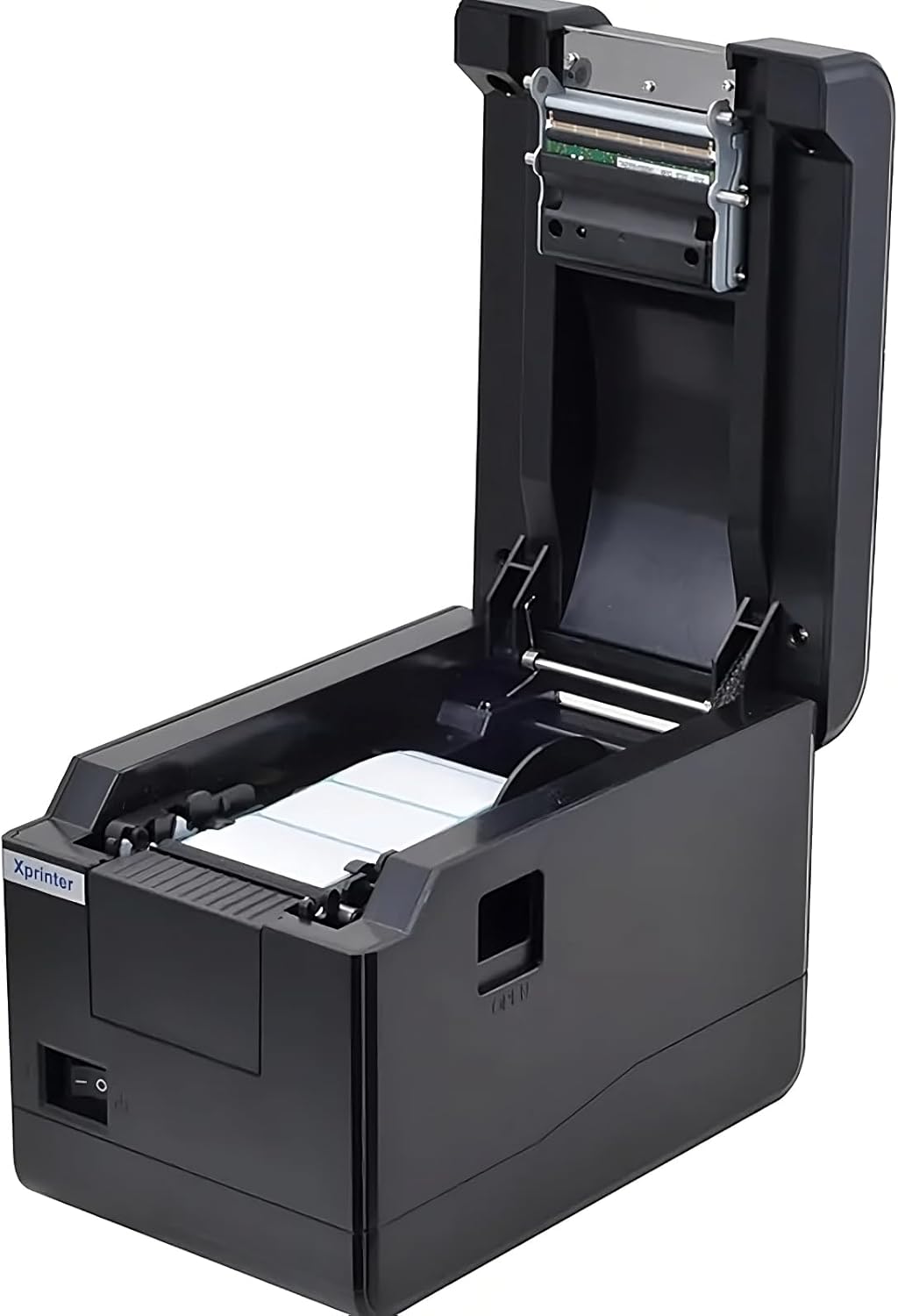
Slika 5.1: Od zgoraj navzdol view of the Xprinter XP-233B with the cover open, illustrating the label loading area.
- Press the 'OPEN' button on the side of the printer to open the top cover.
- Place the thermal label roll into the label compartment, ensuring the labels feed from the bottom of the roll and the printable side faces upwards.
- Adjust the movable label guides to fit the width of your label roll snugly, without pinching the labels.
- Pull a few labels past the print head and out through the front slot.
- Zgornji pokrov trdno zaprite, dokler se ne zaskoči.
- The printer will automatically calibrate and feed a few labels to detect the label gap.
5.3 Namestitev gonilnika
Install the printer drivers on your computer. Drivers can typically be found on the included CD or downloaded from the official Xprinter webspletno mesto. Za namestitev sledite navodilom na zaslonu.
6. Upravljanje tiskalnika
6.1 Osnovno tiskanje
Once the printer is set up and drivers are installed, you can print labels from your application (e.g., label design software, shipping software). Ensure the correct printer model (Xprinter XP-233B) is selected in your application's print settings.
6.2 Samopreizkusni izpis
To perform a self-test print:
- Prepričajte se, da je tiskalnik vklopljen in da so nalepke naložene.
- Pritisnite in držite KRMA button for approximately 3-5 seconds until the printer starts printing.
- The self-test print will display printer information and a test pattern, confirming basic functionality.
7. Vzdrževanje
7.1 Čiščenje tiskalne glave
Regular cleaning of the print head ensures optimal print quality and extends the printer's lifespan. Clean the print head when print quality degrades or after every few rolls of labels.
- Izklopite tiskalnik in izključite napajalni kabel.
- Odprite zgornji pokrov.
- Površino tiskalne glave nežno obrišite z vatirano palčko, rahlo dampened with isopropyl alcohol (70% or higher).
- Allow the print head to dry completely (approximately 2-3 minutes) before closing the cover and turning on the printer.
7.2 Čiščenje zunanjosti
Zunanjost tiskalnika obrišite z mehko,amp krpo. Ne uporabljajte močnih kemikalij ali abrazivnih čistil.
8. Odpravljanje težav
| Težava | Možen vzrok | rešitev |
|---|---|---|
| Tiskalnik se ne vklopi | Power cord loose; power outlet faulty; power adapter damaged. | Check power connections; try a different outlet; replace power adapter if necessary. |
| No labels feeding | Labels incorrectly loaded; paper out; label guides too tight. | Reload labels correctly; replace label roll; adjust label guides. |
| Slaba kakovost tiska (bledi robovi, črte) | Print head dirty; low-quality labels; print head damaged. | Clean print head (refer to Section 7.1); use recommended thermal labels; contact support if print head is damaged. |
| Printer not responding to print commands | Incorrect driver installed; USB/Ethernet cable loose; printer paused. | Reinstall drivers; check cable connections; press PREMOR gumb za nadaljevanje. |
| Labels skipping or misaligning | Incorrect label sensor calibration; label guides not set correctly. | Perform a self-test print to recalibrate; adjust label guides. |
9. Specifikacije
| Funkcija | Specifikacija |
|---|---|
| Ime modela | Xprinter - Thermal barcode printer |
| Številka modela artikla | XP-233B |
| Tehnologija tiskalnika | Toplotna |
| Tehnologija povezljivosti | Ethernet, USB |
| Izhod tiskalnika | Enobarvno |
| Tiskarski mediji | Etikete |
| Največja kapaciteta listov | 100 (typical for roll capacity, actual sheet capacity depends on label size) |
| Mere izdelka (D x Š x V) | 26.8 x 18 x 17.2 cm |
| Teža predmeta | 1.2 kg |
| barva | Črna |
10. Informacije o garanciji
Xprinter products typically come with a limited manufacturer's warranty. Please refer to the warranty card included with your product or visit the official Xprinter website for specific warranty terms and conditions, including coverage duration and service procedures. Keep your purchase receipt as proof of purchase for warranty claims.
11. Podpora strankam
For technical assistance, driver downloads, or further inquiries regarding your Xprinter XP-233B, please visit the official Xprinter support website or contact their customer service department. Contact information can usually be found on the Xprinter webspletnem mestu ali v dokumentaciji, ki je priložena tiskalniku.


