1. Uvod
This manual provides essential instructions for the safe and efficient use of your KYOCERA ECOSYS MA5500ifx multifunction printer. Please read this manual thoroughly before operating the device and keep it for future reference. The KYOCERA ECOSYS MA5500ifx is an A4 monochrome multifunction system designed for printing, copying, scanning, and faxing.
2. Varnostne informacije
Vedno upoštevajte naslednje varnostne ukrepe, da preprečite poškodbe ali škodo na napravi:
- Napravo postavite na stabilno, ravno površino.
- Zagotovite ustrezno prezračevanje okoli naprave.
- Ne blokirajte prezračevalnih odprtin.
- Uporabljajte samo navedeni napajalnik in glasnosttage.
- Držite tekočine stran od naprave.
- Naprave ne poskušajte servisirati sami. Vse servise prepustite usposobljenemu osebju.
3. Nastavitev
3.1 Razpakiranje in namestitev
Carefully remove the printer from its packaging. Ensure all packing materials and protective tapes are removed. Place the printer in a location with adequate space for operation and maintenance.

Slika 1: Spredaj view of the KYOCERA ECOSYS MA5500ifx multifunction printer, showing its compact design and paper trays.
3.2 Napajalni priključek
Connect the power cord securely to the printer and then to a grounded electrical outlet.
3.3 Omrežna in USB povezava
The printer supports both USB and Gigabit network interfaces. For network connectivity, connect an Ethernet cable to the printer's network port and to your network router or switch. For direct connection, use a USB cable to connect the printer to your computer.

Slika 2: Od blizu view of the USB port on the side of the KYOCERA ECOSYS MA5500ifx, used for direct connection to a computer or for USB drive functionality.
3.4 Namestitev gonilnika
Upon connecting the printer to a computer via USB or network, drivers are often automatically detected and installed by the operating system. If not, download the latest drivers from the official KYOCERA support webmesto.
3.5 Začetna konfiguracija
Turn on the printer. Use the 17.8 cm (7-inch) touchscreen control panel to configure initial settings such as language, date, time, and network parameters. The touchscreen has a 3-step tilt for ergonomic viewing.

Slika 3: Podrobno view of the KYOCERA ECOSYS MA5500ifx's touchscreen control panel, displaying various function icons like Copy, Send, Fax, and Job Box.
4. Navodila za uporabo
4.1 Nalaganje papirja
The printer features a 500-sheet paper cassette and a 100-sheet universal feeder, both supporting up to A4 size. Open the desired paper tray, load the paper, and adjust the guides. Ensure the paper type and size settings on the control panel match the loaded paper. The printer can also handle labels as print media.
4.2 Osnovno tiskanje
From your computer, select the KYOCERA ECOSYS MA5500ifx as your printer. Adjust print settings as needed (e.g., single-sided or duplex). The printer offers monochrome printing at up to 55 pages per minute (ppm) with a resolution of up to 1200 x 1200 dpi.
4.3 Kopiranje dokumentov
Place your document on the scanner glass or in the automatic document feeder (ADF). The ADF supports up to 75 sheets (A4) with automatic duplex scanning. Select 'Copy' from the touchscreen, adjust settings like quantity, zoom, and duplex options, then press 'Start'. Maximum copy resolution is 600 dpi for black and white, and 1200 x 1200 dpi for color.

Slika 4: Od blizu view of the automatic document feeder (ADF) input tray on the KYOCERA ECOSYS MA5500ifx, showing a document being loaded for scanning or copying.
4.4 Skeniranje dokumentov
Place your document as described for copying. Select 'Send' or 'Scan' from the touchscreen. Choose your scan destination (e.g., email, network folder, USB drive). Configure scan settings such as resolution and file format, then press 'Start'. The scanner is a sheetfed type with duplex capability.
4.5 Faksiranje
Place your document in the ADF. Select 'Fax' from the touchscreen. Enter the recipient's fax number using the numeric keypad or select from the address book. Adjust any necessary fax settings and press 'Start'.
4.6 Uporaba zaslona na dotik
The touch panel provides intuitive access to all printer functions. Navigate through menus by tapping icons and swiping. Common functions include Copy, Send, Fax, Job Box, and USB Drive access. The panel also features physical buttons for Status/Job Cancel, Copy, Send, Fax, Reset, Stop, and Start.
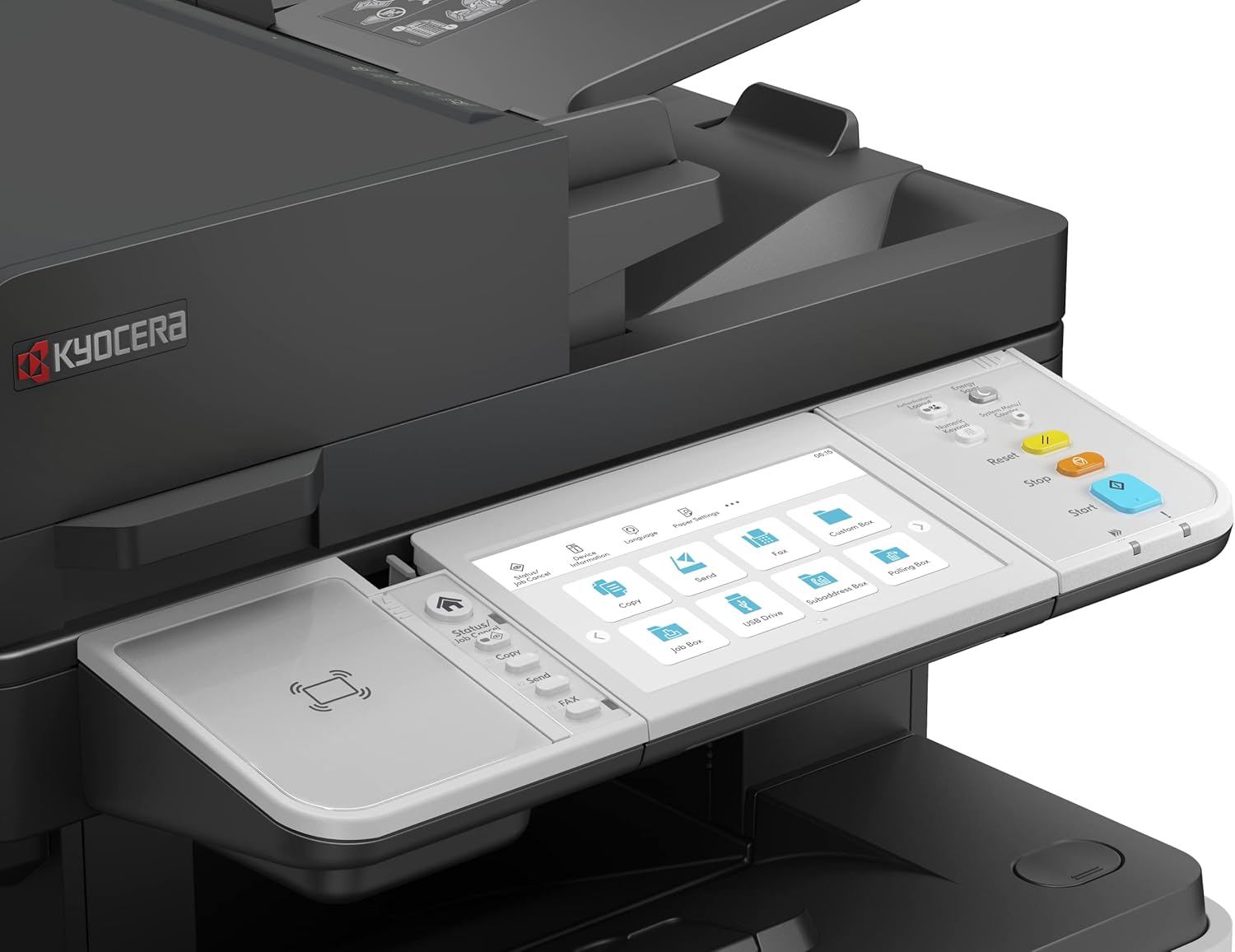
Slika 5: Širši view of the KYOCERA ECOSYS MA5500ifx control panel, highlighting the touchscreen interface with various function icons and the adjacent physical control buttons.
5. Vzdrževanje
5.1 Čiščenje naprave
Regularly clean the exterior of the printer with a soft, dry, lint-free cloth. For the scanner glass, use a mild glass cleaner applied to a cloth, not directly to the glass. Ensure the device is powered off before cleaning.
5.2 Zamenjava tonerja
When the black ink (toner) cartridge is low or empty, a message will appear on the control panel. Follow the on-screen instructions or refer to the quick guide for safe replacement of the toner cartridge.
5.3 Paper Path Cleaning
If paper jams occur frequently or print quality degrades, the paper path may need cleaning. Consult the full service manual for detailed instructions on cleaning specific components within the paper path.
6. Odpravljanje težav
This section addresses common issues you might encounter. For more complex problems, contact KYOCERA support.
6.1 Zastoji papirja
If a paper jam occurs, the control panel will display an error message and indicate the location of the jam. Carefully open the designated covers and remove the jammed paper, ensuring no torn pieces remain inside. Close all covers securely.
6.2 Težave s kakovostjo tiskanja
If prints are faded, streaky, or have spots, check the toner level. Ensure the correct paper type is selected in the print settings. Perform a print head cleaning or calibration from the maintenance menu on the control panel if available.
6.3 Težave s povezljivostjo
If the printer is not responding, verify that the power cable and network/USB cables are securely connected. Restart the printer and your computer. Check network settings on the printer's control panel and ensure your computer is connected to the same network.
7. Specifikacije
| Funkcija | Specifikacija |
|---|---|
| Serija modelov | ECOSYS MA5500ifx |
| Številka modela artikla | 110C0Z3NL0 |
| Tehnologija tiskanja | Laser |
| Izhod tiskalnika | Enobarvno |
| Največja hitrost tiskanja (enobarvno) | 55 ppm |
| Največja ločljivost črno-belega tiskanja | 600 dpi |
| Največja ločljivost barvnega tiskanja | 1200 x 1200 dpi |
| Največja hitrost kopiranja (črno-belo) | 55 ppm |
| Največja ločljivost kopiranja (črno-belo) | 600 dpi |
| Največja ločljivost kopiranja (barvno) | 1200 x 1200 dpi |
| Vrsta optičnega bralnika | List |
| Duplex (Printing/Scanning) | Samodejno |
| Največja kapaciteta vhodnih listov | 100 (ADF) + 500 (Cassette) + 100 (Universal Feeder) |
| Izhodna kapaciteta listov | 100 |
| Število pladnjev | 2 (standardno) |
| Nadzorna metoda | Touch (Touch Panel) |
| Strojni vmesnik | USB |
| Tehnologija povezljivosti | USB, Network (Gigabit) |
| Zmogljivost pomnilnika | 1.5 GB |
| Dimenzije izdelka | 19.49 x 18.9 x 23.35 palcev (približno) |
| Teža predmeta | 54.3 funta (približno) |
| Posebne lastnosti | Auto Document Feeder, Auto-Duplex, Double Sided Scanning, Network-Ready, Touch Screen, High Security (SSL, IPsec, TLS 1.3, Secure Boot, Run-time Integrity Check, Confidential Print) |
| Vključene komponente | Labels (as print media) |
8. Garancija in podpora
For warranty information and technical support, please refer to the documentation included with your product or visit the official KYOCERA webspletnem mestu. Več informacij in virov za podporo najdete tudi na Trgovina KYOCERA na Amazonu.


