1. Uvod
This manual provides essential information for setting up, operating, maintaining, and troubleshooting your Alienware X17 R2 Gaming Laptop. Please read this guide thoroughly to ensure optimal performance and longevity of your device.
The Alienware X17 R2 is designed for high-performance gaming and demanding tasks, featuring advanced cooling technologies, powerful processors, and dedicated graphics.
2. Izdelek je končanview
The Alienware X17 R2 is engineered to deliver an immersive gaming experience in a thin 17-inch form factor. Key features include:
- Powerful Intel CPUs: Experience high-performance action across all your favorite games with 12th Gen Intel Core processors.
- Next-Gen GPUs: Game unrestrained with NVIDIA GeForce RTX 3070Ti graphics, Dynamic Boost 2.0, and Deep Learning Super Sampling technology.
- Patented Quad Cooling: An industry-first design uses four intelligently controlled and programmable fans to dissipate heat.
- Podaljšan čas predvajanja: Improve battery life with Advanced Optimus technology from NVIDIA—now available on all display options.
- Legend 2.0 Industrial Design: A fresh evolution in design with a high-endurance finish and customizable AlienFX lighting.

Slika 2.1: Spredaj view of the Alienware X17 R2 Gaming Laptop displaying a game.
3. Nastavitev
3.1 Razpakiranje in začetni pregled
- Previdno vzemite prenosnik in vso dodatno opremo iz embalaže.
- Preverite, ali so prisotni vsi elementi, navedeni v razdelku »Kaj je v škatli«.
- Preverite prenosnik za morebitne fizične poškodbe. Če odkrijete poškodbe, se nemudoma obrnite na prodajalca.
3.2 Priključitev napajanja
- Connect the power adapter to the charging port located at the rear of the laptop.
- Priključite napajalni kabel v stensko vtičnico.
- The power indicator light will illuminate, indicating the laptop is receiving power.
3.3 Prvi zagon in namestitev operacijskega sistema
- Press the Alienware head power button to turn on the laptop.
- Sledite navodilom na zaslonu, da dokončate postopek namestitve sistema Windows 11 Home. To vključuje izbiro regije, povezavo z omrežjem Wi-Fi in ustvarjanje uporabniškega računa.
- Allow the system to download and install any necessary updates.
4. Upravljanje prenosnika
4.1 Tipkovnica in sledilna ploščica
The Alienware X17 R2 features a backlit keyboard and a responsive touchpad. The AlienFX lighting allows for customizable colors and effects across the keyboard and other zones.

Slika 4.1: Podrobno view osvetljene tipkovnice in sledilne ploščice.
4.2 Prikaz in grafika
Enjoy stunning visuals on the 17.3-inch FHD display with a 480Hz refresh rate and 3ms response time. The NVIDIA GeForce RTX 3070Ti graphics card ensures smooth gameplay and high-fidelity rendering. The laptop supports Dolby Vision for optimized color profiles.
4.3 zvok
Experience immersive 3D sound via Dolby Atmos, designed to deliver audio as studios intended.
4.4 Vrata in povezljivost
The laptop offers a variety of ports for peripherals and external displays:

Slika 4.2: Zadaj view illustrating the various connectivity ports.
- Vrata USB 3.0: 3 ports for connecting various USB devices.
- Vrata USB-C: For versatile connectivity, including Thunderbolt 4.
- HDMI 2.1: Supports up to 4K/120Hz output for external displays.
- Ethernet: Killer E3100 RJ45 Ethernet for stable wired network connections.
- Brezžično: Killer Wi-Fi 6 (802.11ax) and Bluetooth for wireless connectivity.
5. Vzdrževanje
5.1 Čiščenje
- Za čiščenje zaslona in zunanjih površin uporabite mehko krpo, ki ne pušča vlaken.
- Izogibajte se uporabi močnih kemikalij ali abrazivnih materialov.
- Regularly clean the cooling vents to prevent dust buildup, which can affect performance.
5.2 Posodobitve programske opreme
Ensure your operating system and drivers are kept up-to-date. Windows Update will handle OS updates, and Alienware Command Center can assist with driver and firmware updates.
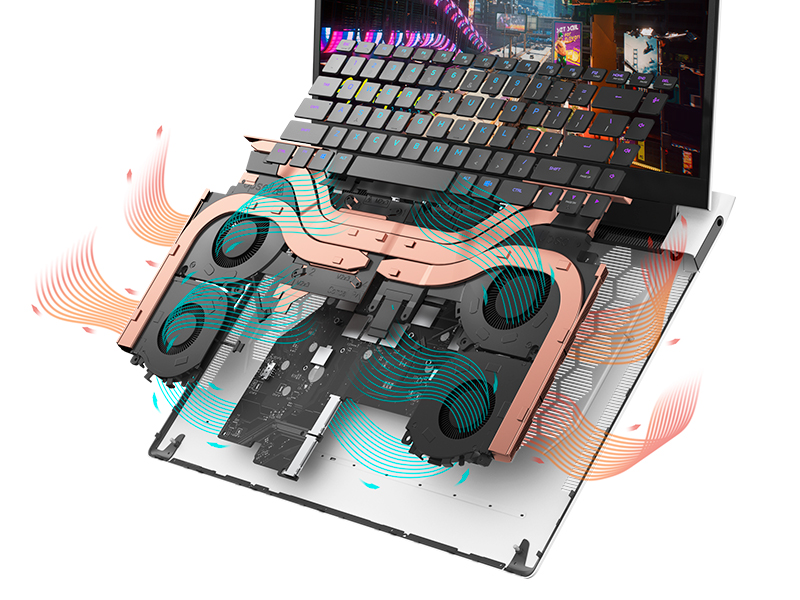
Figure 5.1: Alienware Command Center for system management.
6. Odpravljanje težav
If you encounter issues with your Alienware X17 R2, consider the following basic troubleshooting steps:
- Brez napajanja: Prepričajte se, da je napajalnik varno priključen na prenosnik in delujočo električno vtičnico. Preverite lučko indikatorja napajanja.
- Težave s prikazom: If the screen is black, try connecting an external monitor to verify if the issue is with the laptop's display or the graphics card. Update graphics drivers.
- Pregrevanje: Ensure cooling vents are clear of obstructions. Use Alienware Command Center to monitor temperatures and adjust fan profiles.
- Upočasnitev delovanja: Zaprite nepotrebne aplikacije. Preverite, ali procesi v ozadju porabljajo veliko procesorja ali RAM-a. Zagotovite dovolj prostega prostora na disku SSD.
- Težave s programsko opremo: Restart the laptop. If issues persist, consider performing a system restore or reinstalling the problematic software.
7. Specifikacije
| Funkcija | Specifikacija |
|---|---|
| Velikost zaslona | 17.3 palcev |
| Ločljivost zaslona | 1920 x 1080 slikovnih pik (FHD) |
| Procesor | Intel Core i9-12900H (3.8 GHz, 14 jeder) |
| RAM | 16 GB DDR5 (4800 MHz) |
| Trdi disk | 1 TB SSD (trdno stanje) |
| Grafični koprocesor | NVIDIA GeForce RTX 3070 Ti (8 GB GDDR6) |
| Operacijski sistem | Windows 11 Home |
| Brezžična vrsta | 802.11ax (Killer Wi-Fi 6), Bluetooth |
| Vrata USB 3.0 | 3 |
| Teža predmeta | 6.82 funtov |
| Dimenzije izdelka | 11.79 x 15.72 x 0.58 palcev |
8. Kaj je v škatli
- Alienware X17 R2 igralni prenosnik
- Napajalni adapter
- Napajalni kabel
- Dokumentacija
9. Uradni videoposnetki izdelkov
Alienware X17 R2 Gaming Laptop Overview
Video 9.1: Uradnik nadview of the Alienware X17 R2 Gaming Laptop, highlighting its design, cooling, and performance features.
About Alienware X17 R2 Gaming Laptop
Video 9.2: A detailed look at the Alienware X17 R2 Gaming Laptop, showcasing its features and design elements.
10. Garancija in podpora
Your Alienware X17 R2 Gaming Laptop comes with a standard manufacturer's warranty. For detailed warranty information, please refer to the documentation included with your product or visit the official Alienware support webmesto.
For technical support, driver downloads, and service requests, please visit the Alienware support portal. You can also find FAQs and community forums for additional assistance.


