1. Uvod
This manual provides essential information for setting up, operating, and maintaining your Acer Nitro ED270 X0 27-inch Full HD Curved Gaming Monitor. Please read these instructions carefully before using the product to ensure optimal performance and safety.
Slika 1.1: Spredaj view of the Acer Nitro ED270 X0 Curved Gaming Monitor.
2. Vsebina paketa
Verify that all items listed below are included in your package. If any items are missing or damaged, please contact your retailer or Acer customer support.
- Acer Nitro ED270 X0 Monitor
- Stojalo za monitor (podstavek in vrat)
- Napajalni kabel
- HDMI kabel
- Uporabniški priročnik (ta dokument)
3. Montaža
Follow these steps to assemble the monitor stand and prepare your monitor for use.
- Pritrdite podstavek stojala: Carefully place the monitor face down on a soft, clean surface to prevent scratches. Align the stand neck with the mounting slot on the back of the monitor and secure it.
- Attach the Stand Neck: Connect the stand base to the stand neck. Ensure it clicks into place or is secured with the provided screw.
- Postavitev monitorja: Sestavljeni monitor previdno dvignite in ga postavite na stabilno, ravno površino.

Slika 3.1: stran view of the monitor, illustrating the stand attachment.

Slika 3.2: Zgornji del view of the monitor, showing its curved design.
4. Povezave
Povežite monitor z računalnikom ali drugimi napravami z ustreznimi kabli.
- Napajalni priključek: Napajalni kabel priključite na vhod za napajanje monitorja in nato v električno vtičnico.
- Video povezava: Use the provided HDMI cable or a DisplayPort cable to connect your computer's video output to one of the monitor's input ports. The monitor features 2 HDMI 2.0 ports and 1 DisplayPort 1.4.

Slika 4.1: Zadaj view of the monitor, highlighting the HDMI and DisplayPort connections.
5. Začetna namestitev in vklop
After connecting all cables, follow these steps to power on and perform initial setup.
- Vklop: Press the power button, usually located on the bottom right side of the monitor, to turn it on.
- Izbira vhodnega vira: The monitor should automatically detect the active input source. If not, use the OSD menu buttons to manually select the correct input (HDMI 1, HDMI 2, or DisplayPort).
6. Upravljanje monitorja
6.1 Navigacija po zaslonskem meniju (OSD)
The monitor's settings can be adjusted using the buttons located on the bottom side of the monitor. These buttons allow you to navigate through the OSD menu to customize various display parameters.
6.2 Nastavitve zaslona
Adjust visual parameters for optimal viewizkušnje.
- Svetlost in kontrast: Modify these settings to suit your environment and preference.
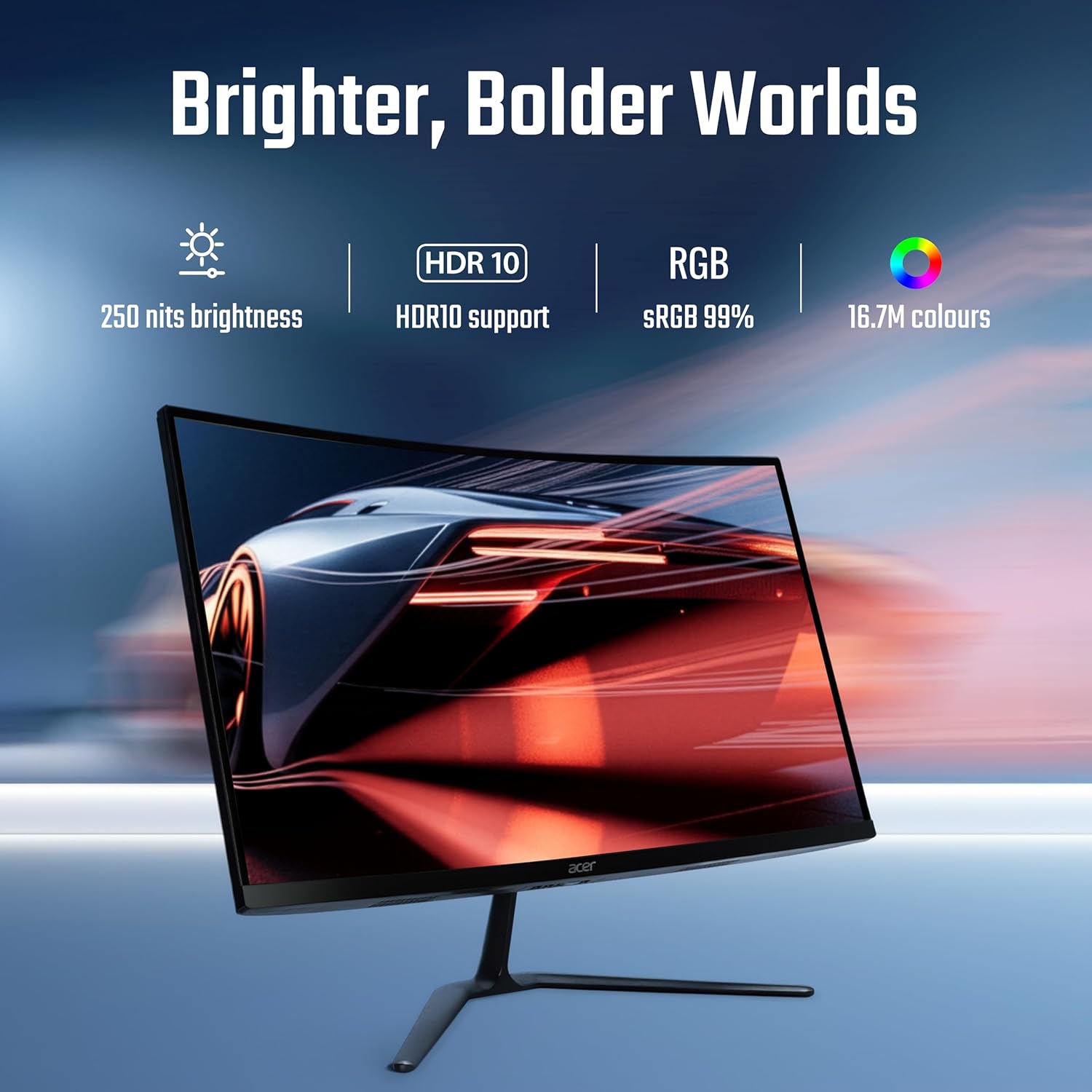
- Barvne nastavitve: Adjust color temperature, gamma, and other color-related options. The monitor supports HDR10 and offers sRGB 99% color accuracy with 16.7 million colors.

Figure 6.1: Visual representation of the monitor's display capabilities, including brightness and color support.
6.3 Performance Settings
Optimize your monitor for gaming and fast-paced content.
- Hitrost osveževanja: The monitor supports up to a 200 Hz refresh rate for smooth motion. Ensure your graphics card settings are configured to utilize this rate.
- Odzivni čas (VRB): The 1 ms Visual Response Boost (VRB) technology reduces motion blur. This can be enabled or adjusted via the OSD.
- AMD FreeSync Premium: This technology synchronizes the monitor's refresh rate with your GPU's frame rate, eliminating screen tearing and stuttering. Enable FreeSync Premium in both the monitor's OSD and your graphics card control panel.

Figure 6.2: Demonstration of motion clarity with 1ms VRB and AMD FreeSync Premium technology.
6.4 Ergonomics and Eye Comfort
Adjust the monitor for comfortable viewing and reduce eye strain.
- Nastavitev nagiba: The monitor stand allows for tilt adjustment from -5° to 20° to find your preferred viewvhodni kot.
- Acer VisionCare: Features like Flicker-less, BlueLightShield, and ComfyView are integrated to reduce eye fatigue during extended use. These settings can be managed through the OSD.

Figure 6.3: Monitor setup designed for extended use, emphasizing eye comfort technologies.
7. Vzdrževanje
Pravilna nega zagotavlja dolgo življenjsko dobo in delovanje vašega monitorja.
- Čiščenje zaslona: Narahlo uporabite mehko krpo, ki ne pušča vlaken dampz vodo ali specializiranim čistilom za zaslone. Čistila ne pršite neposredno na zaslon.
- Čiščenje C-jaasing: Obrišite monitor casinz mehko, suho krpo. Izogibajte se uporabi abrazivnih čistil ali topil.
- Prezračevanje: Prepričajte se, da prezračevalne odprtine monitorja niso blokirane, da preprečite pregrevanje.
8. Odpravljanje težav
Če imate težave z monitorjem, si oglejte naslednje pogoste težave in rešitve.
| Težava | Možna rešitev |
|---|---|
| Na zaslonu ni slike |
|
| Slika je zamegljena ali popačena |
|
| Utripanje zaslona |
|
If the problem persists, please contact Acer customer support.
9. Specifikacije
Key technical specifications for the Acer Nitro ED270 X0 monitor.
| Funkcija | Specifikacija |
|---|---|
| Številka modela | UM.HE0SI.001 |
| Velikost zaslona | 27 palcev |
| Vrsta plošče | VA Curved (1500R) |
| Resolucija | 1920 x 1080 (Full HD) |
| Hitrost osveževanja | Do 200 Hz |
| Odzivni čas | 1 ms (VRB) |
| Svetlost | 250 nit |
| Barvna lestvica | sRGB 99 % |
| Barvna podpora | 16.7 milijona |
| Podpora za HDR | HDR10 |
| Viewkota | 178° (V/V) |
| Video vhodi | 2 x HDMI 2.0, 1 x DisplayPort 1.4 |
| Ergonomija | Tilt (-5° to 20°) |
| Dimenzije (DxŠxV) | 19.9 x 61.1 x 45.6 cm |
| Teža predmeta | 3.9 kg |
| Vključene komponente | Monitor, Stand, Power cord, Manual, HDMI Cable |
10. Informacije o garanciji
Acer products are manufactured to high-quality standards and are covered by a limited warranty. Please refer to the warranty card included in your package or visit the official Acer webZa podrobne garancijske pogoje, specifične za vašo regijo, obiščite spletno mesto. Račun shranite kot dokazilo o nakupu za uveljavljanje garancije.
11. Podpora strankam
For service-related queries, technical assistance, or further information, please contact Acer customer support using the details below:
- Brezplačna številka: 1800-11-4100
- telefon: 6366800400
- E-pošta: acersupport@in.startek.com
- Spletna podpora: https://acer1.in/swdlo
- Live agent support available from Monday to Saturday, 9 AM to 6 PM (Public Holidays excluded).

Figure 11.1: Acer Customer Support contact details.


