1. Uvod
This manual provides detailed instructions for the setup, operation, maintenance, and troubleshooting of your HP Sprocket Studio Plus 4x6 Instant Photo Printer. Please read this manual thoroughly before using the device to ensure optimal performance and longevity.
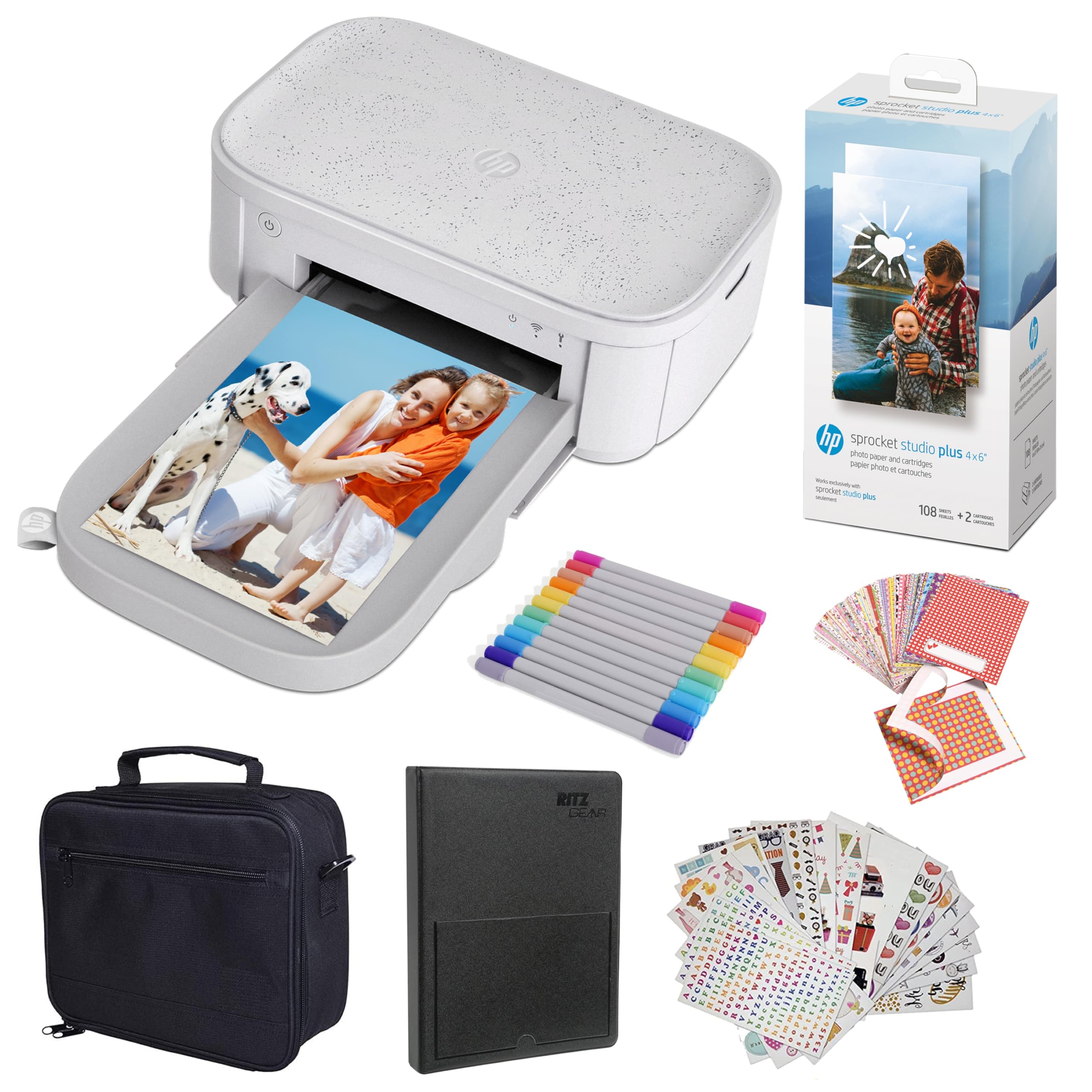
Image: The HP Sprocket Studio Plus 4x6 Instant Photo Printer, shown in white, with a smartphone displaying an image and a printed photo emerging from the printer.
2. Kaj je v škatli
Preverite, ali so v paketu prisotni vsi elementi:
- HP Sprocket Studio Plus 4x6 Instant Photo Printer
- Foto album
- Primer
- Photo paper and cartridges
- Markerji
- Sticker sets
- Napajalnik

Image: A pack of HP Sprocket Studio Plus 4x6 photo paper and two ink cartridges, ready for installation.
3. Navodila za namestitev
3.1 Začetni vklop
- Priključite napajalnik na tiskalnik in električno vtičnico.
- Press and hold the power button on the printer to turn it on.
- Wait for the indicator lights to stabilize, indicating the printer is ready.
3.2 Loading Photo Paper and Cartridge
- Odprite pokrov pladnja za papir.
- Insert the photo paper stack into the tray, glossy side up. Ensure the paper is aligned correctly.
- Open the cartridge compartment.
- Insert the ink cartridge until it clicks into place.
- Varno zaprite oba pokrova.

Slika: Bližnji posnetek view demonstrating the correct way to insert the ink cartridge (1) and load photo paper (2) into the HP Sprocket Studio Plus printer.
3.3 Installing the HP Sprocket App
The HP Sprocket app is required to operate your printer. Download it from your device's app store (iOS or Android).
- Za naprave iOS: Iskanje "HP Sprocket" in the Apple App Store.
- Za naprave Android: Iskanje "HP Sprocket" in the Google Play Store.
- Install the app and follow the on-screen prompts.
3.4 Priključitev tiskalnika
Your HP Sprocket Studio Plus printer can connect via Wi-Fi or Hotspot mode. Refer to the video below for a visual guide on connecting your printer.
Video: This video demonstrates how to connect the HP Sprocket Studio Plus printer to your mobile device via Wi-Fi and Hotspot mode using the HP Sprocket app. It covers turning on the printer, navigating the app's printer management settings, and entering Wi-Fi credentials or the default hotspot password.
3.4.1 Povezava Wi-Fi
- Prepričajte se, da je tiskalnik vklopljen.
- Open the HP Sprocket app on your mobile device.
- Navigate to the main menu (usually a hamburger icon).
- Select "Manage Printers".
- Tap "Add New Printer".
- Select your printer from the list of available printers (e.g., "HP Sprocket Studio Plus OB78").
- The app will prompt you to connect the printer to your Wi-Fi network. Enter your Wi-Fi credentials (network name and password).
- Confirm the setup is complete.
3.4.2 Hotspot Mode Connection
Use Hotspot Mode if a Wi-Fi network is not available or for direct connection.
- Prepričajte se, da je tiskalnik vklopljen.
- Open the HP Sprocket app on your mobile device.
- Pomaknite se do glavnega menija.
- Select "Manage Printers".
- Tap "Add New Printer".
- Select your printer from the list.
- When prompted to connect to Wi-Fi, select "No network available" or similar option to initiate Hotspot Mode.
- Go to your mobile device's Wi-Fi settings.
- Select the printer's direct Wi-Fi network (e.g., "DIRECT-6C-HPISPS").
- Vnesite privzeto geslo: 12345678.
- Return to the HP Sprocket app and confirm the connection.
4. Upravljanje tiskalnika
4.1 Tiskanje fotografij
- Open the HP Sprocket app.
- Select the photo(s) you wish to print from your gallery or social media accounts.
- Use the in-app editing tools to customize your photos (see section 4.2).
- Dotaknite se ikone za tiskanje.
- Confirm print settings (e.g., number of copies).
- The printer will begin printing your photo(s).

Image: A smartphone screen showing the HP Sprocket app interface with a photo selected for printing, next to the HP Sprocket Studio Plus printer.
4.2 Customization Features
The HP Sprocket app offers various tools to enhance your photos before printing:
- Filtri: Apply different visual effects to your photos.
- Okvirji: Add decorative borders around your images.
- Nalepke: Place digital stickers on your photos for a personalized touch.
- Collages: Combine multiple photos into a single print.
- Photo IDs: Create passport-style photos.

Image: The HP Sprocket app displaying a collage feature, allowing users to arrange multiple photos into a single layout for printing.

Image: The HP Sprocket app interface showing options for creating photo IDs, with a portrait photo displayed on the screen.
4.3 Podpora za več uporabnikov
Multiple users can connect to the HP Sprocket Studio Plus printer simultaneously, allowing for shared printing experiences.
5. Vzdrževanje
5.1 Replacing Ink Cartridges and Photo Paper
The HP Sprocket Studio Plus uses dye-sublimation technology, requiring specific photo paper and cartridges. It is recommended to replace both the paper and cartridge at the same time, as they are designed to run out concurrently (approximately 108 sheets per cartridge).
- When the printer indicates low ink or paper, open the paper tray and cartridge compartment.
- Remove the used ink cartridge and empty paper stack.
- Insert a new HP Sprocket Studio Plus ink cartridge and a fresh stack of 4x6 photo paper.
- Varno zaprite pokrove.

Image: A package of HP Sprocket Studio Plus 4x6 photo paper and cartridges, indicating it includes 108 sheets and 2 cartridges.
5.2 Čiščenje tiskalnika
To maintain print quality, periodically clean the exterior of the printer with a soft, dry cloth. Avoid using liquid cleaners directly on the printer.
6. Odpravljanje težav
6.1 Pogoste težave in rešitve
- Printer Not Connecting to Wi-Fi:
- Ensure your Wi-Fi network is 2.4GHz, as the printer may not be compatible with 5GHz networks.
- Preverite, ali je geslo za Wi-Fi pravilno vneseno.
- Restart both your printer and mobile device.
- Try connecting using Hotspot Mode as an alternative.
- Zastoji papirja:
- Turn off the printer and carefully open the paper tray.
- Gently remove any jammed paper. Do not force it.
- Prepričajte se, da je papir pravilno vložen in da ni prenapolnjen.
- Znova zaženite tiskalnik.
- Slaba kakovost tiskanja:
- Check if the ink cartridge and photo paper are correctly installed and not expired.
- Ensure you are using genuine HP Sprocket Studio Plus photo paper and cartridges.
- Očistite tiskalnik, kot je opisano v razdelku o vzdrževanju.
- Tiskalnik se ne odziva:
- Prepričajte se, da je tiskalnik vklopljen in priključen na vir napajanja.
- Znova zaženite tiskalnik.
- Preverite aplikacijo za morebitna sporočila o napakah ali težave s povezavo.
7. Specifikacije
| Funkcija | Specifikacija |
|---|---|
| Dimenzije izdelka | 6.65"D x 10.75"Š x 2.68"V |
| Vrsta krmilnika | Android, iOS |
| Največja velikost medija | 4x6 palce |
| Tiskarski mediji | Sijajni foto papir |
| Največja kapaciteta vhodnih listov | 80 listov |
| Združljive naprave | Pametni telefoni |
| Največja ločljivost barvnega tiskanja | [VISOKO] |
| Največja ločljivost črno-belega tiska | 1200 dpi |
| Obojestranski tisk | št |
| Strojni vmesnik | Bluetooth |
| Barva črnila | Polna barva |
| Nadzorna metoda | aplikacija |
| Serija modelov | Sprocket Studio Plus |
| Vrsta črnila za tiskalnik | Barvna kartuša |
| Teža predmeta | 1 funtov |
| Tehnologija povezljivosti | Bluetooth |
| Tehnologija tiskanja | Sublimacija barvila |
| Posebna funkcija | Network-Ready, Portable |
| barva | Bela |
| Največja hitrost tiskanja (barvno) | 1 ppm |
8. Garancija in podpora
8.1 Informacije o garanciji
The HP Sprocket Studio Plus 4x6 Instant Photo Printer comes with a 1-letna omejena garancija. For specific terms and conditions, please refer to the warranty documentation included with your product or visit the official HP support webmesto.
8.2 Podpora strankam
For further assistance, technical support, or to purchase replacement supplies, please visit the official HP support webali se obrnite na HP-jevo službo za stranke. Kontaktne podatke najdete na HP-jevem webspletnem mestu ali v embalaži vašega izdelka.
- HP-jeva podpora Webspletno mesto: www.hp.com/support