1. Uvod
This manual provides essential information for the safe and efficient use of your Amazon Fire HD 10 tablet (2021 release). Please read it thoroughly before operating your device.
Ključne značilnosti
- Fast and Responsive: Powered by an octa-core processor and 3 GB RAM, offering 50% more RAM than the previous generation.
- Dolgotrajna baterija: Up to 12 hours of battery life for reading, browsing, video, and music.
- Živahen zaslon: 10.1-inch 1080p Full HD display, 10% brighter than the previous generation, with over 2 million pixels.
- Ample shranjevanje: Available with 32 GB or 64 GB internal storage, expandable up to 1 TB with a microSD card (sold separately).
- Združljivost aplikacije: Access to popular apps like Netflix, Facebook, Disney+, Instagram, TikTok, and more via Amazon’s Appstore.
- Orodja za produktivnost: Supports apps like Microsoft Office, OneNote, and Dropbox for enhanced productivity.
- Trajna zasnova: Thinner and lighter than the previous generation, with a screen strengthened by aluminosilicate glass.
- Funkcionalnost razdeljenega zaslona: Allows two compatible apps to be open side-by-side for multitasking.
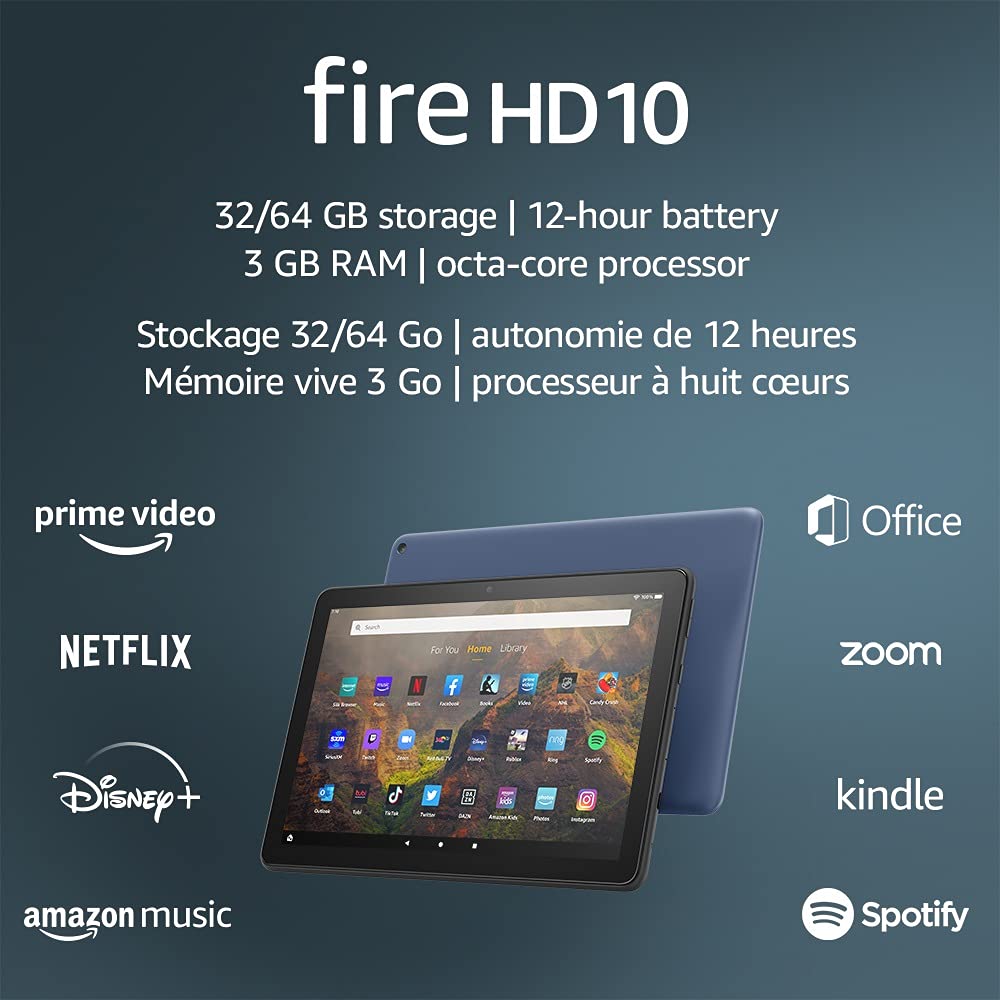
Image 1.1: The Amazon Fire HD 10 tablet highlighting its 32/64 GB storage, 12-hour battery, 3 GB RAM, and octa-core processor, alongside logos of supported applications such as Prime Video, Netflix, Disney+, Amazon Music, Office, Zoom, Kindle, and Spotify.
2. Nastavitev
2.1 Razpakiranje in začetno plačilo
Upon receiving your Fire HD 10 tablet, carefully remove all components from the packaging. Before first use, it is recommended to fully charge the device.
- Connect the provided USB-C (2.0) cable to the tablet's USB-C port.
- Plug the other end of the USB-C cable into the 9W power adapter.
- Priključite napajalnik v stensko vtičnico.
- A full charge from 0% to 100% typically takes approximately 4 hours while the device is in standby mode.
2.2 Vklop/izklop
- Za vklop: Pritisnite in držite gumb za vklop, ki se nahaja na strani tabličnega računalnika, dokler se na zaslonu ne prikaže logotip Amazon.
- Za izklop: Press and hold the power button until a power options menu appears. Select 'Power Off'.
- Za ponovni zagon: V meniju z možnostmi napajanja izberite »Ponovni zagon«.
2.3 Povezljivost Wi-Fi
To access online content and services, connect your Fire HD 10 to a Wi-Fi network.
- From the Home screen, swipe down from the top to open the Quick Settings panel.
- Dotaknite se ikone Wi-Fi.
- Na seznamu razpoložljivih omrežij izberite želeno omrežje Wi-Fi.
- Če ste pozvani, vnesite omrežno geslo in tapnite »Poveži se«.
- The tablet supports 2.4 GHz and 5.0 GHz networks. Ad-hoc (peer-to-peer) Wi-Fi networks are not supported.
2.4 Nastavitev računa
During the initial setup process, you will be guided to register your Fire HD 10 to an Amazon account. This is necessary to download apps, access Amazon content, and utilize cloud services.
- Follow the on-screen prompts to sign in with an existing Amazon account or create a new one.
- Ensure your account details are accurate for full functionality.
3. Navodila za uporabo
3.1 Navigacija po vmesniku
The Fire HD 10 tablet features a touch-sensitive display for interaction.
- Tapnite: Če želite izbrati element, odprite aplikacijo ali aktivirajte gumb.
- Povlecite: Za pomikanje po straneh, seznamih ali preklapljanje med začetnimi zasloni.
- Povečava s ščipanjem in ščipanjem prstov: Če želite slike povečati ali pomanjšati, web strani ali dokumentov.
- Dolg pritisk: Za dostop do kontekstnih menijev ali premikanje ikon aplikacij.
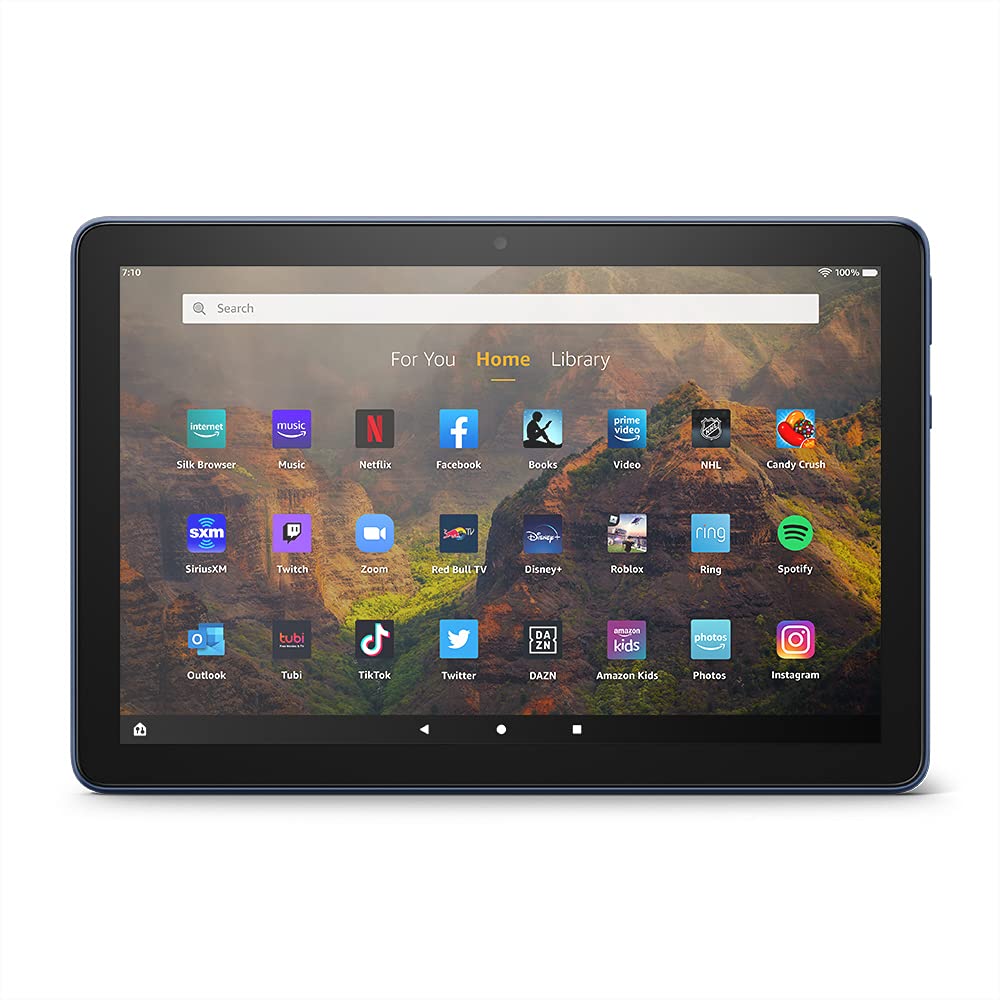
Image 3.1: The Amazon Fire HD 10 tablet's home screen, showcasing a grid of application icons including Silk Browser, Music, Netflix, Facebook, Books, Video, NHL, Candy Crush, SiriusXM, Twitch, Zoom, Red Bull TV, Disney+, Roblox, Ring, Spotify, Outlook, Tubi, TikTok, Twitter, DAZN, Amazon Kids, Photos, and InstagOven.
3.2 Uporaba aplikacij
Applications can be downloaded from the Amazon Appstore. Google Play is not supported.
- Tap an app icon on the Home screen to launch it.
- To find new apps, open the 'Appstore' application.
- Some apps may require a subscription for full access.

Image 3.2: A collage of content available on the Amazon Fire HD 10 tablet, featuring book covers like 'The Silent Patient', Amazon Original series and movies such as 'The Wilds', 'Coming to America', 'The Expanse', 'Dune', 'Hanna', 'One Night in Miami', 'Sound of Metal', 'The Marvelous Mrs. Maisel', 'Upload', and 'The Boys', alongside social media app logos for TikTok, Facebook, and Twitter.
3.3 Večopravilnost na razdeljenem zaslonu
The Fire HD 10 supports split screen functionality, allowing two compatible applications to run side-by-side.
- Odprite prvo aplikacijo, ki jo želite uporabiti.
- Swipe up from the bottom of the screen to reveal the navigation bar.
- Long-press the icon of the first app in the recent apps view.
- Select 'Split Screen' from the options.
- Choose a second compatible app from your recent apps or app drawer to fill the other half of the screen.

Image 3.3: The Amazon Fire HD 10 tablet, shown with an optional Bluetooth keyboard case, demonstrating its split-screen capability. Two applications are open simultaneously: a calendar app on the left and a messaging app on the right, illustrating enhanced productivity.
3.4 Uporaba kamere
The tablet is equipped with a 2 MP front-facing camera and a 5 MP rear-facing camera, both capable of 720p HD video recording.
- Open the 'Camera' app from your Home screen or app drawer.
- Za fotografiranje tapnite gumb sprožilca.
- Med sprednjo in zadnjo kamero preklapljajte z ikono za preklop kamere.
- Za snemanje videoposnetkov izberite video način.
3.5 Zvok in Bluetooth
The Fire HD 10 includes dual integrated speakers and a 3.5 mm stereo jack for headphones. It also supports Bluetooth 5.0 LE.
- Connect wired headphones or external speakers via the 3.5 mm jack.
- To pair Bluetooth devices (headphones, speakers, microphones, LE accessories):
- Go to 'Settings' > 'Connected Devices' > 'Bluetooth'.
- Prepričajte se, da je Bluetooth vklopljen.
- Select your device from the list of available devices and follow pairing instructions.
3.6 Upravljanje shranjevanja
Your Fire HD 10 comes with either 32 GB or 64 GB of internal storage. You can expand this by up to 1 TB using a microSD card.
- To insert a microSD card: Locate the microSD slot on the side of the tablet, open the cover, and gently insert the card until it clicks into place.
- Manage storage by going to 'Settings' > 'Storage'. Here you can view usage and move compatible apps or media to the microSD card.
4. Vzdrževanje
4.1 Skrb za baterije
- Avoid exposing the tablet to extreme temperatures, as this can degrade battery performance.
- Za optimalno življenjsko dobo baterije se izogibajte pogostemu popolnemu praznjenju baterije ali njenemu dolgotrajnemu ohranjanju 100-odstotne napolnjenosti.
- Use only the provided 9W power adapter and USB-C cable for charging.
4.2 Čiščenje naprave
- Turn off the tablet before cleaning.
- Zaslon in ohišje nežno obrišite z mehko krpo, ki ne pušča vlaken.
- Za trdovratne madeže rahlo dampkrpo sperite z vodo. Izogibajte se uporabi agresivnih kemikalij, abrazivnih čistil ali aerosolnih razpršil.
4.3 Posodobitve programske opreme
Amazon periodically releases software updates to improve performance and add new features. Ensure your device is connected to Wi-Fi to receive these updates.
- Updates are typically downloaded and installed automatically.
- You can manually check for updates by going to 'Settings' > 'Device Options' > 'System Updates'.
5. Odpravljanje težav
5.1 Naprava se ne odziva
- If the device is frozen or unresponsive, press and hold the power button for approximately 20 seconds to force a restart.
- Ensure the device has sufficient battery charge. Connect it to the charger and try powering it on again.
5.2 Težave z omrežjem Wi-Fi
- Verify that Wi-Fi is enabled in Quick Settings or 'Settings' > 'Wireless'.
- Prepričajte se, da ste v dosegu usmerjevalnika Wi-Fi.
- Znova zaženite usmerjevalnik in modem Wi-Fi.
- Forget the network in 'Settings' > 'Wireless' and reconnect, re-entering the password if necessary.
5.3 Aplikacije se sesuvajo ali se ne nalagajo
- Zaprite in znova odprite aplikacijo.
- Clear the app's cache: Go to 'Settings' > 'Apps & Games' > 'Manage All Applications', select the problematic app, and tap 'Clear Cache'.
- Prepričajte se, da je programska oprema tabličnega računalnika posodobljena.
- Če težava še vedno obstaja, razmislite o odstranitvi in ponovni namestitvi aplikacije.
5.4 Kratka življenjska doba baterije
- Zmanjšajte svetlost zaslona.
- Zaprite neuporabljene aplikacije, ki se izvajajo v ozadju.
- Izklopite Wi-Fi ali Bluetooth, ko ju ne uporabljate.
- Omejite porabo podatkov v ozadju za aplikacije.
- Check 'Settings' > 'Battery' to identify apps consuming the most power.
6. Specifikacije
| Funkcija | Podrobnost |
|---|---|
| Generacija | 11. generacija, izdaja 2021 |
| Zaslon | Brilliant 10.1” 1080p display (1920 x 1200) with over 2 million pixels (224 ppi). Screen strengthened with aluminosilicate glass. |
| Velikost | 247mm x 166mm x 9.2 mm |
| Teža | 465 grams (Actual size and weight may vary) |
| CPU in RAM | Osemjedrni 2.0 GHz s 3 GB RAM-a |
| Shranjevanje | 32 GB (24.2 GB available) or 64 GB (55.0 GB available) internal storage. Expandable up to 1 TB with microSD card. |
| Življenjska doba baterije | Up to 12 hours of mixed usage (reading, web, video, music). Varies by settings and usage. |
| Čas polnjenja | Approx. 4 hours (0-100%) with provided 9W adapter in standby. |
| WiFi povezljivost | Supports 2.4 GHz and 5.0 GHz networks. Does not support ad-hoc networks. |
| Pristanišča | USB-C (2.0) for charging, microSD slot for external storage. |
| Avdio | 3.5 mm stereo jack, dual integrated speakers, external volume controls. |
| Senzorji | Merilnik pospeška, senzorji zunanje svetlobe. |
| Specifikacije kamere | 2 MP front-facing, 5 MP rear-facing cameras with 720p HD video recording. |
| Mikrofoni | 2 built-in microphones. |
| Lokacijske storitve | Location-based services via WiFi. |
| Razpoložljive barve | Black, Denim. |
| Bluetooth | Built-in Bluetooth 5.0 LE with A2DP support for stereo headphones, speakers, microphone, and LE accessories. |
6.1 Funkcije dostopnosti
The Fire HD 10 tablet includes various accessibility features to assist users. These can be accessed via 'Settings' > 'Accessibility'.
- GlasView Bralnik zaslona: Provides spoken feedback for users who are blind or visually impaired.
- Povečevalnik zaslona: Uporabnikom omogoča povečevanje/pomanjševanje in premikanje po zaslonu.
- Dostop s stikalom: Enables interaction for users with motor impairments via compatible Bluetooth devices.
- Kindle branje na glas: Alexa lahko na glas bere knjige Kindle.
- Nastavitve zaslona: Includes options for Closed Captioning, Font Size, Display Size, High Contrast Text, Color Inversion, Color Correction, and Convert Stereo to Mono audio. (Note: Captions are not available for all content.)
7. Garancija in podpora
7.1 Informacije o garanciji
Your Amazon Fire HD 10 tablet comes with a 1-year limited warranty and service. Optional 1-year, 2-year, and 3-year extended warranties are available for purchase separately for customers in Canada.
Use of the Fire HD 10 tablet is subject to Amazon's Conditions of Use and associated terms.
7.2 Priloženo v škatli
The following items are included with your Fire HD 10 tablet:
- Tablični računalnik Fire HD 10
- Kabel USB-C (2.0)
- 9W napajalnik
- Vodnik za hiter začetek
7.3 Nadaljnja podpora
For additional assistance, please visit the Amazon Device Support website or contact Amazon Customer Service.


