Uvod
This manual provides essential information for setting up, operating, maintaining, and troubleshooting your Amazon Fire HD 10 tablet (2021 Release). Please read this guide thoroughly to ensure optimal use of your device.

Image: The Amazon Fire HD 10 tablet, highlighting its 32/64 GB storage, 12-hour battery, 3 GB RAM, and octa-core processor. This image illustrates the core features of the device.
Nastavitev
1. Razpakiranje in začetno plačilo
Upon unboxing, ensure all components are present: the Fire HD 10 tablet, a USB-C (2.0) cable, and a 9W power adapter. Before first use, fully charge your tablet using the provided adapter and cable. A full charge from 0% to 100% typically takes approximately 4 hours while the device is in standby.
2. Vklop/izklop
- Za vklop: Pritisnite in držite gumb za vklop, ki se nahaja na strani tabličnega računalnika, dokler se ne prikaže logotip Amazon.
- Za izklop: Pritisnite in držite gumb za vklop, nato pa med možnostmi na zaslonu izberite »Izklop«.
- Za ponovni zagon: Pritisnite in držite gumb za vklop, nato pa med možnostmi na zaslonu izberite »Ponovni zagon«.
3. Začetna nastavitev
Za dokončanje začetne nastavitve sledite navodilom na zaslonu:
- Izbira jezika: Izberite želeni jezik.
- Povezava Wi-Fi: Select your Wi-Fi network and enter the password. The tablet supports 2.4 GHz and 5.0 GHz networks.
- Registracija Amazon računa: Prijavite se z obstoječim računom Amazon ali ustvarite novega. To bo vašo tablico povezalo z vsebino in storitvami Amazon.
- Časovni pas in datum: Confirm your local time zone and date settings.
- Posodobitve programske opreme: The tablet may check for and install available software updates. Allow this process to complete.

Slika: Sprednja stran view of the Amazon Fire HD 10 tablet, showcasing its vibrant home screen filled with various application icons. This image demonstrates the user interface after initial setup.
Delovanje
1. Navigacija in kretnje
- Tapnite: Izberite element ali odprite aplikacijo.
- Povlecite: Move between screens, scroll through content, or dismiss notifications.
- Povečava s ščipanjem in ščipanjem prstov: Povečaj ali pomanjšaj vsebino na zaslonu.
- Dolg pritisk: Dostop do kontekstnih menijev ali premikanje ikon aplikacij.
2. Upravljanje aplikacij
Applications can be downloaded from the Amazon Appstore. Google Play is not supported. To install apps:
- Odprite Appstore aplikacija.
- Brskajte ali poiščite želene aplikacije.
- Izberite aplikacijo in tapnite Dobiti or the price to download and install.
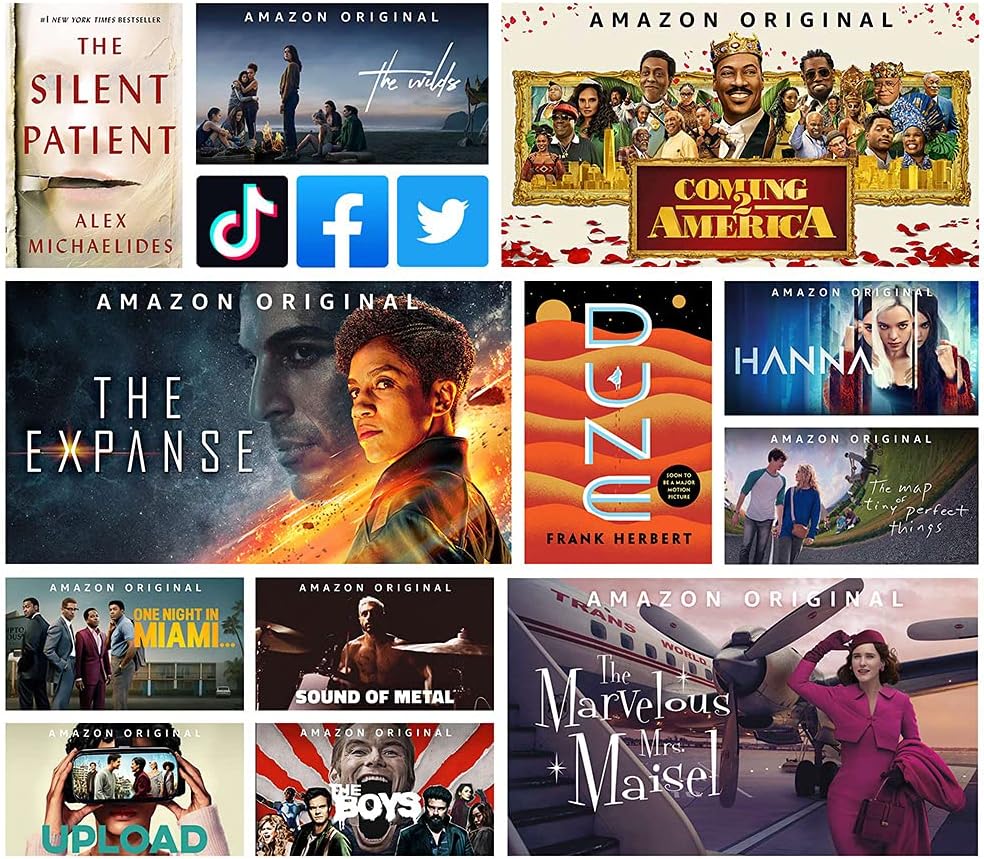
Image: The Amazon Fire HD 10 tablet screen displaying a variety of entertainment content, including Amazon Originals and logos for popular social media apps like TikTok, Facebook, and Twitter. This illustrates the range of content and applications available on the device.
3. Split Screen Feature
The Fire HD 10 supports split-screen multitasking, allowing two compatible applications to run side-by-side. To use this feature:
- Open the first application.
- Swipe up from the bottom of the screen to reveal the navigation bar, then tap the square 'Recent Apps' icon.
- Long-press on the first app's preview and drag it to one side of the screen.
- Select a second compatible app from the recent apps list to fill the other half of the screen.

Image: The Amazon Fire HD 10 tablet, shown with an optional Bluetooth keyboard case, demonstrating the split-screen feature. The screen displays a calendar application on one side and an email application on the other, illustrating productivity capabilities.
4. Povezljivost
- Wi-Fi: Access Wi-Fi settings from the Quick Settings menu (swipe down from the top of the screen) or through Settings > Wi-Fi & Bluetooth.
- Bluetooth: Omogočite Bluetooth v Settings > Wi-Fi & Bluetooth to pair with compatible devices like headphones, speakers, or keyboards.
5. Uporaba kamere
The Fire HD 10 features a 2 MP front-facing camera and a 5 MP rear-facing camera, both capable of 720p HD video recording. Open the Camera app to capture photos and videos.
6. Zvok
The tablet includes dual integrated speakers and a 3.5 mm stereo jack for headphones. External volume controls are located on the side of the device.
Vzdrževanje
1. Polnjenje
Always use the provided USB-C cable and 9W power adapter for charging. Avoid using unapproved chargers, which may damage the device or lead to safety risks.
2. Upravljanje shranjevanja
The Fire HD 10 comes with 32 GB or 64 GB of internal storage. You can expand storage up to 1 TB using a microSD card (sold separately). To manage storage:
- Pojdi na Nastavitve > Shramba do view uporaba in sprostitev prostora.
- Insert a microSD card into the designated slot to add external storage. Note that some apps may require installation on internal storage.
3. Čiščenje naprave
Use a soft, lint-free cloth to clean the screen and body of the tablet. Avoid abrasive materials or harsh chemicals. If necessary, slightly dampkrpo z vodo. Čistil ne pršite neposredno na napravo.
4. Skrb za baterijo
Za podaljšanje življenjske dobe baterije:
- Izogibajte se ekstremnim temperaturam.
- Reduce screen brightness when possible.
- Zaprite neuporabljene aplikacije, ki se izvajajo v ozadju.
- Onemogočite Wi-Fi in Bluetooth, ko ju ne uporabljate.
Odpravljanje težav
Pogoste težave in rešitve
- Naprava se ne vklopi: Ensure the tablet is charged. Connect it to the power adapter for at least 30 minutes, then try powering on again.
- Težave s povezavo Wi-Fi: Check if Wi-Fi is enabled in settings. Restart your Wi-Fi router and the tablet. Ensure you are within range of the network.
- Apps Crashing or Not Responding: Zaprite in ponovno odprite aplikacijo. Če težava ne izgine, počistite predpomnilnik aplikacije (Settings > Apps & Games > Manage All Applications > [App Name] > Clear Cache) ali odstranite in znova namestite aplikacijo.
- Počasno delovanje: Close unused apps. Check available storage and free up space if necessary. Restarting the tablet can also improve performance.
- Zaslon se ne odziva: Perform a forced restart by holding the power button for 20-30 seconds until the device reboots.
Ponastavitev na tovarniške nastavitve
Če se težave pojavljajo vztrajno, lahko ponastavitev na tovarniške nastavitve odpravi številne težave, povezane s programsko opremo. Opozorilo: Ponastavitev na tovarniške nastavitve bo izbrisala vse podatke v tabličnem računalniku. Preden nadaljujete, varnostno kopirajte pomembne podatke. Če želite izvesti ponastavitev na tovarniške nastavitve, pojdite na Nastavitve > Možnosti naprave > Ponastavi na tovarniške nastavitve.
Specifikacije
| Funkcija | Podrobnost |
|---|---|
| Zaslon | 10.1’’ 1080p Full HD (1920 x 1200), 224 ppi, aluminosilicate glass |
| Velikost | 247mm x 166mm x 9.2 mm |
| Teža | 465 grams (may vary) |
| CPU in RAM | Osemjedrni 2.0 GHz s 3 GB RAM-a |
| Shranjevanje | 32 GB or 64 GB internal (expandable up to 1 TB with microSD) |
| Življenjska doba baterije | Do 12 ur (branje, web brskanje, video, glasba) |
| Čas polnjenja | Approx. 4 hours with provided 9W adapter (standby) |
| Povezljivost Wi-Fi | Omrežja 2.4 GHz in 5.0 GHz (brez podpore za ad-hoc) |
| Pristanišča | USB-C (2.0) for charging, microSD slot |
| Avdio | 3.5 mm stereo priključek, dva integrirana zvočnika |
| Senzorji | Merilnik pospeška, senzorji zunanje svetlobe |
| Kamere | 2 MP front, 5 MP rear (720p HD video recording) |
| Mikrofoni | 2 vgrajena mikrofona |
| Bluetooth | Bluetooth 5.0 LE (A2DP compatible) |
| Generacija | 11. generacija, izdaja 2021 |
Garancija in podpora
1. Informacije o garanciji
Your Fire HD 10 tablet includes a 1-year limited warranty and service. Optional 1-year, 2-year, and 3-year extended warranties are available for purchase separately for Canadian customers. Use of the Fire HD 10 tablet is subject to Amazon's Conditions of Use.
2. Funkcije dostopnosti
The Fire HD 10 tablet offers various accessibility features to personalize the device for different needs. To access these features, navigate to Nastavitve> Dostopnost. Available features include:
- GlasView bralnik zaslona: Provides spoken feedback for users who are blind or visually impaired.
- Povečevalnik zaslona: Uporabnikom omogoča povečevanje/pomanjševanje in premikanje po zaslonu.
- Dostop s stikalom: Enables control of the device for users with motor impairments via compatible Bluetooth devices.
- Kindle branje na glas: Alexa lahko na glas bere knjige Kindle.
- Additional settings for Closed Captioning, Font Size, Display Size, High Contrast Text, Color Inversion, Color Correction, and Convert Stereo to Mono audio. (Note: Captions are not available for all content.)
3. Nadaljnja pomoč
For additional support, visit the Amazon Device Support website or contact Amazon Customer Service directly. Refer to the Quick Start Guide included in your product box for initial contact information.


