Uvod
This manual provides comprehensive instructions for setting up, operating, maintaining, and troubleshooting your Mercusys MR50G AC1900 Dual-Band Wi-Fi 5 Router. The MR50G is designed to deliver high-speed wireless connectivity with AC1900 speeds, Gigabit Ethernet ports, and advanced features like MU-MIMO and Beamforming.

Slika: spredaj view of the Mercusys MR50G router, illustrating its dual-band capabilities with 5GHz (1300 Mbps) and 2.4GHz (600 Mbps) speeds.
Vodnik za namestitev
1. Vsebina paketa
Preverite, ali vaš paket vsebuje naslednje elemente:
- Mercusys MR50G AC1900 Dual-Band Wi-Fi 5 Router
- Napajalni adapter
- Ethernet kabel
- Quick Installation Guide (User Guide)
2. Fizična povezava
Za povezavo usmerjevalnika sledite tem korakom:
- Ugasniti: Izklopite napajanje modema in usmerjevalnika (če je primerno).
- Priključite modem na usmerjevalnik: Connect one end of the provided Ethernet cable to the WAN port (usually blue) on your MR50G router and the other end to your modem's Ethernet port.
- Povežite naprave (neobvezno): For wired connections, connect your computer or other devices to the LAN ports (yellow) on the MR50G router using Ethernet cables.
- Vklop: Connect the power adapter to the router's power port and plug it into a power outlet. Power on your modem, then power on the MR50G router.
- Počakajte na kazalnike: Wait for the router's LED indicators to stabilize. The Power LED should be solid green.
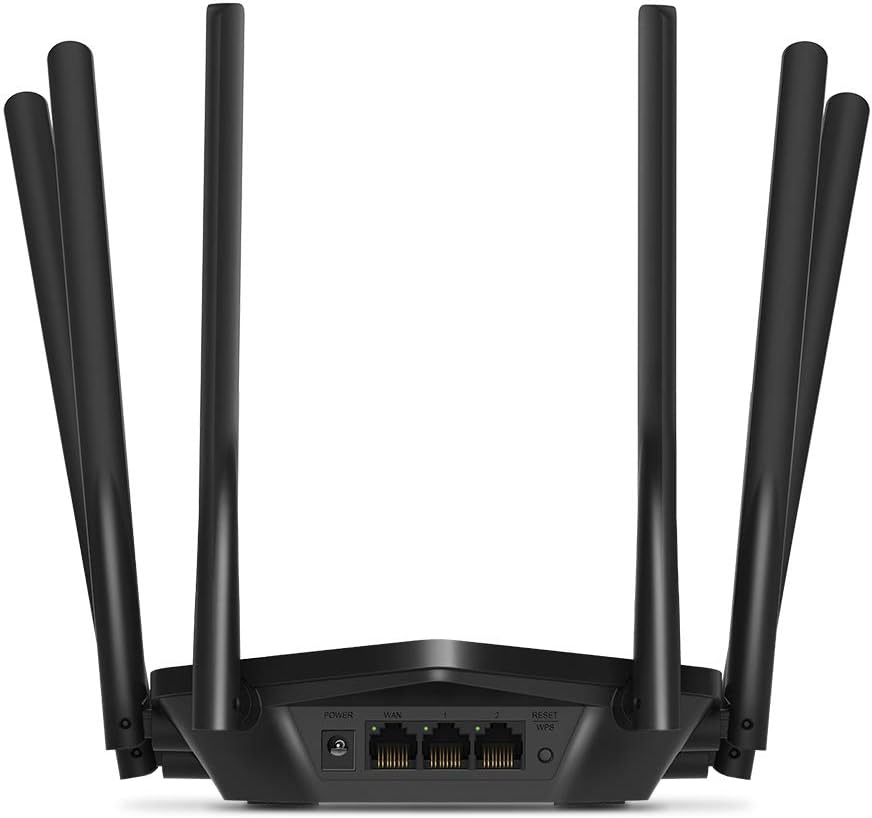
Slika: Zadaj view of the Mercusys MR50G router, illustrating the power input, WAN port (blue), and three LAN ports (yellow) for wired connections, along with the Reset/WPS button.
3. Začetna konfiguracija
Za prvo konfiguracijo usmerjevalnika:
- Povežite se z Wi-Fi: Connect your computer or mobile device to the router's default Wi-Fi network (SSID and password are typically printed on a label on the bottom of the router).
- Dostop Web Vmesnik: Odpri a web brskalnik in tip
mwlogin.netor192.168.1.1v naslovno vrstico. - Create Login Password: Follow the on-screen instructions to create a login password for the router's management page.
- Follow Quick Setup: The Quick Setup wizard will guide you through basic internet and wireless settings.
Navodila za uporabo
1. Osnovne nastavitve omrežja Wi-Fi
Po prijavi v web vmesnik:
- Ime omrežja (SSID): Navigate to the Wireless settings to change your Wi-Fi network names (SSIDs) for both 2.4 GHz and 5 GHz bands.
- geslo: Set a strong, unique password for your Wi-Fi networks. The MR50G supports WPA3 for enhanced security.
- Vrsta varnosti: It is recommended to use WPA2-PSK/WPA3-Personal for optimal security.
2. Dvopasovno delovanje
The MR50G operates on two frequency bands:
- 2.4 GHz: Provides wider coverage and better penetration through walls, suitable for general internet use and older devices.
- 5 GHz: Offers faster speeds and less interference, ideal for bandwidth-intensive activities like 4K streaming and online gaming, but with a shorter range.
You can configure separate SSIDs for each band or use Smart Connect to combine them into a single SSID, allowing the router to automatically assign devices to the optimal band.
3. Access Point Mode
To use the MR50G as an Access Point (AP) to extend an existing wired network:
- Povežite se: Connect an Ethernet cable from your existing router's LAN port to one of the MR50G's LAN ports (not the WAN port).
- Konfiguriraj: Log into the MR50G's web interface, navigate to the Operation Mode settings, and select "Access Point Mode". Follow the prompts to complete the setup.
4. Napredne funkcije
- MU-MIMO: Multi-User, Multiple-Input, Multiple-Output technology allows the router to communicate with multiple devices simultaneously, improving network efficiency.
- Oblikovanje snopa: Focuses Wi-Fi signals towards connected devices, enhancing signal strength and range.
- Podpora za VPN: The router supports VPN functionality, allowing for secure remote access or connection to VPN services. Refer to the router's web interface for specific VPN client/server configurations.
- Starševski nadzor: Manage and restrict internet access for specific devices or users.
- Mreža gostov: Ustvarite ločeno omrežje Wi-Fi za goste in tako ohranite varnost glavnega omrežja.
Vzdrževanje
1. Posodobitve vdelane programske opreme
Regularly check for and install firmware updates to ensure optimal performance, security, and access to new features. Firmware updates can typically be found in the router's web interface under System Tools or Advanced settings.
2. Ponastavitev usmerjevalnika
If you encounter persistent issues or forget your login password, you may need to reset the router to its factory default settings:
- With the router powered on, press and hold the Reset/WPS button on the back panel for approximately 5-10 seconds until the LED indicators flash.
- Release the button and wait for the router to restart. All settings will be restored to factory defaults.
3. Optimalna postavitev
For the best Wi-Fi coverage and performance:
- Place the router in a central location in your home or office.
- Avoid placing it near obstructions like thick walls, metal objects, or large appliances (microwaves, refrigerators) that can interfere with Wi-Fi signals.
- Elevate the router if possible, as Wi-Fi signals tend to spread downwards.

Image: Mercusys MR50G router positioned on a table, demonstrating a typical placement for optimal signal distribution within a living space.
Odpravljanje težav
1. Ni dostopa do interneta
- Preverite povezave: Prepričajte se, da so vsi ethernetni kabli varno priključeni na pravilna vrata (WAN do modema, LAN do naprav).
- Znova zaženite naprave: Power cycle your modem, then the router, and then your connected devices.
- Preverite LED-diodo WAN: Verify that the WAN LED on the router is lit, indicating a connection to the modem.
- Stanje ponudnika internetnih storitev: Za potrditev, da ni nobene povezave, se obrnite na svojega ponudnika internetnih storitev (ISP).tagna vašem območju.
2. Slow Wi-Fi Speeds
- Namestitev usmerjevalnika: Ensure the router is placed optimally (refer to "Optimal Placement" section).
- Motnje: Move the router away from other electronic devices that may cause interference.
- Izbira pasu: For speed-critical applications, ensure your device is connected to the 5 GHz band.
- Optimizacija kanalov: V usmerjevalniku web vmesnika, poskusite spremeniti kanal Wi-Fi za pasova 2.4 GHz in 5 GHz na manj preobremenjenega.
- Vdelana programska oprema: Prepričajte se, da je vdelana programska oprema vašega usmerjevalnika posodobljena.
3. Dostop do strani za upravljanje usmerjevalnika ni mogoč
- IP naslov: Ensure you are using the correct address (
mwlogin.netor192.168.1.1). - Žična povezava: Try accessing the page from a computer connected directly to the router via an Ethernet cable.
- Počisti predpomnilnik brskalnika: Počisti svoje web predpomnilnik in piškotke brskalnika ali poskusite z drugim brskalnikom.
- Požarni zid/Protivirusni program: Začasno onemogočite morebitne požarne zidove ali protivirusne programe v računalniku, ki bi lahko blokirali dostop.
- Ponastavitev usmerjevalnika: If all else fails, perform a factory reset (refer to "Resetting the Router" section).
Specifikacije
| Model | MR50G (EU) |
| Brezžični standardi | IEEE 802.11a/b/g/n/ac |
| Pogostost | 2.4 GHz in 5 GHz (dvopasovno) |
| Hitrost prenosa podatkov | AC1900 (600 Mbps na 2.4 GHz, 1300 Mbps na 5 GHz) |
| Ethernet vrata | 1x gigabitna WAN vrata, 3x gigabitna LAN vrata |
| Antene | 6x Fixed Omni-Directional Antennas |
| Varnost | WPA-PSK / WPA2-PSK / WPA3-Personal |
| Dimenzije (Š x G x V) | 15.72 x 17.56 x 4.5 cm |
| Teža | 450 g |
| Posebne lastnosti | MU-MIMO, Beamforming, Access Point Mode, VPN Support, Parental Controls, Guest Network |
| Vhodna moč | 100-240V ~ 50/60Hz |
Garancija in podpora
Mercusys products come with a limited warranty. For detailed warranty information, please refer to the warranty card included with your product or visit the official Mercusys webmesto.
For technical support, firmware updates, and additional resources, please visit the Mercusys support website. You can typically find contact information and FAQs there.
Official Mercusys Webspletno mesto: www.mercusys.com


