1. Uvod
This manual provides instructions for the installation, operation, and maintenance of your OHLUX Smart WiFi Light Bulbs. These LED bulbs offer advanced features including color-changing capabilities, dimming, and smart control via an app or voice assistants.
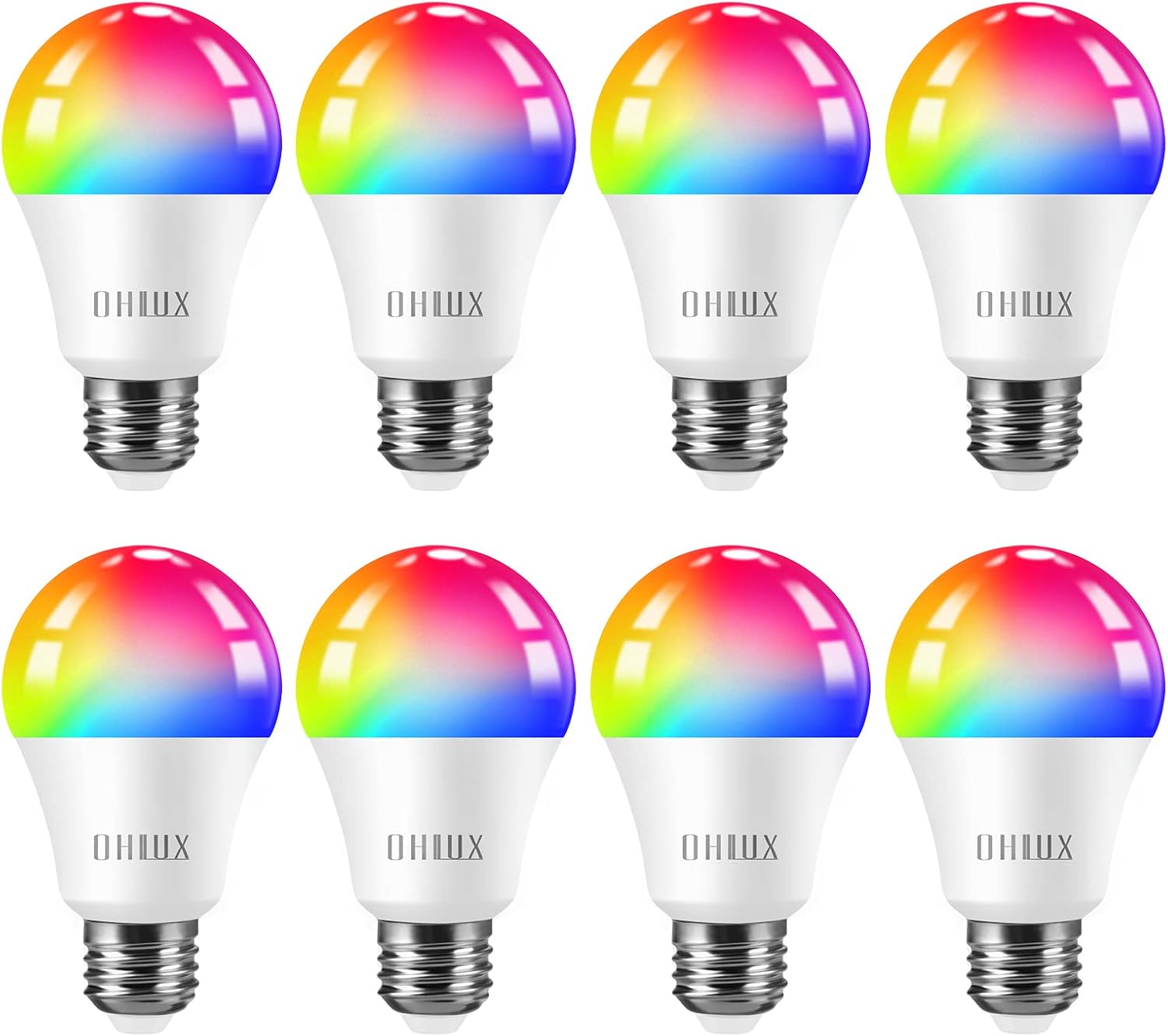
Figure 1: OHLUX Smart WiFi Light Bulbs (A19 E26)
2. Varnostne informacije
- Turn power off before installing or removing the bulbs.
- These bulbs are designed for indoor use only and are not waterproof.
- Operate with 100-240 Volts AC. Avoid higher voltage, da preprečite poškodbe.
- Read the user manual completely before installation and use.
3. Vsebina paketa
- OHLUX Smart WiFi Light Bulb(s) (Quantity as purchased)
- Uporabniški priročnik
4. Specifikacije
| Znamka | OHLUX |
| Ime modela | SQPA6009-A |
| Vrsta svetlobe | LED |
| Wattage | 10 vatov |
| Žarnica enakovredna | 80 vatov |
| Velikost oblike žarnice | A19 |
| Podnožje žarnice | E26 |
| Svetlost | 900 lumnov |
| Svetla barva | Multicolor (2700-6500K adjustable) |
| voltage | 120 voltov (AC) |
| Povprečno življenje | 30,000 ur |
| Nadzorna metoda | Aplikacija, Glas (Alexa, Google Home, Siri) |
| Notranja/zunanja uporaba | Notranja |
5. Nastavitev in namestitev
5.1 Fizična namestitev
- Pred namestitvijo se prepričajte, da je napajanje svetilke izklopljeno na stikalu.
- Carefully screw the OHLUX Smart WiFi Light Bulb into a standard E26 socket.
- Turn the power back on at the switch. The bulb should light up.
5.2 Prenos in seznanjanje aplikacije
To control your smart bulbs, download the "Smart Life" app from your device's app store (Google Play Store for Android or Apple App Store for iOS). Alternatively, scan the QR code provided in the product packaging to download the app.
- Open the Smart Life app and register/log in.
- Ensure your mobile device's Wi-Fi and Bluetooth are enabled. The bulbs require a 2.4GHz Wi-Fi network for connection.
- To enter pairing mode, turn the light switch OFF-ON-OFF-ON-OFF-ON (3-5 times) until the bulb begins to blink rapidly.
- In the app, tap the "+" icon in the top right corner to add a device. The app should automatically discover the blinking bulb.
- Follow the on-screen prompts to connect the bulb to your 2.4GHz Wi-Fi network. You will need to enter your Wi-Fi password.
- Ko je žarnica priključena, jo lahko za lažje upravljanje preimenujete.
Video 1: Customer connect experience with Smart Life app. This video demonstrates the process of connecting the OHLUX Smart WiFi Light Bulb to the Smart Life application, including entering Wi-Fi details and device discovery.
Video 2: How to turn on Wi-Fi, Bluetooth, and location on your cellphone for device pairing. This video guides users through enabling necessary phone settings to facilitate the pairing process with the smart bulb.
6. Navodila za uporabo
6.1 Nadzor aplikacij
Once connected, you can control your OHLUX Smart WiFi Light Bulbs directly from the Smart Life app:
- Vklop/izklop: Tap the power icon next to the bulb's name.
- Svetlost: Adjust the brightness slider from 1% to 100%.
- Barvna temperatura: In "White Mode," adjust the slider to change the white light from warm (2700K) to cool (6500K).
- Izbira barve: In "Color Mode," choose from 16 million colors using the color wheel. Adjust saturation and brightness as desired.
- Scenski načini: Select from various preset scene modes (e.g., Night, Reading, Working, Leisure) or create custom scenes.
- Sinhronizacija glasbe: The bulbs can change color and brightness in sync with music detected by your phone's microphone.

Figure 2: App interface showing 16 million color options and tunable white light.
6.2 Glasovni nadzor
The OHLUX Smart WiFi Light Bulbs are compatible with popular voice assistants. Link your Smart Life account to your Alexa, Google Home, or Siri account to enable voice commands.
- Example Ukazi:
- "Alexa, prižgi luč v dnevni sobi."
- "Hey Google, set the bedroom light to blue."
- "Siri, dim the kitchen light to 50%."

Figure 3: Voice control integration with smart home devices.
6.3 Nadzor skupine
In the Smart Life app, you can create groups of bulbs to control multiple lights simultaneously. This is useful for rooms with several bulbs or for controlling lights across different areas of your home.

Figure 4: Managing multiple smart bulbs with group control via the app.
6.4 Časovnik in urnik
Set schedules for your bulbs to turn on/off or change settings at specific times. Use the timer function for automatic shut-off after a set duration. Features like "Sunrise & Sunset" can automate lighting based on natural light cycles.

Figure 5: Setting timers and schedules for automated lighting.
7. Vzdrževanje
- Pred čiščenjem se prepričajte, da je napajanje izklopljeno.
- Wipe the bulb with a soft, dry cloth. Do not use liquid cleaners.
- Avoid disassembling the bulb, as this will void the warranty.
8. Odpravljanje težav
8.1 Težave s povezljivostjo
- Bulb not blinking: Ensure the power cycle (OFF-ON 3-5 times) is performed quickly and consistently.
- App not finding the bulb:
- Confirm your Wi-Fi network is 2.4GHz. These bulbs do not support 5GHz networks.
- Prepričajte se, da sta Wi-Fi in Bluetooth v telefonu omogočena.
- Bring your phone closer to the bulb and Wi-Fi router during pairing.
- Znova zaženite usmerjevalnik Wi-Fi in poskusite znova.
- Bulb frequently disconnects:
- Check your Wi-Fi signal strength in the bulb's location.
- Ensure your router is not overloaded with too many devices.
- Update the Smart Life app to the latest version.
8.2 Light Functionality Issues
- Bulb not responding to commands:
- Check if the bulb is connected to the app and online.
- Preverite, ali je vaša internetna povezava stabilna.
- For voice control, ensure the Smart Life skill/service is linked correctly in your voice assistant app.
- Nepravilne barve ali utripanje:
- Perform a factory reset by repeating the OFF-ON cycle until the bulb blinks, then re-pair it.
- Ensure the bulb is not in an enclosed fixture that could cause overheating.
9. Garancija in podpora
OHLUX products are designed for reliability and performance. For warranty information or technical support, please refer to the contact details provided on your product packaging or visit the official OHLUX website. Customer satisfaction is a priority, and support is typically available within 24 hours.


