Uvod
This manual provides essential instructions for the installation, operation, and maintenance of your Swann Master-Series 4K HD 8 Camera 8 Channel NVR Security System, model SWNVK-876808-US. This system is designed to provide high-definition surveillance for your property, featuring 4K resolution cameras and an 8-channel Network Video Recorder (NVR) for reliable recording and monitoring.
Please read this manual thoroughly before setting up and using your security system to ensure proper functionality and to maximize its performance and longevity.
Kaj je v škatli
Carefully unpack all components and verify that you have received all items listed below. If any items are missing or damaged, please contact Swann customer support.
- Swann 8-Channel Network Video Recorder (NVR)
- 8 x 4K HD Security Cameras
- Ethernet kabli (za povezavo kamere)
- Power Adapters (for NVR and cameras)
- Miška USB
- Montažni vijaki in mozniki
- Nalepke z varnostnimi opozorili
- HDMI kabel
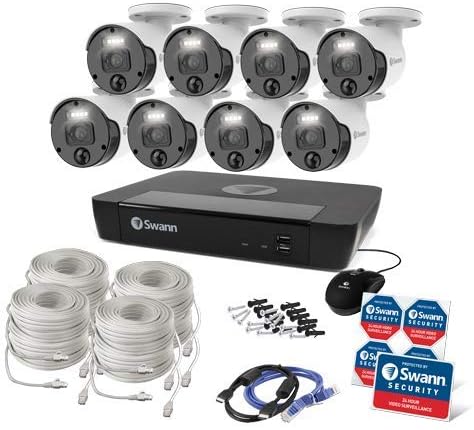
Slika 1: Complete contents of the Swann Master-Series 4K HD 8 Camera 8 Channel NVR Security System kit, including the NVR, eight cameras, various cables, a USB mouse, and security stickers.
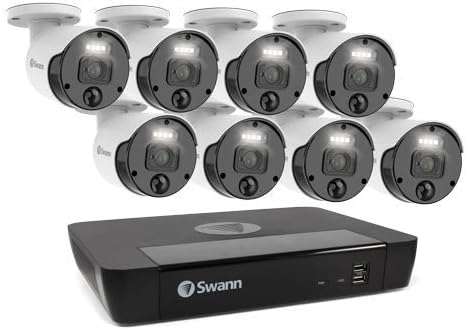
Slika 2: The Swann Network Video Recorder (NVR) unit, which serves as the central recording and management hub for the security system.
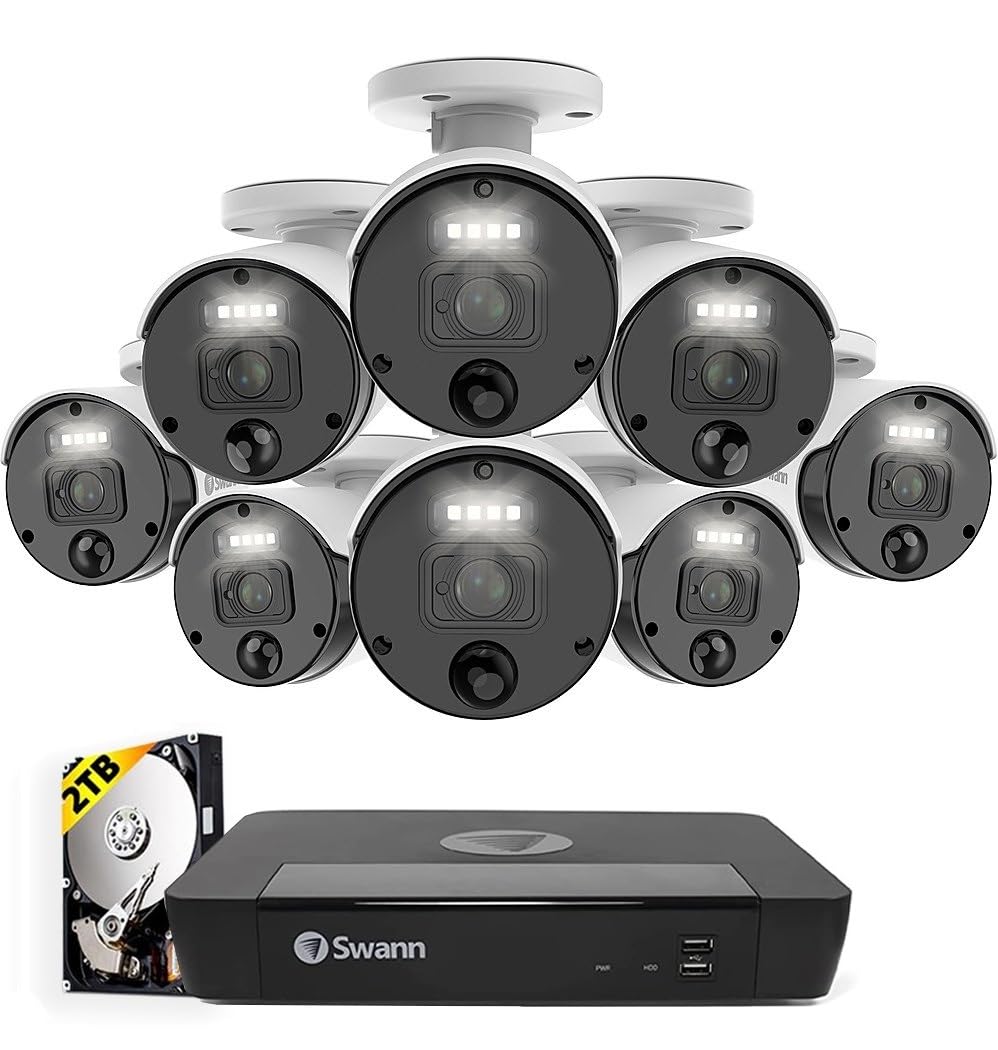
Slika 3: The Swann Master-Series NVR unit shown with eight 4K HD security cameras, illustrating the core components of the surveillance system.
Nastavitev
1. Povezava z NVR-jem
- Povežite se z monitorjem: Use the provided HDMI cable to connect the NVR's HDMI output port to a monitor or TV.
- Priključite miško USB: Priključite miško USB v eno od vrat USB na snemalniku (NVR).
- Povežite se z omrežjem: Connect an Ethernet cable from the NVR's LAN port to your router or network switch for internet access and remote viewzmogljivosti.
- Priključite napajanje: Plug the NVR's power adapter into the DC IN port and then into a power outlet. The NVR will power on automatically.
2. Namestitev kamere
- Namestitev kamer: Izberite primerne lokacije za kamere in zagotovite, da imajo neoviran vidni kot view and are protected from direct weather exposure. Use the provided screws and plugs to securely mount each camera.
- Povežite kamere z NVR-jem: Connect each camera to an available Ethernet port on the NVR using the provided Ethernet cables. The NVR will automatically detect and power the cameras (Power over Ethernet - PoE).
3. Začetna konfiguracija
- Čarovnik za prvo namestitev: Upon first power-up, the NVR will display a setup wizard on the connected monitor. Follow the on-screen prompts to configure basic settings such as language, date/time, and network settings.
- Nastavitev skrbniškega gesla: Create a strong, unique password for the administrator account. This is crucial for system security.
- Inicializacija trdega diska: The wizard may prompt you to initialize the hard drive. Confirm to prepare it for recording.
Upravljanje sistema
V živo View
Po začetni nastavitvi bo NVR prikazal sliko v živo view z vseh priključenih kamer na monitorju. Preklapljate lahko med eno kamero view, mreža z več kamerami viewin zaporedje view using the NVR's interface and mouse.
Snemanje
- Nenehno snemanje: The system is typically configured for continuous recording by default.
- Snemanje zaznavanja gibanja: Configure specific cameras to record only when motion is detected within their field of view. Adjust sensitivity and detection zones as needed.
- Predvideno snemanje: Set specific times for recording, allowing for customized surveillance schedules.
Predvajanje
Access the playback menu on the NVR to review posnet footage. You can search by date, time, and event type (e.g., motion detection). Use the timeline and controls to navigate through recordings.
Remote Access (Swann Security App)
Za daljinsko viewing and management, download the official Swann Security app on your smartphone or tablet. Follow the in-app instructions to pair your NVR system. This allows you to view live feeds, play back recordings, and receive alerts from anywhere with an internet connection.
Vzdrževanje
- Čiščenje fotoaparata: Občasno očistite objektive fotoaparata z mehko krpoamp krpo, da zagotovite jasno kakovost slike. Izogibajte se abrazivnim čistilom.
- Prezračevanje snemalnika: Ensure the NVR unit has adequate ventilation to prevent overheating. Keep vents clear of obstructions.
- Posodobitve vdelane programske opreme: Regularly check for and install firmware updates for your NVR and cameras. Updates often include security enhancements and new features. Refer to the Swann support webspletno mesto za najnovejšo vdelano programsko opremo.
- Upravljanje trdega diska: The NVR's hard drive will automatically overwrite the oldest footage when it becomes full. Ensure your recording settings (e.g., continuous, motion detection) align with your storage needs.
- Varnost gesla: Change your administrator password periodically and use strong, unique passwords to protect your system from unauthorized access.
Odpravljanje težav
No Video Display on Monitor
- Check if the NVR is powered on and its power adapter is securely connected.
- Verify the HDMI cable connection between the NVR and the monitor.
- Ensure the monitor is set to the correct input source (e.g., HDMI 1).
Cameras Not Showing Live View / No Recording
- Check that each camera is securely connected to the NVR's Ethernet port.
- Prepričajte se, da ethernetni kabli niso poškodovani.
- Verify that the NVR's hard drive is initialized and has sufficient space.
- Check camera settings within the NVR interface to ensure they are enabled and configured for recording.
Težave z oddaljenim dostopom
- Ensure the NVR is connected to your router and has an active internet connection.
- Verify your smartphone or tablet has an active internet connection.
- Confirm that the NVR is correctly paired with the Swann Security app.
- Check your router's firewall settings; some may block NVR access.
Nočni vid ne deluje
- Ensure there are no obstructions directly in front of the camera lens blocking the infrared (IR) LEDs.
- Check camera settings to ensure night vision (IR) is enabled.
- Verify the camera is receiving adequate power.
Specifikacije
| Funkcija | Specifikacija |
|---|---|
| Znamka | Swann |
| Številka modela | SWNVK-876808-ZDA |
| Tehnologija povezljivosti | Wired (Ethernet/PoE) |
| Ločljivost zajema videa | 2160p (4K Ultra HD) |
| Posebna funkcija | Nočni vid |
| Število kanalov | 8 |
| Vir napajanja | Električni na kabel |
| NVR Dimensions (L x W x H) | 10 x 2 x 2.7 palcev |
| Združljive naprave | Swann IP Cameras |
| Tehnologija slabe svetlobe | Nočni vid |
| Hitrost sličic | 15, 24, 30 fps (variable by resolution/settings) |
| Način snemanja | Continuous, Event (Motion Detection), Scheduled |
| Video vhod | Ethernet (for IP Cameras) |
| Teža predmeta | 21.2 funtov (celoten paket) |
| UPC | 840236127788 |
Note: While the provided data listed 'BNC' for Video Input, this NVR system primarily uses Ethernet for IP cameras. Please refer to the product packaging or Swann's official webspletno mesto za najbolj natančne in ažurne specifikacije.
Garancija in podpora
Your Swann Master-Series 4K HD 8 Camera 8 Channel NVR Security System is covered by a manufacturer's warranty. For specific warranty terms, duration, and conditions, please refer to the warranty card included with your product or visit the official Swann webmesto.
For technical support, troubleshooting assistance, or to access the latest software and firmware updates, please visit the Swann support portal on their official webspletnem mestu. Tam lahko najdete tudi kontaktne podatke za podporo strankam.


