Uvod
Hvala za nakupasing the Insignia 10-inch Digital Photo Frame. This device allows you to display your favorite digital photos and videos in a high-quality format. This manual provides detailed instructions for setup, operation, maintenance, and troubleshooting to ensure you get the most out of your new digital photo frame.
Vsebina paketa
Before you begin, please check that all items are present in the package:
- Insignia 10-inch Digital Photo Frame
- Napajalni adapter
- Daljinski upravljalnik
- Uporabniški priročnik (ta dokument)
Nastavitev
1. Priključitev napajanja
Connect the included power adapter to the DC IN 9V port on the back of the digital photo frame. Plug the other end of the adapter into a standard wall outlet. The frame will typically power on automatically or can be turned on using the power switch.
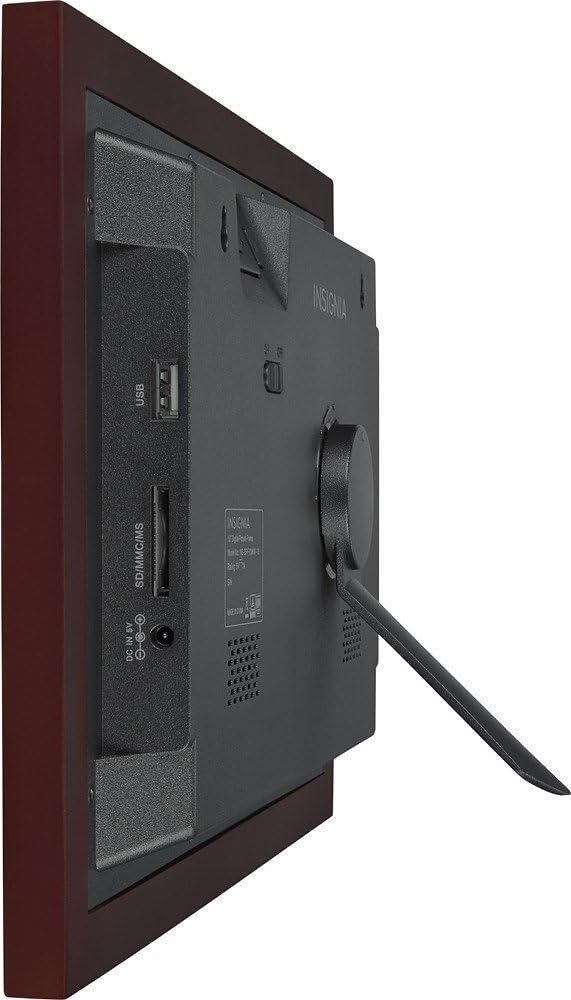
Slika: Zadaj view of the digital photo frame, highlighting the USB port, SD/MMC/MS card slot, and DC IN 9V power input.
2. Vstavljanje pomnilniških kartic ali USB-ključkov
The frame supports SD, MMC, and MS memory cards, as well as USB flash drives. Insert your memory card into the appropriate slot or your USB drive into the USB port on the side/back of the frame. Ensure the card or drive is inserted correctly. The frame will automatically detect the storage device.
3. Začetne nastavitve
Upon first power-on, you may be prompted to set the language, time, and date. Use the navigation buttons on the frame or the remote control to make your selections and confirm.
Operating the Digital Photo Frame
1. Nadzor nadview
Your digital photo frame can be operated using the buttons on the back of the frame or the included remote control.
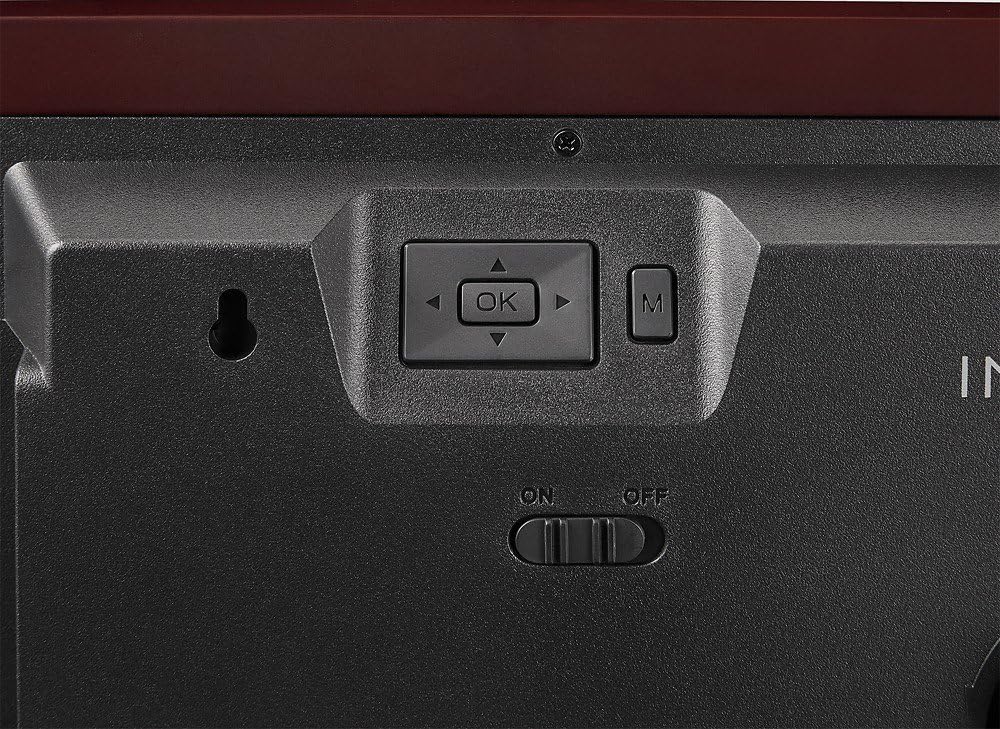
Image: Close-up of the control buttons located on the rear of the digital photo frame. These include directional arrows, an 'OK' button for selection, and an 'M' button for menu access, alongside the power switch.
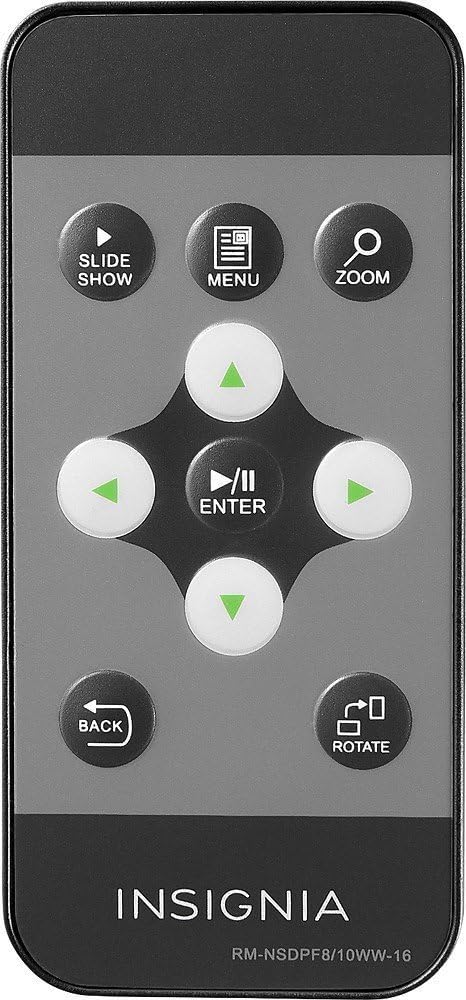
Image: The remote control for the digital photo frame, featuring dedicated buttons for slideshow, menu, zoom, directional navigation, enter, back, and image rotation functions.
2. Navigacija po menijih
Pritisnite MENI gumb na daljinskem upravljalniku ali M button on the frame to access the main menu. Use the directional arrows (▲ ▼ ◀ ▶) to navigate through options and press ENTER or OK za potrditev izbire. Pritisnite NAZAJ za vrnitev na prejšnji zaslon ali izhod iz menija.
3. Viewsnemanje fotografij in videoposnetkov
Once a memory card or USB drive is inserted, the frame will typically start a slideshow automatically. You can manually browse files by selecting the "Photo" or "Video" option from the main menu. Use the navigation buttons to select a file in pritisnite ENTER or OK do view to.
4. Nastavitve diaprojekcije
From the main menu, navigate to "Settings" or "Slideshow Settings" to customize your slideshow. Options may include:
- Način prikaza: Adjust how photos fit the screen (e.g., original, fit to screen, crop).
- Intervalni čas: Nastavite trajanje prikaza vsake fotografije.
- Učinek prehoda: Choose from various transition styles between photos.
- Ponavljajoči način: Loop the slideshow continuously.
5. Clock and Calendar
Your frame may include a clock and calendar function. Access these features through the main menu. You can set the time and date in the settings menu.
Vzdrževanje
Čiščenje okvirja
Za čiščenje zaslona ga nežno obrišite z mehko krpo, ki ne pušča vlaken. Za trdovratne madeže ga rahlo obrišite.ampen the cloth with water or a non-abrasive screen cleaner. Avoid using harsh chemicals or abrasive materials, as these can damage the screen and frame finish. Ensure the frame is powered off and unplugged before cleaning.
Shranjevanje
When not in use for extended periods, store the digital photo frame in a cool, dry place, away from direct sunlight and extreme temperatures. It is recommended to keep the original packaging for storage.
Odpravljanje težav
| Težava | Možna rešitev |
|---|---|
| Okvir se ne vklopi. |
|
| No photos or videos display. |
|
| Daljinski upravljalnik ne deluje. |
|
| Images appear distorted or stretched. |
|
Specifikacije
| Funkcija | Podrobnost |
|---|---|
| Številka modela | NS-DPF10WW-16 |
| Velikost zaslona | 10 palcev |
| Resolucija | WXGA |
| Dimenzije izdelka | 12.6 x 1.5 x 9 palcev |
| Teža predmeta | 2 funtov |
| Tehnologija povezljivosti | USB |
| Podprte pomnilniške kartice | SD, MMC, MS (Memory Stick) |
| Proizvajalec | Insignije |
Garancija in podpora
Za informacije o garanciji glejte garancijski list, ki je priložen izdelku, ali obiščite uradno spletno stran Insignia. website. If you encounter issues not covered in this troubleshooting section, please contact Insignia customer support for assistance.
Spletna podpora: www.insigniaproducts.com/support