1. Uvod
The SteelSeries Sensei Laser Gaming Mouse is designed for precision and customization, catering to both casual and competitive gamers. It features an advanced laser sensor, an ambidextrous design, and extensive customization options through its dedicated software. This manual provides detailed instructions for setup, operation, maintenance, and troubleshooting to ensure optimal performance of your device.

Slika 1: Od zgoraj navzdol view of the SteelSeries Sensei Laser Gaming Mouse, showcasing its sleek grey finish and central scroll wheel.
2. Vsebina paketa
Prosimo, preverite, ali so v vašem paketu vsi elementi:
- SteelSeries Sensei Laser Gaming Mouse
- Vodnik za hitri začetek (če je priložen)

Image 2: Retail packaging for the SteelSeries Sensei Laser Gaming Mouse, displaying the product name and brand logo.
3. Nastavitev
3.1 Povezava strojne opreme
- Unpack the SteelSeries Sensei Laser Gaming Mouse from its packaging.
- Connect the USB cable of the mouse to an available USB port on your computer. The mouse is plug-and-play compatible, and your operating system should automatically detect and install the necessary basic drivers.
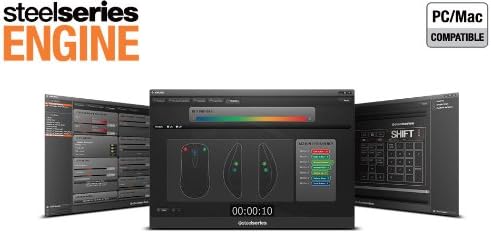
3.2 Namestitev programske opreme (SteelSeries Engine)
For full customization and advanced features, it is recommended to install the SteelSeries Engine software:
- Obiščite uradno spletno stran SteelSeries webspletno mesto (steelseries.com/engine) to download the latest version of the SteelSeries Engine software.
- Za namestitev programske opreme sledite navodilom na zaslonu.
- Once installed, launch the SteelSeries Engine to configure your mouse settings, including CPI, button assignments, macros, and lighting effects.
Slika 3: Spodaj view of the SteelSeries Sensei Laser Gaming Mouse, showing the laser sensor and product information label.
4. Upravljanje miške
4.1 Oblika za obe roki
The Sensei mouse features an ambidextrous shape, making it comfortable for both left-handed and right-handed users. The side buttons are mirrored on both sides to accommodate different grip styles and preferences.
4.2 programabilni gumbi
The mouse is equipped with 7 programmable buttons. These buttons can be customized using the SteelSeries Engine software to perform various functions, including:
- Standard mouse clicks (left, right, middle)
- Keyboard key assignments
- Complex macros
- CPI switching

Slika 4: Stran view of the SteelSeries Sensei Laser Gaming Mouse, highlighting the two programmable side buttons.
4.3 CPI Adjustment
The Sensei mouse allows for on-the-fly CPI (Counts Per Inch) adjustment. The dedicated CPI indicator button, typically located behind the scroll wheel, allows you to cycle between two user-defined CPI settings. These settings can be configured within the SteelSeries Engine software to match your preferred sensitivity levels for different tasks or games.
4.4 Osvetlitev
The mouse features three-zone illumination: the scroll wheel, the CPI indicator, and the SteelSeries logo. The color and lighting effects (e.g., steady, pulse) for these zones can be customized through the SteelSeries Engine software.
5. Programska oprema za motorje SteelSeries
The SteelSeries Engine is a powerful software suite that unlocks the full potential of your Sensei mouse. Key functionalities include:
- Preslikava gumbov: Assign any function, keyboard key, or macro to any of the 7 programmable buttons.
- CPI Settings: Fine-tune and save multiple CPI profileza različne aplikacije ali igre.
- Urejevalnik makrov: Create and manage complex macros for in-game actions or productivity tasks.
- Stopnja glasovanja: Za optimalno odzivnost prilagodite hitrost anketiranja miške.
- Nadzor osvetlitve: Customize LED colors and effects for the scroll wheel, CPI indicator, and logo.
- Profile Upravljanje: Ustvarite in shranite več profesionalcevfiles, allowing you to switch between different configurations quickly.
- Posodobitve vdelane programske opreme: Keep your mouse's firmware up-to-date for improved performance and new features.

Image 5: Screenshot of the SteelSeries Engine software interface, showing options for button mapping, CPI adjustment, and lighting customization.
6. Vzdrževanje
To ensure the longevity and optimal performance of your SteelSeries Sensei mouse, follow these maintenance guidelines:
- Čiščenje: Za brisanje površine miške uporabite mehko, suho krpo. Za trdovratno umazanijo rahlo obrišiteamp Uporabite lahko krpo, vendar pazite, da v miško ne pride vlaga. Izogibajte se agresivnim kemikalijam ali abrazivnim čistilom.
- Skrb za senzor: Keep the laser sensor on the bottom of the mouse clean and free from dust or debris. Use a cotton swab or compressed air if necessary.
- Upravljanje kablov: Izogibajte se ostrim upogibanjem ali prekomernemu vlečenju kabla USB, da preprečite poškodbe.
7. Odpravljanje težav
If you encounter issues with your SteelSeries Sensei mouse, refer to the following common solutions:
- Miška se ne odziva:
- Prepričajte se, da je kabel USB varno priključen na vaš računalnik.
- Poskusite miško priključiti na drug USB vhod.
- Znova zaženite računalnik.
- Nedosledno sledenje:
- Clean the laser sensor on the bottom of the mouse.
- Prepričajte se, da miško uporabljate na primerni površini (npr. podlogi za miško).
- Check for dust or debris on your mouse pad.
- Gumbi ne delujejo:
- Verify button assignments in the SteelSeries Engine software.
- Ensure the software is running correctly and profiles are loaded.
- Težave s programsko opremo:
- Update the SteelSeries Engine software to the latest version.
- Reinstall the SteelSeries Engine software.
- Check for any available firmware updates for your mouse within the software.
8. Specifikacije
| Funkcija | Podrobnost |
|---|---|
| Znamka | SteelSeries |
| Številka modela | 62150 |
| Tehnologija zaznavanja gibanja | Laser |
| Tehnologija povezljivosti | USB |
| barva | siva |
| Platforma strojne opreme | PC |
| Združljivost operacijskega sistema | All Major PC Operating Systems |
| Teža predmeta | 14.6 unč |
| Dimenzije izdelka (DxŠxV) | 7.9 x 6.8 x 2.3 palcev |
| Programabilni gumbi | 7 |
| Illumination Zones | 3 (Scroll Wheel, CPI Indicator, Logo) |
9. Garancija in podpora
The SteelSeries Sensei Laser Gaming Mouse is covered by a manufacturer's warranty. For detailed information regarding warranty terms, conditions, and duration, please refer to the warranty card included with your product or visit the official SteelSeries website. For technical support, driver downloads, and frequently asked questions, please visit the SteelSeries support page.
Uradni SteelSeries Webspletno mesto: steelseries.com
Podpora za SteelSeries: support.steelseries.com


