1. Uvod
The j5create USB 2.0 to VGA Display Adapter provides a convenient solution for adding an external VGA display to your computer via a USB 2.0 port. This adapter supports multiple display modes and is compatible with both Windows and Mac operating systems, allowing for enhanced productivity through extended or mirrored desktop environments.

Image 1.1: The j5create USB 2.0 to VGA Display Adapter, a compact silver device with a VGA port on one end and a USB cable on the other.
2. Lastnosti
- Povezljivost USB Plug-and-Play: Easy driver installation for immediate use.
- Podpora za več monitorjev: Allows for up to 4 adapters in Windows and up to 2 adapters in Mac systems.
- Three Display Modes: Supports Primary, Extended, and Mirror display configurations.
- Vrtenje zaslona: Offers 0°, 90°, 180°, and 270° rotation (Windows only).
- Vzdržljiva konstrukcija: Housed in a non-toxic and recyclable aluminum enclosure.
3. Sistemske zahteve
- Na voljo vrata USB 2.0.
- VGA-compatible monitor or display.
- Združljivost operacijskega sistema:
- Windows 8 and later.
- Mac OS X Panther and later.
- Note for Mac Users: Currently not compatible with macOS 11 Big Sur. Functionality may be limited with macOS High Sierra (e.g., extended mode with laptop closed). It is advised to delay updating to macOS 11 Big Sur or refer to j5create support for specific macOS version compatibility.
4. Nastavitev
4.1 Vsebina paketa
- j5create USB 2.0 to VGA Display Adapter (Model: FBA_JUA210)
- Hitri vodnik za namestitev (če je priložen)
4.2 Priključitev adapterja
- Connect one end of a VGA cable (not included) to the VGA port on your external monitor.
- Connect the other end of the VGA cable to the VGA port on the j5create USB 2.0 to VGA Display Adapter.
- Plug the USB connector of the j5create adapter into an available USB 2.0 port on your computer.
- The necessary drivers should install automatically (Plug-and-Play). If prompted, follow the on-screen instructions to complete the driver installation.

Image 4.1: The j5create USB 2.0 to VGA Display Adapter connected to a laptop's USB port, with the VGA port ready for a monitor connection.

Slika 4.2: Bližnji posnetek view of the VGA port on the j5create adapter, showing the pin configuration and connection point for a VGA cable.
5. Delovanje
5.1 Načini prikaza
Once connected, your computer should detect the new display. You can configure the display settings through your operating system's display preferences.
- Primarni način: The external display acts as your main screen.
- Razširjeni način: The external display extends your desktop, providing more screen space for multitasking.
- zrcalni način: The external display duplicates the content of your primary screen, ideal for presentations.

Image 5.1: A business meeting scenario where a laptop is connected to a large display via the j5create adapter, demonstrating mirror mode for presentations.
5.2 Multiple Adapters
The j5create USB 2.0 to VGA Display Adapter supports multiple units for expanded display setups:
- Up to 4 adapters can be used simultaneously on Windows systems.
- Up to 2 adapters can be used simultaneously on Mac systems.

Image 5.2: A workstation featuring a computer connected to three external monitors, illustrating the capability of the j5create adapter for multi-display setups.
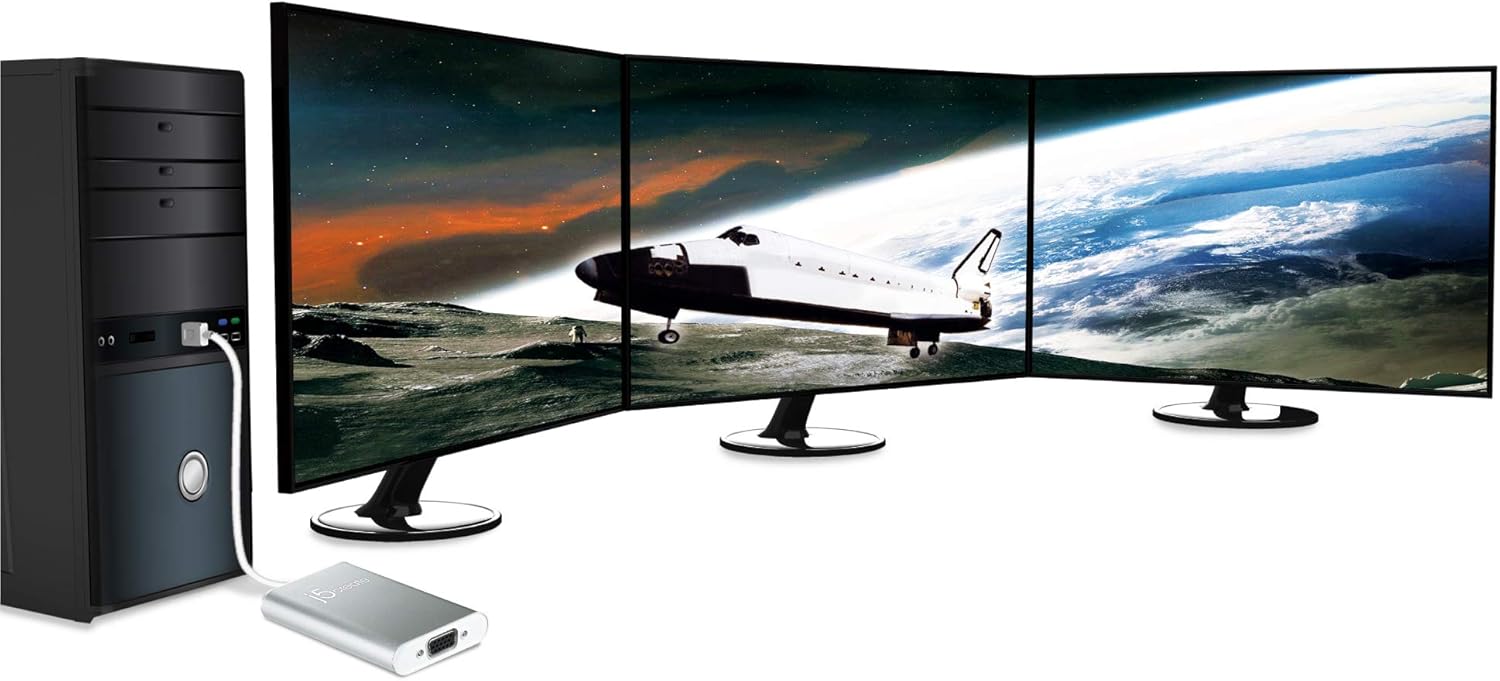
Image 5.3: A desktop computer tower connected to three external monitors, showcasing an advanced multi-display configuration possible with multiple j5create adapters.
5.3 Display Rotation (Windows Only)
On Windows operating systems, the display output can be rotated to 0°, 90°, 180°, or 270° through the display settings. This feature is not available on Mac operating systems.
6. Vzdrževanje
To ensure optimal performance and longevity of your j5create USB 2.0 to VGA Display Adapter, follow these guidelines:
- Keep the adapter in a clean, dry environment, away from extreme temperatures and direct sunlight.
- Avoid exposing the adapter to liquids or excessive moisture.
- Do not attempt to disassemble or modify the adapter, as this will void the warranty and may cause damage.
- Zunanjost očistite z mehko, suho krpo. Ne uporabljajte agresivnih kemikalij ali abrazivnih čistil.
- S kabli in priključki ravnajte previdno, da preprečite upogibanje ali zlom.
7. Odpravljanje težav
7.1 Ni izhoda za prikaz
- Preverite povezave: Ensure all cables (USB, VGA) are securely connected to both the adapter, computer, and monitor.
- Preverite moč: Ensure your monitor is powered on and set to the correct input source (VGA).
- Namestitev gonilnika: Confirm that the necessary drivers have been installed. If not, try disconnecting and reconnecting the adapter, or visit the j5create webstran za prenos gonilnikov.
- Znova zaženite računalnik: A system restart can often resolve display detection issues.
- Test with Another Port/Computer: Try connecting the adapter to a different USB port on your computer, or test it on another computer to rule out port or system-specific issues.
7.2 Display Flickering or Poor Quality
- Kakovost kabla: Ensure you are using a high-quality VGA cable. Damaged or low-quality cables can cause signal degradation.
- Nastavitve ločljivosti: Adjust the display resolution and refresh rate in your operating system's display settings to a supported value for your monitor and adapter.
- Motnje: Keep the adapter and cables away from sources of electromagnetic interference.
7.3 Mac Specific Issues
- macOS Big Sur: The adapter is currently not compatible with macOS 11 Big Sur.
- macOS High Sierra: Limitations exist, particularly with extended mode when the laptop lid is closed. Ensure your macOS version is fully supported or consult j5create support for workarounds.
- Driver Conflicts: Avoid combining different brands of USB display adapters on a single Mac machine, as this can lead to software conflicts.
8. Specifikacije
| Znamka | j5create |
| Številka modela | FBA_JUA210 |
| Vrsta priključka | USB 2.0 (Input), VGA (Output) |
| Podpora za operacijski sistem | Windows 8; Mac OS X Panther and later (with noted exceptions) |
| Teža predmeta | 2.56 unč (približno 72.5 gramov) |
| Dimenzije izdelka (DxŠxV) | 7.75 x 5 x 1.6 palca (približno 19.7 x 12.7 x 4.1 cm) |
| Material ohišja | Aluminij |
9. Informacije o garanciji
For detailed warranty information regarding your j5create USB 2.0 to VGA Display Adapter, please refer to the warranty card included with your product or visit the official j5create webGarancijski pogoji se lahko razlikujejo glede na regijo in izdelek.
10. Podpora
If you encounter any issues or have questions not covered in this manual, please contact j5create customer support. You can find support resources, FAQs, and contact information on the official j5create webspletno mesto:


