Uvod
This manual provides instructions for the setup, operation, maintenance, and troubleshooting of your Microsoft Wireless Optical Mouse Blue, Model K80-00004. Please read this manual thoroughly before using your device.
Kaj je v škatli
Preverite, ali so v paketu prisotni vsi elementi:
- Microsoft Wireless Optical Mouse
- Brezžični sprejemnik
- 2 baterij AA (predhodno nameščenih ali priloženih posebej)
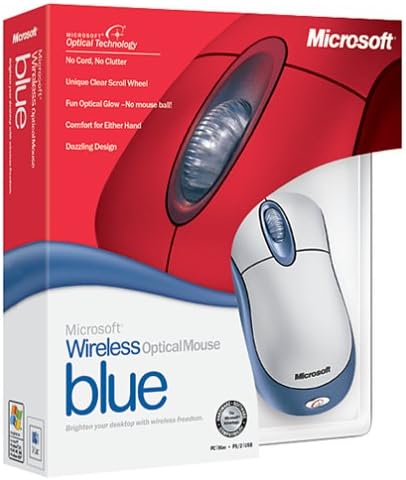
Image: Retail packaging of the Microsoft Wireless Optical Mouse Blue, showing the mouse and receiver.
Nastavitev
1. Namestite baterije
- Poiščite predal za baterije na spodnji strani miške.
- Odprite pokrov prostora za baterije.
- Vstavite dve bateriji AA in pazite na pravilno polarnost (+/-).
- Zaprite pokrov prostora za baterije.

Slika: spredaj view of the Microsoft Wireless Optical Mouse Blue, showing the top buttons and scroll wheel. The battery compartment is on the underside.
2. Connect the Wireless Receiver
- Brezžični sprejemnik USB priključite v prosta vrata USB na računalniku.
- Allow your operating system to detect and install the necessary drivers. This process is usually automatic.
- For optimal performance, ensure the receiver is placed at least 12 inches away from other wireless devices or large metal objects.
3. Optional Software Installation (IntelliPoint)
- While not required for basic functionality, installing Microsoft IntelliPoint software provides advanced customization options for your mouse buttons and scroll wheel.
- Refer to the Microsoft support website for the latest IntelliPoint software compatible with your operating system.
4. Set Orientation (Calibration)
- After initial setup, it is recommended to perform an "Orientation Set" or calibration if available through the IntelliPoint software or your operating system's mouse settings. This helps optimize tracking performance.
Navodila za uporabo
The Microsoft Wireless Optical Mouse Blue is designed for comfortable and precise navigation.
Osnovne funkcije
- Levi klik: Glavni gumb za izbiranje elementov, odpiranje filein interakcijo s programsko opremo.
- Desni klik: Drugi gumb za dostop do kontekstnih menijev in dodatnih možnosti.
- Kolesce za pomikanje: Za pomikanje po dokumentih zavrtite kolesce gor ali dol in web pages. The scroll wheel may also function as a clickable button for additional commands, depending on software configuration.
Brezžično delovanje
- The mouse operates wirelessly up to 6 feet (approximately 1.8 meters) from its receiver.
- Optical technology scans the desktop surface for precise cursor movement without the need for a mouse pad on most surfaces.
- The mouse is designed for comfortable use with either the right or left hand.

Slika: Pod kotom view of the Microsoft Wireless Optical Mouse Blue, highlighting its ergonomic shape and blue/silver design.
Vzdrževanje
Zamenjava baterije
- The mouse requires two AA batteries.
- When battery power is low, your computer may display a notification (if IntelliPoint software is installed) or mouse performance may degrade.
- Replace batteries as described in the "Install Batteries" section under Setup.
- Always use fresh, high-quality batteries for optimal performance.
Čiščenje
- To clean the mouse, gently wipe the surface with a soft, damp krpo.
- Izogibajte se uporabi agresivnih kemikalij ali abrazivnih čistil, saj lahko poškodujejo premaz.
- Pazite, da v notranje komponente miške ne pride tekočina.
Travel Considerations
- The Microsoft Wireless Optical Mouse is a transmitting device. When traveling by air, it is recommended to remove the batteries from the mouse before boarding to comply with airline regulations regarding electronic devices.
Odpravljanje težav
Mouse Not Responding or Lagging
- Preverite baterije: Prepričajte se, da so baterije pravilno nameščene in dovolj napolnjene. Po potrebi jih zamenjajte.
- Preverite povezavo sprejemnika: Ensure the wireless receiver is securely plugged into a functioning USB port. Try a different USB port.
- Bližina: Ensure the mouse is within 6 feet of the receiver. Reduce obstacles between the mouse and receiver.
- Motnje: Other wireless devices (e.g., Wi-Fi routers, cordless phones) can cause interference. Move the receiver away from such devices.
- Površina: Ensure the mouse is used on a suitable surface. Highly reflective or transparent surfaces may affect optical tracking.
- Ponovna sinhronizacija: Some wireless mice have a re-sync button on both the mouse and receiver. Consult the full product manual or Microsoft support for specific re-sync procedures for this model if issues persist.
Clicking Issues
- If clicks are not registering or require multiple presses, check for physical obstructions or debris around the buttons.
- Prepričajte se, da je miška vklopljena in priključena.
Združljivost programske opreme
- The IntelliPoint software may have specific operating system requirements. For example, older versions may not be compatible with newer operating systems like Windows Vista or later.
- Always download the latest software from the official Microsoft support webspletno mesto za vaš specifični operacijski sistem.
Specifikacije
| Funkcija | Podrobnost |
|---|---|
| Številka modela | K80-00004 |
| Znamka | Microsoft |
| Tehnologija povezljivosti | Brezžično |
| Zaznavanje gibanja | Optični |
| barva | Blue / Silver |
| Baterije | 2 AA bateriji (priloženi) |
| Teža predmeta | 13.6 unč (približno 385.5 gramov) |
| Dimenzije izdelka | 9.3 x 8.9 x 2.1 palca (približno 23.6 x 22.6 x 5.3 cm) |
| Prvi razpoložljivi datum | 1. avgust 2002 |
Informacije o garanciji
According to the legal disclaimer, this product is sold without a warranty. Please refer to your point of purchase for any return or exchange policies.
Podpora
For further assistance, driver downloads, or updated information regarding your Microsoft Wireless Optical Mouse Blue, please visit the official Microsoft support webmesto.
You can typically find support resources by searching for "Microsoft support" and your product model number (K80-00004).


