
1. Uvod
This manual provides essential information for the safe and efficient use of your Kyocera ECOSYS MZ3201ix A3 Laser Multifunction Printer. Please read this manual thoroughly before operating the device and keep it for future reference.
Konec izdelkaview
The Kyocera ECOSYS MZ3201ix is a versatile A3 laser multifunction printer designed for both office and home office environments. It offers high-resolution printing, copying, scanning, and faxing capabilities, ensuring efficient document management.
Ključne značilnosti:
- Print resolution up to 1200 dpi.
- Print speed up to 32/17 pages A4/A3 per minute in black and white.
- 100-sheet universal feeder and 500-sheet cassette.
- Duplex unit for double-sided printing (DIN A5 - DIN A3).
- Integrated high-level security features.
- Automatic Document Feeder (ADF).
- Network-ready with Ethernet and USB connectivity.
- Scan to email functionality.
- Intuitive touch screen interface.
2. Varnostne informacije
Vedno upoštevajte naslednje varnostne ukrepe, da preprečite poškodbe ali škodo na napravi.
- Napajanje: Connect the printer only to a grounded power outlet with the correct voltage. Ne preobremenjujte električnih vtičnic.
- Umestitev: Place the printer on a stable, level surface. Ensure adequate ventilation around the device. Avoid placing it near water or heat sources.
- Ravnanje: Ne poskušajte razstavljati ali spreminjati tiskalnika. Vsa servisna dela prepustite usposobljenemu osebju.
- Potrošni material: Use only genuine Kyocera toner and parts. Keep toner cartridges out of reach of children.
- Premikanje naprave: The printer is heavy (49 kg). Use appropriate lifting techniques or assistance when moving it to prevent injury.
3. Kaj je v škatli
Previdno razpakirajte škatlo in se prepričajte, da so vsi predmeti prisotni:
- Kyocera ECOSYS MZ3201ix Multifunction System
- Kartuša s tonerjem
- Posoda za odpadni toner
- Napajalni kabel
- Varnostna navodila
- Vodnik za hiter začetek
If any items are missing or damaged, please contact your vendor or Kyocera support.
4. Nastavitev
4.1 Razpakiranje in namestitev
- S tiskalnika odstranite ves embalažni material, trakove in zaščitne folije.
- Place the printer on a sturdy, level surface capable of supporting its weight (approximately 49 kg). Ensure there is sufficient space around the printer for ventilation and access to trays and covers.
4.2 Priključitev napajalnega kabla
- Connect the power cable to the power input on the rear of the printer.
- Drugi konec napajalnega kabla priključite v ozemljeno električno vtičnico.
4.3 Installing Toner and Waste Toner Container
- Odprite sprednji pokrov tiskalnika.
- Insert the toner cartridge according to the instructions provided on the cartridge and inside the printer.
- Insert the waste toner container into its designated slot.
- Varno zaprite sprednji pokrov.
4.4 Nalaganje papirja
- Pull out the paper cassette (standard 500-sheet tray or 100-sheet universal feeder).
- Vodila za papir prilagodite velikosti papirja, ki ga vstavljate (podpira velikosti od A5 do A3).
- Vstavite kup papirja in pazite, da ne preseže oznake za največjo dovoljeno količino.
- Kaseto za papir previdno potisnite nazaj v tiskalnik.
4.5 Omrežna in USB povezava
- For Network Connection (Ethernet): Connect an Ethernet cable from your network router/switch to the LAN port on the printer.
- For Direct Connection (USB): Connect a USB 2.0 cable from your computer to the USB port on the printer.
4.6 Namestitev programske opreme
- Z gumbom za vklop vklopite tiskalnik.
- Follow the on-screen instructions on the printer's touch screen for initial setup, including language and network settings.
- On your computer, insert the driver CD (if provided) or download the latest drivers and utility software from the official Kyocera webmesto.
- Run the installer and follow the prompts to install the printer drivers and software.
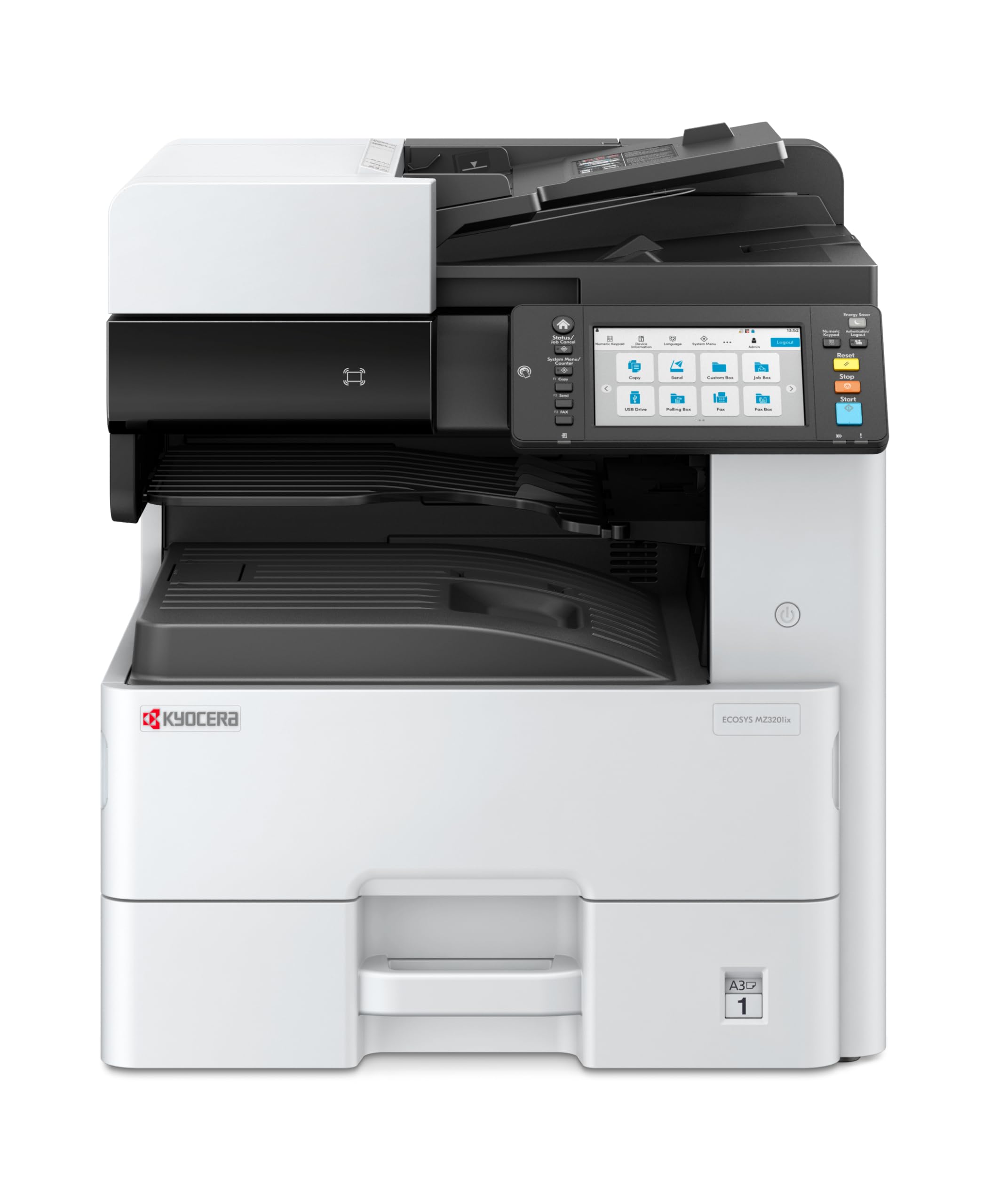
Image 1: Kyocera ECOSYS MZ3201ix A3 Laser Multifunction Printer. This image shows the front view of the printer, highlighting its compact design and the integrated touch screen panel.
5. Navodila za uporabo
5.1 Osnovno tiskanje
- Odprite dokument, ki ga želite natisniti, v računalniku.
- Izberite File > Natisni.
- Choose the Kyocera ECOSYS MZ3201ix from the list of available printers.
- Po potrebi prilagodite nastavitve tiskanja (npr. število kopij, velikost papirja, obojestransko tiskanje).
- Kliknite Tiskanje.
5.2 Kopiranje dokumentov
- Dokument položite z licem navzdol na steklo optičnega bralnika ali z licem navzgor v samodejni podajalnik dokumentov (ADF).
- On the printer's touch screen, select the Kopiraj funkcijo.
- Adjust settings such as number of copies (up to 999), zoom, and paper type.
- Pritisnite Začetek gumb za začetek kopiranja.
5.3 Skeniranje dokumentov
- Dokument položite na steklo skenerja ali v samodejni podajalnik dokumentov.
- On the printer's touch screen, select the Skeniraj funkcijo.
- Choose your desired scan destination (e.g., Scan to PC, Scan to Email, Scan to USB).
- Configure scan settings such as resolution (up to 1200 x 1200 dpi), color mode, and file format.
- Pritisnite Začetek gumb za začetek skeniranja.
5.4 Faksiranje dokumentov
(Note: Fax functionality requires a telephone line connection, not detailed in this manual.)
- Dokument položite na steklo skenerja ali v samodejni podajalnik dokumentov.
- On the printer's touch screen, select the faks funkcijo.
- Vnesite številko faksa prejemnika s tipkovnico.
- Prilagodite vse potrebne nastavitve faksa.
- Pritisnite Začetek gumb za pošiljanje faksa.
6. Vzdrževanje
Redno vzdrževanje zagotavlja optimalno delovanje in podaljšuje življenjsko dobo vašega tiskalnika.
6.1 Čiščenje tiskalnika
- Zunanjost: Obrišite zunanje površine z mehko damp, krpo, ki ne pušča vlaken. Ne uporabljajte abrazivnih čistil ali topil.
- Steklo optičnega bralnika: Gently clean the scanner glass with a soft cloth and a non-abrasive glass cleaner.
- Valji samodejnega podajalnika dokumentov: Občasno očistite valje samodejnega podajalnika dokumentov s krpo, ki ne pušča vlaken.ampened with isopropyl alcohol to prevent paper jams.
6.2 Zamenjava kartuše s tonerjem
- When the printer indicates low toner, order a new Kyocera toner cartridge.
- Odprite sprednji pokrov tiskalnika.
- Prazno kartušo s tonerjem odstranite tako, da jo izvlečete.
- Razpakirajte novo kartušo s tonerjem in jo nežno pretresite, da se toner enakomerno porazdeli.
- Insert the new toner cartridge firmly into its slot until it clicks into place.
- Zaprite sprednji pokrov.
6.3 Replacing Waste Toner Container
- When the printer indicates the waste toner container is full, prepare a new one.
- Open the cover that provides access to the waste toner container.
- Carefully remove the full waste toner container. Seal it in a plastic bag for proper disposal.
- Insert the new waste toner container into its slot.
- Zaprite pokrov.
7. Odpravljanje težav
Ta razdelek obravnava pogoste težave, na katere lahko naletite s tiskalnikom.
7.1 Zastoji papirja
- Simptom: Printer stops, and an error message indicates a paper jam.
- rešitev: Turn off the printer. Open all covers and trays. Carefully remove any jammed paper, pulling in the direction of the paper path. Ensure no small pieces of paper remain. Close all covers and restart the printer.
7.2 Slaba kakovost tiska
- Simptom: Faded prints, streaks, or spots on pages.
- rešitev: Check toner level and replace if low. Perform a print head cleaning or calibration from the printer's maintenance menu. Ensure you are using appropriate paper for your print job.
7.3 Tiskalnik se ne odziva
- Simptom: Printer is online but does not print documents sent from the computer.
- rešitev: Check all cable connections (USB/Ethernet). Restart both the printer and your computer. Verify that the correct printer driver is installed and selected. Check the printer's network settings if connected via Ethernet.
7.4 Kode napak
If an error code appears on the touch screen, refer to the comprehensive user manual (available on the Kyocera website) for specific instructions related to that code. Many codes indicate specific issues like open covers, paper jams, or consumable replacement needs.
8. Specifikacije
| Funkcija | Specifikacija |
|---|---|
| Znamka | Kyocera |
| Ime modela | ECOSYS MZ3201ix |
| Številka modela | 110C2V3NL0 |
| Tehnologija povezljivosti | Ethernet, USB 2.0 |
| Tehnologija tiskanja | Laser |
| Posebne lastnosti | Automatic Document Feeder, Auto-Duplex, Network Ready, Scan to Email, Touch Screen |
| Izhod tiskalnika | Enobarvno |
| Max Print Speed Black & White | 32 Pages per minute (A4) |
| Teža predmeta | 49 kilogramov |
| Dimenzije izdelka (DxŠxV) | 58.5P x 59lx 68.8V cm |
| Max Print Resolution Black & White | 1200 x 1200 dpi |
| Ločljivost optičnega bralnika | 1200 x 1200 dpi |
| Dvostransko tiskanje | Samodejno |
| Max Copy Count | 999 |
| Čas izpisa prve strani | 5.2 sekunde |
| Max Supported Paper Size | A3 |
| Največja kapaciteta vhodnih listov | 1600 |
| Printing Media Type | Navaden papir |
| Funkcije | Copy, Fax, Scan, Print |
9. Garancija in podpora
Your Kyocera ECOSYS MZ3201ix printer comes with a standard manufacturer's warranty. For detailed information regarding warranty terms, duration, and coverage, please refer to the warranty card included with your product or visit the official Kyocera webmesto.
Podpora strankam:
If you encounter any issues that cannot be resolved using this manual or require technical assistance, please contact Kyocera customer support. You can find contact information on the Kyocera webspletnem mestu ali v dokumentaciji, ki je priložena tiskalniku.
When contacting support, please have your printer's model name (ECOSYS MZ3201ix) and serial number ready. The serial number is typically located on a label on the back or bottom of the printer.


