
Uvod
This manual provides detailed instructions for the setup, operation, maintenance, and troubleshooting of your CLABEL POS Kit, which includes the 221D Thermal Label Printer and the T27H Omnidirectional Barcode Scanner. Please read this manual thoroughly before using the devices to ensure proper functionality and to maximize their lifespan.
Konec izdelkaview
The CLABEL POS Kit is designed to streamline your business operations, offering efficient label printing and rapid barcode scanning capabilities. The kit comprises two main components:
- CLABEL 221D Thermal Label Printer: A smart thermal printer that operates without ink, supporting Bluetooth connectivity for iOS/Android devices via the "Clabel trade" app, and USB connectivity for PC. It accommodates label rolls from 20-50 mm in width.
- CLABEL T27H Omnidirectional Barcode Scanner: A desktop scanner capable of decoding 1D, 2D, and QR codes in 0.1 seconds. It features a hands-free design with a 20° adjustable scanning head, automatic wake-up, and sleep modes, and connects via USB.
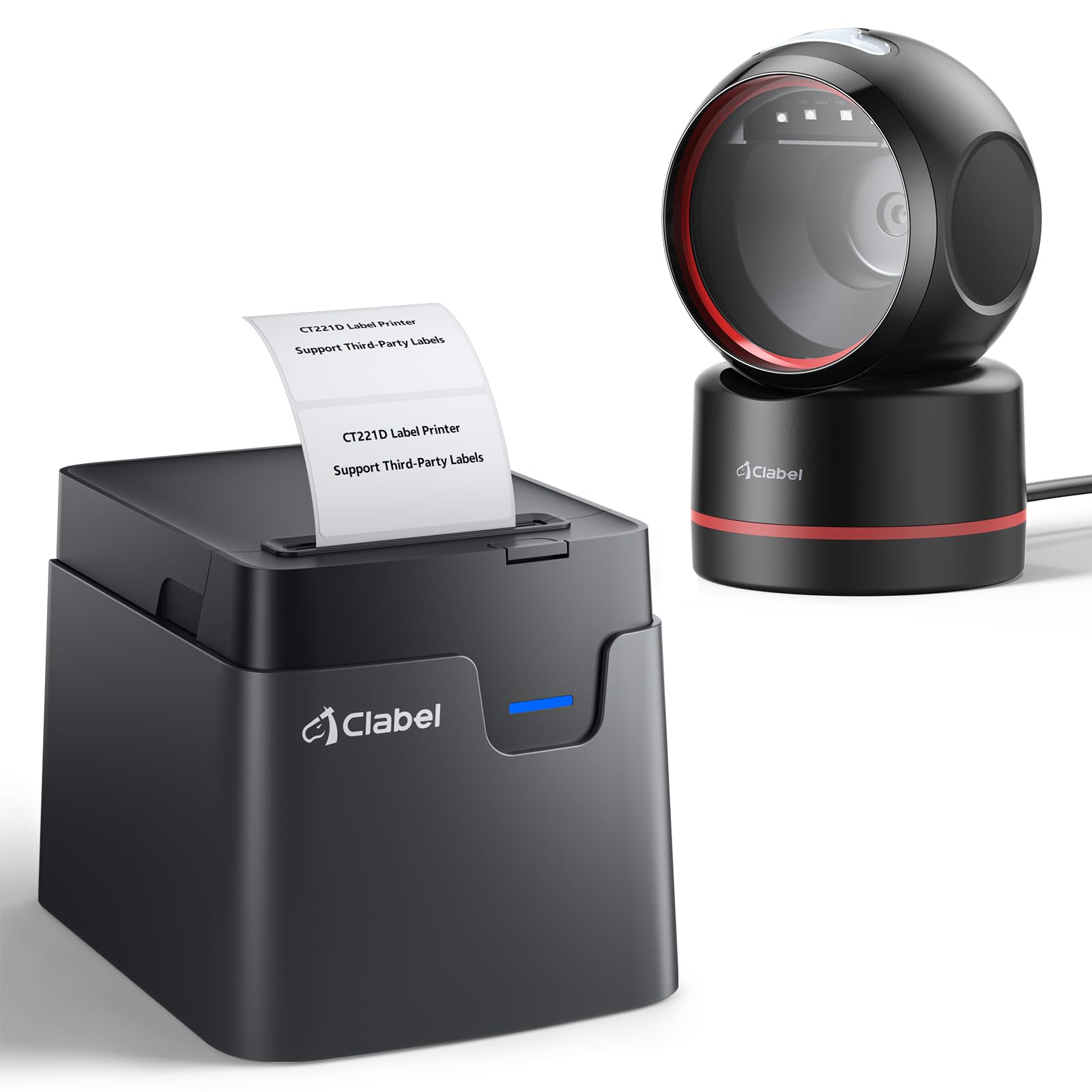
Image: The CLABEL 221D Thermal Label Printer and T27H Barcode Scanner Kit.
Kaj je v škatli
Upon unpacking your CLABEL POS Kit, please verify that all the following components are included:
- CLABEL 221D Thermal Label Printer
- CLABEL T27H Omnidirectional Barcode Scanner
- Label paper roll (50x30mm)
- USB cable for the scanner
- USB-Type C cable (for printer, included in package)
- Power Adapter (not explicitly listed but implied for printer operation)
Navodila za namestitev
221D Thermal Label Printer Setup
Follow these steps to set up your 221D printer for use with a smartphone or PC.
1. Nalaganje oznak
- Odprite pokrov tiskalnika.
- Insert the label roll, ensuring the labels feed smoothly through the printing mechanism.
- Trdno zaprite pokrov tiskalnika.
2. Connecting with a Smartphone (Bluetooth)
- Download the "Clabel trade" app from the App Store (iOS) or Google Play Store (Android).
- Vklopite Bluetooth na pametnem telefonu.
- Open the "Clabel trade" app and search for available printers. Select your printer (e.g., CT221D-XXXX) to connect.

Image: Steps to connect the 221D printer to a smartphone via Bluetooth.
3. Connecting with a PC (USB)
- Vklopite tiskalnik.
- Connect the printer to your computer using the provided USB-Type C cable.
- Download the "Clabel trade" software from the official CLABEL webmesto.
- Install the software and follow the on-screen instructions to set up the printer.

Image: Steps to connect the 221D printer to a PC via USB.
T27H Barcode Scanner Setup
The T27H scanner is a plug-and-play device.
- Connect the scanner to your cash register or computer using the provided USB cable.
- No additional drivers are typically required. The device should be recognized automatically.

Image: The T27H scanner connected to a system, ready for use.
Navodila za uporabo
221D Thermal Label Printer Operation
The 221D printer offers versatile label creation and printing.
1. Creating and Printing Labels (App/Software)
- Open the "Clabel trade" app on your smartphone or the software on your PC.
- Select "New" to create a new label.
- Utilize the app's features to customize your labels, including text, barcodes, QR codes, images, and various layouts.
- Once your label design is complete, select the print option and confirm the settings (e.g., number of copies).

Image: The "Clabel trade" app interface for label customization.
2. Adjusting Printing Width
The 221D printer supports label widths from 20mm to 50mm. Ensure your label roll matches the selected width in the software/app settings for optimal printing.

Image: Demonstrating the adjustable printing width of the 221D printer.
T27H Barcode Scanner Operation
The T27H scanner is designed for efficient and hands-free scanning.
1. Skeniranje črtnih kod
- Position the item with the barcode in front of the scanner's window.
- The scanner will automatically detect and decode 1D, 2D, and QR codes.
- The decoded information will be transmitted to your connected system (cash register, computer).
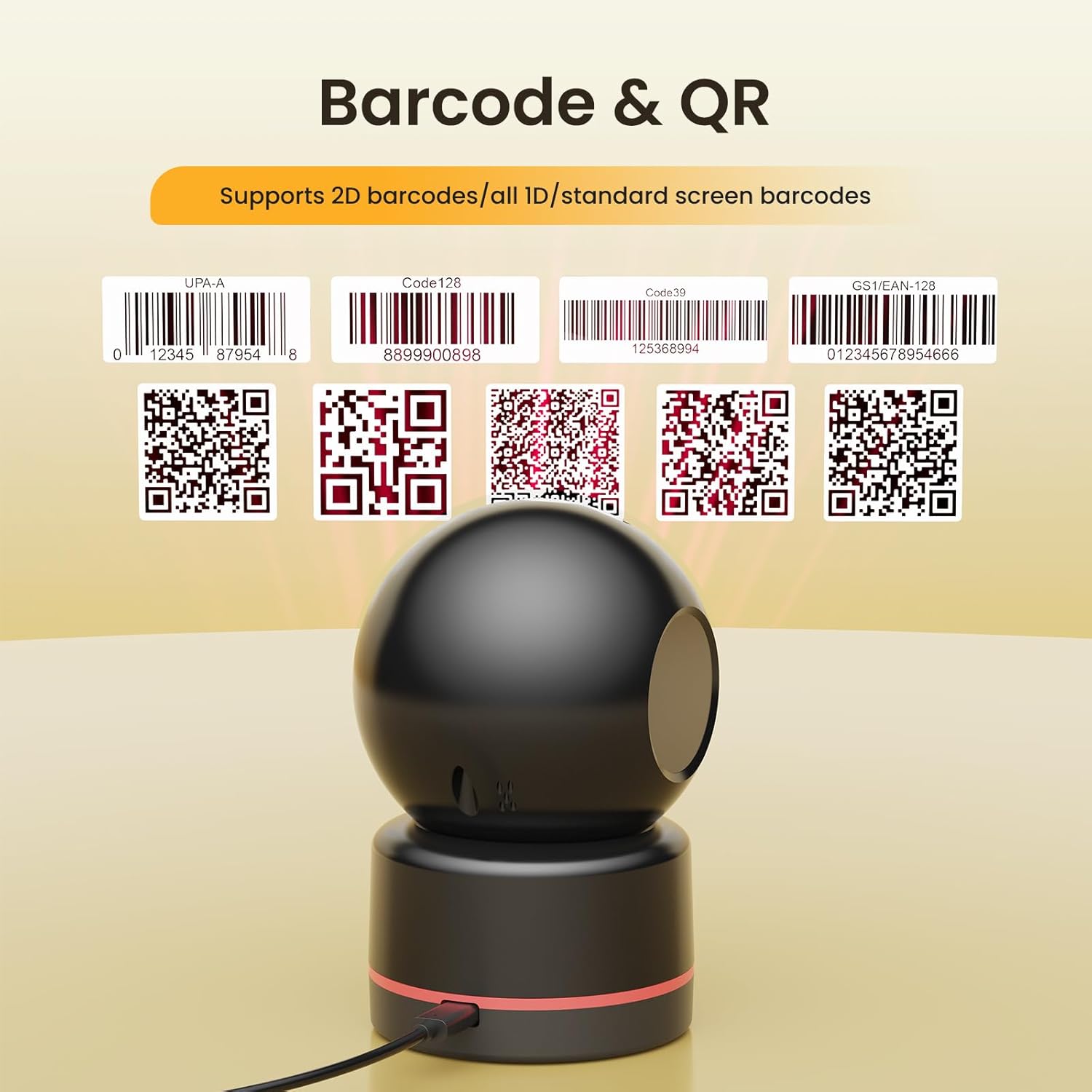
Image: The T27H scanner's broad compatibility with various barcode types.
2. Hands-Free and Automatic Features
- The scanner's 20° adjustable stand allows for hands-free operation, freeing your hands for other tasks.
- It features an automatic wake-up function when a barcode is presented and an automatic sleep mode when idle, conserving energy.

Image: T27H scanner in hands-free mode with adjustable stand.

Image: T27H scanner demonstrating auto wake and auto sleep functionality.
Aplikacije
The CLABEL POS Kit is suitable for a wide range of business environments and applications:
- Retail Stores: For price tags, product labels, and checkout scanning.
- Skladišča: For inventory management, shipping labels, and logistics.
- Pharmacies: For labeling medications and scanning product codes.
- Boutiques: For custom product labels and pricing.
- Knjižnice: For cataloging and tracking items.
- Office Organization: For classifying documents, cables, and storage.
- Food & Beverage: For ingredient labels, best-before dates, and pricing.

Image: Diverse label applications including workspace, cable, greeting, logo, and food labels.

Image: Additional label applications for beverages, price tags, address labels, warning labels, and file nalepke.

Image: T27H scanner in a retail store setting.

Image: T27H scanner in a pharmacy setting.
Vzdrževanje
Regular maintenance ensures the longevity and optimal performance of your CLABEL devices.
1. Čiščenje tiskalnika
- Pred čiščenjem se prepričajte, da je tiskalnik izklopljen in izklopljen iz električnega omrežja.
- Zunanjost nežno obrišite z mehko, suho krpo.
- For the print head, use a specialized thermal printer cleaning pen or a cotton swab lightly dampz izopropilnim alkoholom. Pred uporabo pustite, da se popolnoma posuši.
2. Čiščenje skenerja
- Wipe the scanner's exterior and scanning window with a soft, lint-free cloth.
- Izogibajte se uporabi abrazivnih čistil ali topil, ki bi lahko poškodovala površino.
3. Shranjevanje etiket
Store thermal labels in a cool, dry place away from direct sunlight and heat to prevent premature fading or damage to the thermal coating.

Image: Structure of high-quality thermal labels.

Image: CLABEL transparent thermal labels.
Odpravljanje težav
If you encounter issues with your CLABEL POS Kit, refer to the following common troubleshooting steps:
- Printer Not Printing: Check power connection, ensure label roll is correctly loaded, verify Bluetooth/USB connection, and confirm sufficient label supply. Restart the printer and the connected device.
- Slaba kakovost tiskanja: Clean the print head (refer to Maintenance section), ensure you are using high-quality thermal labels, and check label orientation.
- Skener ne bere črtnih kod: Ensure the scanner is properly connected via USB. Check if the barcode is damaged, smudged, or too reflective. Adjust the scanning angle.
- Težave s povezljivostjo: For Bluetooth, ensure the printer is discoverable and within range. For USB, try a different USB port or cable. Restart both devices.
- Težave z aplikacijo/programsko opremo: Ensure your app/software is updated to the latest version. Reinstall if necessary.
If problems persist after attempting these steps, please contact CLABEL customer support for further assistance.
Specifikacije
| Funkcija | Specifikacija |
|---|---|
| Znamka | CLABEL |
| Printer Model Name | 221D |
| Scanner Model Name | T27H |
| Tehnologija povezljivosti | USB, Bluetooth (for printer) |
| Tehnologija tiskanja | Toplotna |
| Izhod tiskalnika | Enobarvno |
| Supported Media (Printer) | Etikete |
| Paper Size (Printer) | 20-50 mm (width) |
| Vrsta optičnega bralnika | Desktop, Omnidirectional 1D 2D QR |
| Posebne lastnosti | Bluetooth Thermal Printer, Integrated Scanner, Hands-free, Auto Wake/Sleep, 20° Adjustable Stand |
| Vključene komponente | Label paper roll (50x30mm), USB cable for scanner, USB-Type C cable for printer |
| Product Specific Uses | Label and barcode printing for shops, supermarkets, pharmacies, boutiques, and libraries |
Informacije o garanciji
CLABEL products are manufactured to high-quality standards. For specific warranty terms and conditions, please refer to the warranty card included with your product or visit the official CLABEL webspletnega mesta. Shranite dokazilo o nakupu za morebitne garancijske zahtevke.
Podpora
For technical support, troubleshooting assistance, or general inquiries regarding your CLABEL 221D Thermal Label Printer and T27H Barcode Scanner, please contact CLABEL customer service through the following channels:
- Uradno Webspletno mesto: Visit the CLABEL official webspletno mesto za pogosta vprašanja, prenose gonilnikov in kontaktne podatke.
- Podpora po e-pošti: Glejte embalažo izdelka ali uradna navodila. webspletno mesto za e-poštni naslov za podporo strankam.
When contacting support, please have your product model numbers (221D, T27H) and a detailed description of the issue ready.