
Uvod
This user guide provides essential information for the HP OfficeJet Pro 8125e printer. It covers initial setup, connecting to networks, performing print, scan, and copy functions, routine maintenance, and troubleshooting common issues. Follow these instructions to ensure optimal performance and longevity of your device.
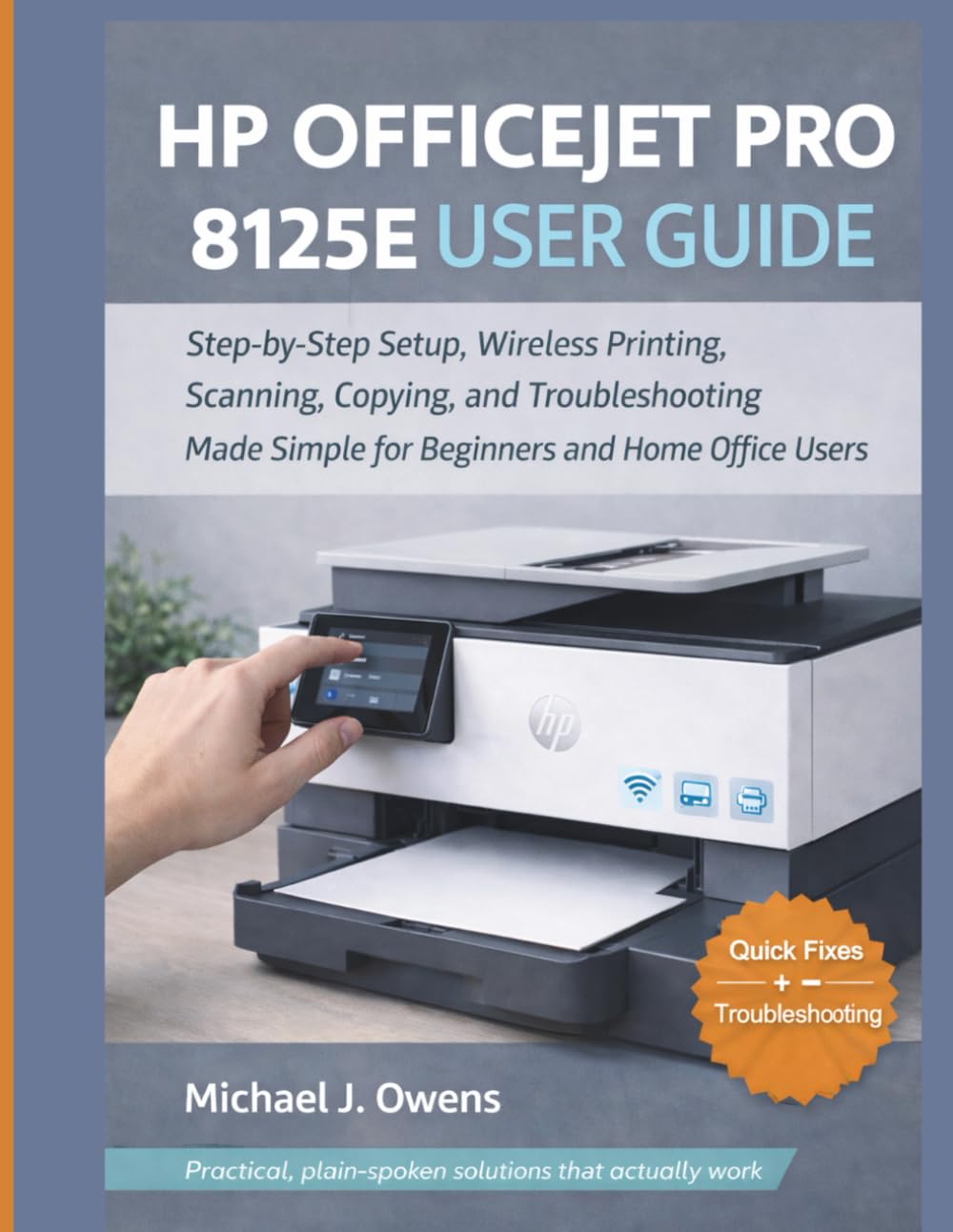
Image: Front cover of the HP OfficeJet Pro 8125e User Guide. This image represents the manual itself, designed to assist users with their printer.
1. Nastavitev
1.1 Razpakiranje in prvi vklop
- Tiskalnik previdno vzemite iz embalaže.
- Odstranite vse zaščitne trakove in embalažni material z zunanjosti in notranjosti tiskalnika.
- Napajalni kabel priključite na tiskalnik in nato v stensko vtičnico.
- Pritisnite gumb za vklop, da vklopite tiskalnik.
- Follow the on-screen prompts on the printer's control panel to select your language and region.
1.2 Vstavljanje kartuš s črnilom
- Odprite vratca za dostop do kartuše s črnilom.
- Počakajte, da se nosilec kartuše premakne na sredino.
- Unpack the new ink cartridges.
- Vsako kartušo vstavite v ustrezno režo in se prepričajte, da se zaskoči.
- Zaprite vratca za dostop do kartuš s črnilom.
1.3 Nalaganje papirja
- Izvlecite vhodni pladenj.
- Vodila za papir prilagodite pravilni velikosti papirja.
- V pladenj naložite kup navadnega belega papirja s stranjo za tiskanje navzdol.
- Vhodni pladenj potisnite nazaj v tiskalnik.
- Po potrebi potrdite vrsto in velikost papirja na nadzorni plošči tiskalnika.
1.4 Povezovanje z Wi-Fi
- Na nadzorni plošči tiskalnika se pomaknite do Čarovnika za brezžično namestitev.
- Na seznamu razpoložljivih omrežij izberite svoje omrežje Wi-Fi.
- Enter the Wi-Fi password (WPA key) when prompted.
- Confirm the connection. The wireless light on the printer should turn solid blue.
1.5 Namestitev gonilnika
For Windows and Mac computers, download the latest drivers and HP Smart software from the official HP support website. Follow the on-screen instructions during installation.
2. Upravljanje tiskalnika
2.1 Tiskanje dokumentov
- Iz računalnika: Open the document, select "Print," choose your HP OfficeJet Pro 8125e, and adjust settings as needed before printing.
- Iz mobilnih naprav (aplikacija HP Smart): Install the HP Smart app, add your printer, and use the app to print photos or documents directly from your smartphone or tablet.
- Email Print: If enabled, send documents to your printer's unique email address.
2.2 Skeniranje dokumentov
- Dokument položite z licem navzdol na steklo optičnega bralnika ali z licem navzgor v samodejni podajalnik dokumentov (ADF).
- On the printer's control panel or via the HP Smart app/software on your computer, select "Scan."
- Choose scan settings (e.g., color, resolution, destination).
- Začnite skeniranje.
2.3 Kopiranje dokumentov
- Izvirni dokument položite na steklo optičnega bralnika ali v samodejni podajalnik dokumentov.
- On the printer's control panel, select "Copy."
- Adjust settings such as number of copies, color/black & white, and size.
- Pritisnite gumb »Začni kopiranje«.
3. Vzdrževanje
3.1 Cleaning the Print Heads
If print quality degrades (streaks, faded colors), perform a print head cleaning from the printer's control panel or the HP Smart software. This process uses ink, so only perform it when necessary.
3.2 Zamenjava kartuš s črnilom
When an ink cartridge is low or empty, the printer will notify you. Follow the steps in Section 1.2 to replace cartridges. Use genuine HP ink cartridges for best results.
3.3 Generalno čiščenje
Zunanjost tiskalnika obrišite z mehko,amp, lint-free cloth. Clean the scanner glass regularly with a glass cleaner applied to a cloth (not directly to the glass) to prevent smudges from affecting scan quality.
4. Odpravljanje težav
| Težava | rešitev |
|---|---|
| Printer Offline Message |
|
| Zastoji papirja |
|
| Slaba kakovost tiskanja |
|
| HP Smart App Issues |
|
5. Specifikacije
Note: The following specifications are typical for the HP OfficeJet Pro 8125e printer. For precise details, refer to the official HP product page or documentation.
- Funkcije: Print, Copy, Scan, Fax (optional, depending on region/model)
- Tehnologija tiskanja: HP termalni brizgalni tiskalnik
- Hitrost tiskanja (črno-belo): Do 22 strani na minuto (ISO)
- Hitrost tiskanja (barvno): Do 18 strani na minuto (ISO)
- Print Resolution (Best): Optimizirana barvna ločljivost do 4800 x 1200 dpi
- Scan Resolution (Optical): Do 1200 dpi
- Povezljivost: Wi-Fi 802.11a/b/g/n, Ethernet, USB 2.0
- Ravnanje s papirjem: 250-sheet input tray, 60-sheet output tray, 35-sheet ADF
- Dvostransko tiskanje: Samodejno (standardno)
- Zaslon: Barvni zaslon na dotik
6. Garancija in podpora
For warranty information, please refer to the documentation included with your printer or visit the official HP support website. HP provides various support resources, including online FAQs, driver downloads, and contact options for technical assistance.
Image: Back cover of the HP OfficeJet Pro 8125e User Guide. This image provides additional information and ISBN details for the manual.