
1. Uvod
The Huawei OptiXstar K251a-21 is a sub-FTTR (Fiber to the Room) unit designed to extend the high-speed network provided by the Huawei FTTR OptiXstar F50 Plus main unit. This device supports ultra-Gigabit high-speed access via upstream fiber optic lines and delivers Ultra Gigabit dual-band Wi-Fi and ultra-Gigabit network ports to users. It integrates next-generation Wi-Fi 7 technology for higher speeds and lower latency, ensuring a superior home network experience.
2. Varnostne informacije
Please read and understand all safety instructions before using this device. Failure to follow these instructions may result in injury, damage to the device, or property damage.
- Uporabljajte samo napajalnik, ki je priložen napravi.
- Naprave ne izpostavljajte vodi, vlagi ali ekstremnim temperaturam.
- Naprave ne postavljajte v bližino virov toplote ali na neposredno sončno svetlobo.
- Poskrbite za ustrezno prezračevanje, da preprečite pregrevanje.
- Do not attempt to open or repair the device yourself. Contact qualified service personnel for assistance.
- Napravo hranite izven dosega otrok in hišnih ljubljenčkov.
3. Vsebina paketa
Preverite, ali so v paketu vsi elementi:
- Huawei OptiXstar K251a-21 Sub FTTR Device
- Napajalni kabel
- Vodnik za hitri začetek (če je priložen)
4. Izdelek je končanview
Seznanite se s komponentami in indikatorji naprave.
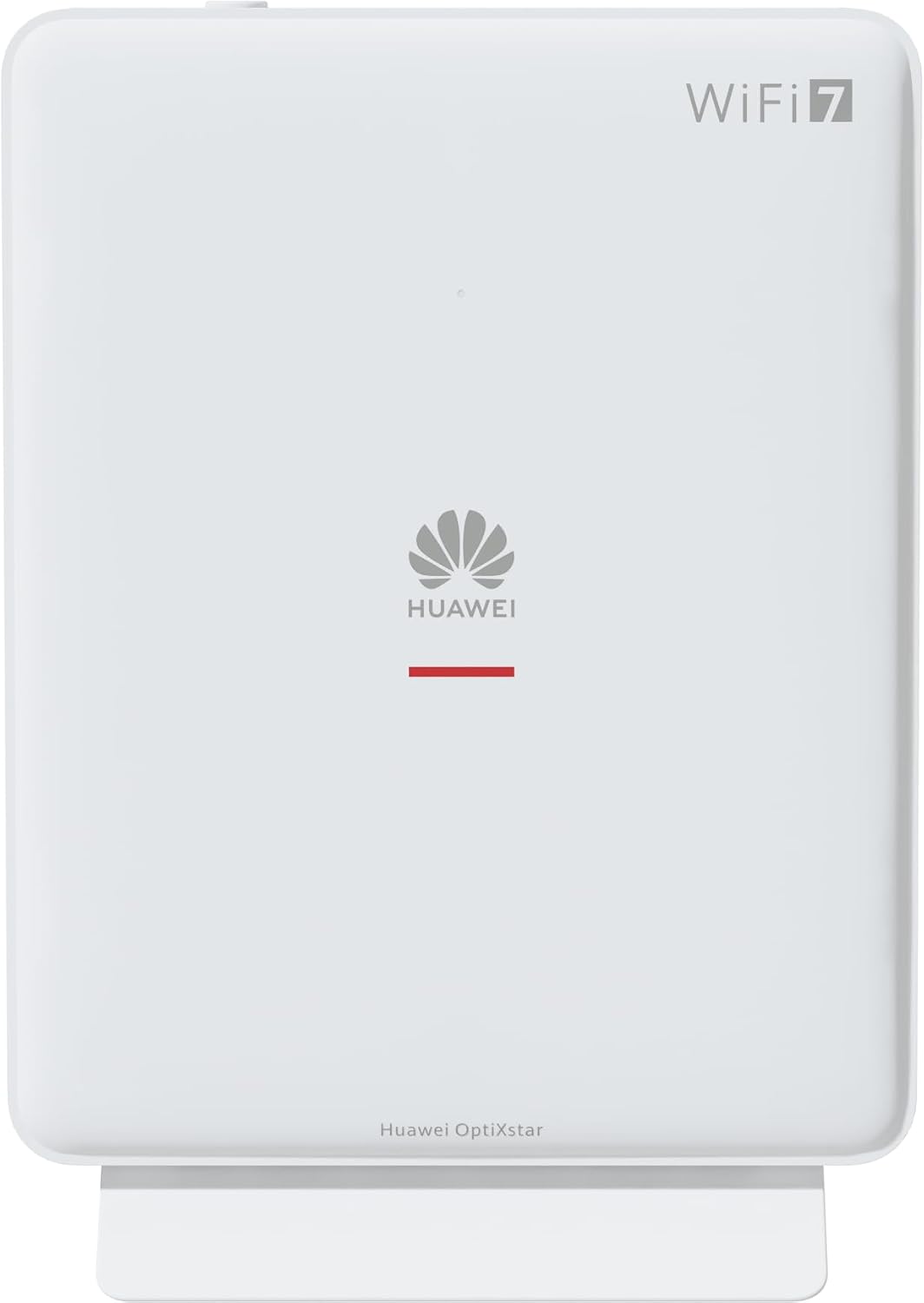
Slika 1: Spredaj view of the Huawei OptiXstar K251a-21 Sub FTTR device, showing the Huawei logo and "WiFi 7" branding.

Figure 2: Angled front-side view of the Huawei OptiXstar K251a-21 Sub FTTR, highlighting its sleek design and ventilation.

Slika 3: Zadaj view of the Huawei OptiXstar K251a-21 Sub FTTR, displaying the ports (Reset, 2-GE, 1-2.5GE, Power, FTTR) and mounting options.

Slika 4: Stranski profesionalecfile of the Huawei OptiXstar K251a-21 Sub FTTR, showing its slim form factor and ventilation grilles.

Slika 5: Nagnjen zadnji del view of the Huawei OptiXstar K251a-21 Sub FTTR, providing a clear look at the port labels and layout.

Slika 6: Zgornji del view of the Huawei OptiXstar K251a-21 Sub FTTR, featuring the WPS/LED button.
Vrata in gumbi:
- FTTR Port: Connects to the main FTTR unit via a fiber optic cable.
- 1-2.5GE Port: Gigabit Ethernet port for high-speed wired connections.
- 2-GE Port: Gigabitna ethernetna vrata za žične povezave.
- Napajalni priključek: Povezuje se z napajalnikom.
- Gumb za ponastavitev: Used to restore factory settings (press and hold for 5-10 seconds).
- WPS/LED Button: Initiates Wi-Fi Protected Setup (WPS) for easy device connection and controls LED indicators.
5. Nastavitev
Follow these steps to set up your Huawei OptiXstar K251a-21 Sub FTTR device:
- Umestitev: Choose a central location in your home for optimal Wi-Fi coverage. The device is suitable for various installation scenarios, including vertical placement on a desk, wall-mounting, plugging into a power strip, or mounting in an 86mm junction box with a bracket.
- Priključite optični kabel: Connect one end of the fiber optic cable to the FTTR port on the Sub FTTR unit and the other end to the corresponding FTTR port on your Huawei FTTR OptiXstar F50 Plus main unit or wall outlet. Ensure the connection is secure.
- Priključite napajanje: Plug the power adapter into the Power port on the Sub FTTR unit, then plug the other end into a power outlet.
- Vklop: The device will automatically power on. Wait for the indicator lights to stabilize, typically indicating a successful connection to the main FTTR unit and active Wi-Fi.
- Wired Connections (Optional): For wired devices, connect an Ethernet cable from the 1-2.5GE or 2-GE ports on the Sub FTTR to your computer, gaming console, or other network devices.
6. Delovanje
Once set up, your OptiXstar K251a-21 provides seamless Wi-Fi 7 connectivity.
- Povezava Wi-Fi: Iskanje the Wi-Fi network name (SSID) broadcast by your FTTR system on your devices (smartphones, laptops, etc.). Enter the Wi-Fi password. The system's unique SRCN (Seamless Roaming Coordinate Network) technology ensures seamless roaming throughout your home.
- C-WAN Architecture: The C-WAN architecture centrally controls and coordinates network-wide Wi-Fi resources via the Main FTTR, providing an ultra-Gigabit high-speed experience.
- IoT Casing: The device features an IoT casing designed to protect home network security and privacy.
- Funkcija WPS: Press the WPS/LED button briefly to use Wi-Fi Protected Setup (WPS) for quick connection of compatible devices without entering the password.
- LED indikatorji: The LED indicators provide status information. Refer to the main FTTR unit's manual or the device's specific documentation for detailed LED status meanings.
7. Vzdrževanje
Regular maintenance helps ensure optimal performance and longevity of your device.
- Čiščenje: Gently wipe the device with a soft, dry cloth. Do not use liquid cleaners or abrasive materials.
- Posodobitve vdelane programske opreme: Huawei periodically releases firmware updates to improve performance and security. These updates are typically managed through the main FTTR unit or a dedicated mobile application. Ensure your system is always running the latest firmware.
- Prezračevanje: Prepričajte se, da prezračevalne odprtine niso blokirane, da preprečite pregrevanje.
- Upravljanje kablov: Keep fiber optic and power cables neatly organized and free from kinks or excessive bending.
8. Odpravljanje težav
Če naletite na težave, poskusite naslednje korake za odpravljanje težav:
- Brez napajanja: Check if the power cable is securely connected to both the device and the power outlet. Try a different outlet.
- Ni internetne povezave:
- Verify that the fiber optic cable is correctly connected to the FTTR port.
- Check the status indicators on both the Sub FTTR and the main FTTR unit.
- Restart both the Sub FTTR and the main FTTR unit by unplugging them from power for 30 seconds and then plugging them back in.
- Ensure your main FTTR unit has an active internet connection.
- Počasna hitrost Wi-Fi-ja:
- Ensure the device is placed optimally, away from obstructions and interference sources.
- Check if too many devices are connected to the network.
- Update the firmware of your FTTR system.
- Consider using a wired connection for bandwidth-intensive tasks.
- Ni mogoče vzpostaviti povezave z Wi-Fi:
- Preverite, ali vnašate pravilno geslo za Wi-Fi.
- Try using the WPS button to connect.
- Restart your device and the Sub FTTR unit.
- Tovarniška ponastavitev: If issues persist, you may need to perform a factory reset. With the device powered on, use a pointed object (like a paperclip) to press and hold the Reset button for 5-10 seconds until the indicators change. Note that this will erase all custom settings.
9. Specifikacije
| Funkcija | Specifikacija |
|---|---|
| Znamka | HUAWEI |
| Številka modela | K8M251a-21G02 |
| Dimenzije (paket) | 24.5 x 23.7 x 7.4 cm |
| Teža (paket) | 300 gramov |
| Posebna funkcija | Internetna varnost |
| Razred frekvenčnega pasu | Dvojni pas |
| Standard brezžične komunikacije | 802.11ax (Wi-Fi 7 Generation) |
| Združljive naprave | Osebni računalnik |
| Priporočene uporabe | domov |
| Vključene komponente | Napajalni kabel |
| Tehnologija povezljivosti | Ethernet, FTTR, Wi-Fi, Fiberglass |
| barva | Bela |
| Število vrat | 4 (FTTR, 1-2.5GE, 2-GE, Power) |
| Hitrost prenosa podatkov | 1 Gigabits per second |
| Združljivost s pametnim domom | Compatible with smart home systems |
| Internetna povezljivost | ja |
| Protokol povezljivosti | Wi-Fi |
10. Garancija in podpora
Za informacije o garanciji in tehnično podporo se obrnite na uradno spletno stran Huawei website or contact your local Huawei customer service. Keep your purchase receipt for warranty claims.
Spletni viri: Obiščite uradno podporo Huawei webspletno mesto za pogosta vprašanja, posodobljene priročnike in prenose programske opreme.
Storitev za stranke: Contact details for customer support can typically be found on the Huawei website or in the documentation provided with your main FTTR unit.