
1. Nastavitev
1.1 Vsebina paketa
Pred sestavljanjem preverite, ali so v paketu prisotne vse komponente:
- KTC H24F7 24 Inch 240Hz Monitor
- Podstavek za monitor
- Stojalo za monitor
- Napajalni adapter
- HDMI kabel
- Navodila za hiter začetek (QSG)
1.2 Navodila za montažo
Za sestavljanje monitorja sledite tem korakom:
- Previdno vzemite monitor in vse komponente iz embalaže.
- Attach the monitor stand to the monitor base. Ensure it clicks securely into place.
- Connect the assembled stand and base to the back of the monitor. The stand is designed for easy snap-in installation.
- Monitor postavite na stabilno, ravno površino.

1.3 Namestitev nosilca VESA
The KTC H24F7 monitor supports VESA 100mm x 100mm mounting for alternative stand or wall mount solutions. Ensure you use M4-0.7 x 10mm screws (not included) for secure installation.

1.4 Povezovanje z napravami
Računalnik ali druge naprave priključite na monitor z ustreznimi kabli.
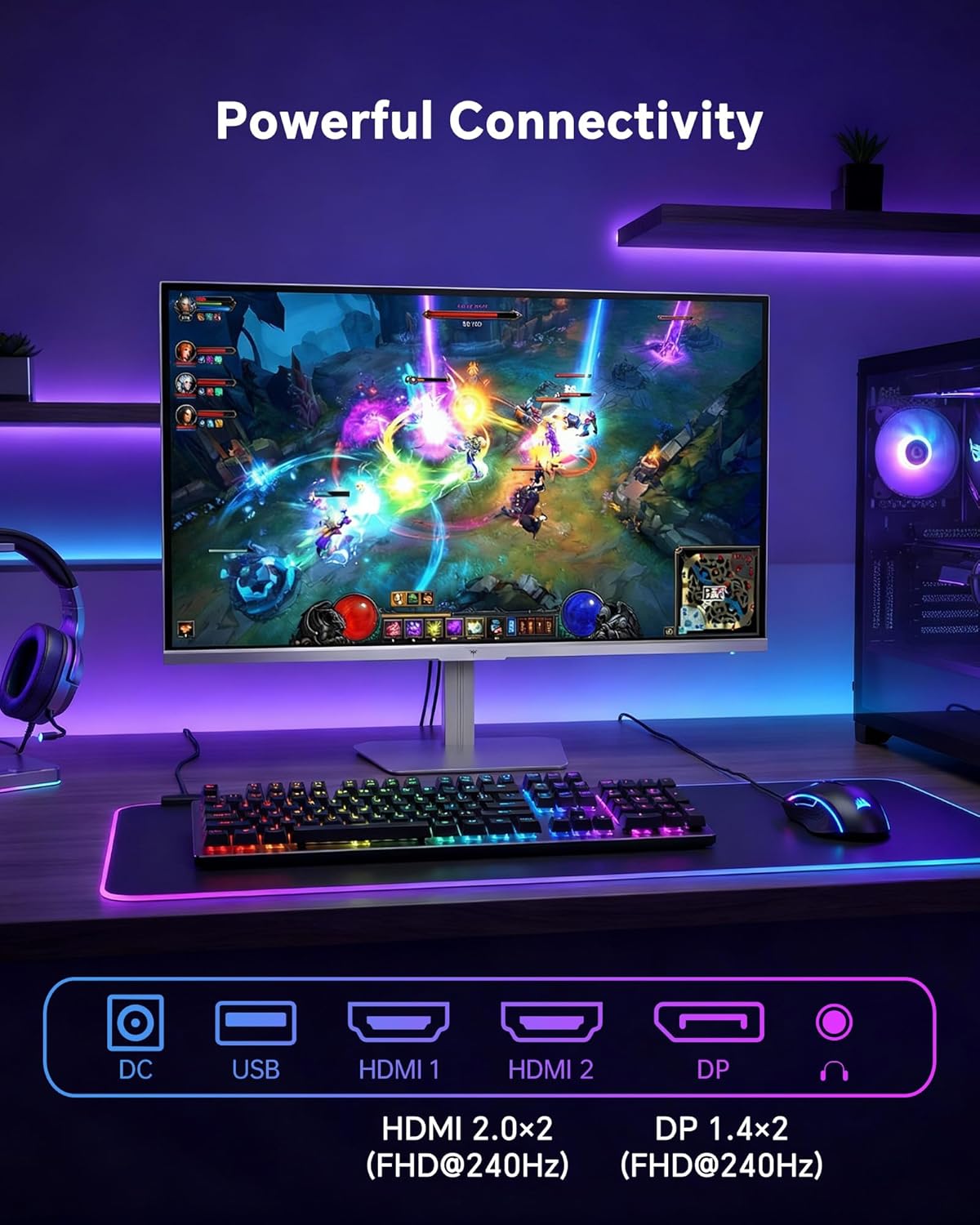
- HDMI: Use an HDMI cable to connect to devices with HDMI output. The monitor has two HDMI 2.0 ports, supporting FHD at 240Hz.
- DisplayPort: Use a DisplayPort cable for devices with DisplayPort output. The monitor has one DisplayPort 1.4, supporting FHD at 240Hz.
- moč: Connect the power adaptor to the DC input on the monitor and then to a power outlet.
- USB: A USB 2.0 port is available for connecting peripherals.
- Zvočni izhod: A 3.5mm audio jack is available for connecting headphones or external speakers.
2. Navodila za uporabo
2.1 Vklop/izklop
Pritisnite gumb za vklop na monitorju, da ga vklopite ali izklopite. Lučka indikatorja napajanja sveti, ko je monitor aktiven.
2.2 Zaslonski meni (OSD)
The OSD menu allows you to adjust various monitor settings. Use the control buttons (typically located on the back or bottom of the monitor) to navigate the menu and select options. Refer to the Quick Start Guide for specific button functions.
2.3 Nastavitve zaslona
Optimizirajte svoje viewizkušnje s prilagoditvijo naslednjih nastavitev:
- Hitrost osveževanja: The monitor supports a 240Hz refresh rate for smooth motion. Ensure your graphics card settings are configured to utilize this rate.

- Prilagodljiva sinhronizacija: This technology synchronizes the monitor's refresh rate with your graphics card's frame rate to eliminate screen tearing and stuttering. Enable Adaptive Sync in the OSD menu and ensure it is also enabled in your graphics card control panel (FreeSync/G-Sync compatible).

- HDR 400: High Dynamic Range 400 provides enhanced contrast and color accuracy, delivering brighter highlights and deeper shadows. Activate HDR in the OSD menu and your operating system display settings for compatible content.

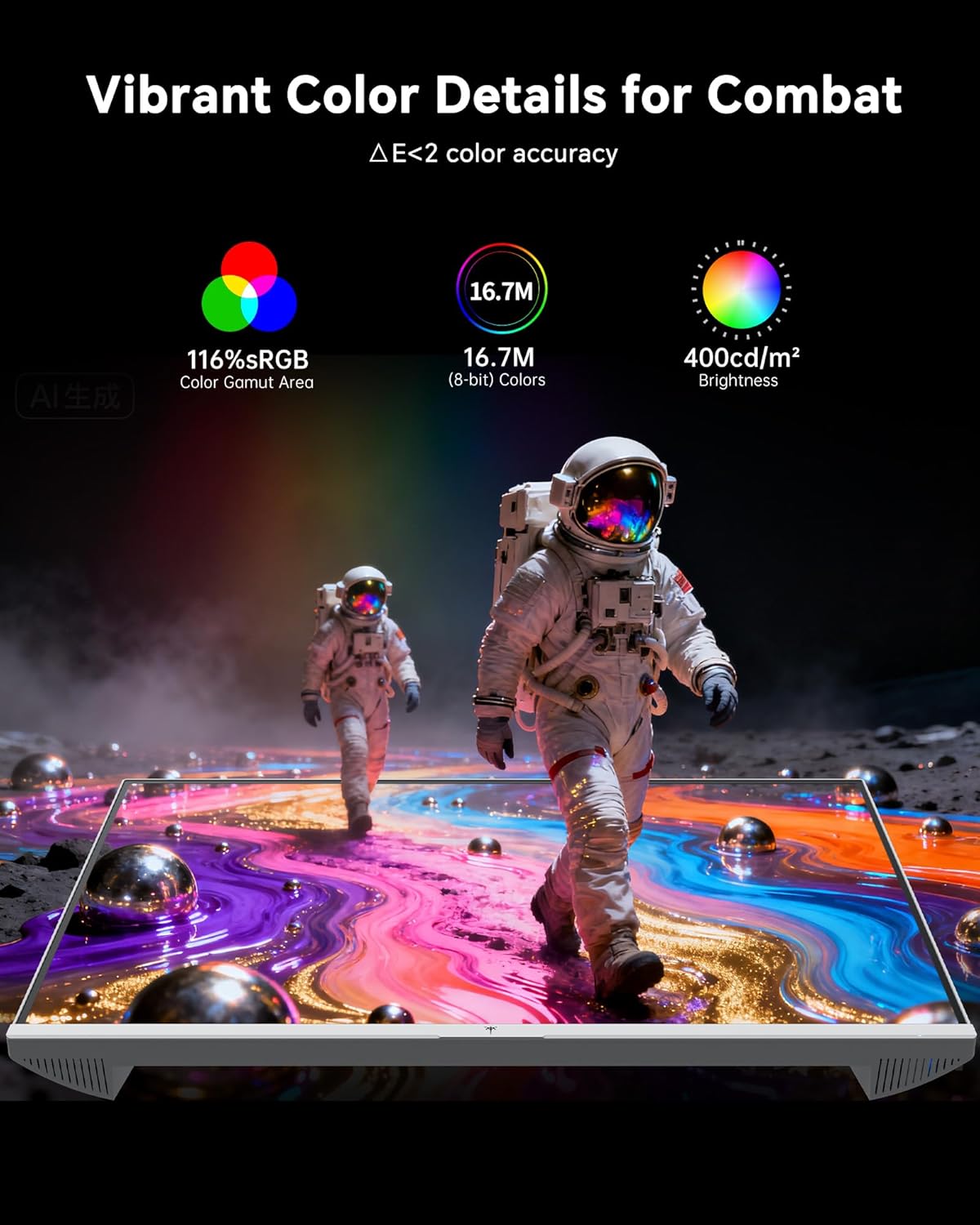
- Barvne nastavitve: The monitor offers 116% sRGB color gamut and 16.7 million colors. Adjust brightness (up to 400 cd/m²) and color temperature through the OSD menu to suit your preference.
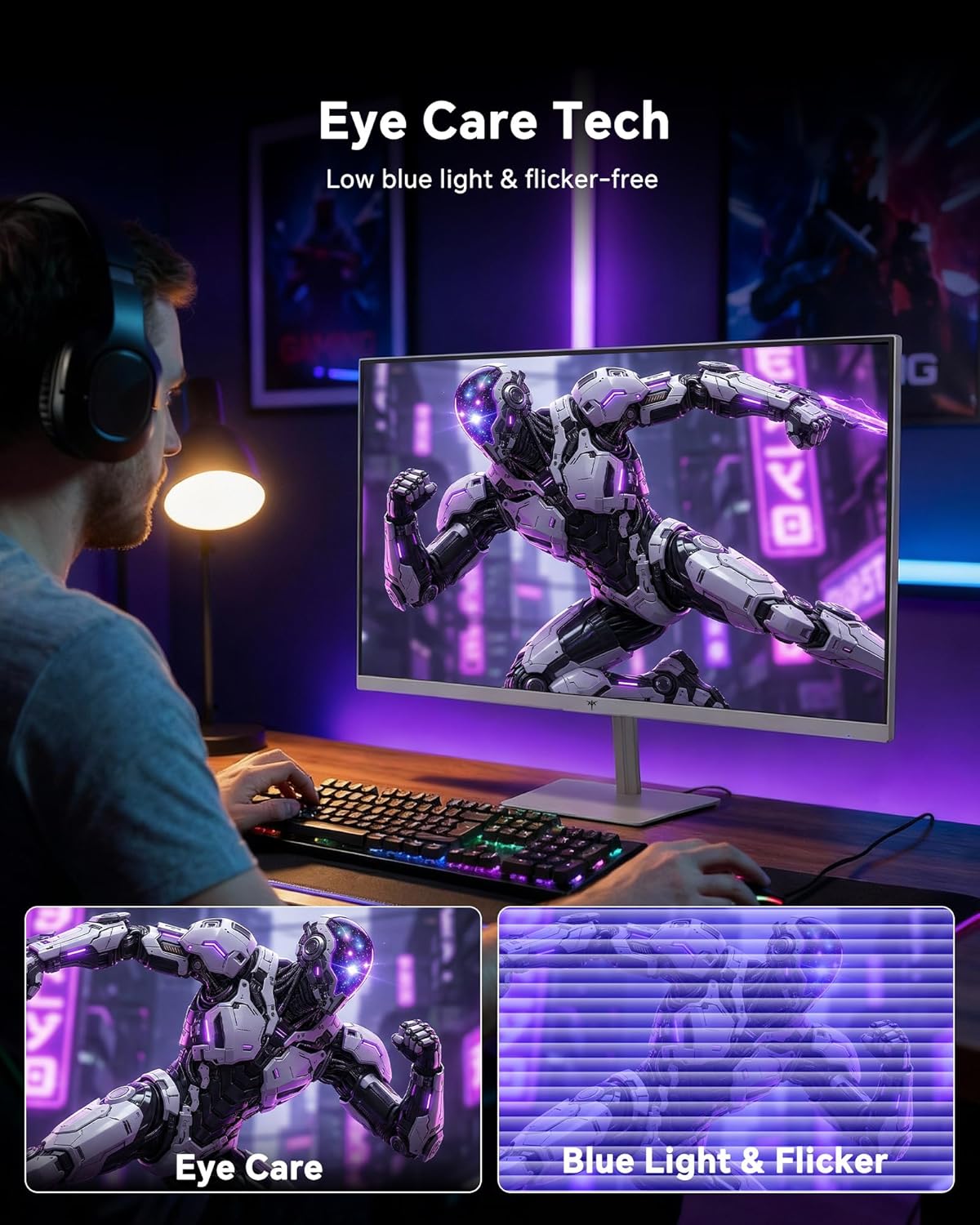
- Tehnologija za nego oči: The monitor features low blue light and flicker-free technology to reduce eye strain during prolonged use. These settings can typically be adjusted or enabled within the OSD menu.
2.4 Monitor Tilt Adjustment
The monitor supports tilt adjustment from -5° to 15° (±3°). Gently adjust the monitor panel to your desired viewvhodni kot.
3. Vzdrževanje
3.1 Čiščenje monitorja
Za čiščenje zaslona monitorja in casing:
- Pred čiščenjem vedno izklopite monitor in izvlecite napajalni kabel.
- Uporabite mehko krpo, ki ne pušča vlaken, dampz vodo ali blagim, neabrazivnim čistilom za zaslone.
- Wipe the screen gently to remove dust and smudges. Avoid applying excessive pressure.
- Za casing, use a dry, soft cloth. Do not use alcohol, ammonia, or abrasive cleaners, as these can damage the surface.
3.2 Splošna nega
- Izogibajte se postavljanju težkih predmetov na monitor ali njegove kable.
- Monitorja ne izpostavljajte neposredni sončni svetlobi, prekomerni vročini ali ekstremnemu mrazu.
- Monitor hranite stran od tekočin in visoke vlažnosti.
- Poskrbite za ustrezno prezračevanje okoli monitorja, da preprečite pregrevanje.
4. Odpravljanje težav
If you encounter issues with your KTC H24F7 monitor, refer to the following common problems and solutions:
| Težava | Možen vzrok | rešitev |
|---|---|---|
| Na zaslonu ni slike | Power cable disconnected; Video cable disconnected or loose; Incorrect input source selected; Monitor is off. | Ensure power cable is securely connected and monitor is on. Check video cable connections (HDMI/DisplayPort) at both the monitor and computer. Press the input source button on the monitor to cycle through inputs. |
| Utripanje ali trganje slike | Adaptive Sync not enabled; Graphics card driver issues; Faulty video cable. | Enable Adaptive Sync in the OSD menu and your graphics card control panel. Update graphics card drivers. Try a different video cable. If using DisplayPort 1, try DisplayPort 2 or HDMI if available, as some units may experience issues with specific ports. |
| Barve so videti napačne ali sprane | Color settings incorrect; HDR not properly configured; Faulty video cable. | Adjust color settings (brightness, contrast, color temperature) in the OSD menu. Ensure HDR is enabled in both the OSD and your operating system for HDR content. Try a different video cable. |
| Monitor ne doseže 240 Hz | Graphics card limitations; Incorrect display settings in OS; Cable bandwidth limitations. | Ensure your graphics card supports 240Hz at 1080p. Verify display settings in your operating system (e.g., Windows Display Settings or NVIDIA/AMD control panel) are set to 240Hz. Use the provided HDMI cable or a certified DisplayPort 1.4 cable. |
| Stuck or dead pixels | Proizvodna napaka. | A small number of stuck or dead pixels (typically 1-3) may be considered normal for LCD panels. If the issue is severe or persistent, contact customer support. |
5. Specifikacije
| Funkcija | Podrobnost |
|---|---|
| Znamka | KTC razširitev |
| Številka modela | H24F7 |
| Velikost zaslona | 24 palcev |
| Resolucija | FHD 1080p (1920 x 1080 slikovnih pik) |
| Vrsta plošče | Skoraj IPS |
| Hitrost osveževanja | 240 Hz |
| Odzivni čas | 1 milisekunda (MPRT) |
| Razmerje stranic | 16:9 |
| Svetlost | 400 kandel na kvadratni meter |
| Kontrastno razmerje | 1000:1 |
| Barvna lestvica | 116 % sRGB |
| Podpora za HDR | HDR 400 |
| Prilagodljiva sinhronizacija | FreeSync, G-Sync Compatible |
| Povezljivost | 2x HDMI 2.0, 1x DisplayPort 1.4, 1x USB 2.0, 1x Audio Out (3.5mm) |
| Funkcije za nego oči | Low Blue Light, Flicker-Free, Anti-Glare Screen |
| Prilagoditve | Tilt (-5° to 15°) |
| VESA nosilec | 100 mm x 100 mm |
| Mere (D x Š x V) | 5.39"D x 21.25"Š x 15.74"V |
| Teža predmeta | 3.2 kilogramov |
| barva | Bela |
6. Garancija in podpora
6.1 Informacije o garanciji
The KTC H24F7 monitor comes with a three-year manufacturer warranty. Ta garancija pokriva napake v materialu in izdelavi pri normalni uporabi.
Za garancijske zahtevke shranite dokazilo o nakupu.
6.2 Podpora strankam
For technical assistance, warranty claims, or any questions regarding your KTC H24F7 monitor, please contact KTC customer support. KTC aims to provide responsive customer support and typically responds within 12 hours.
You can usually find contact information on the official KTC website or through the retailer where you purchased the product. When contacting support, please have your monitor model number (H24F7) and purchase details ready.