
Moman Xview M4 Pro
Moman Xview M4 Pro Selfie Monitor User Manual
Model: Xview M4 Pro
1. Uvod
This manual provides comprehensive instructions for the safe and efficient use of your Moman Xview M4 Pro Selfie Monitor. Please read this manual thoroughly before operating the device and retain it for future reference.
2. Varnostne informacije
Za zagotovitev varnega delovanja in preprečevanje poškodb upoštevajte naslednje varnostne ukrepe:
- Monitorja ne izpostavljajte vodi ali prekomerni vlagi.
- Izogibajte se padcem ali izpostavljanju naprave močnim udarcem.
- Monitorja ne poskušajte razstavljati ali popravljati sami. Obrnite se na usposobljeno servisno osebje.
- Monitor hranite stran od neposredne sončne svetlobe in virov toplote.
- Uporabljajte samo navedeni napajalnik in dodatno opremo.
3. Vsebina paketa
Preverite, ali so v paketu prisotni vsi elementi:
- Moman Xview M4 Pro Selfie Monitor (main unit)
- Polnilni kabel USB-C
- Uporabniški priročnik (ta dokument)
Opomba: Vsebina paketa se lahko nekoliko razlikuje glede na regijo ali posamezen kupljeni paket.
4. Nastavitev
4.1 Polnjenje monitorja
Before first use, fully charge the Moman Xview M4 Pro monitor. Connect the provided USB-C cable to the monitor's charging port and the other end to a compatible USB power adapter (not included) or a computer's USB port.
The charging indicator light will typically show red while charging and turn green or off when fully charged.
4.2 Montaža monitorja
The Moman Xview M4 Pro is designed to be mounted on various camera rigs or smartphone cages. It features a standard 1/4"-20 screw hole for attachment.
- Attach the monitor to a cold shoe mount or a compatible bracket (sold separately) using the 1/4"-20 screw.
- Securely fasten the monitor to your smartphone cage or camera setup.
- Prilagodite viewkot je potrebno.
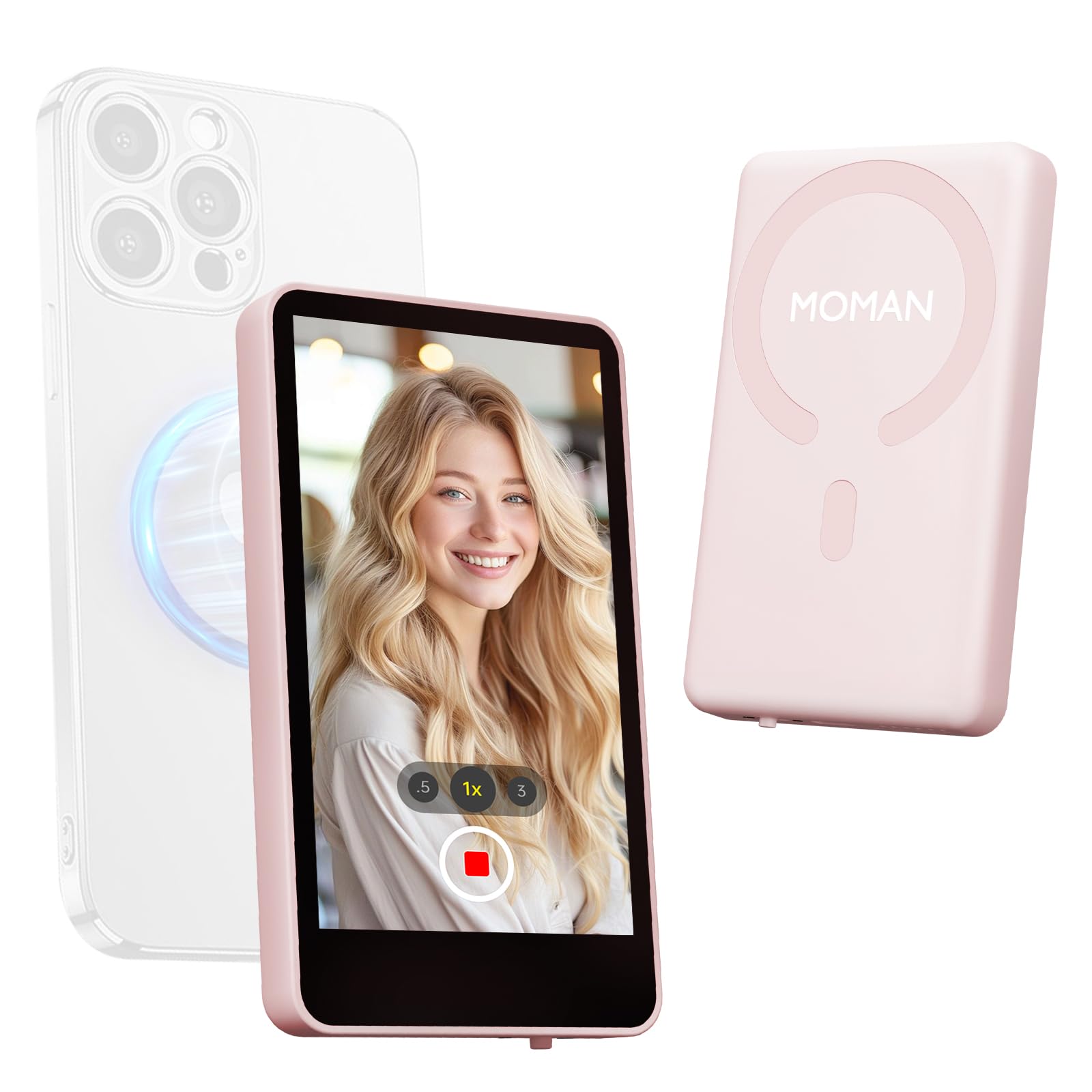
Image: The Moman Xview M4 Pro Selfie Monitor shown attached to a smartphone rig, demonstrating its compact size and mounting flexibility.
5. Navodila za uporabo
5.1 Vklop/izklop
To power on the monitor, press and hold the power button located on the side/back of the device for approximately 3 seconds. The screen will illuminate. To power off, press and hold the power button again until the screen turns off.
5.2 Povezovanje s pametnim telefonom
The Moman Xview M4 Pro connects wirelessly to your smartphone (iPhone 7-17 Series & Android). Follow these steps:
- Prepričajte se, da sta Bluetooth in Wi-Fi na vašem pametnem telefonu omogočena.
- Download and install the dedicated Moman Xview aplikacijo iz trgovine z aplikacijami na vašem pametnem telefonu.
- Open the Moman Xview app and follow the on-screen instructions to pair with the M4 Pro monitor. The app will guide you through the connection process, typically involving selecting the monitor from a list of available devices.
- Once connected, your smartphone's camera feed will be mirrored on the M4 Pro monitor.
For optimal performance, ensure your smartphone and the monitor are within close proximity and free from wireless interference.
5.3 Funkcije monitorja
The M4 Pro monitor provides various functions to enhance your selfie and video recording experience:
- Spremljanje v realnem času: View your smartphone's camera feed in real-time.
- Prilagoditev svetlosti: Use the dedicated buttons or app controls to adjust screen brightness.
- Mirror/Flip Function: Some models or app versions may offer options to mirror or flip the display for specific shooting scenarios. Refer to the app for available features.
- Indikator baterije: The monitor displays its current battery level.
6. Vzdrževanje
6.1 Čiščenje
To clean the monitor, use a soft, dry, lint-free cloth. For stubborn smudges, lightly dampen the cloth with water or a screen-cleaning solution. Do not use harsh chemicals or abrasive materials.
6.2 Shranjevanje
When not in use, store the monitor in a cool, dry place, away from direct sunlight and extreme temperatures. It is recommended to use the original packaging or a protective case to prevent scratches and damage.
7. Odpravljanje težav
| Težava | Možen vzrok | rešitev |
|---|---|---|
| Monitor se ne vklopi. | Nizka baterija. | Charge the monitor using the provided USB-C cable. |
| Cannot connect to smartphone. | Bluetooth/Wi-Fi off; App not installed; Monitor not in pairing mode; Interference. | Ensure Bluetooth/Wi-Fi are on. Install Moman Xview app. Restart monitor and app. Move closer to the monitor. |
| Zaslon je prazen ali utripa. | Loose connection; Software glitch. | Ensure secure connection. Restart monitor and smartphone. Check for app updates. |
Če težava po poskusu teh rešitev ne izgine, se obrnite na podporo strankam Moman.
8. Specifikacije
| Funkcija | Podrobnost |
|---|---|
| Model | Xview M4 Pro |
| Povezljivost | Wireless (Bluetooth/Wi-Fi) |
| Združljivost | iPhone 7-17 Series & Android smartphones |
| Dimenzije | 12.19 x 9.91 x 1.9 cm (približno) |
| Teža | 168 grama (približno) |
| Vir napajanja | USB-C (internal rechargeable battery) |
Specifikacije se lahko spremenijo brez predhodnega obvestila.
9. Garancija in podpora
Moman products are covered by a limited warranty. For detailed warranty terms and conditions, please refer to the warranty card included with your product or visit the official Moman webmesto.
For technical support, troubleshooting assistance, or service inquiries, please contact Moman customer support through their official webspletnega mesta ali kontaktnih podatkov, navedenih na embalaži izdelka.
Moman Official Webspletno mesto: www.moman.co
Ask a question about this manual
Ask about setup, troubleshooting, compatibility, parts, safety, or missing instructions. Manuals+ will review the question and use this page’s manual context to help answer it.