
Uvod
This manual provides detailed instructions for the setup, operation, maintenance, and troubleshooting of your Pisichen 24-inch Touchscreen Monitor with Built-in Webcam (Model 238TS-CMR). This monitor features a 2K QHD (2560x1440) resolution display with a 100Hz refresh rate, 10-point multi-touch functionality, and an integrated pop-up webcam, designed to enhance your productivity and interactive experience.
Varnostne informacije
- Monitor vedno postavite na stabilno, ravno površino, da preprečite nenamerne padce.
- Monitorja ne izpostavljajte dežju, vlagi ali ekstremnim temperaturam.
- Izogibajte se blokiranju prezračevalnih odprtin, da preprečite pregrevanje.
- Uporabljajte samo napajalnik, ki je priložen monitorju.
- Disconnect the power cable from the outlet before cleaning or if the monitor will be unused for an extended period.
- Monitorja ne poskušajte razstavljati ali popravljati sami. Vsa servisna dela prepustite usposobljenemu osebju.
Vsebina paketa
Prosimo, preverite, ali so v vašem paketu vsi artikli:
- Pisichen 24-inch Touchscreen Monitor (Model 238TS-CMR)
- Stojalo za monitor (podstavek in roka)
- Napajalnik in kabel
- HDMI kabel
- Kabel USB-C v USB-C
- USB-A to USB-B Cable (for touch functionality with non-USB-C devices)
- Uporabniški priročnik (ta dokument)
Nastavitev
1. Montaža stojala
- Monitor previdno vzemite iz embalaže in ga položite z zaslonom navzdol na mehko, čisto površino, da preprečite praske.
- Attach the stand arm to the back of the monitor using the provided screws.
- Connect the stand base to the stand arm and secure it with the designated screw.
- Once assembled, carefully lift the monitor and place it upright on your desk.

Figure 1: Monitor stand assembly and adjustment capabilities.
2. Povezovanje z vašo napravo
The monitor supports multiple connection types. Choose the appropriate cable for your device.
- Napajalni priključek: Connect the power adapter to the monitor's DC power port and then plug it into a power outlet.
- USB-C Connection (Recommended for full functionality): If your device has a USB-C port that supports DisplayPort Alternate Mode, connect the monitor using the provided USB-C to USB-C cable. This single cable can transmit video, audio, and touch signals, and may also provide power delivery to your laptop.
- HDMI or DisplayPort Connection: Connect an HDMI or DisplayPort cable from your device to the corresponding port on the monitor for video and audio. For touch functionality, you must also connect the USB-A to USB-B cable from your device's USB port to the monitor's USB-B upstream port.
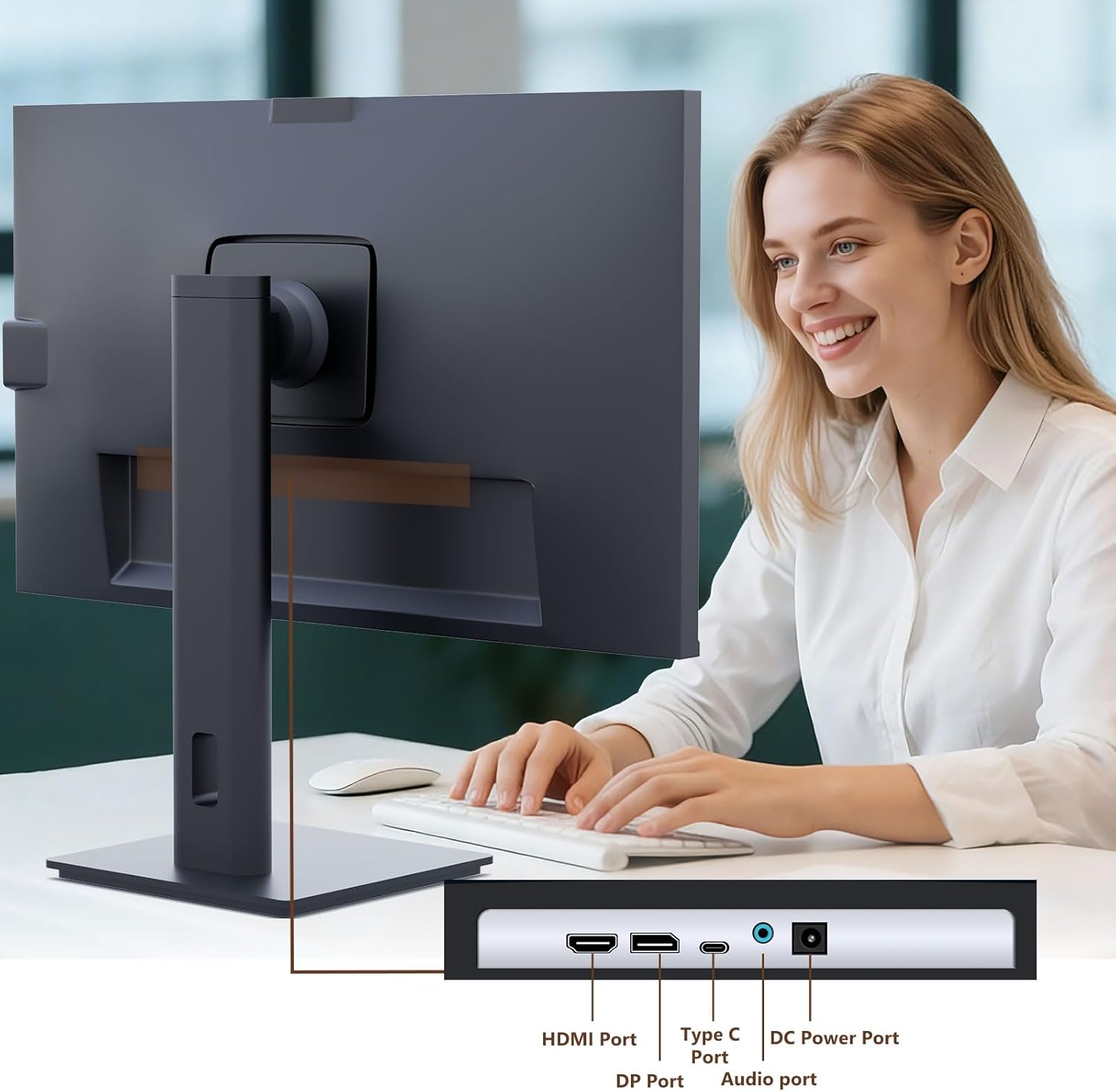
Figure 2: Available ports on the Pisichen monitor.

Figure 3: USB-C one-cable connection for simplified setup.

Figure 4: Connection options for desktop and laptop devices.
3. Začetni vklop
Press the power button located on the monitor to turn it on. The monitor will automatically detect the active input source. If multiple sources are connected, you may need to select the correct input via the On-Screen Display (OSD) menu.
Navodila za uporabo
1. Funkcionalnost zaslona na dotik
The monitor supports 10-point multi-touch. Ensure the USB-C cable is connected (for full functionality) or the USB-A to USB-B cable is connected in addition to your video cable for touch input to work. Touch gestures are similar to those used on tablets or smartphones.
- Tapnite: Single touch for selection or activation.
- Povlecite: Touch and hold, then move your finger to move items.
- Stisnite/razširite: Za povečavo ali pomanjšavo uporabite dva prsta.
- Povlecite: Move your finger across the screen to scroll or navigate.

Figure 5: Demonstrating intuitive touch interaction.

Figure 6: Collaborative use of the multi-touch display.
2. Built-in Webuporaba kamere
The monitor features a pop-up webcam for privacy and convenience. To use the webcam, gently press the top center of the monitor frame where the webcam is located. It will pop up. To retract it, gently press it down until it clicks into place.
Ensure your operating system and video conferencing software recognize the webkamera. Za osnovno delovanje običajno niso potrebni dodatni gonilniki.

Figure 7: The monitor with its built-in pop-up webcam in use during a video conference.

Figure 8: High-definition video calls using the integrated weboranžna.
3. Zaslonski meni (OSD).
The OSD menu allows you to adjust various monitor settings. Use the buttons on the back or bottom of the monitor to navigate and select options.
- Svetlost/kontrast: Prilagodite raven svetlosti in kontrasta zaslona.
- Barvne nastavitve: Spremenite barvno temperaturo, gamo in druge parametre, povezane z barvo.
- Vir vhoda: Manually select between HDMI, DisplayPort, or USB-C inputs.
- Avdio: Prilagodite glasnost vgrajenih zvočnikov ali priključenih slušalk.
- Način slike: Select preset display modes (e.g., Standard, Game, Movie).
- HDR: Enable or disable High Dynamic Range settings for improved dark detail optimization.

Figure 9: HDR feature for enhanced visual detail.
4. Ergonomske prilagoditve
Stojalo za monitor omogoča različne nastavitve za optimizacijo vašega viewudobje:
- Nastavitev višine: Monitor nežno potisnite ali povlecite navzgor ali navzdol.
- Nagib: Tilt the screen forward or backward to find the ideal angle.
- Vrtljiva: Zavrtite monitor na podstavku levo ali desno.
- Vrtenje: Zasuknite zaslon za 90 stopinj za pokončni način viewing.
Slika 10: Ergonomske prilagoditve za optimalno viewing.
Vzdrževanje
- Čiščenje zaslona: Zaslon nežno obrišite z mehko krpo, ki ne pušča vlaken. Za trdovratne madeže dampKrpo rahlo navlažite z vodo ali neabrazivnim čistilom za zaslone. Tekočine ne pršite neposredno na zaslon.
- Čiščenje telesa: Za brisanje monitorja uporabite mehko, suho krpoasing. Izogibajte se uporabi močnih detergentov ali abrazivnih čistil.
- Shranjevanje: Če monitor shranjujete dalj časa, odklopite vse kable in ga shranite na hladnem in suhem mestu, po možnosti v originalni embalaži.
Odpravljanje težav
Brez moči
- Prepričajte se, da je napajalni kabel varno priključen tako na monitor kot na električno vtičnico.
- Preverite, ali vtičnica deluje, tako da priključite drugo napravo.
- Check if the power adapter is correctly connected to the monitor.
Ni signala / Prazen zaslon
- Confirm the video cable (HDMI, DP, or USB-C) is securely connected to both the monitor and your device.
- Prepričajte se, da je v zaslonskem meniju monitorja izbran pravilen vhodni vir.
- Check your computer's display settings to ensure the monitor is detected and enabled.
- Poskusite z drugim video kablom ali vrati, če so na voljo.
Touch Functionality Not Working
- If using HDMI or DisplayPort, ensure the USB-A to USB-B cable is connected from your device to the monitor.
- If using USB-C, ensure your device's USB-C port supports DisplayPort Alternate Mode and touch data transmission.
- Check your operating system's touch settings.
- Note that some devices, such as game consoles (PS3/4/5, Xbox, Steam Deck, Fire TV Cube) and certain Apple products (iPhone, iPad, Switch), do not support touch functionality with this monitor.

Figure 11: Touch compatibility chart for various devices.
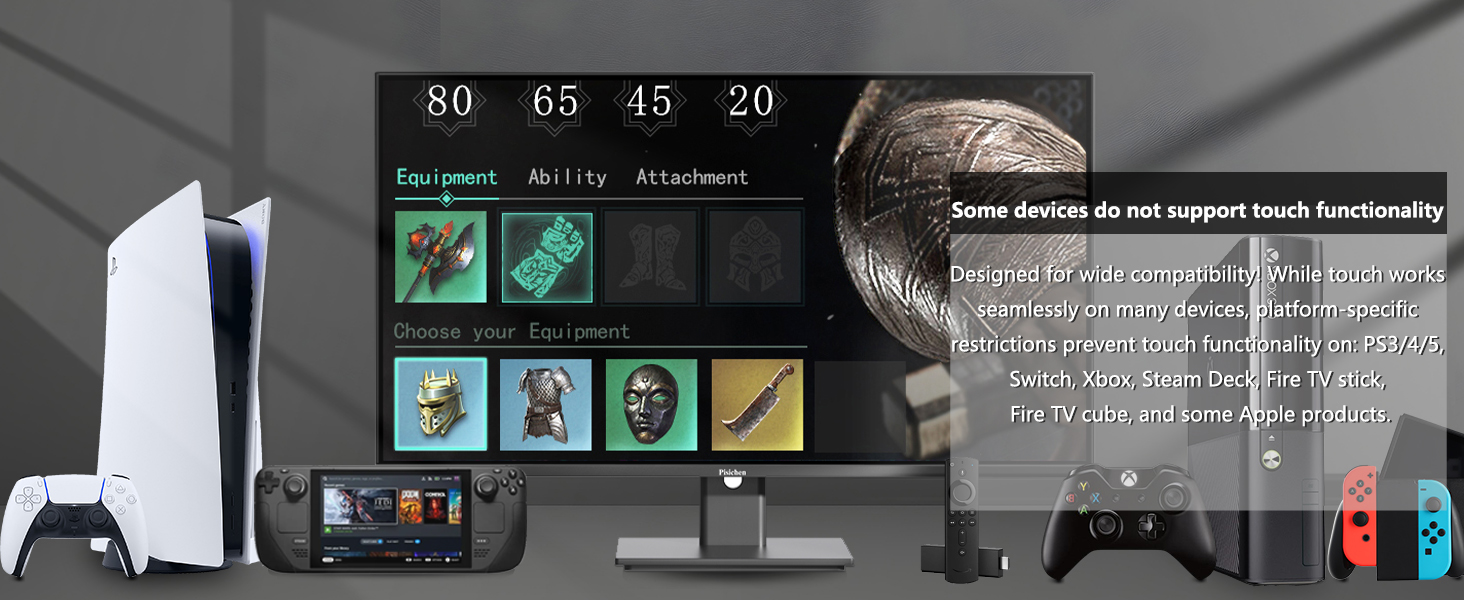
Figure 12: Devices that do not support touch functionality.
WebKamera ni zaznana
- Zagotovite webcam is fully popped up.
- Verify that the USB connection (either USB-C or USB-A to USB-B) is properly established.
- Preverite nastavitve zasebnosti operacijskega sistema, da se prepričate, da imajo aplikacije dostop do kamere.
- Znova zaženite računalnik.
Specifikacije
| Funkcija | Opis |
|---|---|
| Številka modela | 238TS-CMR |
| Velikost zaslona | 23.8 palcev |
| Resolucija | 2560 x 1440 (širokokotni QHD 1440p) |
| Hitrost osveževanja | 100Hz |
| Svetlost | 400 kandel (nit) |
| Kontrastno razmerje | 3000:1 |
| Tehnologija na dotik | 10-točkovni večdotik |
| Webcam | Built-in Pop-up Camera |
| Povezljivost | HDMI, DisplayPort (DP), USB Type-C, USB-B (upstream), Audio Out, DC Power |
| Razmerje stranic | 16:9 |
| Površina zaslona | Sijajni |
| Dimenzije izdelka | 1.97 x 21.26 x 12.6 palcev |
| Teža predmeta | 11.53 funtov |
| Proizvajalec | Shenzhen Konowa Electronics Co., LTD |
Garancija in podpora
Your Pisichen monitor is covered by a limited warranty. Please refer to the warranty card included in your package for specific terms and conditions, including the warranty period and coverage details.
For technical support, troubleshooting assistance, or warranty claims, please contact Pisichen customer service. Contact information can typically be found on the manufacturer's webspletnem mestu ali na garancijskem listu.
When contacting support, please have your monitor's model number (238TS-CMR) and purchase information readily available.