
1. Uvod
Thank you for choosing the Magcubic HY350MAX Portable Projector. This manual provides essential information for setting up, operating, and maintaining your device. Please read it thoroughly before use to ensure optimal performance and safety.

Figure 1: Magcubic HY350MAX Portable Projector Overview
2. Kaj je v škatli
Preverite, ali so v paketu prisotni vsi elementi:
- 1 x Magcubic HY350MAX Portable Projector
- 1 x Air Mouse Remote Control
- 1 x uporabniški priročnik
3. Značilnosti izdelka
The Magcubic HY350MAX projector offers a range of advanced features for an immersive viewizkušnje:
- Visoka ločljivost: Native 1080P Full HD (1920x1080) with support for 4K and 8K content decoding, enhanced by HDR10+.
- Svetlost: 600 ANSI Lumens for clear images even in ambient light.
- Pametna avtomatizacija: Automatic focus, 6D keystone correction, screen detection, and intelligent obstacle avoidance for a perfectly aligned and sharp image.
- Integrated Smart System: Powered by Allwinner H726 chip, 2GB RAM, and 16GB internal storage, running Android 14 with over 6000 pre-installed apps.
- Napredna povezljivost: Dual-band WiFi 6 (2.4 GHz and 5 GHz) for fast and stable wireless screen mirroring, and Bluetooth 5.4 for audio device connections.
- Izjemen zvok: Built-in 12W Hi-Fi stereo speaker.
- Prilagodljiva projekcija: 180° rotation allows projection onto walls or ceilings. Short throw ratio of 1.0:1, projecting 40 to 140 inches.
- Univerzalna združljivost: HDMI and USB ports for connecting PS5, laptops, TV sticks, USB drives, smartphones, and tablets.
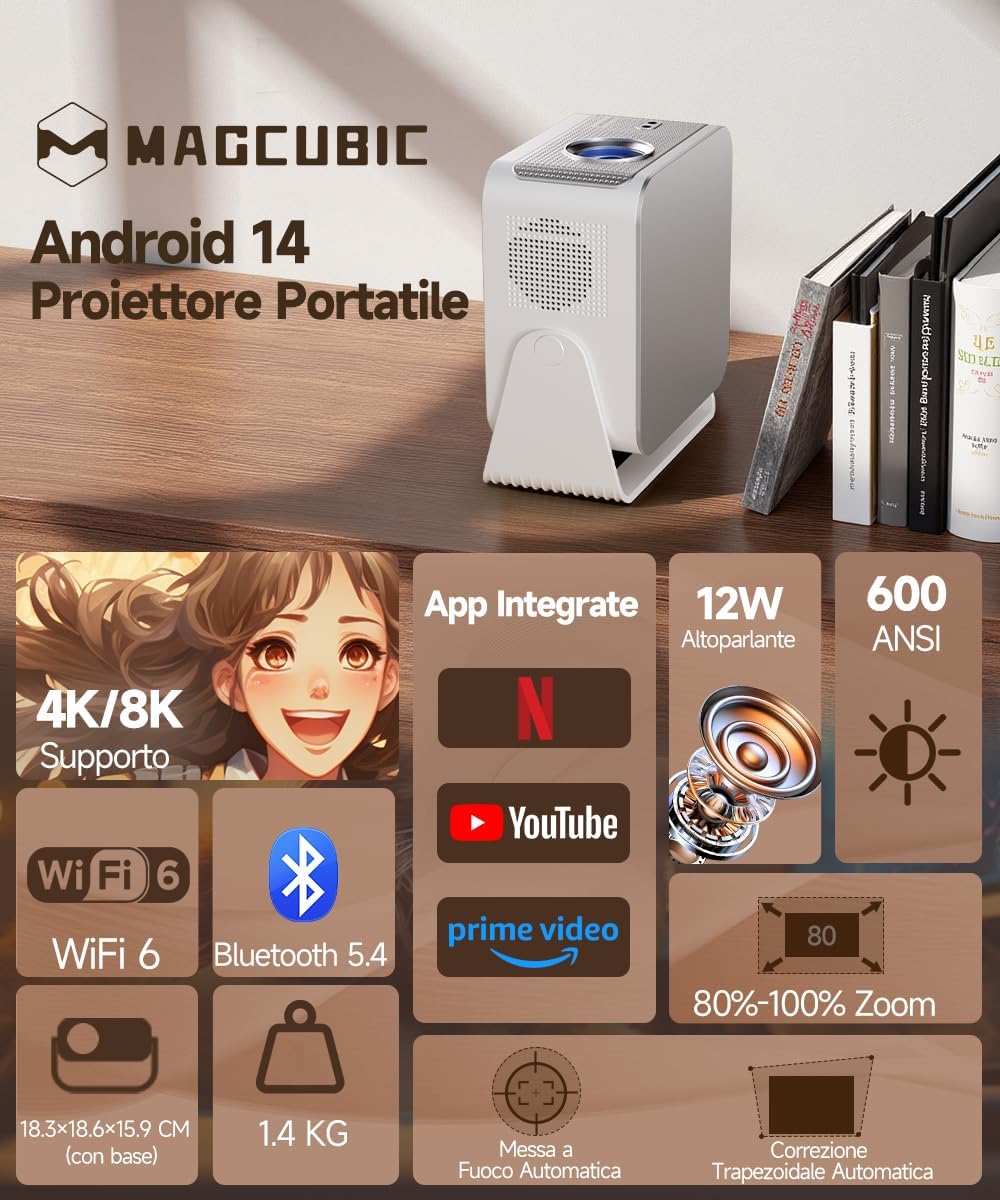
Figure 2: Key Features of the HY350MAX Projector

Figure 3: 1080P Native Resolution Clarity

Figure 4: Android 14 and Integrated Applications
4. Nastavitev
4.1 Placement and Power
- Place the projector on a stable, flat surface. The 180° rotation feature allows for versatile placement, including ceiling projection.
- Connect the power cable to the projector and then to a power outlet.
- For optimal projection, ensure the room is sufficiently dark.

Figure 5: Flexible 180° Rotation for Placement
4.2 Začetna prilagoditev slike
The projector features automatic focus and keystone correction. Upon powering on or moving the projector, it will automatically adjust the image for clarity and shape.
- Samodejno ostrenje: The projector will automatically focus the image. This works best for projection distances under 2.5 meters.
- Samodejna korekcija Keystone: The projector will automatically correct the image's trapezoidal distortion.
- Ročno ostrenje: If the projection distance is greater than 2.5 meters or if automatic focus is not sensitive enough, use the remote control to adjust focus manually.

Figure 6: Automatic Image Correction Features

Figure 7: Auto and Manual Focus Guide
4.3 Povezovanje naprav
Projektor podpira različne načine vnosa:
- HDMI: Connect gaming consoles (e.g., PS5), laptops, or TV sticks using an HDMI cable.
- USB: Vstavite USB-ključke za predvajanje medijev.
- WiFi 6: Connect to your home network for streaming and wireless screen mirroring from smartphones and tablets.
- Bluetooth 5.4: Za izboljšan zvok ga združite z zunanjimi Bluetooth zvočniki ali slušalkami.
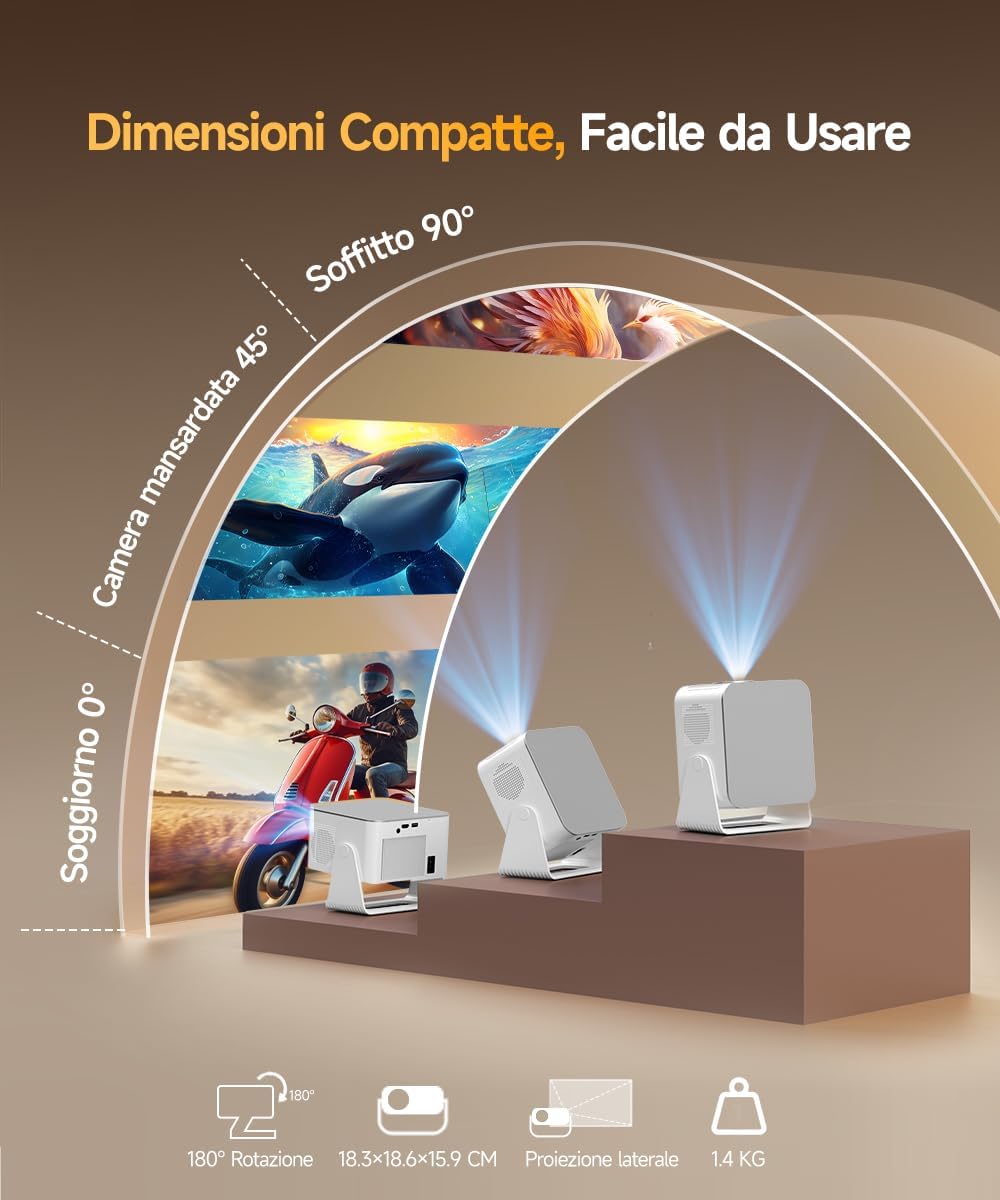
Figure 8: Universal Connectivity Options
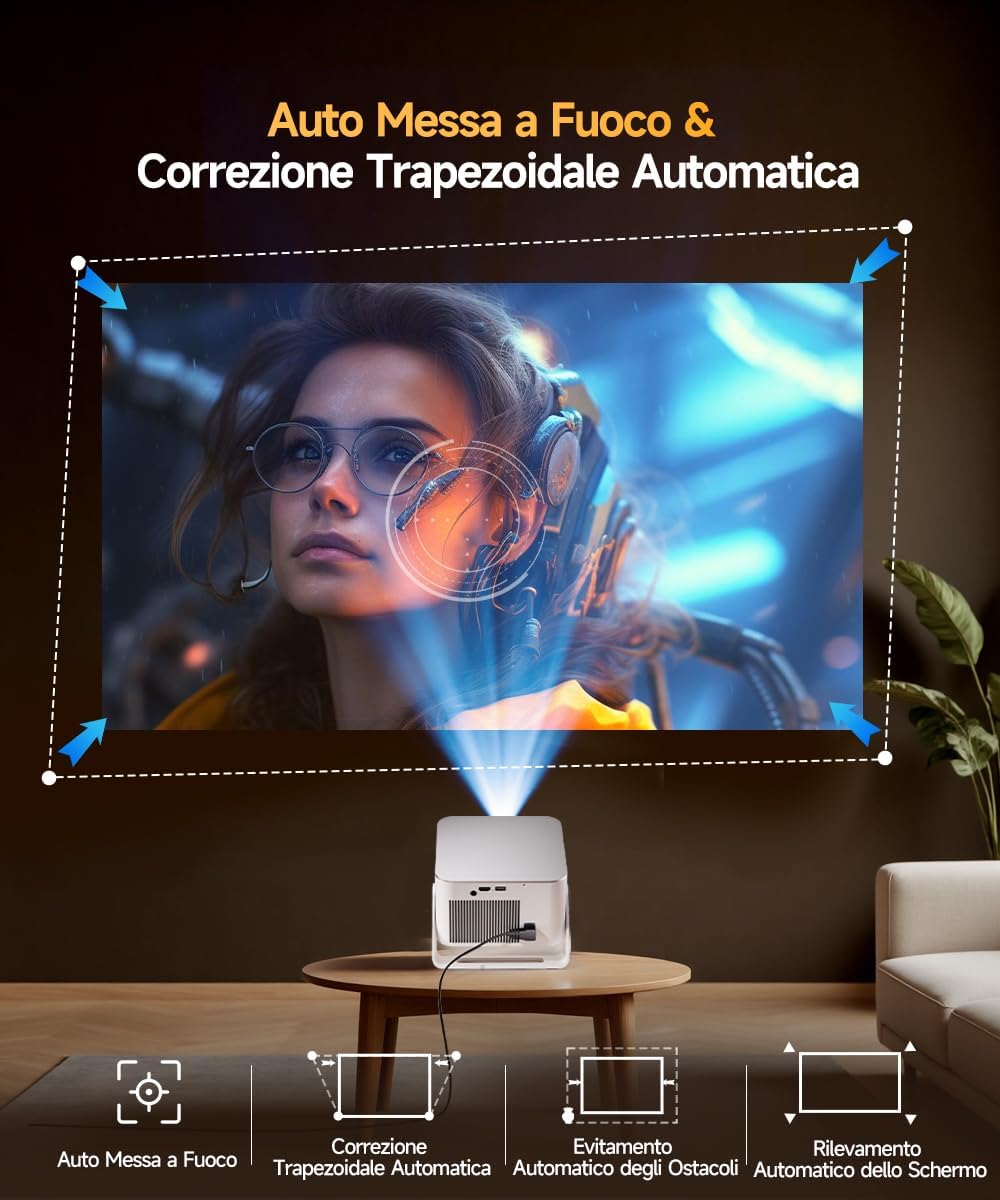
Figure 9: WiFi 6 and Bluetooth 5.4
4.4 Air Mouse Remote Control Setup
To use the Air Mouse function of your remote control, follow these steps:
- Activate Bluetooth on your projector.
- Simultaneously press the left and right directional buttons on the remote control until the projector emits an audible signal.
- Press the button with the 'mouse' symbol on the remote control to activate the Air Mouse function.
- Za nadzor kazalca na zaslonu premaknite zapestje.

Figure 10: Air Mouse Remote Control Usage
Video 1: Demonstrates the steps to pair and use the Air Mouse remote control for navigation.
5. Navodila za uporabo
5.1 Vklop/izklop
Pritisnite gumb za vklop na projektorju ali daljinskem upravljalniku, da vklopite ali izklopite napravo.
5.2 Navigacija po vmesniku
The projector runs on Android 14, providing a user-friendly interface. Use the remote control (or Air Mouse) to navigate through menus, select apps, and adjust settings.
- Domači zaslon: Access integrated apps, input sources (HDMI, USB), and settings.
- App Store: Download additional applications as needed.
- nastavitve: Prilagodite nastavitve zaslona, zvoka, omrežja in sistema.
5.3 Zrcaljenje zaslona
Utilize the WiFi 6 dual-band connectivity for seamless screen mirroring from compatible devices.
- Ensure both your device (smartphone, tablet, laptop) and the projector are connected to the same WiFi network.
- Select the screen mirroring option on the projector's interface (e.g., Airplay, Miracast).
- Initiate screen mirroring from your device's settings.
5.4 Avdio izhod
The projector features a built-in 12W Hi-Fi stereo speaker. For external audio, use Bluetooth 5.4 to connect to speakers or headphones.
- To connect via Bluetooth, go to the projector's settings, select Bluetooth, and pair with your desired audio device.
Video 2: Konecview of the projector's features, including automatic adjustments, connectivity, and smart interface.
Video 3: Demonstration of the projector's image quality and clarity with various nature scenes.
6. Vzdrževanje
6.1 Čiščenje
- Za čiščenje zunanjosti projektorja uporabite mehko, suho krpo.
- Za lečo uporabite posebno krpo in raztopino za čiščenje leč. Izogibajte se abrazivnim materialom.
- Prepričajte se, da so prezračevalne odprtine brez prahu in ovir.
6.2 Shranjevanje
Ko projektorja dalj časa ne uporabljate, ga shranite na hladnem in suhem mestu, stran od neposredne sončne svetlobe in ekstremnih temperatur.
7. Odpravljanje težav
Če imate težave s projektorjem, si oglejte naslednje pogoste rešitve:
- Brez napajanja: Check the power cable connection and ensure the power outlet is functional.
- Brez slike: Verify the input source is correctly selected (HDMI, USB, WiFi). Ensure the lens cap is removed.
- Zamegljena slika: Allow the automatic focus to complete. If still blurry, manually adjust focus using the remote control. Ensure the projection surface is flat.
- Popačena slika: The automatic keystone correction should resolve this. If not, check projector placement or manually adjust keystone settings if available.
- Ni zvoka: Check volume settings on both the projector and the connected source device. Ensure Bluetooth audio devices are correctly paired.
- Težave s povezavo WiFi/Bluetooth: Ensure the projector is within range of the router/Bluetooth device. Restart both devices.
Za dodatno pomoč se obrnite na podporo strankam.
8. Specifikacije
| Funkcija | Specifikacija |
|---|---|
| Znamka | Magkubik |
| Številka modela | HY350MAX |
| Izvorna ločljivost | 1920 x 1080 (1080p polna visoka ločljivost) |
| Največja ločljivost zaslona | 7680 x 4320 (8K Support) |
| Svetlost | 600 ANSI lumnov |
| Kontrastno razmerje | visoko |
| Tehnologija povezljivosti | Bluetooth 5.4, HDMI, USB, WiFi 6 (5 Ghz+2.4 Ghz) |
| Operacijski sistem | Android 14 |
| procesor | Allwinner H726 |
| RAM | 2 GB |
| Notranji pomnilnik | 16 GB |
| Avdio | 12W Hi-Fi Stereo Speaker |
| Velikost projekcije | 40 - 140 palcev |
| Projection Distance (Min/Max) | 0.9 m / 3.1 m |
| Teža | 1.4 kilogramov |
| Poraba energije | 100 vatov |
| Posebne lastnosti | Integrated Apps, Auto Focus, Auto Keystone Correction, Intelligent Image Adjustment, 180° Rotatable, HDR10+ |
Video 4: Comparison between Magcubic HY350MAX and HY350 models, highlighting system and CPU upgrades.
9. Garancija in podpora
Magcubic is committed to providing quality products and customer satisfaction.
- Garancija izdelka: 1-letna garancija proizvajalca.
- Garancija vračila: 30-dnevna garancija vračila denarja.
- Podpora strankam: 24-hour live customer assistance.
- Tehnična podpora: Doživljenjska tehnična podpora.
For any inquiries or support needs, please refer to the contact information provided with your purchase or visit the official Magcubic webmesto.