
1. Uvod
This manual provides detailed instructions for the MAGEX 10.1 Inch Touch Screen Monitor, Model GH101TP-C. This monitor is designed for versatility, offering a high-resolution IPS display with 10-point touch functionality, integrated dual speakers, and a cooling fan. It is specifically optimized for use with Raspberry Pi models and various other devices and operating systems.
The monitor features a robust case that allows for direct installation of a Raspberry Pi, ensuring a compact and tidy setup. Its full HD resolution (1920x1200) and wide viewing angles provide a clear and vibrant visual experience, while eye-care technologies reduce strain during extended use.

Image: The MAGEX 10.1 inch touch screen monitor used in diverse applications such as a Raspberry Pi display, secondary camera screen, car dashboard, smart home interface, retail kiosk, and 3D printer control panel.
2. Vsebina paketa
Preverite, ali so v paketu vsi spodaj navedeni predmeti. Če kateri koli predmeti manjkajo ali so poškodovani, se obrnite na podporo strankam.
- MAGEX 10.1 Inch Touch Screen Monitor
- 12V/3A DC Power Charger
- Kabel USB-A v USB-C
- Standardni kabel HDMI
- Kabel Type-C na Type-C
- 3-pinski kabel na dotik
- HDMI-A Board (for Pi 1B/2B/3B)
- HDMI-D Board (for Pi 4B/5)
- Micro USB Board (for Pi 1B/2B/3B)
- Type-C Board (for Pi 4B/5)
- Pi3 Side Panel (for Pi 1B/2B/3B/5)
- Pi4 Side Panel (for Pi 4B)
- M2.5 Screw * 4
- Phillips izvijač

Image: A visual representation of all items included in the product package, detailing the monitor, power supply, various connection cables (HDMI, USB-C), Raspberry Pi adapter boards, side panels, and a screwdriver for assembly.
Video: An unboxing demonstration of the MAGEX 10.1 inch touch screen monitor, showing all components included in the package.
3. Navodila za nastavitev
3.1 Povezovanje z Raspberry Pi
The monitor is designed for direct integration with Raspberry Pi boards. Follow these steps for a secure and tidy setup:
- Connect the Pi board to the monitor's PCB: Carefully align and connect your Raspberry Pi (e.g., Pi 5) to the designated pins on the monitor's Printed Circuit Board (PCB).
- Mount Pi on the Monitor: Secure the Raspberry Pi board within the monitor's casing z uporabo priloženih vijakov.
- Secure the Pi to the monitor's PCB: Ensure the Pi is firmly attached to prevent movement.
- Plug in the USB touch cable: Connect the appropriate USB touch cable from the Raspberry Pi to the monitor's USB touch port.
- Attach the back cover: Once all connections are made, attach the detachable back cover to enclose the Raspberry Pi and conceal all cables.
- Start using the touchscreen: Power on your Raspberry Pi and the monitor. The touchscreen should be ready for use.
Note for Raspberry Pi 5 Users: If you experience insufficient power issues with Raspberry Pi 5, it is recommended to edit the `config.txt` file located in `/boot/firmware/` by adding the following lines:
hdmi_force_hotplug=1
config_hdmi_boost=7
Additionally, to force the correct resolution, you may add the following line to `cmdline.txt` in `/boot/firmware/`:
video=HDMI-A-1:1280x800@60D
Image: A visual guide illustrating the process of integrating a Raspberry Pi 5 into the monitor's casing, connecting the necessary cables, and securing the back cover for a complete setup.
Video: A detailed guide on how to connect a Raspberry Pi 5 to the MAGEX 10.1-inch touchscreen display, demonstrating the physical installation and cable connections.
3.2 General Device Connection
For other devices, connect the monitor using the appropriate cables:
- Video vhod: Use the HDMI port for video signal.
- Funkcionalnost dotika: Connect the USB touch port to your device to enable touch input. No drivers are typically required for Windows, Raspbian, and other compatible OS.
- moč: Connect the 12V/3A DC power charger to the monitor.
Opomba: Touch functionality is not supported when connected to iOS phones, iPads, or Mac devices.
4. Navodila za uporabo
4.1 Upravljanje zaslona na dotik
The monitor features a 10-point capacitive touchscreen with a fast response time (3-5ms). It supports standard multi-touch gestures for intuitive interaction:
- Click/Tap: Single touch for selection.
- Povečaj/Pomanjšaj: Pinch gestures with two fingers.
- Scroll/Move: Drag with one or more fingers.
- Dvojni klik: Two quick taps for specific actions.
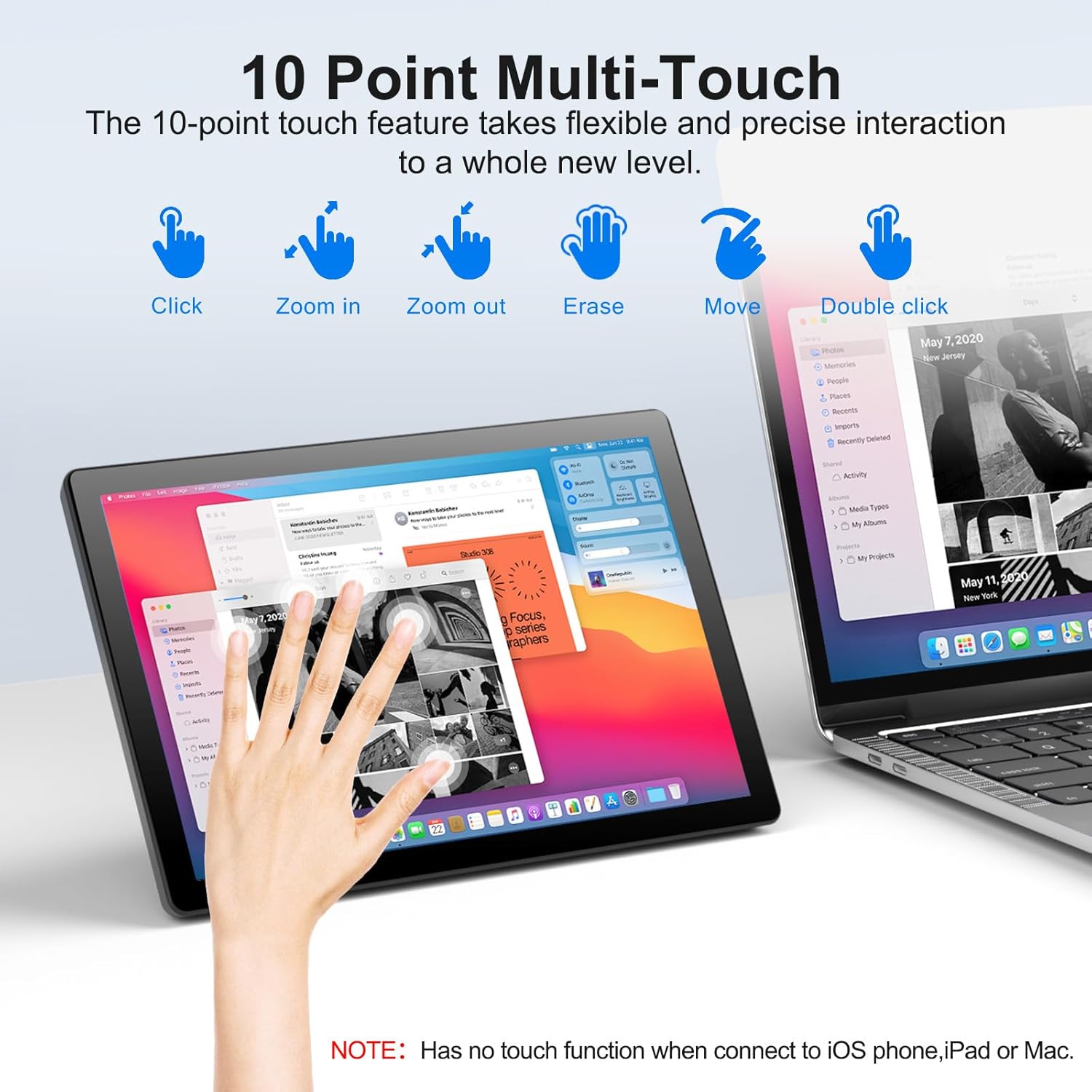
Image: A visual guide demonstrating various 10-point multi-touch gestures supported by the monitor, such as single tap, pinch-to-zoom, and dragging.
4.2 Zaslonski meni (OSD)
The monitor includes physical buttons for accessing and navigating the On-Screen Display (OSD) menu. These buttons are typically located on the back or side of the monitor.
- Gumb za vklop: Vklopi/izklopi monitor.
- Gumb menija: Odpre OSD meni.
- Gumbi gor/dol: Krmarjenje po možnostih menija.
- Gumb za izhod: Zapre trenutni meni ali zaslonski meni.
Through the OSD menu, you can adjust settings such as brightness, contrast, color temperature, and input source.

Image: A visual representation of the monitor's brightness adjustment feature, accessible via the OSD menu.
Video: A demonstration of the MAGEX 10.1-inch touchscreen display running RetroPie, showcasing its performance and touch responsiveness for gaming applications.
5. Združljivost
The MAGEX 10.1 Inch Touch Screen Monitor offers broad compatibility with various devices and operating systems:
5.1 podprtih naprav
- Raspberry Pi: Compatible with Pi 5, Pi 4, Pi 3B+, Pi 3, Pi 2, and Pi Zero.
- Other Single Board Computers: OctoPi, BB Black, Banana Pi, Orange Pi, RetroPi.
- Igralne konzole: XBOX, PS4, PS5.
- Splošno računalništvo: Computers (Laptops, Desktops), TV boxes.
5.2 Podprti operacijski sistemi
- Windows (11/10/8/7)
- Raspbian
- NOOBS
- Kali-Linux
- Debian
- Ubuntu
- Kodi
- Mac OS (video output only, no touch)

Image: A comprehensive chart showcasing the monitor's compatibility with different operating systems (e.g., Windows, Mac OS, Raspbian, Ubuntu) and hardware platforms (e.g., Raspberry Pi 1B to 5, XBOX, PS4/5, laptops, desktops).
6. Lastnosti
6.1 IPS Full-Color Display & Eye-Care
- Velikost zaslona: 10.1 palcev
- Resolucija: FHD 1920 x 1200P
- Tehnologija zaslona: Advanced IPS glossy screen
- Viewkot kota: Širina 178 ° viewing angles for consistent image quality from various positions.
- Barvna reprodukcija: Delivers sharp, vivid visuals with accurate color.
- Nega oči: Features blue light reduction and flicker-free technology for comfortable long viewsej.

Image: A visual demonstration of the monitor's 178-degree wide viewing angle, ensuring consistent color and clarity from almost any position.
6.2 10-Point Capacitive Touch
- Tehnologija: High-sensitivity capacitive touchscreen.
- Odzivni čas: Ultra-fast 3-5ms.
- Multi-touch: Supports 10-point touch for precise and intuitive gestures.
- Brez gonilnikov: Plug-and-play functionality for most compatible operating systems (Windows, Raspbian, etc.).
6.3 Built-in Dual Speakers and Mini Fan
- Dvojni zvočniki: Integrated speakers provide clear audio for your projects and multimedia.
- Mini Fan: An integrated mini fan actively circulates air for efficient heat dissipation, preventing CPU overheating and ensuring stable operation.

Slika: Podrobna view of the monitor's rear, highlighting the built-in mini fan for cooling and the dual speakers for audio output.
6.4 VESA Mountable & Integrated Stand
- Združljivost z VESA: Supports VESA mounting standards for flexible installation options.
- Integrirano stojalo: Features a 90° adjustable kickstand for desktop use, allowing for various viewing kotov.
Image: The monitor displayed on a VESA mount, illustrating its adaptability for various setups beyond its integrated kickstand.
7. Specifikacije
| Funkcija | Specifikacija |
|---|---|
| Znamka | MAGEX |
| Številka modela | GH101TP-C |
| Velikost zaslona | 10.1 palcev |
| Resolucija | FHD 1920 x 1200P |
| Razmerje stranic | 16:10 |
| Opis površine zaslona | Sijajni |
| Kontrastno razmerje | 2000:1 |
| Hitrost osveževanja | 60 Hz |
| Vrsta zaslona | LCD |
| Tehnologija zaslona | LCD (IPS) |
| Viewkota | 178 stopinj |
| Svetlost | 370 kandela |
| Picture Quality Enhancement | IPS, Eye Care (Blue Light Reduction, Flicker-Free) |
| Mere predmeta (D x Š x V) | 0.38"D x 9.65"Š x 6.3"V |
| Total Number of HDMI Ports | 1 |
| Tehnologija povezljivosti | HDMI, USB tipa C |
| Dodatne funkcije | Built-In Speakers, Eye Care, Touchscreen, VESA |
| Odzivni čas | 2 milisekund |
8. Odpravljanje težav
This section addresses common issues you might encounter with your MAGEX 10.1 Inch Touch Screen Monitor.
8.1 Brez zaslona / črn zaslon
- Preverite moč: Ensure the 12V/3A DC power adapter is securely connected to the monitor and a working power outlet.
- Check HDMI Connection: Verify that the HDMI cable is firmly connected to both the monitor and your source device (e.g., Raspberry Pi, computer). Try a different HDMI cable if available.
- Vir vhoda: Use the OSD menu buttons to ensure the correct input source (HDMI) is selected.
- Raspberry Pi Configuration: For Raspberry Pi 5, refer to the 'Setup Instructions' section (3.1) regarding `config.txt` and `cmdline.txt` modifications for power and resolution issues.
- Izhod naprave: Confirm that your source device is outputting a video signal. Try connecting your source device to another known working display.
8.2 Funkcija dotika ne deluje
- USB Touch Cable: Ensure the USB touch cable is correctly connected from the monitor's USB touch port to your source device.
- Združljivost: Confirm your operating system and device support touch input. Remember, iOS devices (iPhone, iPad, Mac) do not support touch functionality with this monitor.
- Brez gonilnikov: While generally driver-free, ensure your OS is up-to-date. For some Linux distributions, specific configurations might be needed, though typically not for Raspbian.
- Znova zaženite naprave: Try restarting both the monitor and the connected device.
8.3 Overheating Issues (Raspberry Pi)
- Vgrajen ventilator: Ensure the built-in mini fan is operating. If not, check its connection.
- Prezračevanje: Ensure the monitor's casing has adequate airflow and is not obstructed.
- Napajanje: An insufficient power supply to the Raspberry Pi can cause instability and heat. Use the recommended 12V/3A power adapter for the monitor and an appropriate power supply for your Raspberry Pi.
9. Vzdrževanje
Pravilno vzdrževanje zagotavlja dolgo življenjsko dobo in optimalno delovanje vašega monitorja.
- Čiščenje zaslona: Uporabite mehko krpo, ki ne pušča vlaken in je posebej zasnovana za elektroniko. Rahlo obrišiteampKrpo sperite z vodo ali raztopino za čiščenje zaslona. Izogibajte se agresivnim kemikalijam, abrazivnim materialom ali neposrednemu pršenju na zaslon.
- Čiščenje C-jaasing: Obrišite pokrov monitorjaasing with a soft, dry cloth. For stubborn dirt, a slightly damp Uporabite lahko krpo, nato pa še suho krpo.
- Prezračevanje: Keep the ventilation openings clear of dust and debris to ensure efficient heat dissipation by the internal fan.
- Shranjevanje: Ko monitorja dalj časa ne uporabljate, ga shranite na hladnem in suhem mestu, stran od neposredne sončne svetlobe in ekstremnih temperatur.
- Ravnanje: Izogibajte se prekomernemu pritisku na zaslon ali padcu monitorja.
10. Garancija in podpora
The MAGEX 10.1 Inch Touch Screen Monitor comes with a 2-letna garancija kakovosti od datuma nakupa.
If you encounter any issues or have questions regarding your product, please do not hesitate to contact our professional after-sales service team. We offer 24-urna podpora da vam pomagam.
For warranty claims or technical assistance, please refer to the contact information provided with your product packaging or visit the official MAGEX webmesto.