1. Uvod
The IVANKY 13-in-1 Docking Station is designed to expand the connectivity and storage capabilities of your Mac mini M4 or M4 Pro. This dock integrates seamlessly with your Mac mini, providing a wide array of ports and an M.2 NVMe SSD enclosure to enhance your workflow and productivity.
This manual provides detailed instructions for setting up, operating, and maintaining your IVANKY docking station, along with troubleshooting tips and product specifications.
2. Značilnosti izdelka
- 13-v-1 povezljivost: Features a comprehensive selection of ports including HDMI, USB-A, USB-C, SD/TF card readers, and dual audio ports.
- Visokohitrostni prenos podatkov: Equipped with 10 Gbps USB-A and USB-C ports, and upgraded SD/TF 4.0 card readers for rapid data transfer.
- M.2 NVMe SSD Enclosure: Supports M.2 NVMe and SATA SSDs up to 8TB, offering 10Gbps transfer speeds for expanded storage. Compatible with 2230/2242/2260/2280 form factors.
- 4K pri 120 Hz HDMI izhod: Delivers crisp 4K resolution at a 120Hz refresh rate for smooth visual experiences, ideal for professionals and creators. Supports dual displays when connected to the Mac mini's Thunderbolt port.
- Sufficient Power Supply: Includes a 20W PD power adapter to ensure stable power delivery, especially when connecting multiple high-power devices.
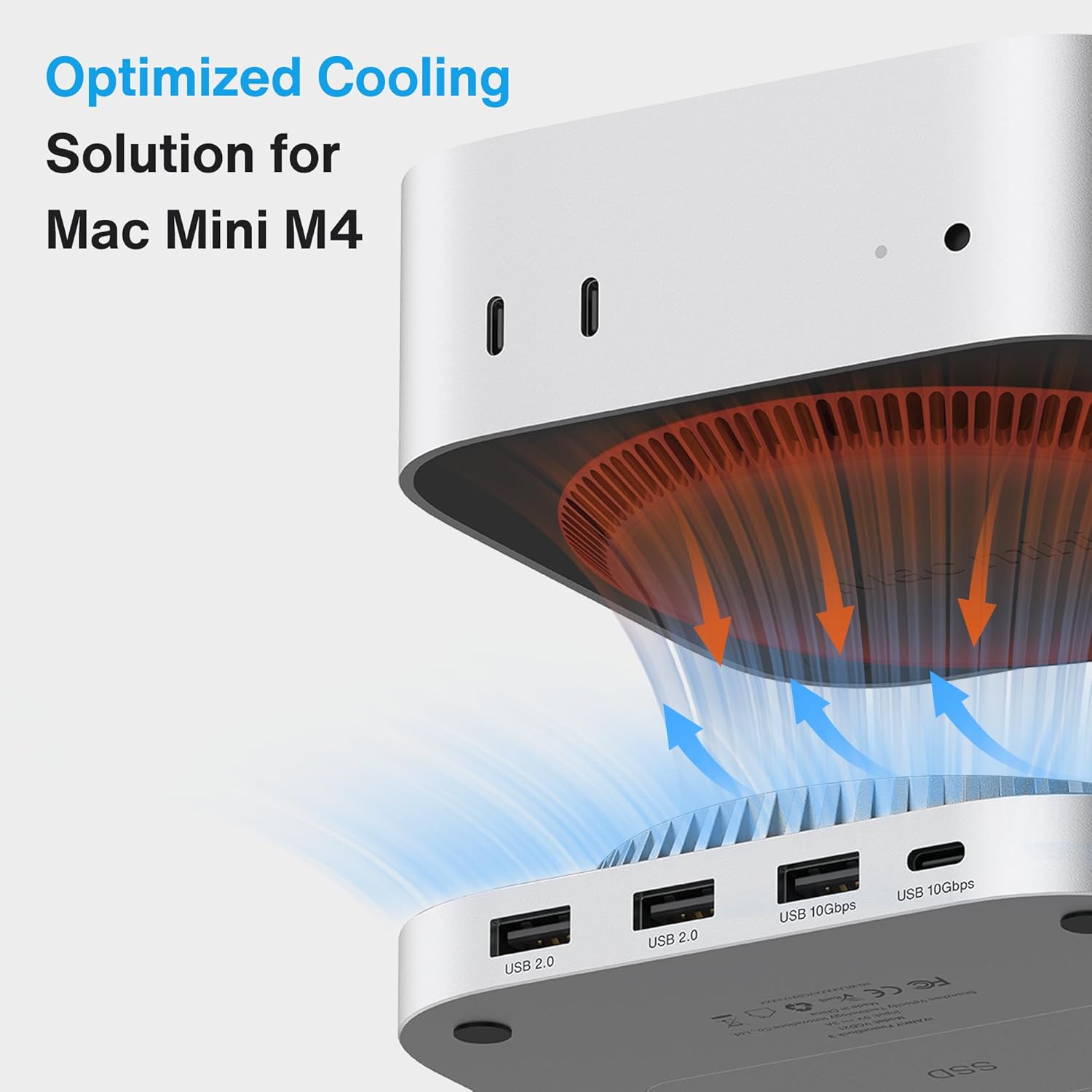
- Optimiziran hladilni sistem: Features a top-vent design and slight elevation to facilitate airflow, protecting the Mac mini's bottom fan and ensuring reliable performance.
3. Vsebina paketa
Preverite, ali so v paketu vsi elementi:
- 1 x IVANKY 13-in-1 Docking Station (FusionDock)
- 1 x 20 W napajalnik
- 1 x 25 cm kabel USB-C
- 1 x izvijač
- Screws for SSD installation
Note: SSD is not included with this product.
4. Navodila za nastavitev
4.1. Namestitev SSD-ja
To expand your storage, follow these steps to install an M.2 SSD:
- Carefully turn the docking station upside down.
- Locate the SSD cover on the bottom of the dock. Use the provided screwdriver to remove the screw securing the cover.
- Remove the SSD cover.
- Insert your M.2 NVMe or SATA SSD into the slot. Ensure it is fully seated.
- Pritrdite SSD s priloženim vijakom.
- Replace the SSD cover and secure it with its screw.

4.2. Connecting the Dock to Mac mini
Follow these steps to connect your Mac mini to the docking station:
- Connect the 20W power adapter to the provided 1m USB-C cable.
- Connect the other end of the USB-C cable to the 'PD IN' port on the docking station.
- Priključite napajalnik v stensko vtičnico.
- Place your Mac mini M4 or M4 Pro directly on top of the IVANKY docking station. The dock is designed to fit perfectly underneath the Mac mini.
- Use the provided 25cm USB-C cable to connect the Mac mini's Thunderbolt port to the 'Mac mini' port on the docking station. This establishes the primary connection for data and display.

4.3. Quick Installation Video
5. Navodila za uporabo
5.1. Uporaba vrat
The docking station provides the following ports:
- HDMI (4K pri 120 Hz): Connect an external monitor for high-resolution video output.
- USB-A 10Gbps (x2): For high-speed peripherals like external hard drives.
- USB-C 10Gbps (x2): For high-speed USB-C devices.
- USB-A 2.0 (x3): For standard peripherals such as keyboards, mice, and printers.
- SD/TF 4.0 Card Reader: For fast access to SD and microSD cards.
- Dual Audio Ports: For connecting headphones, microphones, or speakers.
- PD IN (20W): Connect the included power adapter for stable operation.
- USB-C Host (Mac mini): Connects to your Mac mini's Thunderbolt port.
5.2. Priključitev zaslona
Connect your monitor to the HDMI port on the docking station. For dual display setups, connect the dock's HDMI port to your Mac mini's Thunderbolt port. This configuration allows for extended display functionality at 4K@120Hz, providing a smooth visual experience for various tasks.

5.3. Prenos podatkov
Utilize the 10Gbps USB-A and USB-C ports for transferring large files quickly to and from high-performance drives. The SD/TF 4.0 card readers also offer enhanced speeds for memory cards. The integrated M.2 SSD enclosure provides 10Gbps data transfer for installed SSDs.

5.4. Napajanje
The included 20W PD power adapter is crucial for maintaining power stability, especially when multiple high-power devices (e.g., external hard drives, charging peripherals) are connected to the dock. Always use the matching cable and adapter to prevent power-related issues.
6. Vzdrževanje
To ensure the longevity and optimal performance of your IVANKY docking station:
- Čiščenje: Za čiščenje zunanjosti naprave uporabite mehko, suho krpo. Izogibajte se tekočim čistilom ali abrazivnim materialom.
- Prezračevanje: Ensure the top-vent design is not obstructed to allow for proper airflow and cooling. The slight elevation of the dock helps safeguard the Mac mini's bottom fan.
- Shranjevanje: Ko naprave ne uporabljate, jo hranite na hladnem in suhem mestu.
- Upravljanje kablov: Kable imejte urejene in brez prepognjenj ali prekomernega upogibanja, da preprečite poškodbe.
7. Odpravljanje težav
- No Power/Device Not Recognized: Ensure the 20W PD power adapter is correctly connected to the dock and a power outlet. Verify the 25cm USB-C cable is securely connected between the Mac mini and the dock.
- SSD ni zaznan: Check that the M.2 SSD is properly installed and secured within the enclosure. Ensure the SSD is compatible (NVMe or SATA M.2). Try re-seating the SSD.
- Težave z zaslonom (brez signala/nepravilna ločljivost): Confirm the HDMI cable is securely connected to both the dock and the monitor. Ensure the Mac mini's display settings are configured correctly for the external monitor. If using dual displays, ensure the dock's HDMI is connected to the Mac mini's Thunderbolt port.
- Pregrevanje: While the dock has an optimized cooling system, ensure it is placed on a flat, stable surface with adequate ventilation. Avoid placing it in enclosed spaces. If an SSD is installed, prolonged heavy use can generate heat; ensure the SSD is properly seated and the cover is secured.
- Počasen prenos podatkov: Ensure you are using the 10Gbps USB-A/C ports for high-speed devices. Check that your connected devices and cables support the advertised speeds.
8. Specifikacije
| Funkcija | Specifikacija |
|---|---|
| Številka modela | VCD21 |
| Skupno število vrat | 13 |
| HDMI izhod | 1 x 4K@120Hz |
| Vrata USB-A | 2 x 10Gbps, 3 x 5Gbps (USB 2.0) |
| Vrata USB-C | 2 x 10 Gbps |
| Čitalec kartic SD/TF | 1 x SD/TF 4.0 (312MB/s) |
| Avdio vrata | 2 (3.5 mm) |
| Ohišje SSD | M.2 NVMe/SATA (up to 8TB, 10Gbps) |
| Dostava moči | 20W PD Power Adapter included |
| Združljive naprave | Mac mini M4, Mac mini M4 Pro |
| Dimenzije | 7.6 x 6.93 x 2.2 palcev |
| Teža predmeta | 1.39 funtov |
9. Garancija in podpora
IVANKY offers a 24-month warranty for this product, along with responsive customer service. Should you experience any issues with your product, we provide free returns or replacements to ensure your complete satisfaction.
For technical support or warranty claims, please contact us:
- E-pošta: podpora@ivanky.com
- Customer service response time is typically within 24 hours.
- Zagotovljena je doživljenjska tehnična podpora.