
1. Izdelek je končanview
The PeriPage P92 is a compact and lightweight thermal tattoo stencil printer designed for both professional tattoo artists and enthusiasts. It utilizes inkless thermal technology to produce clear and precise tattoo lines, streamlining the stencil creation process. This printer offers versatile connectivity options, including Bluetooth and USB, making it compatible with a wide range of devices such as smartphones, tablets, and PCs.

Image: The PeriPage P92 Tattoo Stencil Printer, a sleek black device, shown on a desk with a printed tattoo stencil.
Ključne značilnosti:
- Prenosna zasnova: Compact and lightweight (approximately 15.2 ounces) for easy transport.
- Brezčrnilna termalna tehnologija: Odpravlja potrebo po kartušah s črnilom, kar zmanjšuje obratovalne stroške.
- Visoka združljivost: Supports Android, iOS, Windows, and macOS devices.
- Vsestranska povezljivost: Connects via Bluetooth for wireless printing or USB for wired connections.
- Powerful Mobile App: The "PeriPage APP" provides abundant resources, including built-in tattoo templates and design editing tools.
- Učinkovito tiskanje: Capable of printing clear and precise tattoo lines in seconds.
- Dolga življenjska doba baterije: Built-in 2600mAh rechargeable battery, capable of printing up to 200 pages per charge.
2. Navodila za namestitev
2.1 Razpakiranje in začetno plačilo
Carefully remove all components from the packaging. Before first use, ensure the printer is fully charged using the provided USB cable and a compatible power adapter. The power indicator light will typically change to indicate a full charge.
2.2 Namestitev programske opreme
To operate the PeriPage P92, you will need to install the appropriate software:
- For Smartphones/Tablets (Android/iOS): Download the "PeriPage APP" from your device's respective app store (Google Play Store for Android, Apple App Store for iOS).
- For PCs (Windows/macOS): Download the printer driver from the official PeriPage webspletno mesto: https://www.ileadtek.com/en/download.html.

Image: The PeriPage P92 printer connected to a laptop via USB and a smartphone via Bluetooth, illustrating multi-device compatibility.
2.3 Vstavljanje papirja za šablone
- Prepričajte se, da je tiskalnik izklopljen ali v stanju pripravljenosti.
- Gently insert the tattoo stencil paper (thermal paper, 8.5x11 inches) into the paper feed slot at the front of the printer.
- The printer will automatically detect and feed the paper into position. Ensure the transfer film side is facing up.

Image: A step-by-step visual guide showing how to power on the printer, insert stencil paper, and initiate printing via the app.
3. Navodila za uporabo
3.1 Vklop/izklop
To power on the printer, press and hold the power button (usually located on the top or side) for approximately 2 seconds until the indicator light illuminates. To power off, press and hold the power button again until the light turns off.
3.2 Povezovanje z vašo napravo
- Povezava Bluetooth:
- Prepričajte se, da je Bluetooth omogočen na vašem pametnem telefonu ali tabličnem računalniku.
- Open the "PeriPage APP".
- Within the app, search for and select the PeriPage P92 printer to establish a connection.
- USB povezava:
- Tiskalnik priključite na računalnik s priloženim kablom USB.
- Ensure the printer driver is installed on your PC.
- The printer should be recognized as a printing device.
3.3 Using the PeriPage App for Printing
The "PeriPage APP" is your primary interface for creating and printing tattoo stencils.
- Open the "PeriPage APP" on your connected device.
- You can choose to use built-in tattoo templates or import your personal designs. The app offers tools for editing, resizing, and adjusting your designs.
- Once your design is ready, select the print option within the app.
- Confirm print settings (e.g., density, size) if prompted.
- The printer will then feed the stencil paper and print your design.

Image: Screenshots of the PeriPage mobile application interface, demonstrating design editing, template selection, and 3D preview funkcije.

Image: The PeriPage P92 printer actively printing a tattoo stencil design onto thermal paper, with a smartphone displaying the design.
4. Vzdrževanje
4.1 Čiščenje tiskalnika
Redno čiščenje pomaga ohranjati kakovost tiskanja in podaljšuje življenjsko dobo tiskalnika.
- Zunanjost: Zunanjost tiskalnika obrišite z mehko, suho krpo. Izogibajte se uporabi abrazivnih čistil ali topil.
- Thermal Print Head: If print quality degrades, gently clean the thermal print head with an alcohol wipe or a specialized thermal printer cleaning pen. Ensure the printer is off and cooled down before cleaning.
- Pot papirja: Periodically check the paper path for any dust or debris and remove it carefully.
4.2 Shranjevanje
Store the printer in a cool, dry place away from direct sunlight and extreme temperatures. When not in use for extended periods, ensure the printer is fully charged and then powered off.
5. Odpravljanje težav
This section addresses common issues you might encounter with your PeriPage P92 printer.
5.1 Slaba kakovost tiska
- Faint Prints:
- Check if the thermal paper is loaded correctly with the transfer film side facing up.
- Ensure the printer's battery is sufficiently charged.
- Očistite termično tiskalno glavo (glejte poglavje 4.1).
- Adjust print density settings within the PeriPage APP.
- Streaks or Gaps:
- Clean the thermal print head.
- Ensure the paper is free from wrinkles or damage.
- Incomplete Designs (Large Shadows/Complex Images): The printer is optimized for clear line drawings. Complex images with large shaded areas may not transfer optimally.
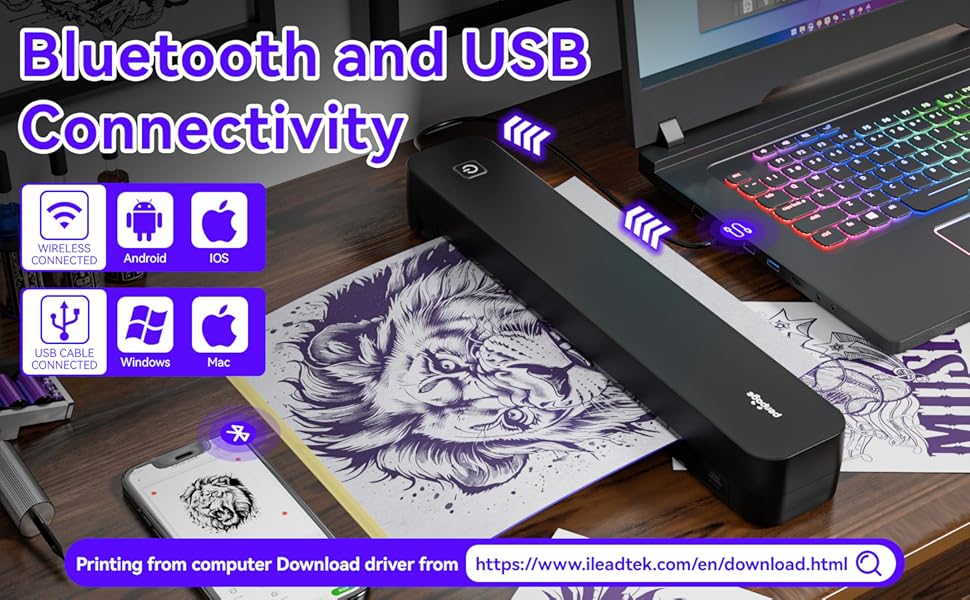
Image: A comparison showing effective line drawings and less shadowy prints versus bad effects with large shadows and complex images, illustrating optimal design types for the printer.
5.2 Težave s povezljivostjo
- Bluetooth se ne povezuje:
- Prepričajte se, da je tiskalnik vklopljen in v dosegu vaše naprave.
- Preverite, ali je Bluetooth v vaši napravi omogočen.
- Znova zaženite tiskalnik in napravo.
- Pozabite napravo v nastavitvah Bluetooth in poskusite znova seznaniti.
- USB Not Recognized:
- Ensure the USB cable is securely connected to both the printer and your PC.
- Verify that the correct printer drivers are installed on your PC.
- Poskusite z drugimi vrati USB ali kablom.
5.3 Zastoj papirja
If paper gets jammed, gently pull the paper out in the direction of the paper path. Avoid forcing it, as this can damage the printer mechanisms. Ensure paper is loaded straight and not wrinkled.
6. Specifikacije
| Funkcija | Podrobnost |
|---|---|
| Znamka | PeriPage |
| Ime modela | HDD-P92 |
| Tehnologija povezljivosti | Bluetooth, USB |
| Tehnologija tiskanja | Termični (brez črnila) |
| Posebna funkcija | Prenosni |
| barva | Črna |
| Izhod tiskalnika | Enobarvno |
| Max Print Speed (B&W) | 6 strani na minuto |
| Teža predmeta | 15.2 unč |
| Mere predmeta (D x Š x V) | 2.13"D x 4"Š x 11.4"V |
| Vrsta krmilnika | Android, iOS |
| Tiskarski mediji | Termalni papir |
| Združljive naprave | Prenosniki, osebni računalniki, pametni telefoni, tablice |
| Nadzorna metoda | aplikacija |
| Največja velikost medija | A4, 8.5x11 Inches |
| Baterija | 2600mAh rechargeable, prints ~200 pages per charge |
7. Informacije o garanciji
According to the product specifications, there is "Not Application" for warranty. Please refer to your retailer's return policy or contact the seller directly for any issues or concerns regarding your purchase.
8. Podpora
Za dodatno pomoč si oglejte naslednje vire:
- PeriPage APP: The mobile application often includes help sections, FAQs, and direct support contact options.
- Uradno Webspletno mesto: Visit the PeriPage official website for updated drivers, FAQs, and support contact information: www.ileadtek.com.
- Podpora prodajalcem: Contact the seller (Ileadtek Inc.) through the platform where you purchased the product for specific purchase-related inquiries.