
1. Uvod
The Minisopuru MINI218B MAX 9-in-1 Mac mini M4 Dock is designed to expand the connectivity and storage capabilities of your Mac mini M4 or M4 Pro. This vertical stand integrates multiple ports and an M.2 NVMe SSD enclosure, providing a comprehensive solution for enhanced productivity and media management.
2. Značilnosti izdelka
- Zasnova navpičnega stojala: Optimizes space and improves heat dissipation for the Mac mini.
- M.2 NVMe SSD Enclosure: Supports up to 8TB M.2 PCIe NVMe SSDs (2230/2242/2260/2280 sizes) for expanded storage.
- 4K pri 60 Hz HDMI izhod: Allows connection to an external display for 4K video output.
- Visokohitrostna vrata USB: Includes 1x 10Gbps USB-C port, 1x 10Gbps USB-A 3.2 Gen2 port, and 2x USB-A 2.0 ports.
- Reže za SD/TF kartice: Supports high-speed data transfer up to 104MB/s for SD and TF cards.
- 3.5 mm avdio priključek: Provides audio output for headphones or speakers.
3. Vsebina paketa
- 1x Minisopuru MINI218B MAX Hub
- 1x SSD Installation Accessories (screwdriver, screws, silicone cap)
- 1x termalna podloga
- 1x Navodila za uporabo
4. Nastavitev
4.1. Namestitev SSD-ja
Follow these steps to install an M.2 NVMe SSD into the dock. Ensure the dock is unplugged before installation.
- Remove the bottom cover of the dock using the provided screwdriver.
- Insert the M.2 NVMe SSD into the slot at a 45-degree angle.
- Gently press the SSD down and fix it with the silicone cap.
- Place the thermal pad on top of the SSD for optimal heat dissipation.
- Finally, close the bottom cover and tighten the screw.

Image: Detailed steps for installing an M.2 NVMe SSD into the dock.
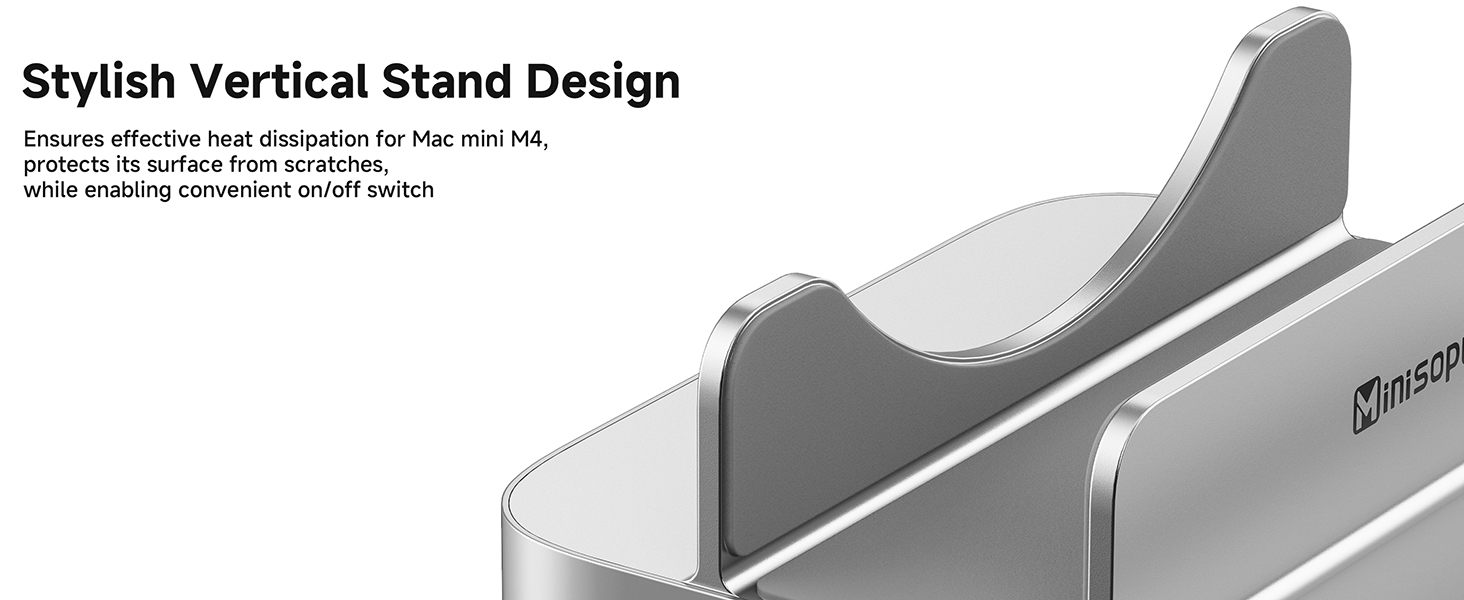
Image: Illustration of compatible M.2 NVMe SSD sizes (2230, 2242, 2260, 2280).
Video: Guide on how to format an SSD for use with the Mac mini dock.
4.2. Connecting the Mac mini
Place your Mac mini M4 or M4 Pro vertically into the dock. Connect the integrated USB-C cable from the dock to one of the USB-C ports on your Mac mini. This connection enables all the dock's features.

Image: The Mac mini M4 positioned vertically in the Minisopuru dock, highlighting the vertical stand design.
4.3. Povezovanje zunanjih naprav
Connect your external devices to the available ports on the dock:
- HDMI: Connect an HDMI cable from the dock's HDMI port to your monitor or TV for video output.
- Naprave USB: Plug USB-A or USB-C peripherals (e.g., keyboard, mouse, external hard drive, USB stick) into the corresponding ports.
- SD/TF kartice: Insert your SD or TF memory cards into the designated slots.
- Avdio: Slušalke ali zvočnike priključite na 3.5 mm avdio priključek.

Image: Demonstrates various peripherals like a U disk, external hard disk, camera, keyboard, mouse, and printer connected to the dock's USB ports.

Slika: Bližnji posnetek view of the built-in SD and TF card slots on the dock.
5. Navodila za uporabo
5.1. Uporaba vrat USB
The dock provides multiple USB ports for various devices:
- 10Gbps USB-C & USB-A 3.2 Gen2: Ideal for high-speed data transfer with external SSDs, flash drives, or other compatible devices.
- Vrata USB-A 2.0: Suitable for connecting keyboards, mice, printers, or other standard USB peripherals.
5.2. HDMI video izhod
The HDMI port supports 4K resolution at 60Hz. Connect an HDMI cable from the dock to your external monitor or projector. Your Mac mini will automatically detect the display. You can configure display settings (mirroring or extending) in your Mac's System Settings.

Image: A Mac mini M4 in the dock connected to two external monitors, demonstrating 4K@60Hz HDMI output.
5.3. SD/TF Card Usage
Insert your SD or TF memory cards into the respective slots. The cards will appear as external drives on your Mac mini, allowing for quick file transfers at speeds up to 104MB/s.
5.4. Audio Output Settings
If you connect headphones or speakers to the 3.5mm audio jack and experience no sound, you may need to adjust your Mac mini's audio settings:
- Pojdi na Sistemske nastavitve.
- Izberite Zvok.
- Pod Izhod zavihek izberite "USB Audio SYSTEM" as your output device.
Video: Instructions on how to select the correct audio output for the Mac mini dock.
6. Vzdrževanje
- Keep the dock clean by wiping it with a soft, dry cloth.
- Naprave ne izpostavljajte ekstremnim temperaturam, vlagi ali neposredni sončni svetlobi.
- Naprave ne poskušajte razstavljati ali popravljati sami. V primeru težav se obrnite na podporo.
7. Odpravljanje težav
- Naprava ni prepoznana: Ensure all cables are securely connected. Try restarting your Mac mini.
- SSD not appearing: Verify the SSD is correctly installed and formatted. Check Disk Utility on your Mac.
- Počasen prenos podatkov: Ensure you are using the 10Gbps USB ports for high-speed devices. Check the quality of your cables.
- No video output: Confirm the HDMI cable is connected properly and your monitor is set to the correct input. Check display settings in System Settings.
8. Specifikacije
| Funkcija | Podrobnost |
|---|---|
| Model | MINI218B MAX |
| Združljivost | Mac mini M4, Mac mini M4 Pro (2024 models) |
| Ohišje SSD | M.2 PCIe NVMe (M, B+M Key) up to 8TB; sizes 2230/2242/2260/2280 |
| HDMI izhod | 4K @ 60Hz |
| Vrata USB-C | 1x 10Gbps USB-C 3.2 Gen2 |
| Vrata USB-A | 1x 10Gbps USB-A 3.2 Gen2, 2x USB-A 2.0 |
| Čitalec kartic | SD/TF (up to 104MB/s) |
| Avdio priključek | 1x 3.5mm (Supports CTIA/OMTP) |
| Material | Aluminij |
9. Garancija in podpora
Minisopuru offers a 24-month customer service guarantee and 24/7 customer service for timely and fast solutions to any product issues.
Za podporo se obrnite na:
- E-pošta: Support@Minisopuru.com
- Telefon: (+1) 8887172216