
BOXPUT G10S King
BOXPUT G10S King Smart Remote Control User Manual
Model: G10S King | Brand: BOXPUT
1. Izdelek je končanview
The BOXPUT G10S King is a versatile smart remote control designed for various devices including Android TV boxes, PCs, and smart TVs. It offers dual connectivity modes (Bluetooth 5.0 and 2.4G wireless), a 6-axis gyroscope for air mouse functionality, voice control, and infrared learning capabilities for enhanced convenience.
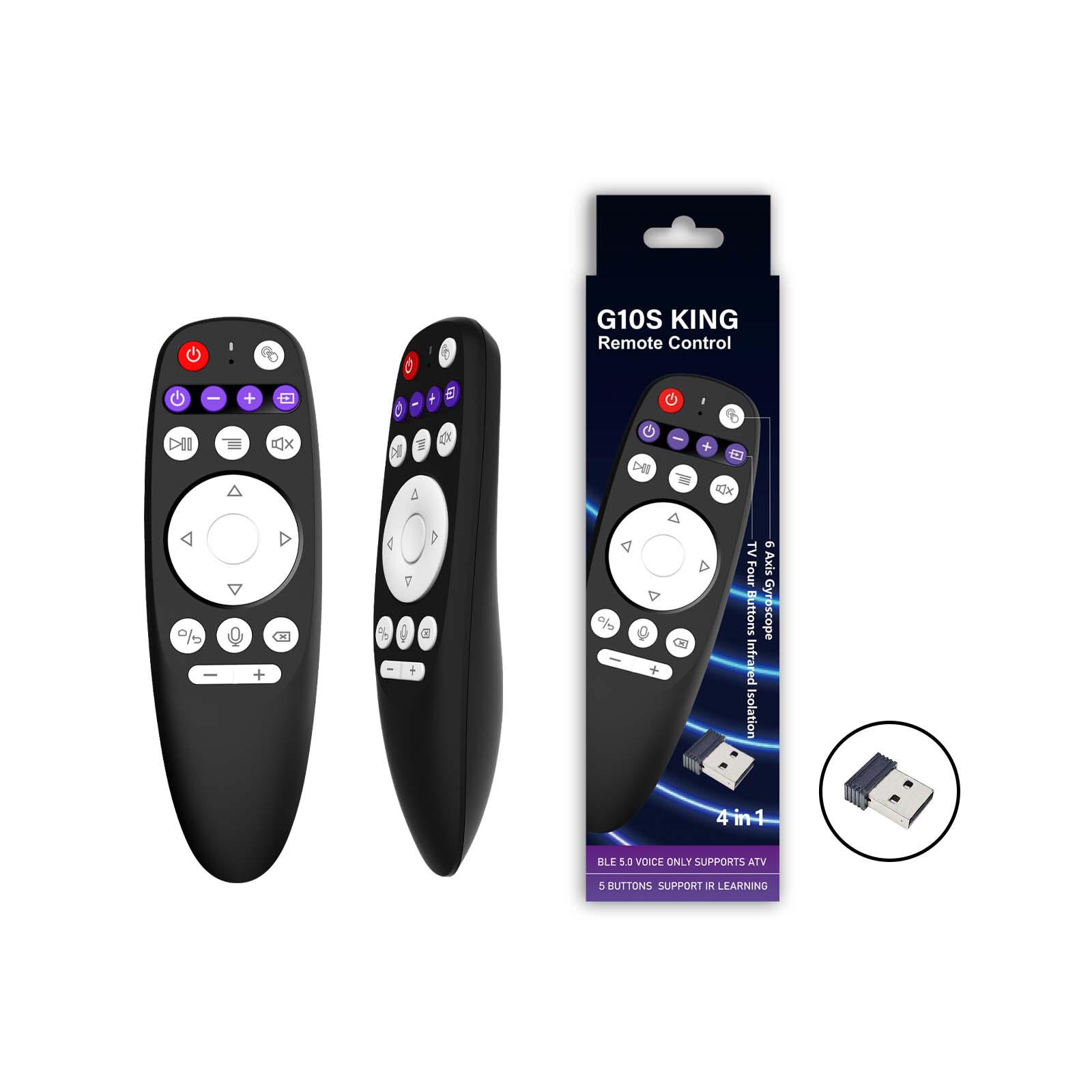
Slika 1.1: Spredaj view of the BOXPUT G10S King remote control, showing its compact design and key layout. Dimensions are approximately 14.3cm in length and 4.5cm in width.
2. Vsebina paketa
Prosimo, preverite paket za naslednje artikle:
- 1 x G10S King Remote Control
- 1 x USB 2.4G sprejemnik
- 1 x uporabniški priročnik

Image 2.1: The BOXPUT G10S King remote control, its USB receiver, and the user manual, laid out next to the product packaging.
3. Nastavitev
3.1 Inserting Batteries and USB Receiver
The remote control requires AAA batteries (not included). Open the battery compartment cover on the back of the remote and insert two AAA batteries, ensuring correct polarity. The 2.4G USB receiver is typically stored inside the battery compartment.
Video 3.1: This video demonstrates how to open the battery compartment and retrieve the 2.4G USB receiver from the BOXPUT G10S King remote control.
3.2 Brezžična povezava 2.4G
- Insert the 2.4G USB receiver into an available USB port on your device (e.g., TV box, PC, Smart TV).
- The remote control should automatically connect. If not, ensure the batteries are correctly inserted.
3.3 Bluetooth 5.0 Seznanjanje
- Ensure the 2.4G USB receiver is NOT plugged into your device.
- Press and hold the "OK" button (center of the directional pad) and the "Back" button (left of the voice button) simultaneously for 3-5 seconds.
- The indicator light on the remote will start blinking rapidly, indicating it's in pairing mode.
- V napravi pojdite v nastavitve Bluetooth in poiščite nove naprave.
- Select "G10S King" from the list of available devices to complete the pairing. The indicator light will stop blinking once successfully paired.
4. Navodila za uporabo
4.1 Funkcije gumbovview

Image 4.1: A detailed diagram labeling each button on the BOXPUT G10S King remote control, including Power, MIC, Indicators, Mouse, TV Four Buttons Infrared Isolation, Play/Pause, Mute, Menu, Directional Pad (UP, Left, Down, Right, OK), Home, Voice, Volume-, Volume+, and Back.
| Gumb | funkcija |
|---|---|
| moč (rdeča) | Power On/Off (IR Learning) |
| Purple Buttons (4) | Infrared Learning Buttons (Programmable) |
| Predvajaj/Premor | Media Play/Pause |
| meni | Access Menu/Options |
| Mute | Izklop/vklop zvoka |
| Usmerjevalna blazinica | Navigacija (gor, dol, levo, desno) |
| OK | Confirm Selection / Mouse Left Click |
| domov | Vrnitev na začetni zaslon |
| Voice (Microphone) | Aktivirajte glasovni nadzor |
| Nazaj | Go Back / Exit |
| Glasnost +/- | Prilagodite glasnost |
| Mouse (Pointer icon) | Toggle Air Mouse On/Off |
4.2 Funkcija infrardečega (IR) učenja
The G10S King remote supports IR learning for its red Power button and the four purple buttons, allowing it to mimic functions from your original TV remote. This enables control of two devices (e.g., TV and TV Box) with one remote.
- Place the G10S King remote and your original TV remote head-to-head, within 1-3 cm distance.
- Press and hold the desired learning button on the G10S King (e.g., the red Power button or one of the purple buttons) for 3-5 seconds until the indicator light starts blinking rapidly.
- While the indicator light is blinking, press the corresponding button on your original TV remote that you wish to learn.
- The indicator light on the G10S King will blink three times and then stay solid, indicating successful learning.
- Repeat steps 2-4 for other buttons you wish to program.
- To exit IR learning mode, press any non-learning button or wait for 10 seconds.

Image 4.2: The BOXPUT G10S King remote control being used to control a TV, illustrating the infrared learning capability for precise control.
Video 4.1: This video demonstrates the infrared learning function of the BOXPUT G10S King remote control, showing how to program buttons from an existing TV remote.
4.3 6-Axis Gyroscope (Air Mouse) Function
The remote features a 6-axis gyroscope for intuitive air mouse control. This allows you to move the cursor on your screen by simply moving the remote in the air.
- Pritisnite Miška button (pointer icon) to activate or deactivate the air mouse function.
- When activated, move the remote in the air to control the cursor on your screen.
- Pritisnite OK button to perform a left-click action.
- To re-calibrate the gyroscope, place the remote on a flat surface for a few seconds.

Image 4.3: A visual representation of the 6-axis gyroscope function, showing the remote's movement translating to on-screen cursor control.
4.4 Funkcija glasovnega upravljanja
The G10S King supports voice control for compatible devices, allowing you to issue commands or search content using your voice.
- Pritisnite in držite Glas gumb (ikona mikrofona).
- Govorite jasno v mikrofon daljinskega upravljalnika.
- Ko končate z govorjenjem, spustite gumb.
- Ensure your device supports voice input and is properly configured.

Image 4.4: A user holding the BOXPUT G10S King remote and speaking into it, demonstrating the voice control feature for interacting with a smart TV.
5. Odpravljanje težav
- Daljinec se ne odziva:
- Preverite nivo baterije in jo po potrebi zamenjajte.
- Ensure the USB receiver is securely plugged in for 2.4G mode.
- For Bluetooth mode, ensure it's paired correctly and within range.
- IR learning not working:
- Ensure the remotes are placed head-to-head and close enough (1-3 cm).
- Verify the indicator light blinks correctly during the learning process.
- Try repeating the learning steps carefully.
- Air mouse cursor erratic:
- Place the remote on a flat surface for a few seconds to re-calibrate the gyroscope.
- Ensure there are no strong magnetic fields or interference nearby.
- Glasovno upravljanje ne deluje:
- Ensure the remote is connected via Bluetooth (voice control typically requires Bluetooth).
- Check if your device supports voice input and if the microphone access is granted.
- Speak clearly and hold the voice button while speaking.
- To reset IR learning:
- Press and hold the "Back" button and the "Delete" button (often the rightmost purple button) simultaneously until the indicator light blinks, indicating all learned IR codes are cleared.
6. Specifikacije
| Funkcija | Podrobnost |
|---|---|
| Številka modela | G10S King |
| Znamka | ŠKATLA |
| Povezljivost | Bluetooth 5.0, 2.4G Wireless (USB Receiver) |
| Senzorji | 6-osni žiroskop |
| Nadzorno območje | > 10 metrov |
| IR učenje | Yes (5 buttons: Power + 4 programmable) |
| Glasovni nadzor | ja |
| Združljive naprave | Streaming devices, TVs, PCs, Projectors (Android TV Box, Smart TV compatible) |
| barva | Črna |
| Dimenzije | 16.1 x 6.3 x 5.9 cm (approximate package size) |
| Teža | 30 g (približna teža paketa) |
| Baterije | 2 x AAA (niso vključeni) |
7. Vzdrževanje
- Daljinski upravljalnik hranite suh in stran od vlage.
- Daljinski upravljalnik ne sme spustiti ali biti izpostavljen močnim udarcem.
- Daljinski upravljalnik očistite z mehko, suho krpo. Ne uporabljajte abrazivnih čistil ali topil.
- Če daljinskega upravljalnika ne boste uporabljali dlje časa, odstranite baterije, da preprečite puščanje.
8. Garancija in podpora
For warranty information or technical support, please refer to the contact details provided with your purchase or visit the official BOXPUT webspletno mesto. Shranite račun kot dokazilo o nakupu.
Ask a question about this manual
Ask about setup, troubleshooting, compatibility, parts, safety, or missing instructions. Manuals+ will review the question and use this page’s manual context to help answer it.