
Uvod
This manual provides essential information for setting up, operating, maintaining, and troubleshooting your Acer AL15-33P laptop. Please read this guide thoroughly to ensure proper use and to maximize the lifespan of your device.
Nastavitev
1. Razpakiranje in prvi pregled
Carefully remove the laptop and all accessories from the packaging. Check for any visible damage. The package should include the laptop, power adapter, and this user manual.

Spredaj view of the Acer AL15-33P laptop with the screen displaying the Windows desktop.
2. Priključitev napajanja
- Connect the AC adapter cable to the power adapter.
- Plug the DC output connector of the power adapter into the power input port on the side of your laptop.
- Priključite napajalni kabel v električno vtičnico.
Baterija se bo začela samodejno polniti. Pred prvo uporabo je priporočljivo, da baterijo popolnoma napolnite.
3. Začetni zagon in namestitev sistema Windows
- Odprite pokrov prenosnika.
- Press the power button, typically located on the keyboard deck or side, to turn on the laptop.
- Follow the on-screen instructions to complete the Windows 11 setup process. This includes selecting your region, language, accepting terms, and setting up a user account.
Upravljanje prenosnika
1. Uporaba tipkovnice in sledilne ploščice
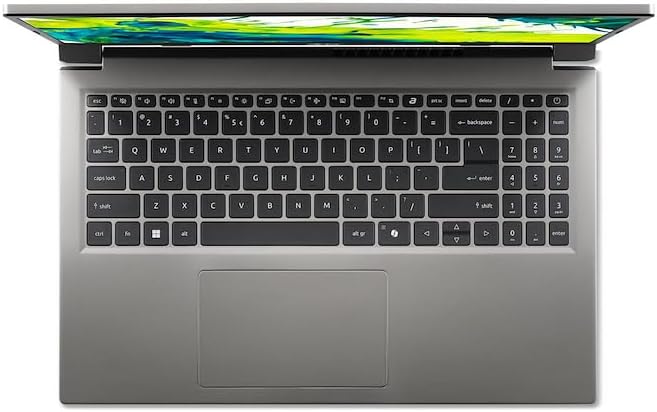
Od zgoraj navzdol view tipkovnice in sledilne ploščice prenosnika.
- Tipkovnica: The laptop features a full-size keyboard. Use the function (Fn) key in combination with F-keys for special functions like adjusting brightness, volume, or enabling/disabling Wi-Fi.
- Sledilna ploščica: The integrated touchpad supports multi-touch gestures. Tap to click, use two fingers to scroll, and pinch to zoom.
2. Povezovanje zunanjih naprav
Your Acer AL15-33P laptop is equipped with various ports for connecting external devices.

Right side of the laptop showing ports including USB and audio jack.

Left side of the laptop showing ports including power, USB-C, HDMI, and USB-A.
- Vrata USB: Priključite naprave USB, kot so zunanji trdi diski, miške ali tipkovnice.
- Vrata HDMI: Connect an external monitor or TV for a larger display.
- Zvočni priključek: Priključite slušalke ali zunanje zvočnike.
- Vrata USB-C: For data transfer and potentially display output or charging, depending on the specific model configuration.
3. Brezžična povezljivost
- Wi-Fi: Če se želite povezati z brezžičnim omrežjem, kliknite ikono Wi-Fi v opravilni vrstici, izberite omrežje in po potrebi vnesite geslo.
- Bluetooth: Če želite seznaniti naprave Bluetooth, odprite Nastavitve sistema Windows > Bluetooth in naprave in vklopite Bluetooth.
4. Upravljanje porabe
- Spanje: Zaprite pokrov ali v meniju Start izberite »Spanje«, da prenosnik preklopite v stanje nizke porabe energije.
- Zaustavitev: To turn off the laptop completely, go to the Start menu, click the Power icon, and select 'Shut down'.
- Ponovni zagon: To restart the laptop, go to the Start menu, click the Power icon, and select 'Restart'.
Vzdrževanje
1. Čiščenje prenosnika
- Uporabite mehko krpo, ki ne pušča vlaken, dampZaslon očistite z vodo ali čistilom za zaslone.
- Za tipkovnico in ohišje uporabite mehko krpo. Izogibajte se agresivnim kemikalijam ali abrazivnim materialom.
- Periodically use compressed air to clear dust from the cooling vents to prevent overheating.
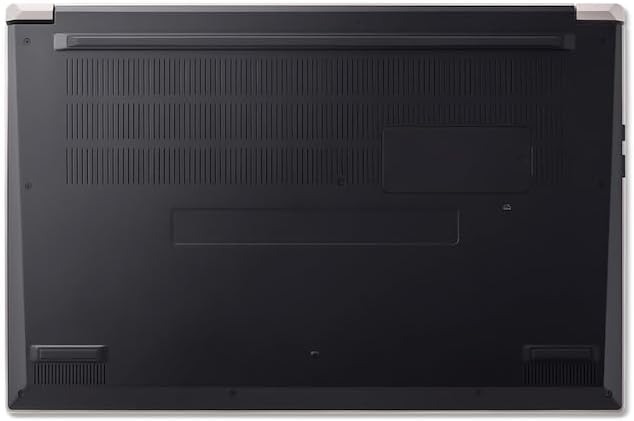
Spodaj view of the laptop, highlighting the ventilation grilles.
2. Skrb za baterijo
- Izogibajte se pogostemu popolnemu praznjenju baterije.
- Če prenosnik shranjujete dlje časa, se prepričajte, da je baterija napolnjena na približno 50-70 %.
- Operate the laptop in a moderate temperature environment.
3. Posodobitve programske opreme
Regularly update your operating system and drivers to ensure optimal performance and security. Windows Update can be accessed via Settings > Windows Update.
4. Upravljanje shranjevanja
Občasno ponovnoview in izbrišite nepotrebne files to free up storage space. Utilize cloud storage or external drives for backups of important data.
Odpravljanje težav
This section addresses common issues you might encounter with your Acer AL15-33P laptop.
| Težava | Možna rešitev |
|---|---|
| Prenosnik se ne vklopi. | Prepričajte se, da je napajalnik varno priključen in da vtičnica deluje. Poskusite z drugo vtičnico. Če je baterija popolnoma prazna, lahko po priklopu traja nekaj minut, preden se pokažejo znaki življenja. |
| Zaslon je prazen ali črn. | Check if the laptop is powered on. Try pressing Fn + F6 (or the corresponding display toggle key) to cycle through display modes. Connect an external monitor to check if the issue is with the laptop's screen. |
| Težave z Wi-Fi povezavo. | Ensure Wi-Fi is enabled (Fn + F3 or check Windows settings). Restart your router and modem. Check if other devices can connect to the Wi-Fi network. Update Wi-Fi drivers. |
| Prenosnik deluje počasi. | Close unnecessary applications. Check Task Manager for processes consuming high CPU or memory. Run a disk cleanup. Ensure Windows and drivers are up to date. |
Specifikacije
The following are key specifications for the Acer AL15-33P model. Note that specific configurations may vary.
- Model: Acer AL15-33P
- Procesor: Intel Core i3-N355
- RAM: 8 GB
- Shranjevanje: 512 GB SSD
- Zaslon: 15.6-palčni
- Operacijski sistem: Windows 11
- Znamka: Acer
Garancija in podpora
Your Acer AL15-33P laptop comes with a standard manufacturer's warranty. Please refer to the warranty card included with your product for specific terms and conditions, including the warranty period and coverage details.
Za tehnično podporo, prenos gonilnikov ali servisne poizvedbe obiščite uradno spletno stran za podporo Acer. website or contact Acer customer service directly. Have your laptop's serial number ready when contacting support.
Podpora Acer Webspletno mesto: www.acer.com/support