
1. Uvod
This user manual provides detailed instructions for the KTC M27P6 27-inch MiniLED Gaming Monitor. Please read this manual thoroughly before operating the device to ensure proper usage and optimal performance. Keep this manual for future reference.
The KTC M27P6 is a high-performance gaming monitor featuring a 27-inch MiniLED panel with 1152 local dimming zones, offering exceptional contrast and brightness up to HDR1400. It supports dual display modes: 4K resolution at 160Hz and Full HD resolution at 320Hz, providing versatility for various gaming and professional needs. Key features include a 1ms GtG response time, Adaptive Sync technology, and comprehensive connectivity options including USB-C with 65W power delivery and KVM functionality.

Slika: Konecview of KTC M27P6 monitor's key features including MiniLED, 1152 local dimming zones, dual mode 4K@160Hz/FHD@320Hz, USB-C, KVM, HDR1400, 145% sRGB, Fast IPS, and Adaptive-Sync.
2. Varnostne informacije
- Monitor vedno postavite na stabilno, ravno površino, da preprečite njegov padec.
- Monitorja ne izpostavljajte dežju ali vlagi, da preprečite električni udar ali požar.
- Monitorja ne izpostavljajte neposredni sončni svetlobi, virom toplote ali ekstremnim temperaturam.
- Zagotovite ustrezno prezračevanje okoli monitorja. Ne blokirajte prezračevalnih odprtin.
- Uporabljajte samo napajalnik in kable, ki jih je priložil ali priporočil proizvajalec.
- Unplug the power cord from the outlet if the monitor will not be used for a long period.
- Monitorja ne poskušajte popravljati sami. Vsa servisna dela prepustite usposobljenemu serviserju.
- Izogibajte se dotikanju zaslona z ostrimi predmeti.
3. Vsebina paketa
Verify that all components are present in your package. If any items are missing or damaged, contact your retailer.
- KTC M27P6 27-inch MiniLED Gaming Monitor
- Stojalo za monitor (podstavek in roka)
- Napajalni adapter
- Napajalni kabel
- HDMI kabel
- Kabel DisplayPort
- USB-C kabel
- USB-B to USB-A Cable (for KVM/USB Hub)
- Uporabniški priročnik (ta dokument)
- Garancijska kartica
4. Monitor Overview
4.1 Spredaj View
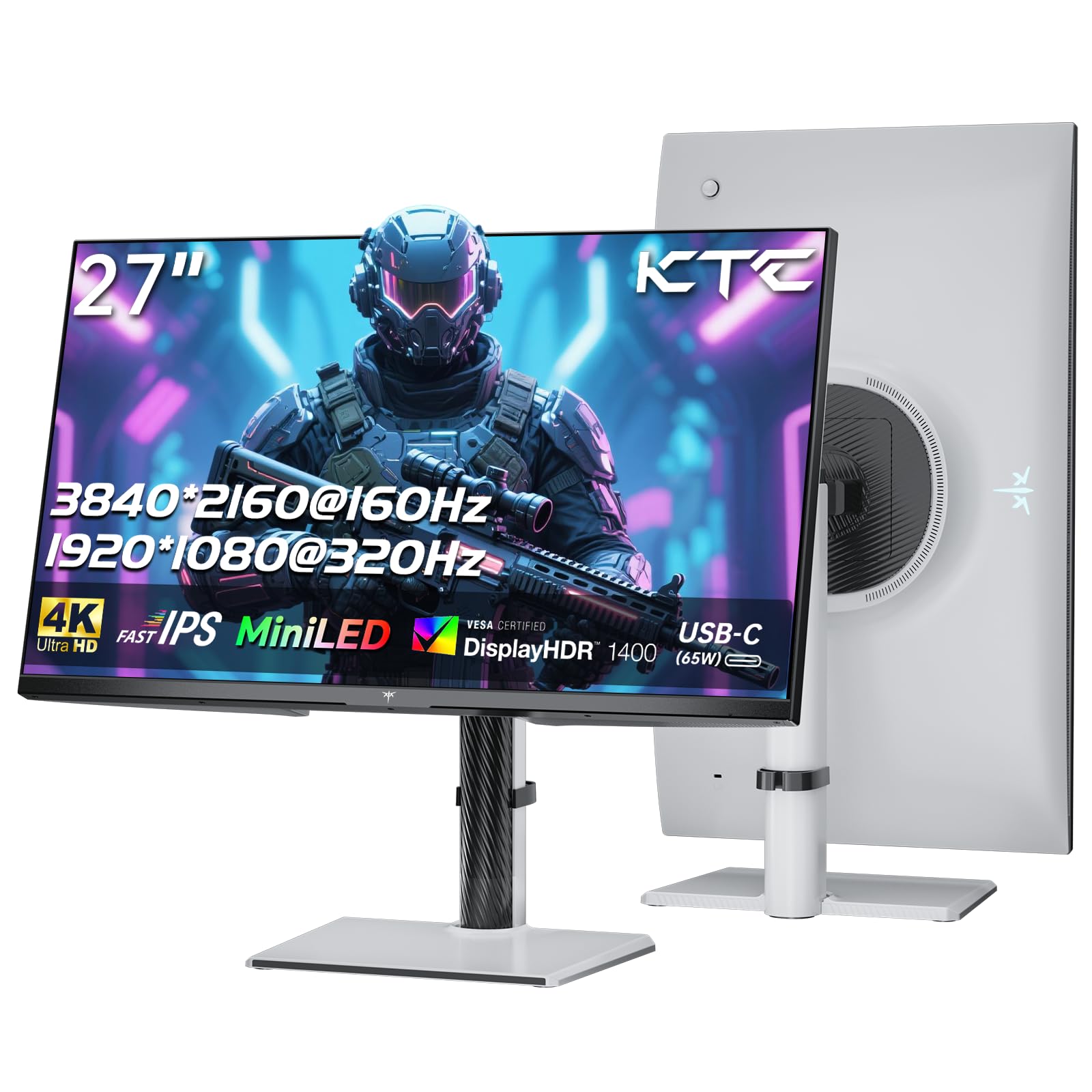
Slika: spredaj view of the KTC M27P6 27-inch MiniLED Gaming Monitor.
The front of the monitor features the 27-inch MiniLED display panel. The KTC logo is typically located at the bottom center bezel.
4.2 zadaj View in pristanišča

Slika: Zadaj view of the KTC M27P6 monitor, highlighting the various input/output ports and the adjustable stand.
The rear of the monitor houses the input/output ports and the stand attachment point. The ports include:
- Vhodna moč: Za priključitev napajalnika.
- Vrata HDMI 2.1 (x2): For connecting to devices supporting HDMI 2.1 (4K@160Hz / FHD@320Hz).
- Vrata DisplayPort 1.4 (x2): For connecting to devices supporting DisplayPort 1.4 (4K@160Hz / FHD@320Hz).
- Vrata USB-C (x1): Full-function port supporting video input (4K@160Hz / FHD@320Hz) and 65W Power Delivery.
- USB-B Upstream Port (x1): For connecting the monitor's USB hub to your computer, enabling the downstream USB-A ports and KVM functionality.
- USB-A 3.0 Downstream Ports (x3): Za priključitev perifernih naprav, kot so tipkovnice, miške ali USB-ključki.
- 3.5 mm avdio izhod: Za priklop slušalk ali zunanjih zvočnikov.
Video: Prekoračitevview of the KTC M27P6 monitor's features and design, including its connectivity options and adjustable stand.
5. Nastavitev
5.1 Sestavljanje stojala
- Previdno vzemite komponente monitorja in stojala iz embalaže.
- Attach the stand arm to the monitor panel by aligning the mounting points and securing with screws (if applicable).
- Attach the stand base to the stand arm, ensuring it is firmly connected.
- Sestavljeni monitor postavite na stabilno, ravno površino.
The monitor also supports VESA mounting (100x100mm) for use with compatible wall mounts or monitor arms. Ensure the VESA mount is rated for the monitor's weight.

Image: Diagram illustrating the multi-angle adjustment capabilities of the KTC M27P6 monitor stand, including height, tilt, swivel, and pivot.
5.2 Povezovalni kabli
- Napajalni priključek: Connect the power adapter to the monitor's power input, then plug the power cable into a power outlet.
- Video povezava:
- For PC/Gaming Console: Connect one end of the HDMI or DisplayPort cable to your device's output and the other end to the corresponding port on the monitor.
- For USB-C Compatible Devices: Connect the USB-C cable from your device to the monitor's USB-C port for video, data, and power delivery.
- USB Hub/KVM Connection: To use the monitor's USB-A ports and KVM functionality, connect the USB-B to USB-A cable from the monitor's USB-B upstream port to a USB-A port on your computer.
- Zvočna povezava: If using external headphones or speakers, connect them to the 3.5mm audio out port on the monitor.
6. Navodila za uporabo
6.1 Vklop/izklop
Press the power button (usually located on the back or bottom of the monitor) to turn the monitor on or off. The power indicator light will illuminate when the monitor is on.
6.2 Navigacija po zaslonskem meniju
The On-Screen Display (OSD) menu allows you to adjust various monitor settings. Use the joystick or buttons (refer to your monitor's physical layout) to navigate the OSD menu:
- Press Joystick/Button: Enter OSD menu or confirm selection.
- Premikanje krmilne palice gor/dol: Krmarjenje po možnostih menija.
- Premikanje krmilne palice levo/desno: Adjust values or move to sub-menus.
- Gumb za izhod: Zapustite trenutni meni ali zaslonski meni.
6.3 Dual Mode Switching (4K@160Hz / FHD@320Hz)
The KTC M27P6 supports seamless switching between two display modes: 4K (3840x2160) at 160Hz and Full HD (1920x1080) at 320Hz. This allows you to optimize performance based on your content (e.g., high-resolution graphics for AAA games or ultra-high refresh rate for competitive FPS games).
To switch modes, access the OSD menu and navigate to the "Display" or "Gaming" settings. Select the desired resolution and refresh rate. Your connected device must also support these resolutions and refresh rates for optimal performance.

Image: Illustration of the KTC M27P6 monitor's seamless dual mode switching capability, showing a 4K@160Hz gaming scene and a FHD@320Hz gaming scene.
6.4 Prilagodljiva sinhronizacija
The monitor supports Adaptive Sync (AMD FreeSync and NVIDIA G-Sync compatible) to eliminate screen tearing and stuttering, providing a smoother gaming experience. Ensure Adaptive Sync is enabled in the monitor's OSD settings and in your graphics card control panel.

Image: Visual representation of Adaptive Sync technology, showing how it prevents screen tearing by synchronizing the monitor's refresh rate with the GPU's frame rate.
6.5 Funkcionalnost KVM-ja
The integrated KVM (Keyboard, Video, Mouse) switch allows you to control multiple computers or devices connected to the monitor using a single keyboard and mouse. To use KVM:
- Connect your primary computer to the monitor via DisplayPort/HDMI and the USB-B upstream cable.
- Connect your secondary device (e.g., laptop via USB-C) to the monitor.
- Connect your keyboard and mouse to the USB-A downstream ports on the monitor.
- Switch between connected devices using the KVM hotkey or OSD menu option.
6.6 Color Settings and HDR1400
The monitor features a MiniLED panel with 1152 local dimming zones and VESA DisplayHDR 1400 certification, providing high contrast and vibrant colors. You can adjust color settings (brightness, contrast, color temperature, gamma) through the OSD menu. For HDR content, ensure HDR is enabled in your operating system and the monitor's OSD. The monitor supports 10-bit color depth and a wide color gamut (145% sRGB / 99% DCI-P3).

Image: Visual comparison demonstrating the enhanced dynamic range and detail provided by HDR1400 on the KTC M27P6 monitor.
7. Vzdrževanje
- Čiščenje zaslona: Zaslon nežno obrišite z mehko krpo, ki ne pušča vlaken. Za trdovratne madeže dampKrpo navlažite z majhno količino čistila za zaslone (brez amoniaka). Čistila ne pršite neposredno na zaslon.
- Čiščenje C-jaasing: Za brisanje monitorja uporabite mehko, suho krpo.asing. Izogibajte se uporabi abrazivnih čistil ali topil.
- Prezračevanje: Ensure the ventilation openings on the monitor are clear of dust and debris to prevent overheating.
8. Odpravljanje težav
| Težava | Možen vzrok | rešitev |
|---|---|---|
| Na zaslonu ni slike | Napajalni kabel odklopljen; video kabel odklopljen; napačen vhodni vir. | Preverite povezave napajalnega in video kabla. V zaslonskem meniju izberite pravilen vhodni vir. |
| Slika je zamegljena ali popačena | Nepravilna ločljivost; Okvarjen video kabel. | Set the display resolution to the native 3840x2160 or 1920x1080. Try a different video cable. |
| Trganje ali zatikanje zaslona v igrah | Adaptive Sync not enabled; Graphics card driver issues. | Enable Adaptive Sync in monitor OSD and graphics card settings. Update graphics drivers. |
| Vrata USB ne delujejo | USB-B upstream cable not connected; Driver issues. | Ensure the USB-B upstream cable is connected from the monitor to your computer. Check computer's USB drivers. |
| Ni zvoka iz avdio izhoda | Incorrect audio output selected; Volume too low. | Check audio output settings on your computer. Adjust monitor and device volume. |
9. Specifikacije
| Funkcija | Podrobnost |
|---|---|
| Znamka | KTC razširitev |
| Ime modela | M27P6 |
| Velikost zaslona | 27 Pollici (27 inches) |
| Vrsta plošče | MiniLED, Fast IPS |
| Resolution (Native) | 3840 x 2160 (4K UHD) |
| Max Refresh Rate (4K) | 160 Hz |
| Max Refresh Rate (FHD) | 320 Hz |
| Odzivni čas | 1 ms GtG |
| Lokalna območja zatemnitve | 1152 cone |
| HDR certifikat | VESA DisplayHDR 1400 |
| Svetlost | 1400 cd / m² (vrh) |
| Kontrastno razmerje | 1,000,000:1 (dinamično) |
| Barvna lestvica | 145 % sRGB, 99 % DCI-P3 |
| Barvna globina | 10-bitni |
| Prilagodljiva sinhronizacija | AMD FreeSync, NVIDIA G-Sync Compatible |
| Viewkota | 178 stopinj |
| Povezljivost | 2x HDMI 2.1, 2x DisplayPort 1.4, 1x USB-C (65W PD), 1x USB-B Upstream, 3x USB-A 3.0 Downstream, 1x 3.5mm Audio Out |
| Podpora za KVM | ja |
| Nastavitve stojala | Višina, nagib, vrtenje, vrtenje |
| VESA nosilec | 100 x 100 mm |
| Dimenzije (DxŠxV) | 21.1P x 61.7lx 54.7V cm |
10. Garancija in podpora
KTC products are covered by a limited warranty. Please refer to the warranty card included in your package for specific terms and conditions. For technical support, troubleshooting assistance, or warranty claims, please contact KTC customer service or visit the official KTC webmesto.
You can find more information and contact details on the KTC official store page: KTC Store.