
osee GoStream Deck Kit
Uporabniški priročnik za komplet Osee GoStream Deck
Model: GoStream Deck Kit
Brand: osee
1. Izdelek je končanview
The Osee GoStream Deck Kit is an all-in-one professional video switcher and audio mixer designed for multiple live streaming applications. It features 4 HDMI inputs, 2 HDMI outputs, and USB-C I/O, all integrated with a built-in 14-inch monitor. This comprehensive kit provides a streamlined solution for live video production.
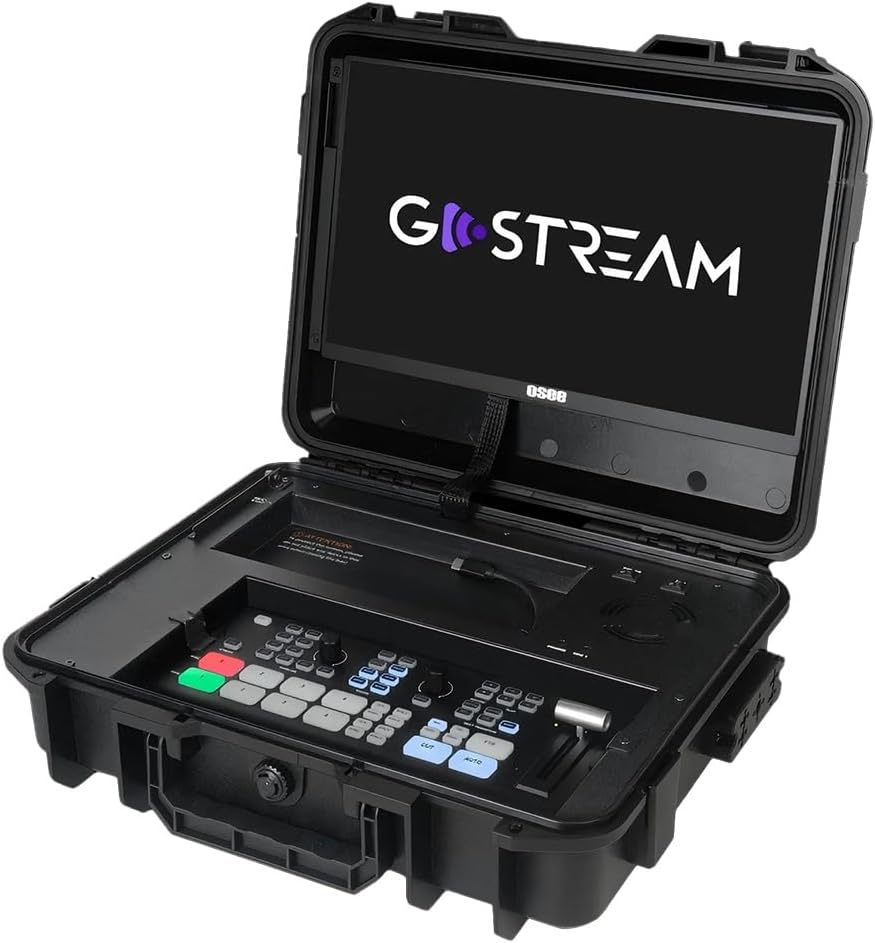
Figure 1.1: The GoStream Deck Kit with its integrated 14-inch monitor and control surface.
Ključne značilnosti:
- Paket vse v enem: Includes GoStream Deck switcher, 14'' 1080*1920 screen, silent fan, and 3 Cheese Plates with 1/4'' & 3/8'' Thread.
- Rich Connection Ports: 4 HDMI inputs, 2 HDMI outputs, and 2 USB ports for flexible monitoring and streaming.
- Integrirana nadzorna plošča: Built-in operation menu eliminates the need for a separate computer.
- High-efficiency Macro Buttons: Up to 8 Macros, import/exportable via SD card for improved workflow.
- Unparalleled Super Source Feature: Advanced composition capabilities for enhanced live streaming.
- Zvočni mešalnik: 2 Channel Analog Audio Inputs, 4 Channel HDMI Embedded Audio Inputs, 1 Channel AUX Embedded Audio Input, 1 Channel PGM Audio Monitoring with selectable On/Off/Audio-Follow-Video and gain control.
2. Nastavitev in povezljivost
This section details the initial setup and various connectivity options for your GoStream Deck Kit.
2.1 Fizična postavitev
Unpack all components from the GoStream Deck Kit. Ensure the 14-inch monitor is securely positioned. The silent fan is integrated for optimal performance during operation.

Figure 2.1: Components of the Mobile Live Studio All-in-One Kit.
2.2 Vhodno/izhodne povezave
The GoStream Deck Kit offers a variety of ports for connecting cameras, monitors, and other devices.

Figure 2.2: Rear panel with all available input and output ports.
- HDMI Inputs (IN 1-4): Connect your cameras or other HDMI video sources here.
- HDMI Outputs (OUT 1-2): Use these for program output to external monitors or recorders. One output can be configured for multiview monitoring, while the other provides the program feed.
- USB Ports (USB 1-2): USB 1 is typically used for connecting to a computer for software control and streaming. USB 2 can accommodate a USB-C webcam for an additional input or other USB devices.
- Audio Inputs (MIC 1, MIC 2, AUX): Connect external microphones or audio mixers. The device also supports embedded audio from HDMI inputs.
- Ethernet: For network connectivity, including NDI sources if supported by the firmware.
- Power (DC IN): Priključite priloženi napajalnik.
2.3 Expandable Cheese Plates
The kit includes 3 cheese plates with 1/4'' & 3/8'' threads, allowing for versatile mounting of accessories like cameras, lights, or additional monitors.

Figure 2.3: GoStream Deck Kit with expandable cheese plates for accessory mounting.
3. Navodila za uporabo
Learn how to effectively operate your GoStream Deck Kit for live video production.
3.1 Postavitev nadzorne plošče
The integrated control panel provides intuitive access to all key functions.

Slika 3.1: Podrobno view of the GoStream Deck control panel.
3.2 Switching and Transitions
Use the program and preview buttons to switch between video sources. The device supports various transition effects.
Video 3.1: Demonstrates the Osee GoStream Deck's switching and transition capabilities, including HDMI inputs, USB connectivity, and audio mixing. (Source: V-feast)
- Program (PGM) Buttons: Select the live output source.
- Prejview (PVW) Buttons: Select the next source to go live.
- Transition Buttons (MIX, WIPE, DIP): Apply different visual effects between program and preview.
- T-bar: Manually control the speed and progression of transitions.
- Gumb AUTO: Automatically execute the selected transition.
3.3 Mešanje zvoka
Control audio levels for each input source using the dedicated audio mixer section.
- Gumbi za vhodno glasnost: Adjust the volume for each microphone and HDMI input.
- Audio-Follow-Video (AFV): Enable or disable AFV per channel to automatically switch audio with video.
- Priključek za slušalke: Monitor the master audio output.
3.4 Snemanje in predvajanje
Record your live stream directly to an SD card inserted into the dedicated slot. You can also load graphics and videos for playback during your stream.
- Gumb za snemanje: Start and stop recording the program output.
- Reža za kartico SD: Insert an SD card for recording and media playback.
- Nadzor predvajanja: Manage loaded video clips and graphics.
4. Napredne funkcije
4.1 Super Source
The Super Source feature allows for advanced multi-layer compositions, enabling you to combine multiple video sources into a single output with customizable layouts.
4.2 Macro Buttons
Program up to 8 macros to automate complex sequences of actions, greatly improving efficiency for live streaming and video production. Macro files can be imported from or exported to an SD card for sharing.
4.3 Multi-Platform Streaming
The GoStream Deck Kit supports direct streaming to multiple platforms simultaneously via its built-in software and Ethernet port. This includes popular services like YouTube, Twitch, and Facebook.
4.4 Prenosljivost
The compact design of the GoStream Deck Kit ensures ultimate portability and durability, making mobile live streaming accessible anywhere.

Figure 4.1: The GoStream Deck Kit is designed for easy transport.
5. Vzdrževanje
Regular maintenance ensures the longevity and optimal performance of your GoStream Deck Kit.
- Čiščenje: Use a soft, dry cloth to clean the exterior surfaces. For the screen, use a screen-specific cleaning solution and microfiber cloth. Avoid abrasive cleaners or solvents.
- Prezračevanje: Ensure the silent fan and ventilation openings are clear of dust and obstructions to prevent overheating.
- Posodobitve vdelane programske opreme: Periodically check the osee official website for firmware updates. Updates can improve performance, add new features, and resolve bugs. Follow the provided instructions carefully when updating firmware.
- Shranjevanje: When not in use, store the kit in a cool, dry place, preferably in its original case, to protect it from dust and physical damage.
6. Odpravljanje težav
V tem razdelku so rešitve za pogoste težave, na katere lahko naletite.
- Brez video izhoda:
- Preverite vse povezave kabla HDMI.
- Ensure the correct input source is selected on the GoStream Deck.
- Verify that the external monitor is powered on and set to the correct input.
- Confirm that the camera or video source is outputting a compatible signal.
- Brez zvoka:
- Preverite priključke mikrofona in se prepričajte, da so priključeni na napajanje (če je potrebno).
- Verify audio levels on the GoStream Deck's audio mixer.
- Ensure Audio-Follow-Video (AFV) is correctly configured for embedded audio.
- Check audio output settings on your streaming software or recording device.
- Težave s pretakanjem:
- Verify internet connection stability.
- Check streaming platform settings (stream key, server URL).
- Ensure sufficient upload bandwidth.
- Reduce video quality settings if experiencing buffering or dropped frames.
- Naprava se ne odziva:
- Perform a power cycle (turn off, unplug, wait 30 seconds, plug back in, turn on).
- If connected to a computer, try restarting the computer and the GoStream Deck.
7. Specifikacije
| Funkcija | Podrobnost |
|---|---|
| Dimenzije paketa | 14 x 11 x 5 palcev |
| Teža predmeta | 11 funtov |
| Vrsta priključka | HDMI |
| Znamka | osee |
| Združljive naprave | Laptop, Television, Digital Camera |
| Vrsta kabla | HDMI |
| Število vrat | 6 |
| Proizvajalec | osee |
| Država izvora | Kitajska |
| Prvič na voljo | 7. marec 2025 |
8. Garancija in podpora
For warranty information and technical support, please refer to the official osee webspletno mesto ali se obrnite neposredno na njihovo službo za stranke. Račun shranite kot dokazilo o nakupu za morebitne garancijske zahtevke.
Spletni viri:
- Obiščite osee Store on Amazon za informacije o izdelkih in posodobitve.
Ask a question about this manual
Ask about setup, troubleshooting, compatibility, parts, safety, or missing instructions. Manuals+ will review the question and use this page’s manual context to help answer it.