
xTool M1 Ultra
Navodila za uporabo laserskega gravirnega stroja xTool M1 Ultra 20W
Model: M1 Ultra (MLM-K501-001)
1. Uvod
The xTool M1 Ultra is a versatile 4-in-1 craft machine designed for various creative applications. It integrates laser engraving, blade cutting, inkjet printing, and pen drawing functionalities into a single unit. This manual provides essential information for the safe and effective operation of your xTool M1 Ultra machine.
Glavne lastnosti vključujejo:
- Funkcionalnost 4 v 1: Combines laser engraving, vinyl cutting, inkjet printing, and pen drawing.
- Easy Swap Design: Allows quick switching between different modules for various processes.
- Začetnikom prijazno: Pre-assembled design with features like snapshot preview and pinpoint positioning.
- Združljivost materiala: Capable of working with over 1000 materials, including soft, hard, thin, thick, flat, and 3D curved surfaces.
- Integracija programske opreme: Utilizes XCS software with built-in Artimind AI for design and parameter setting.

Image 1.1: The xTool M1 Ultra 20W machine shown with various crafting accessories and example projects like engraved tumblers, earrings, and wooden puzzles.
2. Varnostne informacije
OPOZORILO: Pred uporabo tega izdelka preberite vsa varnostna opozorila in navodila. Neupoštevanje opozoril in navodil lahko povzroči električni udar, požar, hude poškodbe ali materialno škodo.
- Laserska varnost: This is a Class I laser engraver. Do not look directly into the laser beam or allow others to do so. Always operate the machine with the protective cover closed.
- Prezračevanje: Ensure adequate ventilation during operation to dissipate fumes and smoke, especially when engraving or cutting materials that produce strong odors or harmful byproducts. Consider using an external exhaust system or air purifier.
- Združljivost materiala: Only use materials approved for laser processing. Certain materials can produce toxic fumes or catch fire when exposed to a laser. Avoid PVC, vinyl containing chlorine, and other hazardous materials.
- Nevarnost požara: Never leave the machine unattended during operation. Keep a fire extinguisher nearby. Ensure the work area is clear of flammable materials.
- Električna varnost: Connect the machine to a properly grounded power outlet. Do not operate with damaged power cords or plugs. Keep liquids away from the machine.
- Otroci in hišni ljubljenčki: Otroci in hišni ljubljenčki naj se med delovanjem ne približujejo stroju.
- Vzdrževanje: Pred kakršnim koli vzdrževanjem ali čiščenjem izklopite napajanje.
3. Nastavitev
3.1 Razpakiranje in namestitev
- Carefully remove the xTool M1 Ultra from its packaging. Retain all packaging materials for future transport or storage.
- Place the machine on a stable, level surface in a well-ventilated area. Ensure there is sufficient space around the machine for operation and heat dissipation.
3.2 Connecting Power and Accessories
- Connect the power adapter to the machine and then to a grounded electrical outlet.
- If using optional accessories like the RA2 Pro rotary attachment or a smoke purifier, connect them according to their respective manuals.
3.3 Namestitev programske opreme
The xTool M1 Ultra operates with the xTool Creative Space (XCS) software. Download the latest version of XCS from the official xTool webspletno mesto (www.xtool.com) and follow the on-screen instructions for installation.
3.4 Začetna kalibracija
Upon first use, or if you experience alignment issues, perform a calibration within the XCS software. This ensures accurate positioning for all operations.
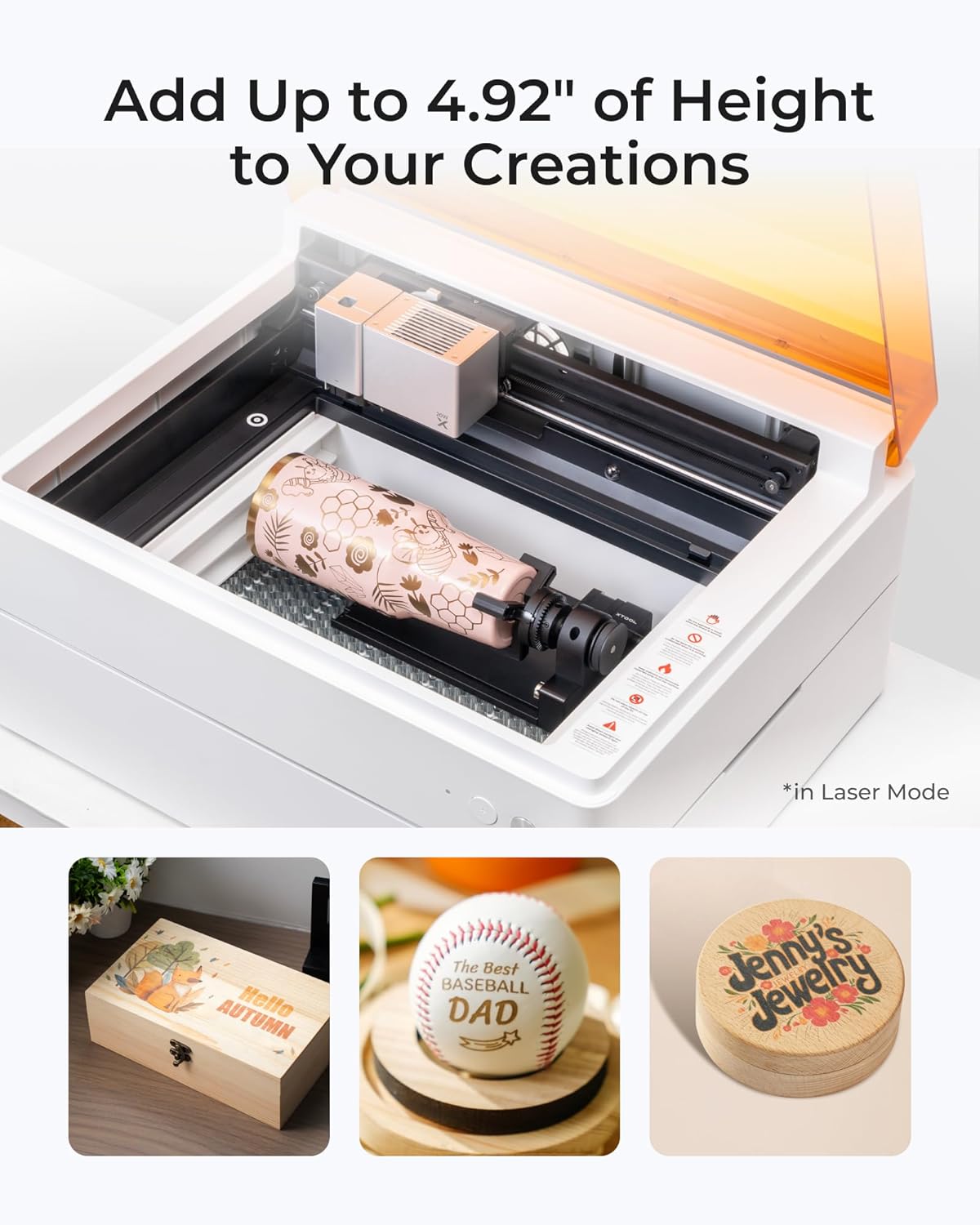
Image 3.1: The xTool M1 Ultra demonstrating rotary engraving on a tumbler, highlighting the machine's capability to handle cylindrical objects with an optional accessory.
4. Navodila za uporabo
4.1 Konecview načinov delovanja
The xTool M1 Ultra supports four primary crafting modes:
- Laser Mode: For engraving and cutting various materials like wood, acrylic, and leather.
- Inkjet Mode: For direct color printing on compatible surfaces.
- Način rezila: For precise cutting and foiling of materials such as vinyl and paper.
- Pen Mode: For automatic drawing and writing on various materials.

Image 4.1: Visual representation of the four operating modes: Laser for engraving/cutting, Inkjet for direct printing, Blade for cutting/foiling, and Pen for drawing/writing.
4.2 Priprava projekta
- Izbira materiala: Choose a material compatible with your desired mode.
- Postavitev materiala: Place the material securely on the workbed. For rotary engraving, use the RA2 Pro attachment as per its instructions.
- Namestitev modula: Install the appropriate module (laser, inkjet, blade, or pen) into the machine. The Easy Swap Design allows for quick changes.
4.3 Using xTool Creative Space (XCS) Software
- Design Import/Creation: Import your design or create one directly within XCS.
- Nastavitve parametrov: Select the material type. XCS offers preset parameters for common materials. Adjust power, speed, and passes as needed for optimal results.
- Pozicioniranje: Utilize the snapshot preview and pinpoint positioning features to accurately place your design on the material.
- Začetek operacije: Once settings are confirmed, initiate the process from the software.

Image 4.2: The xTool Creative Space software interface, illustrating its features including tutorials, preset parameters, easy editing, and AI drawing capabilities.
4.4 Material Compatibility and Applications
The M1 Ultra is compatible with over 1000 materials. Exampaplikacije vključujejo:
- Laser Engraving/Cutting: Wood, acrylic, leather, paper, cardboard, stone, metal (engraving only), silicone, felt, fabric.
- Blade Cutting: Vinyl, paper, cardstock, felt.
- Inkjet Printing: Wood, paper, fabric.
- Pen Drawing: Paper, cardstock.

Image 4.3: A visual guide to the extensive material compatibility of the xTool M1 Ultra, showcasing examples like wood, acrylic, leather, and various finished crafts.
5. Vzdrževanje
Regular maintenance is essential for optimal performance and longevity of your xTool M1 Ultra machine. Always disconnect the power before performing any maintenance.
5.1 Cleaning the Laser Lens and Protective Cover
- Gently wipe the laser lens with a lint-free cloth and a small amount of isopropyl alcohol.
- Clean the interior of the machine and the protective cover regularly to remove dust and debris.
5.2 Vzdrževanje ventilatorja
The internal fan blades can accumulate debris, affecting ventilation. Periodically, it may be necessary to remove the housing to access and clean the internal fan blades. Refer to the detailed cleaning guide on the xTool support webstran za posebna navodila.
5.3 Generalno čiščenje
Keep the work area and the machine's exterior clean. Use a soft, dry cloth to wipe down surfaces. Avoid abrasive cleaners or solvents.
6. Odpravljanje težav
This section addresses common issues you might encounter with your xTool M1 Ultra.
6.1 Alignment Issues
If designs are not aligning perfectly with the material, especially when attempting precise cuts or multiple passes:
- Perform a software calibration within XCS.
- Ensure the material is placed flat and securely on the workbed.
- Verify that the machine itself is on a stable, level surface.
6.2 Slaba kakovost graviranja/rezanja
If results are not as expected (e.g., incomplete cuts, faint engravings):
- Check and adjust the power, speed, and pass settings in XCS for your specific material.
- Ensure the laser lens is clean (refer to Section 5.1).
- Verify that the material is within the recommended thickness and type for the chosen operation.
6.3 Naprava se ne odziva
If the machine does not power on or respond to commands:
- Preverite vse napajalne povezave.
- Ensure the machine is properly connected to your computer or mobile device.
- Restart the machine and the XCS software.
6.4 Excessive Fumes/Smoke
If you notice an unusual amount of fumes or smoke:
- Zagotovite, da je delovno območje dobro prezračeno.
- Check if the internal fan is clean and operating correctly (refer to Section 5.2).
- Consider using an external smoke purifier or improving your ventilation setup.
For further assistance, refer to the xTool support resources mentioned in Section 8.
7. Specifikacije
| Funkcija | Specifikacija |
|---|---|
| Znamka | xTool |
| Številka modela | M1 Ultra (MLM-K501-001) |
| Laserska izhodna moč | 20 W |
| Laserski razred | razred I |
| Dimenzije izdelka | 19.61 x 11.91 x 24.41 palcev |
| Teža predmeta | 73.8 funtov |
| Aktivna površina | 140 (unit not specified, typically mm or cm) |
| Način delovanja | Priročnik |
| Print Media (Inkjet) | Card stock (and other compatible materials) |
8. Garancija in podpora
8.1 Informacije o garanciji
Please refer to the warranty card included with your product packaging or visit the official xTool website for detailed warranty terms and conditions. Warranty coverage typically includes manufacturing defects for a specified period.
8.2 Podpora strankam
For technical assistance, troubleshooting, or general inquiries, xTool offers multi-channel support:
- Podpora po e-pošti: Contact via email for detailed inquiries.
- Klepet v živo: Available on the official xTool website for real-time assistance.
- Telefonska podpora: Contact via phone for direct assistance.
- Spletna skupnost: Join the xTool Facebook group for peer support and shared knowledge.
When contacting support, please have your product model number (M1 Ultra) and purchase information readily available.
Ask a question about this manual
Ask about setup, troubleshooting, compatibility, parts, safety, or missing instructions. Manuals+ will review the question and use this page’s manual context to help answer it.