
Uvod
Thank you for choosing the NEWFAST WiFi 6E PCIe Network Card. This card is designed to provide high-speed wireless connectivity and Bluetooth functionality for your desktop PC. Featuring the Intel AX210 chipset, it supports the latest WiFi 6E standard, offering tri-band operation (2.4GHz, 5.8GHz, and 6GHz) with speeds up to 5374Mbps. The integrated Bluetooth 5.3 ensures fast and reliable connections to your wireless peripherals. This manual will guide you through the installation process, operation, and provide troubleshooting tips.

konecview of the NEWFAST WiFi 6E PCIe Card's multi-performance features, including WiFi 6E standard, Bluetooth 5.3 upgrade, Tri-Band support (6GHz/5.8GHz/2.4GHz), 5374Mbps speed, WPA-PSK/WPA2-PSK/WPA3 security, OFDMA, MU-MIMO technology, and power saving capabilities.
Kaj je v škatli
Prosimo, preverite vsebino paketa in se prepričajte, da so prisotni vsi elementi:
- 1 x NEWFAST WiFi 6E PCIe Network Card
- 1 x Multi-language Instruction Manual (this document)
- 1 x Bluetooth Cable
- 2 x 5dBi anteni
- 2 x Vijaki
Specifikacije
| Funkcija | Podrobnost |
|---|---|
| Znamka | NEWFAST |
| Model | NF-P395 |
| Čipset | Intel AX210 |
| Brezžični standard | WiFi 6E (IEEE 802.11ax) |
| Protokol podatkovne povezave | IEEE 802.11ac/a/b/g/n, IEEE 802.11ax |
| Frekvenčni pasovi | 2.4 GHz, 5.8 GHz, 6 GHz (tripasovno) |
| Največja hitrost prenosa podatkov | 5374 Mbps (2.4GHz: 574Mbps, 5.8GHz: 2400Mbps, 6GHz: 2400Mbps) |
| Različica Bluetooth | Bluetooth 5.3 |
| Strojni vmesnik | PCI-E X1, X4, X8, X16 (PCI slots not supported) |
| Antene | 2 x 5dBi zunanje antene |
| Varnostne funkcije | WPA-PSK/WPA2-PSK/WPA3 |
| Podprt OS | Windows 10 (64-bit), Windows 11 (64-bit) |
| Dimenzije (paket) | 19.9 x 11.9 x 3.4 cm |
| Teža predmeta | 230 g |

Detailed breakdown of WiFi 6E speeds across 6GHz, 5.8GHz, and 2.4GHz bands, highlighting the Intel AX210 chip and Bluetooth 5.3 capabilities.
Navodila za namestitev
1. Namestitev strojne opreme
- Izklopite računalnik: Before starting, ensure your computer is completely powered off and unplugged from the power outlet.
- Odprite ohišje računalnika: Za dostop do matične plošče odstranite stransko ploščo ohišja računalnika.
- Poiščite režo PCI-E: Na matični plošči poiščite prosto režo PCI-E X1, X4, X8 ali X16. Note: Standard PCI slots are not compatible.
- Vstavite kartico WiFi: Carefully align the NEWFAST WiFi 6E PCIe card with the chosen PCI-E slot and press it firmly until it is securely seated.
- Zavarujte kartico: Use the provided screw to fasten the card's bracket to your PC case.
- Priključite kabel Bluetooth: Connect one end of the provided Bluetooth cable to the 9-pin USB header on the WiFi card and the other end to an available F_USB header on your motherboard. This connection is essential for Bluetooth functionality.
- Pritrdite antene: Screw the two 5dBi external antennas onto the connectors at the back of the WiFi card. Adjust their orientation for optimal signal reception.
- Zapri ohišje računalnika: Namestite stransko ploščo ohišja računalnika in ponovno priključite napajalni kabel.

Illustration of compatible PCI-E slots on a desktop motherboard.
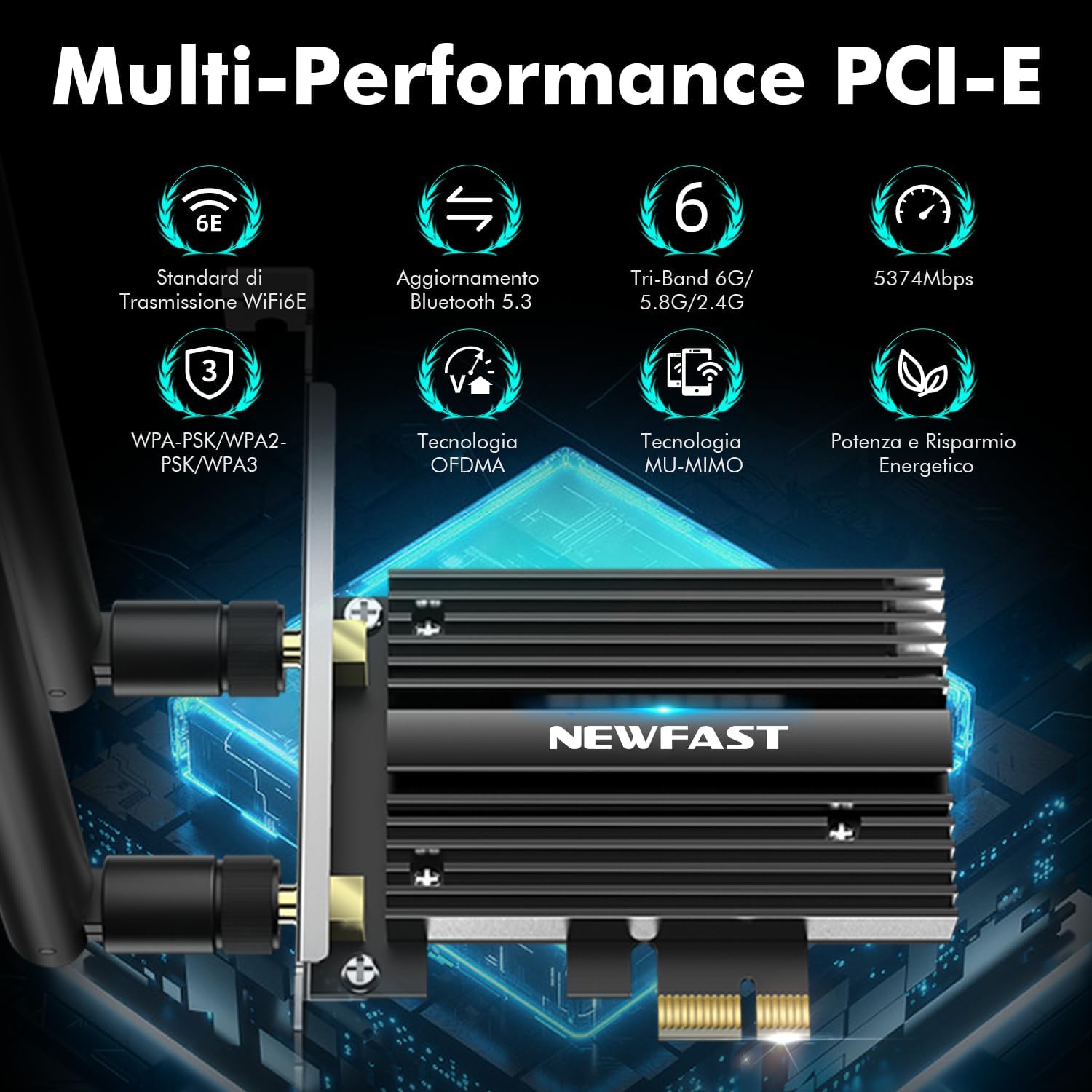
The NEWFAST WiFi 6E PCIe Card with its two external antennas.
2. Namestitev gonilnika
After hardware installation, power on your PC. You will need to install the drivers for both WiFi and Bluetooth functionality. Drivers are typically available on the manufacturer's website. If you do not have internet access, you may need to download them on another device and transfer them via USB.
- Prenesi gonilnike: Visit the NEWFAST official website or the Intel support page for the AX210 chipset to download the latest WiFi and Bluetooth drivers for Windows 10 (64-bit) or Windows 11 (64-bit).
- Namestite gonilnik WiFi: Locate the downloaded WiFi driver file (usually an executable .exe file) and run it. Follow the on-screen instructions to complete the installation.
- Namestite gonilnik Bluetooth: Similarly, locate and run the Bluetooth driver file. Follow the installation wizard.
- Znova zaženite računalnik: After installing both drivers, restart your computer to ensure all changes take effect.

The WiFi card supports Windows 10 (64-bit) and Windows 11 (64-bit).
Navodila za uporabo
1. Povezovanje z omrežjem WiFi
- Dostop do omrežnih nastavitev: On your Windows desktop, click the WiFi icon in the system tray (usually bottom-right corner).
- Izberite omrežje: A list of available WiFi networks will appear. Select your desired network.
- Vnesite geslo: Če ste pozvani, vnesite varnostni ključ omrežja (geslo) in kliknite »Poveži se«.
- Preverite povezavo: Once connected, the WiFi icon will indicate an active connection. You can now browse the internet.
2. Using Bluetooth 5.3
Ensure the Bluetooth cable is correctly connected to your motherboard's F_USB header for Bluetooth functionality.
- Omogoči Bluetooth: Go to Windows Settings > Devices > Bluetooth & other devices. Ensure Bluetooth is turned 'On'.
- Seznanitev naprave: Kliknite »Dodaj Bluetooth ali drugo napravo« in izberite »Bluetooth«.
- Naprava postane vidna: Put your Bluetooth device (e.g., headphones, mouse, controller) into pairing mode. Refer to your device's manual for specific instructions.
- Izberite in povežite: Your PC will scan for nearby Bluetooth devices. Select your device from the list and follow any on-screen prompts to complete pairing.

The Bluetooth 5.3 feature allows connection to various peripherals with improved speed and range.
Vzdrževanje
The NEWFAST WiFi 6E PCIe Network Card is designed for reliable, long-term performance with minimal maintenance. Follow these guidelines:
- Naj bodo gonilniki posodobljeni: Regularly check the NEWFAST or Intel webspletno mesto za najnovejše gonilnike za WiFi in Bluetooth, da zagotovite optimalno delovanje in varnost.
- Zagotovite pravilen pretok zraka: Make sure your PC case has adequate ventilation to prevent overheating, which can affect the card's performance. The card's aluminum heatsink is designed for efficient heat dissipation.
- Clean Antennas: Occasionally wipe the antennas with a soft, dry cloth to remove dust.
- Izogibajte se telesnim poškodbam: Handle the card with care during installation and avoid bending or stressing the antennas.
Odpravljanje težav
If you encounter issues with your NEWFAST WiFi 6E PCIe Network Card, refer to the following common problems and solutions:
- Brez povezave WiFi:
- Ensure the card is properly seated in the PCI-E slot.
- Verify that WiFi drivers are correctly installed and updated.
- Check if the antennas are securely attached.
- Confirm that your router is powered on and broadcasting a WiFi signal.
- Try restarting your PC and router.
- No Bluetooth Functionality:
- Ensure the Bluetooth cable is securely connected to both the WiFi card and the motherboard's F_USB header. This is crucial for Bluetooth.
- Verify that Bluetooth drivers are correctly installed and updated.
- Check Windows Bluetooth settings to ensure Bluetooth is enabled.
- Poskusite znova zagnati računalnik.
- Počasne hitrosti brezžičnega omrežja:
- Ensure you are connected to a WiFi 6E compatible router for optimal speeds.
- Preverite motnje drugih elektronskih naprav.
- Adjust antenna orientation for better signal reception.
- Posodobite vdelano programsko opremo usmerjevalnika.
- Ensure your PC is within a reasonable range of your WiFi router.
- Naprava ni bila zaznana:
- Double-check all physical connections, including the PCI-E slot and Bluetooth cable.
- Ensure your operating system is Windows 10 (64-bit) or Windows 11 (64-bit).
- Check Device Manager in Windows for any unknown devices or driver errors.
Garancija in podpora
NEWFAST products are designed for quality and reliability. For specific warranty information, please refer to the warranty card included with your product or visit the official NEWFAST webmesto.
If you encounter any configuration issues, technical problems, or require further assistance, please do not hesitate to contact NEWFAST customer support. Our team is ready to help you.
- Spletna podpora: Visit the NEWFAST official webspletno mesto za pogosta vprašanja, prenose gonilnikov in kontaktne podatke za podporo.
- Podpora po e-pošti: Glejte embalažo izdelka ali uradna navodila. webspletno mesto za e-poštni naslov za podporo strankam.