
Uvod
Thank you for choosing the Phomemo M221 Bluetooth Thermal Label Printer. This manual provides essential information for the safe and efficient operation of your device. Please read it thoroughly before use and retain it for future reference. The Phomemo M221 is designed for fast, clear, and smart label printing, supporting various label types and applications for small businesses, home, and school use.
Varnostne informacije
Za zagotovitev varnega delovanja in preprečevanje poškodb upoštevajte naslednje varnostne ukrepe:
- Do not disassemble, repair, or modify the printer.
- Keep the printer away from water, moisture, and direct sunlight.
- Use only Phomemo-approved power adapters and accessories.
- Tiskalne glave se ne dotikajte takoj po tiskanju, saj je lahko vroča.
- Store the printer and labels in a cool, dry place.
Vsebina paketa
Preverite, ali so v paketu vsi elementi:
- Tiskalnik nalepk Phomemo M221
- USB polnilni kabel tipa C
- 1 roll of 40 x 30 mm thermal labels
- 1 roll of 50 x 80 mm thermal labels
- 1 roll of 70 x 80 mm thermal labels
- Prenosna torbica
- Uporabniški priročnik (ta dokument)
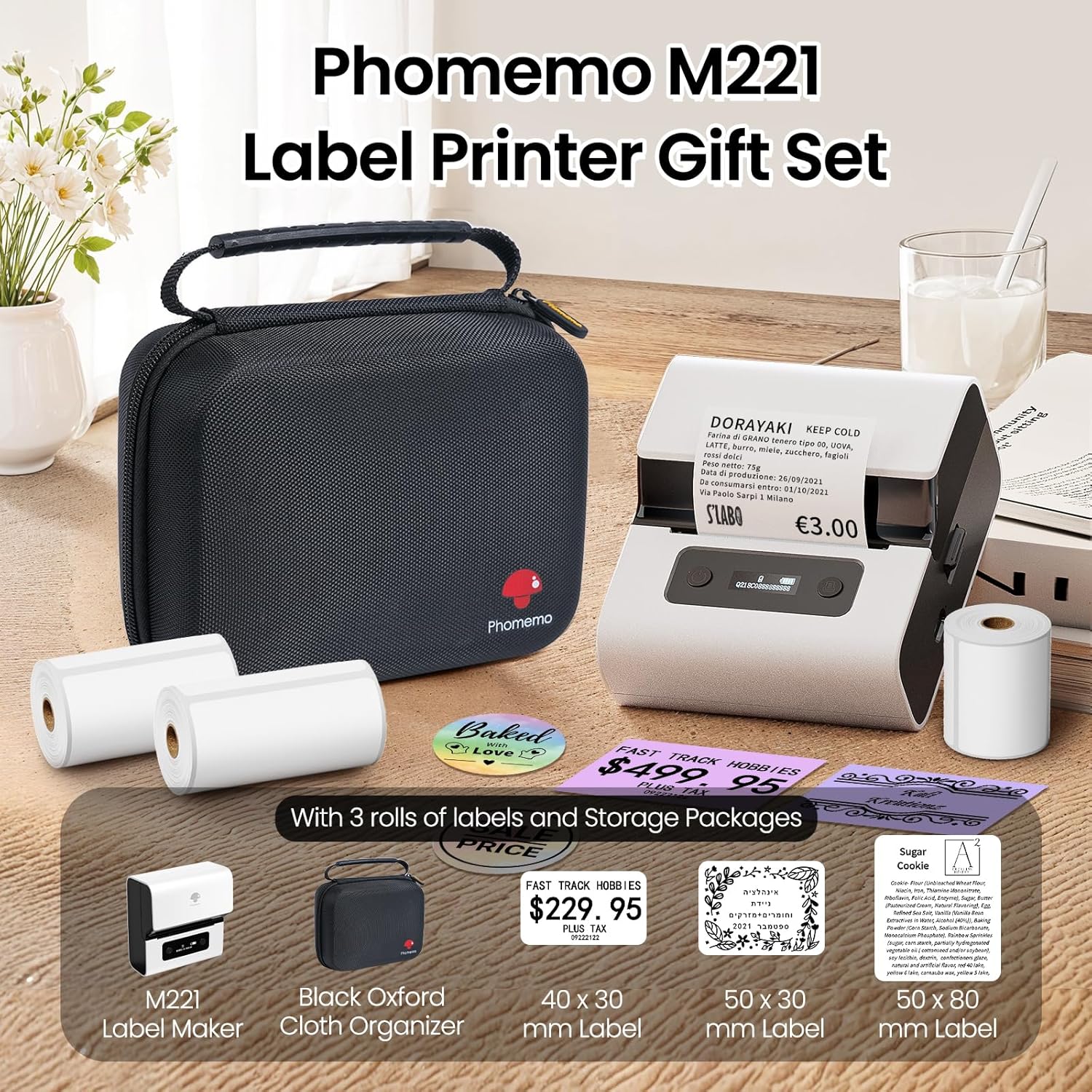
Image: Phomemo M221 Label Printer Gift Set, showing the printer, a black carrying case, and three rolls of white thermal labels.
Konec izdelkaview
The Phomemo M221 is a compact and efficient thermal label printer. Key features include:
- Tehnologija termičnega tiskanja: No ink or toner required.
- Združljivost široke oznake: Supports labels from 20mm to 80mm (0.78" to 3.14") wide, including rectangular, round, transparent, and colored types.
- Povezljivost: Bluetooth for iOS/Android smartphones and tablets, USB for Windows PCs.
- Visoko zmogljiva baterija: 2200 mAh battery with Type-C fast charging.
- Hitro in tiho delovanje: Prints at 50 mm/s with reduced noise.
- Uporabniku prijazen dizajn: Easy label loading and automatic gap detection.

Image: Phomemo M221 Label Maker Set, illustrating its features such as no ink requirement, large battery capacity, Bluetooth wireless printing, and its suitability as a gift.
Nastavitev
1. Polnjenje tiskalnika
Before first use, fully charge the Phomemo M221 printer.
- Priloženi kabel USB Type-C priključite na polnilni vhod tiskalnika.
- Connect the other end of the cable to a 5V USB power adapter (not included) or a computer's USB port.
- The indicator light will show charging status. A full charge typically takes several hours. The 2200 mAh battery supports extended use.
2. Nalaganje oznak
The M221 features an integrated label fixing structure for easy loading.
- Odprite pokrov tiskalnika.
- Insert the label roll into the compartment, ensuring the printing side faces upwards and the labels feed smoothly.
- Adjust the side guide plates to secure the label roll in place.
- Close the printer cover. The printer will automatically detect and calibrate the label gap.
3. Povezovanje z vašo napravo
Phomemo M221 podpira tako Bluetooth kot USB povezave.
Bluetooth Connection (Smartphones/Tablets)
- Prepričajte se, da je Bluetooth omogočen v vaši napravi iOS ali Android.
- Download and install the "Print Master" application from your device's app store.
- Open the "Print Master" app and follow the on-screen instructions to search for and connect to your M221 printer.

Image: Phomemo M221 printer demonstrating Bluetooth wireless connection with a tablet and a smartphone.
USB Connection (Windows PC)
- Connect the USB Type-C cable from the printer to an available USB port on your Windows PC.
- Download and install the "Labelife" software and printer drivers from the official Phomemo webmesto.
- Follow the software installation prompts. Once installed, you can select the M221 as your printer.

Image: Phomemo M221 printer connected to a laptop using a USB cable, indicating wired connectivity.
Navodila za uporabo
1. Basic Printing with "Print Master" App (Mobile)
- Ensure your M221 printer is connected via Bluetooth to your mobile device.
- Odprite aplikacijo »Print Master«.
- Select a template or create a new label design. The app offers various templates for text, images, barcodes, QR codes, and more.
- Customize your label content.
- Tap the print icon. Confirm print settings such as quantity.
- The printer will begin printing your labels.
2. Printing with "Labelife" Software (PC)
- Ensure your M221 printer is connected via USB to your Windows PC.
- Open the "Labelife" software.
- Design your label using the software's features, including text, images, barcodes, and QR codes.
- Pojdi na "File" > "Natisni" ali kliknite ikono za tiskanje.
- Select the Phomemo M221 from the list of available printers and adjust any necessary print settings.
- Click "Print" to start printing.
3. Batch Printing
Both "Print Master" and "Labelife" support batch printing for efficiency.
- In the print dialogue, specify the desired number of copies.
- The printer will automatically print multiple labels consecutively.

Image: Phomemo M221 printer demonstrating its versatility with examples of address labels, price tags, ingredient labels, and gift tags.

Image: Phomemo M221 printer showcasing its compatibility with over 50 types of thermal labels, including various shapes and designs.
Vzdrževanje
1. Čiščenje tiskalne glave
Regular cleaning of the print head ensures optimal print quality.
- Izklopite tiskalnik in odklopite napajalni kabel.
- Odprite pokrov tiskalnika.
- Tiskalno glavo nežno obrišite z vatirano palčko, rahlo dampz izopropilnim alkoholom.
- Preden zaprete pokrov in vklopite tiskalnik, pustite, da se tiskalna glava popolnoma posuši.
2. Shranjevanje
Store the printer in a clean, dry environment, away from extreme temperatures and direct sunlight. When not in use for extended periods, ensure the printer is fully charged and then powered off.

Image: A man holding the Phomemo M221 printer's carrying case, illustrating its portable design.
Odpravljanje težav
Printer Does Not Turn On or Charge
- Preverite napajalni priključek: Ensure the USB Type-C cable is securely connected to both the printer and a working power source (5V adapter or PC USB port).
- Preverite napajalnik: Use a reliable 5V USB power adapter.
- Trajanje polnjenja: Allow sufficient time for charging. The battery indicator should show charging status.
No Printing or Blank Output
- Check Label Orientation: Ensure the thermal labels are loaded correctly with the printing side facing upwards.
- Vrsta etikete: Confirm you are using thermal labels. The M221 does not use ink.
- Čistost tiskalne glave: A dirty print head can cause blank lines or poor print quality. Refer to the Maintenance section for cleaning instructions.
- Poravnava oznak: Ensure the label roll is properly seated and aligned by the side guide plates to prevent misalignment errors.
Težave s povezavo Bluetooth
- Printer On: Prepričajte se, da je tiskalnik vklopljen in v dosegu Bluetooth vaše naprave.
- Bluetooth omogočen: Verify Bluetooth is active on your smartphone or tablet.
- Povezava aplikacije: Connect through the "Print Master" app, not directly through your device's Bluetooth settings.
- Znova zaženite naprave: Try restarting both the printer and your mobile device.
Slaba kakovost tiskanja
- Čistost tiskalne glave: Očistite tiskalno glavo, kot je opisano v razdelku Vzdrževanje.
- Kakovost etikete: Uporabljajte visokokakovostne termične etikete.
- Nastavitve gostote tiskanja: Adjust print density settings within the "Print Master" app or "Labelife" software if available.
Specifikacije
| Funkcija | Podrobnost |
|---|---|
| Številka modela | M221 |
| Znamka | Phomemo |
| Tehnologija povezljivosti | Bluetooth, USB tipa C |
| Tehnologija tiskanja | Toplotna |
| Izpis | Enobarvno |
| Največja hitrost tiskanja (enobarvno) | 15.0 pages per minute (50 mm/s) |
| Največja ločljivost tiskanja (enobarvno) | 203 dpi |
| Podprta širina nalepke | 20 mm - 80 mm (0.78" - 3.14") |
| Baterija | 2200 mAh (1 D - included) |
| Teža predmeta | 820 gramov |
| Mere izdelka (D x Š x V) | 12.9 x 6.7 x 11.9 centimetrov |
| Control Device Type | Smartphone/PC |
| Vrsta medija | Etikete |
Garancija in podpora
Za informacije o garanciji in tehnično podporo se obrnite na uradno spletno stran Phomemo. webspletno mesto ali se obrnite neposredno na njihovo službo za stranke. Shranite račun kot dokazilo o nakupu.
Spletni viri: Obiščite Trgovina Phomemo na Amazonu za posodobitve izdelkov in pogosta vprašanja.


