
ARCADE1UP PHO-B-405200
Arcade1Up Touchscreen Photobooth User Manual
Model: PHO-B-405200
Uvod
Welcome to the Arcade1Up Touchscreen Photobooth user manual. This guide provides essential information for setting up, operating, and maintaining your photobooth to ensure optimal performance and enjoyment. Please read this manual thoroughly before using the product.
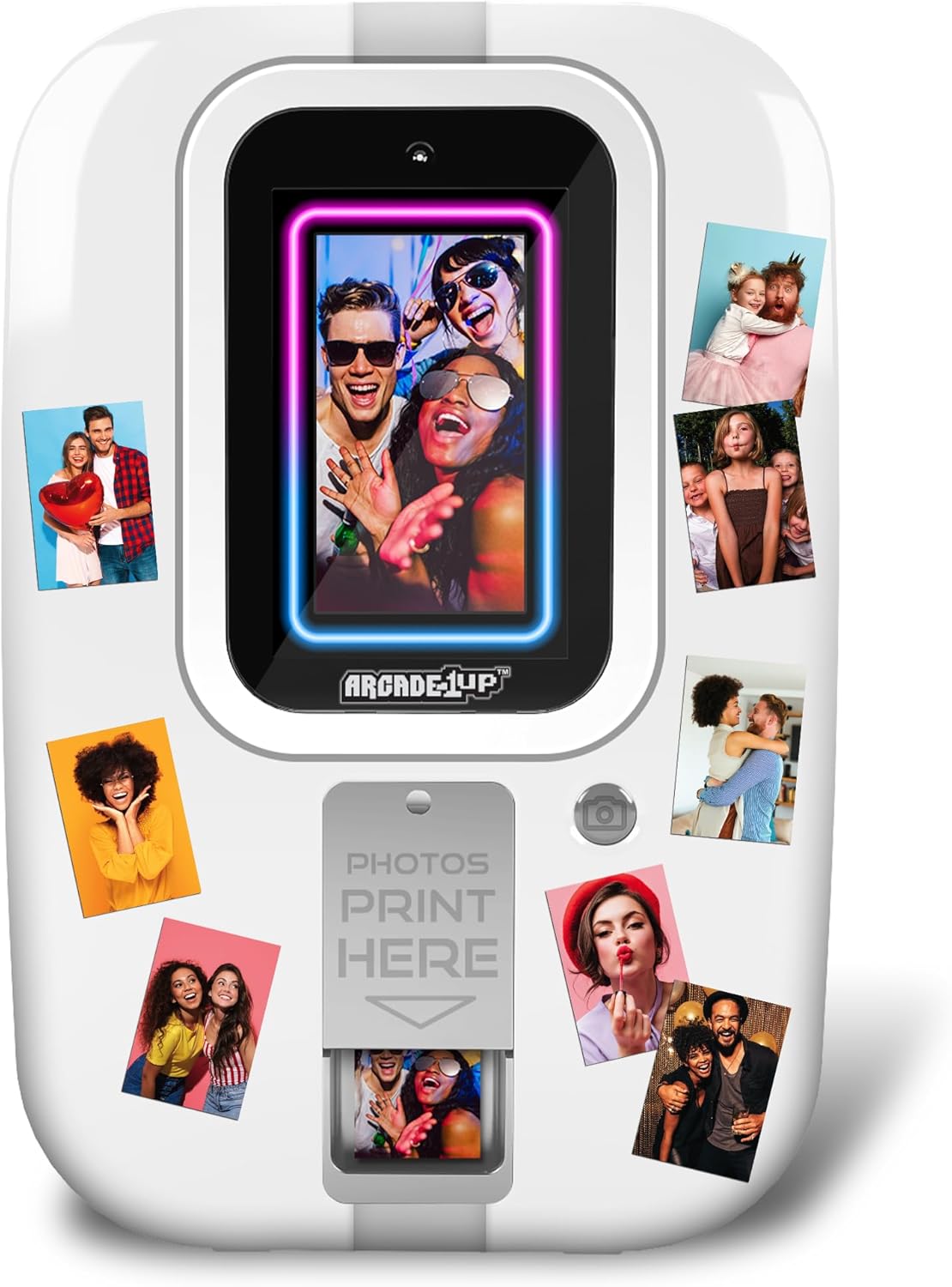
Slika 1: Spredaj view of the Arcade1Up Touchscreen Photobooth, showcasing its compact design and the display screen.
Lastnosti izdelka
- 7" Touchscreen Monitor: The intuitive touchscreen allows for easy navigation and interaction. The photobooth can be hung on a door or placed on any flat surface for flexible use.
- 16 GB notranjega pomnilnika: Ample storage capacity to save numerous photos and memories directly on the device.
- Micro SD Memory Slot: Expand storage capabilities using external Micro SD cards (not included) for additional photo saving.
- Quick Share Feature: Instantly generate QR codes directly from the photobooth to easily share captured photos with smartphones.
- Vast Library of Effects: Enhance your photos with a wide range of built-in filters, stickers, frames, borders, text options, and drawing features.
- 2" x 3" ZINK Photo Printing: Print physical 2x3 inch photos directly from the device using ZINK (Zero Ink) technology.
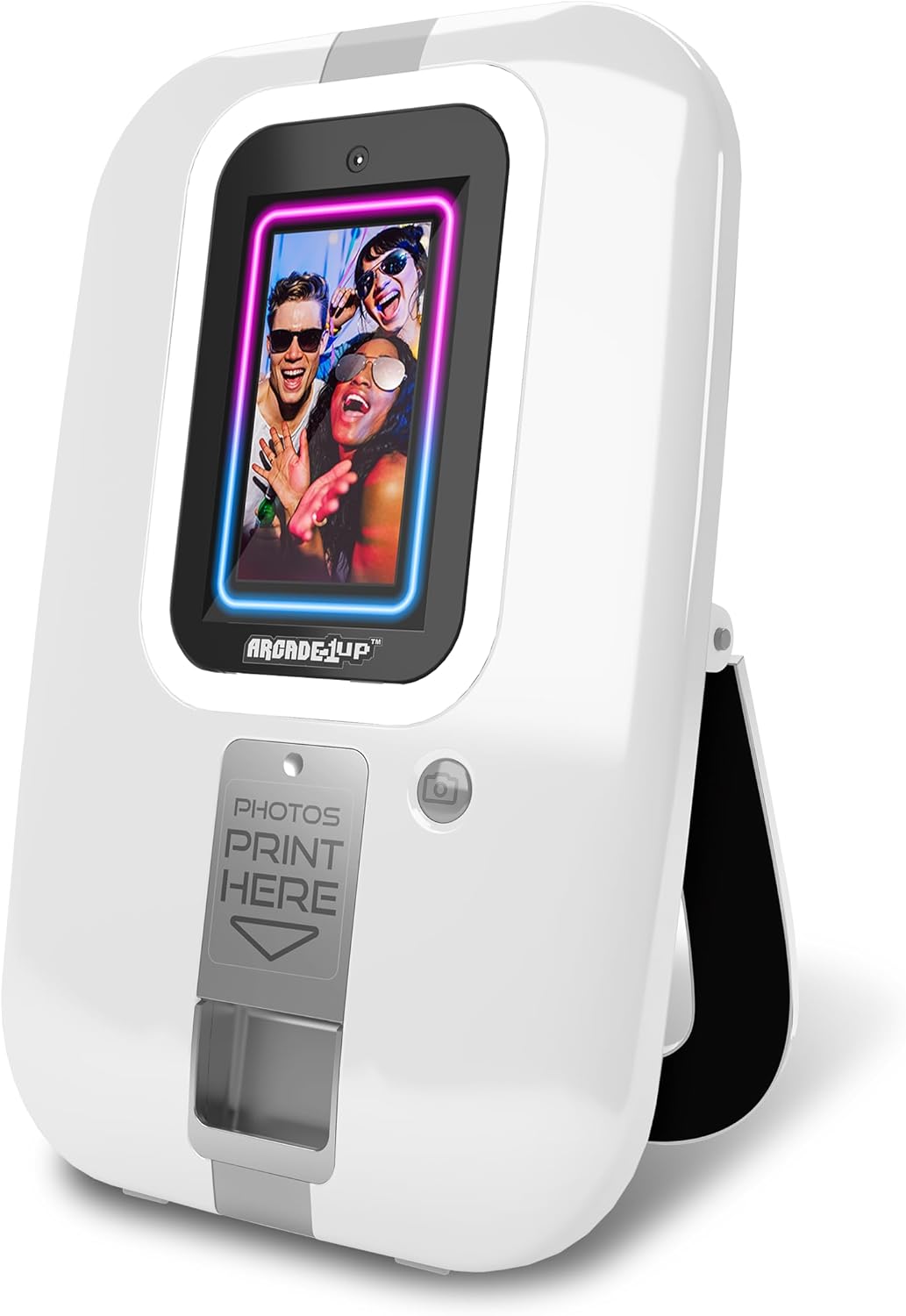
Slika 2: Pod kotom view of the photobooth, highlighting its sleek design and accessible print slot.
Vsebina paketa
Po razpakiranju preverite, ali so prisotne vse komponente:
- Arcade1Up Touchscreen Photobooth Unit
- 20 ZINK Photo Paper Sheets
- Napajalni adapter
- Uporabniški priročnik (ta dokument)
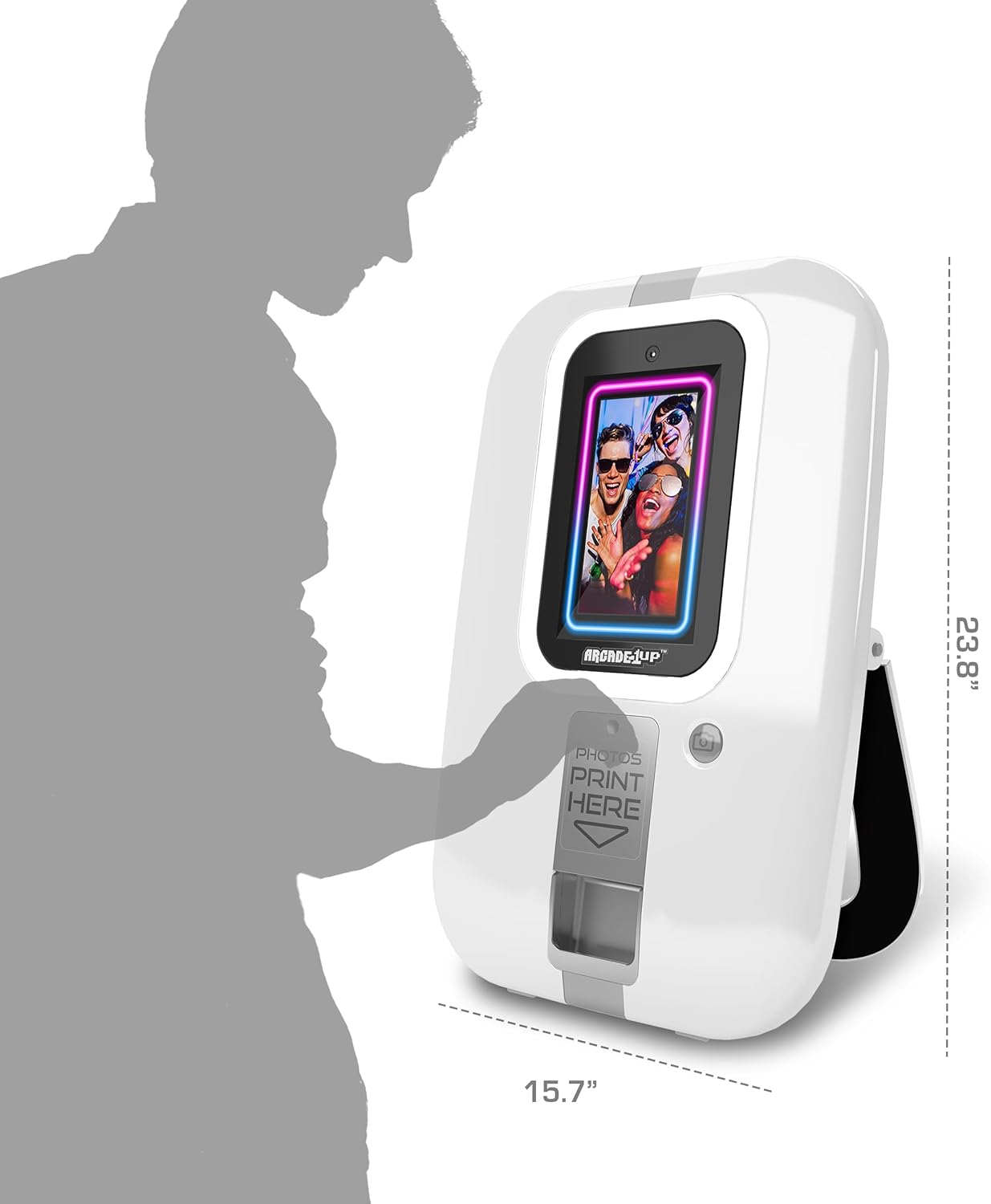
Slika 3: Stranski profesionalecfile of the photobooth, illustrating its compact dimensions for easy placement.
Vodnik za namestitev
- Razpakiranje: Carefully remove the photobooth from its packaging. Retain packaging for future storage or transport.
- Umestitev: Choose a stable, flat surface for the photobooth, or utilize the integrated hanging mechanism to mount it on a door. Ensure adequate space around the unit for operation and photo printing.
- Napajalni priključek: Connect the provided power adapter to the photobooth's power input port and then to a standard electrical outlet.
- Loading Photo Paper: Open the photo paper compartment located on the front of the unit. Insert the 2" x 3" ZINK photo paper sheets according to the diagram inside the compartment, ensuring the glossy side is facing up. Close the compartment securely.
- Začetni vklop: Press the power button to turn on the photobooth. The touchscreen will illuminate, and the system will boot up.
Video 1: Official product video demonstrating the setup and key features of the Arcade1Up Touchscreen Photobooth, including loading photo paper and using the touchscreen interface.
Navodila za uporabo
Fotografiranje
- Dostop do kamere: From the main screen, tap the camera icon to enter photo capture mode.
- Pozicioniranje: Stand in front of the photobooth, ensuring your face is within the frame displayed on the touchscreen.
- Zajemi fotografijo: Tap the capture button on the screen or press the physical button next to the screen to take a photo. A countdown may appear before capture.

Figure 4: A user engaging with the photobooth, demonstrating the ease of photo capture.
Editing and Enhancing Photos
After capturing a photo, you will be presented with editing options:
- Filtri: Apply various color filters and effects to change the mood of your photo.
- Stickers & Frames: Choose from a library of digital stickers and decorative frames to personalize your image.
- Text & Drawing: Add custom text or draw directly on your photo using the touchscreen.
- Razveljavi/Ponovi: Utilize the undo and redo functions to adjust edits as needed.
Tiskanje fotografij
- Izberite možnost tiskanja: After editing, tap the print icon on the screen.
- Potrditev: Confirm your print selection. The photobooth will then process and print the 2" x 3" photo.
- Collect Print: Once printed, the photo will emerge from the print slot at the bottom of the unit. Carefully retrieve your photo.
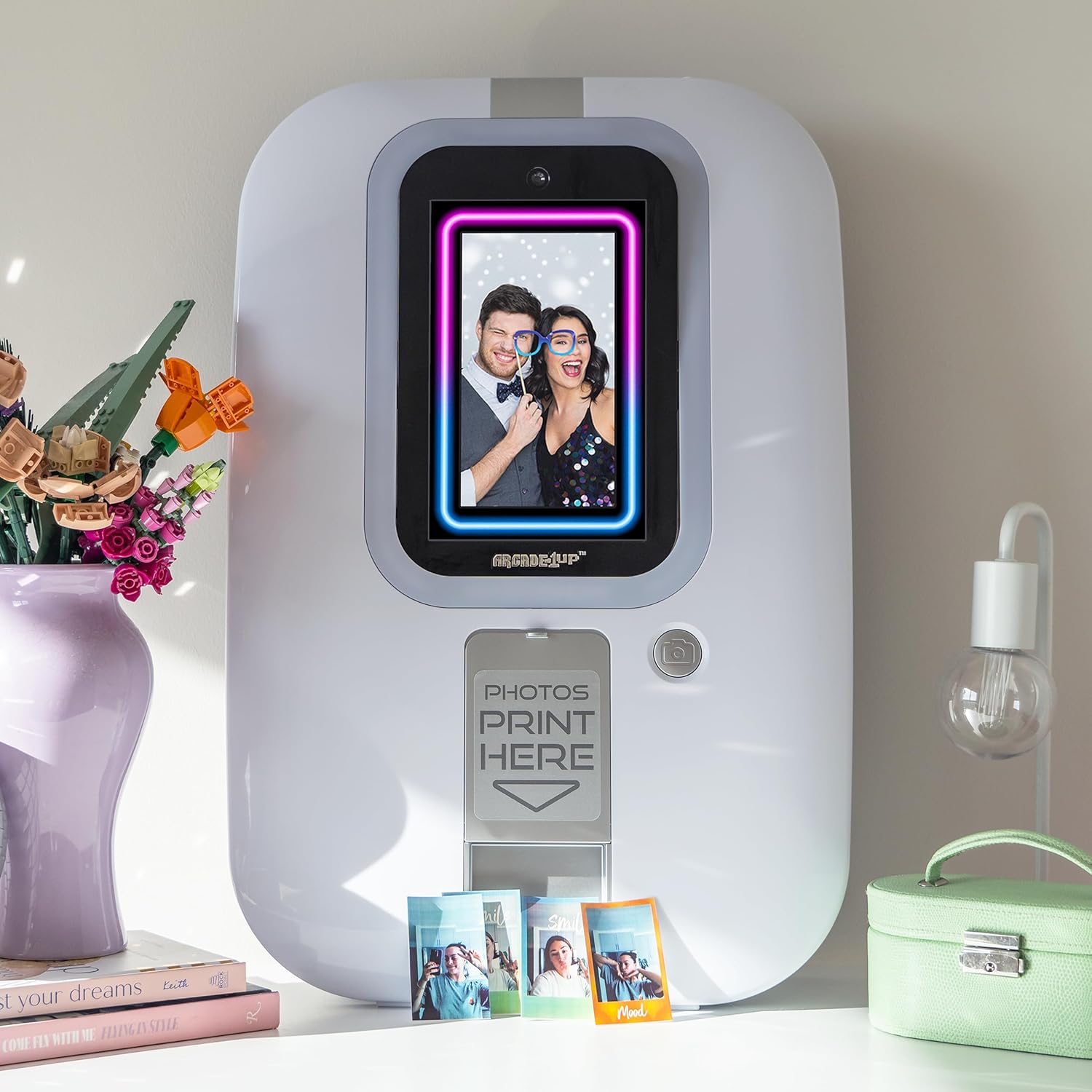
Figure 5: The photobooth displaying a captured image, with physical prints laid out, demonstrating the instant print capability.
Sharing Photos via QR Code
- Ustvari QR kodo: After capturing or editing a photo, select the share icon (often represented by a QR code symbol).
- Skeniraj QR kodo: Use your smartphone's camera or a QR code scanner app to scan the QR code displayed on the photobooth screen.
- Download Photo: Your smartphone will be directed to a link where you can download the digital copy of your photo.
Vzdrževanje
- Čiščenje: Use a soft, dry, lint-free cloth to clean the touchscreen and exterior surfaces. Do not use abrasive cleaners or solvents.
- Photo Paper Replacement: When the photo paper supply is low, replace it with new 2" x 3" ZINK photo paper sheets. Refer to the "Loading Photo Paper" section in the Setup Guide.
- Posodobitve programske opreme: Občasno preverite proizvajalčeve website or the device's settings for available software updates to ensure optimal performance and access to new features.
- Shranjevanje: When not in use for extended periods, store the photobooth in a cool, dry place, ideally in its original packaging.
Odpravljanje težav
| Težava | Možen vzrok | rešitev |
|---|---|---|
| Naprava se ne vklopi. | Ni priključka za napajanje; napajalnik je pokvarjen. | Ensure power adapter is securely connected to both the unit and a working electrical outlet. Try a different outlet. |
| Fotografije se ne tiskajo. | No photo paper; paper loaded incorrectly; print mechanism jam. | Check if photo paper is loaded correctly and sufficient quantity is available. Open and close the paper compartment. If jammed, gently remove any obstructions. |
| Zaslon na dotik se ne odziva. | Začasna programska napaka; zaslon umazan. | Restart the device by powering it off and on. Clean the screen with a soft, dry cloth. |
| Poor photo quality. | Insufficient lighting; dirty camera lens; low quality photo paper. | Ensure adequate lighting in the environment. Clean the camera lens. Use genuine ZINK photo paper. |
| QR code sharing not working. | No internet connection; QR code not scanned correctly. | Ensure the photobooth is connected to a stable Wi-Fi network (if applicable). Ensure good lighting when scanning the QR code with your smartphone. |
Specifikacije
- Ime modela: Fotokabina
- Številka modela: PHO-B-405200
- Mere izdelka (D x Š x V): 15.7 x 5.2 x 23.8 palcev
- Teža artikla: 8.18 funta (približno 3.71 kg)
- Zaslon: 7" Touchscreen Monitor
- Notranji pomnilnik: 16 GB
- Razširljiv prostor za shranjevanje: Micro SD Memory Slot (card not included)
- Tehnologija tiskanja: ZINK (Zero Ink)
- Velikost tiskanja: 2 cm x 3 cm
- Proizvajalec: Tastemakers d.o.o.
- Država izvora: Kitajska
- Prvi na voljo: 10. oktober 2024
Garancija in podpora
Za informacije o garanciji in tehnično podporo se obrnite na uradno spletno stran ARCADE1UP webspletno mesto ali se obrnite neposredno na njihovo službo za stranke. Shranite dokazilo o nakupu za uveljavljanje garancije.
Uradnik ARCADE1UP Webspletno mesto: www.arcade1up.com
For further assistance, please contact ARCADE1UP customer support.
Ask a question about this manual
Ask about setup, troubleshooting, compatibility, parts, safety, or missing instructions. Manuals+ will review the question and use this page’s manual context to help answer it.