
1. Uvod
This manual provides comprehensive instructions for the setup, operation, maintenance, and troubleshooting of your Lamzu Maya X Wireless Gaming Mouse. Please read this manual carefully to ensure proper use and to maximize the performance of your device.
2. Izdelek je končanview
2.1 Ključne lastnosti
- Ultra lahka zasnova: Weighs approximately 47g for extended comfort during use.
- Simetrična oblika: Accommodates various grip styles including palm, claw, and fingertip.
- Optical Switches: Durable and responsive, rated for over 70 million clicks.
- Dust-Proof Encoder: 30-grid roller for precise and responsive scroll wheel actions.
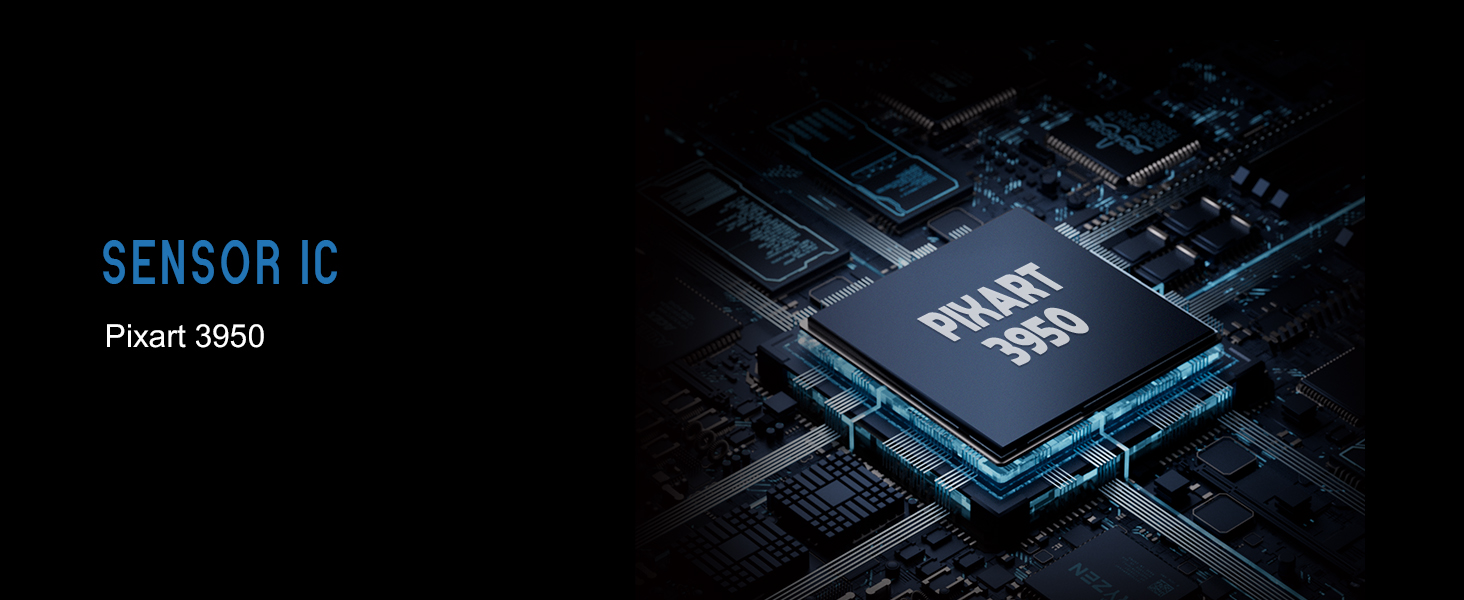
- Pixart PAW 3950 Sensor: Supports up to 30,000 DPI and 750 IPS.
- Nordic 52840 MCU: Ensures power efficiency, fast response times, and accurate motion tracking.
- Visoka stopnja glasovanja: Up to 8,000 Hz with the optional 8K dongle.
2.2 Vsebina paketa
- Lamzu Maya X Wireless Gaming Mouse
- PTFE Skates (x1 set)
- 8K Dongle (x1)
- MAYA X Dustproof Seal
- 1.8m Type-C Paracord Cable
- Žametna torba
- MAYA X Mouse Grip
2.3 Komponente miške
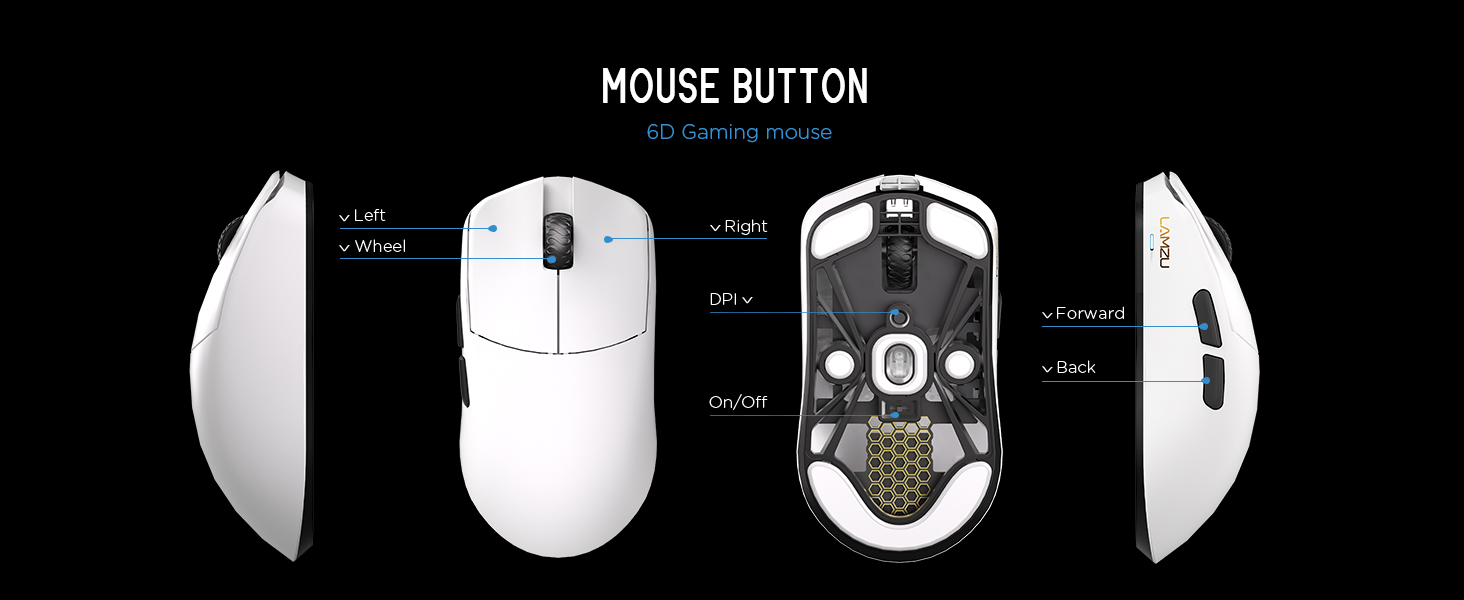
Slika 2.3.1: Diagram illustrating the various buttons and internal structure of the Lamzu Maya X mouse, including left click, right click, scroll wheel, DPI button, forward, back buttons, and the on/off switch.
- Levi gumb: Funkcija primarnega klika.
- Desni gumb: Sekundarna funkcija klika.
- Kolesce za pomikanje: Za drsenje in funkcijo klika s srednjim gumbom miške.
- Gumb DPI: Adjusts Dots Per Inch sensitivity.
- Gumb za naprej: Navigational function (e.g., browser forward).
- Gumb za nazaj: Navigational function (e.g., browser back).
- Stikalo za vklop/izklop: Vklopi ali izklopi miško.
3. Nastavitev
3.1 Initial Connection and Charging
- Napolnite miško: Connect the provided Type-C paracord cable to the mouse and a USB port on your computer. The mouse will charge while connected.
- Vklop: Poiščite stikalo za vklop/izklop na spodnji strani miške in ga potisnite v položaj "Vklopljeno".
- Povežite brezžični ključek: Insert the 8K wireless dongle into an available USB port on your computer. The mouse should automatically pair.
- Wired Mode (Optional): To use the mouse in wired mode, connect the Type-C paracord cable directly to the mouse and your computer. The mouse will function as a wired device and charge simultaneously.
Slika 3.1.1: The Lamzu Maya X mouse connected via its Type-C paracord cable, illustrating both wired operation and charging capabilities.
3.2 Namestitev gonilnikov in programske opreme
The Lamzu Maya X mouse utilizes a web-based driver for customization. To access the software and update firmware:
- Visit the official Lamzu webmesto.
- Navigate to the support or downloads section for the Maya X model.
- Prenesite web driver application. This application allows for DPI adjustment, polling rate settings, macro programming, and firmware updates.
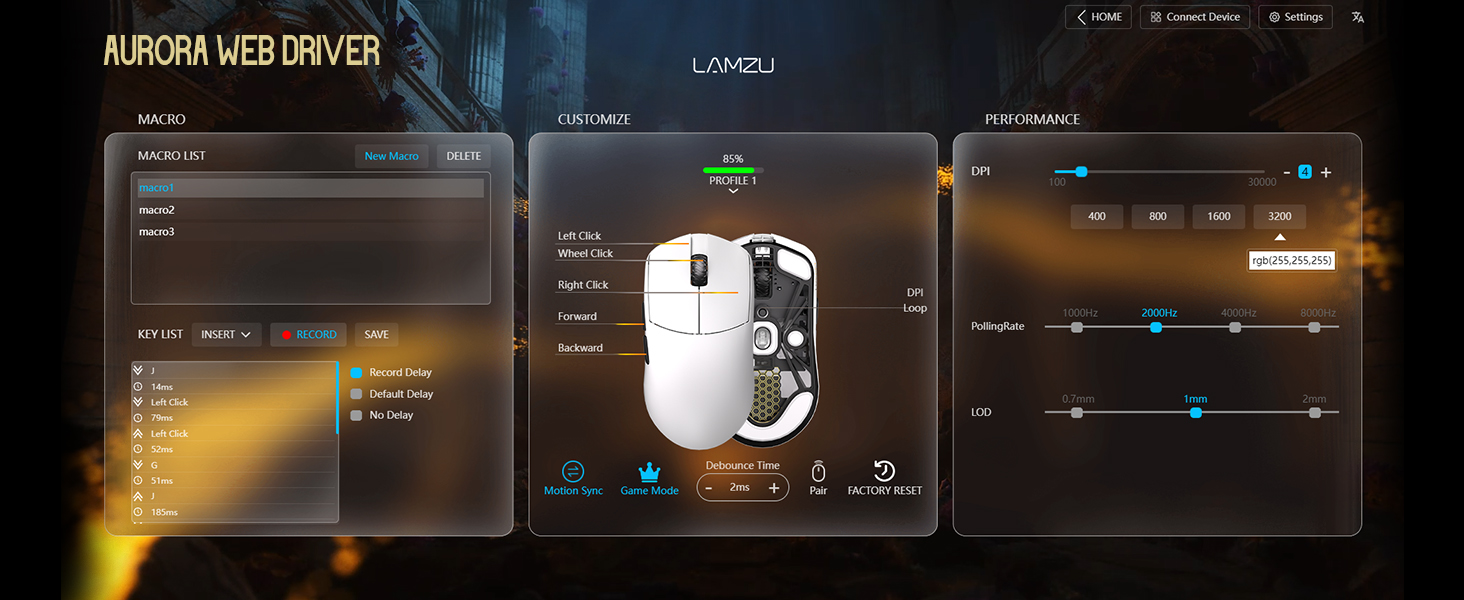
Slika 3.2.1: Screenshot of the Aurora Web Driver interface, displaying options for macro creation, button customization, DPI settings (up to 30000), polling rate selection (up to 8000Hz), and Lift-Off Distance (LOD).
4. Navodila za uporabo
4.1 Prilagoditev DPI
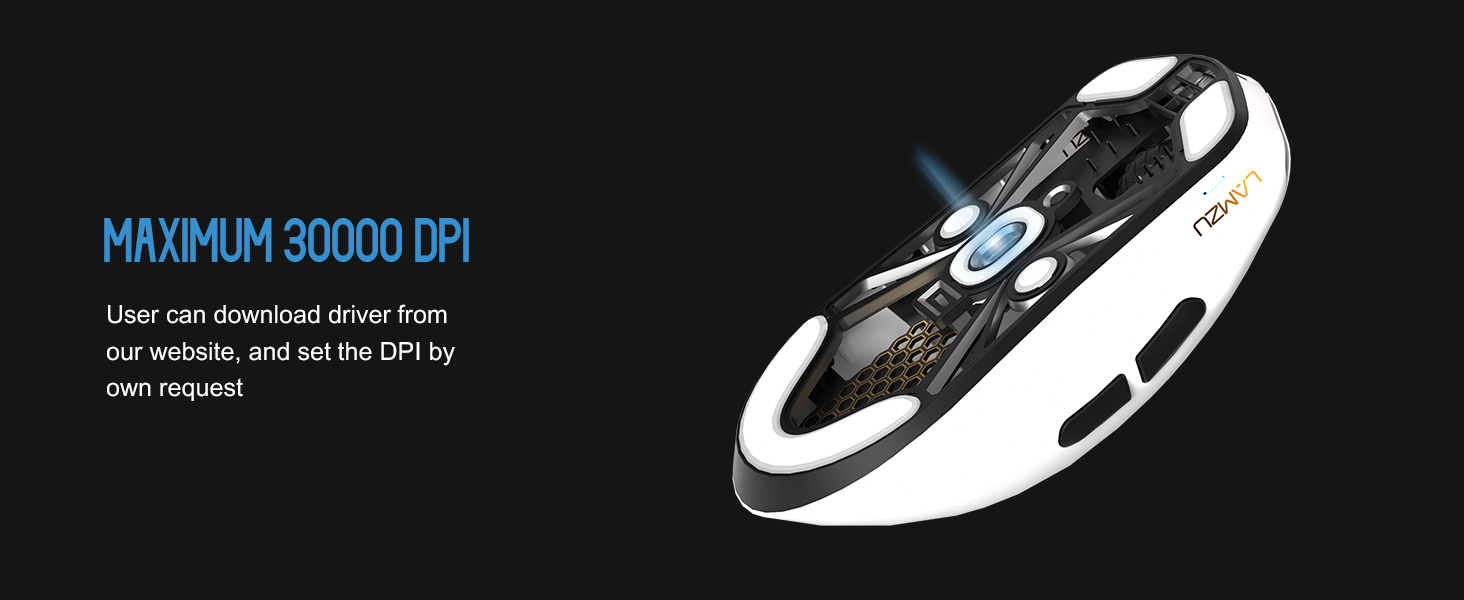
The DPI (Dots Per Inch) setting controls the mouse cursor's sensitivity. You can adjust the DPI using the dedicated DPI button on the mouse or through the Aurora Web Driver software. The Pixart PAW 3950 sensor supports up to 30,000 DPI.
Slika 4.1.1: Spodnja stran view of the Lamzu Maya X mouse, emphasizing its optical sensor and the capability to reach a maximum of 30,000 DPI, configurable via software.
4.2 Stopnja anketiranja
The polling rate determines how often the mouse reports its position to the computer. The Maya X supports up to 8,000 Hz polling rate when using the included 8K dongle. Higher polling rates result in smoother cursor movement and reduced input lag.
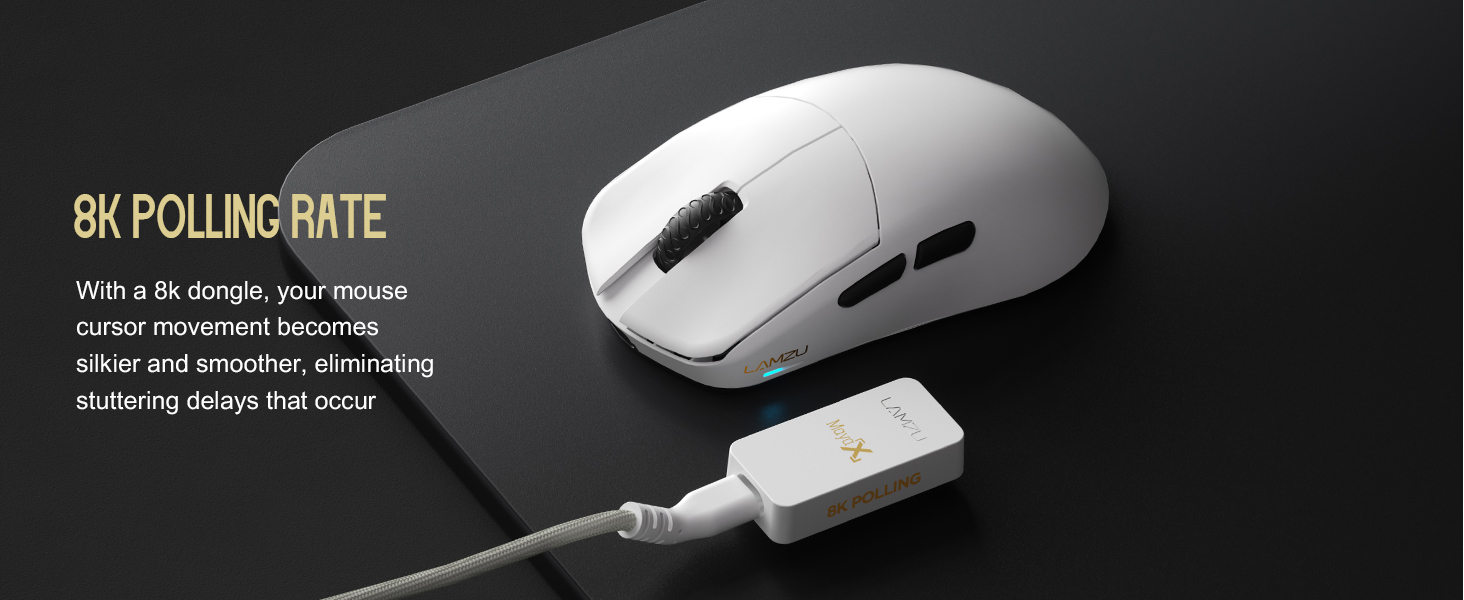
Slika 4.2.1: The Lamzu Maya X mouse positioned next to its 8K polling rate dongle, highlighting the benefit of smoother and more responsive cursor movement provided by high polling rates.
4.3 Stili oprijema
The symmetrical design of the Maya X mouse is engineered to accommodate various common grip styles:
- Prijem dlani: The entire palm rests on the mouse.
- Krempljev prijem: Fingers are arched, and the palm rests on the back of the mouse.
- Fingertip Grip: Only the fingertips make contact with the mouse.
Slika 4.3.1: A visual guide demonstrating the three primary mouse grip styles—Palm Grip, Claw Grip, and Fingertip Grip—and how the Maya X mouse is designed to be compatible with each.
4.4 Žični in brezžični načini
The Maya X mouse supports both 2.4G wireless and wired (USB Type-C) connectivity. You can switch between modes by connecting or disconnecting the Type-C cable. In wired mode, the mouse operates at a 1K polling rate, while wireless mode with the 8K dongle supports up to 8K polling.
5. Vzdrževanje
5.1 Čiščenje
- Ensure the mouse is powered off before cleaning.
- Narahlo uporabite mehko krpo, ki ne pušča vlaken dampPovršino miške obrišite z vodo ali blago čistilno raztopino.
- Izogibajte se uporabi agresivnih kemikalij, abrazivov ali topil.
- Use compressed air to clear dust from crevices and around buttons.
- Za optični senzor uporabite vatirano palčko, ki jo rahlo navlažiteampz izopropilnim alkoholom nežno očistite lečo.
5.2 Skrb za baterije
- Da podaljšate življenjsko dobo baterije, se izogibajte pogostemu popolnemu praznjenju miške.
- Miško shranjujte pri sobni temperaturi, ko je dalj časa ne uporabljate.
- Če boste baterijo shranjevali dlje časa, jo pred shranjevanjem napolnite na približno 50 %.
6. Odpravljanje težav
- Miška se ne odziva:
- Prepričajte se, da je miška vklopljena.
- Preverite raven napolnjenosti baterije in jo po potrebi napolnite.
- Verify the wireless dongle is securely plugged into a USB port.
- Poskusite miško priključiti v žičnem načinu, da preverite delovanje.
- Znova zaženite računalnik.
- Občasna povezljivost:
- Ensure the wireless dongle is not obstructed and is close to the mouse.
- Izogibajte se nameščanju ključka v bližino drugih brezžičnih naprav, ki lahko povzročijo motnje.
- Update mouse firmware via the Aurora Web Voznik.
- Preskakovanje ali zakasnitev kurzorja:
- Clean the optical sensor (refer to Section 5.1).
- Ensure the mousepad surface is clean and uniform.
- Adjust the polling rate in the software.
- Check for any background applications consuming excessive system resources.
- Gumbi ne delujejo:
- Check button assignments in the Aurora Web Voznik.
- Ensure no physical obstructions are preventing button presses.
7. Specifikacije
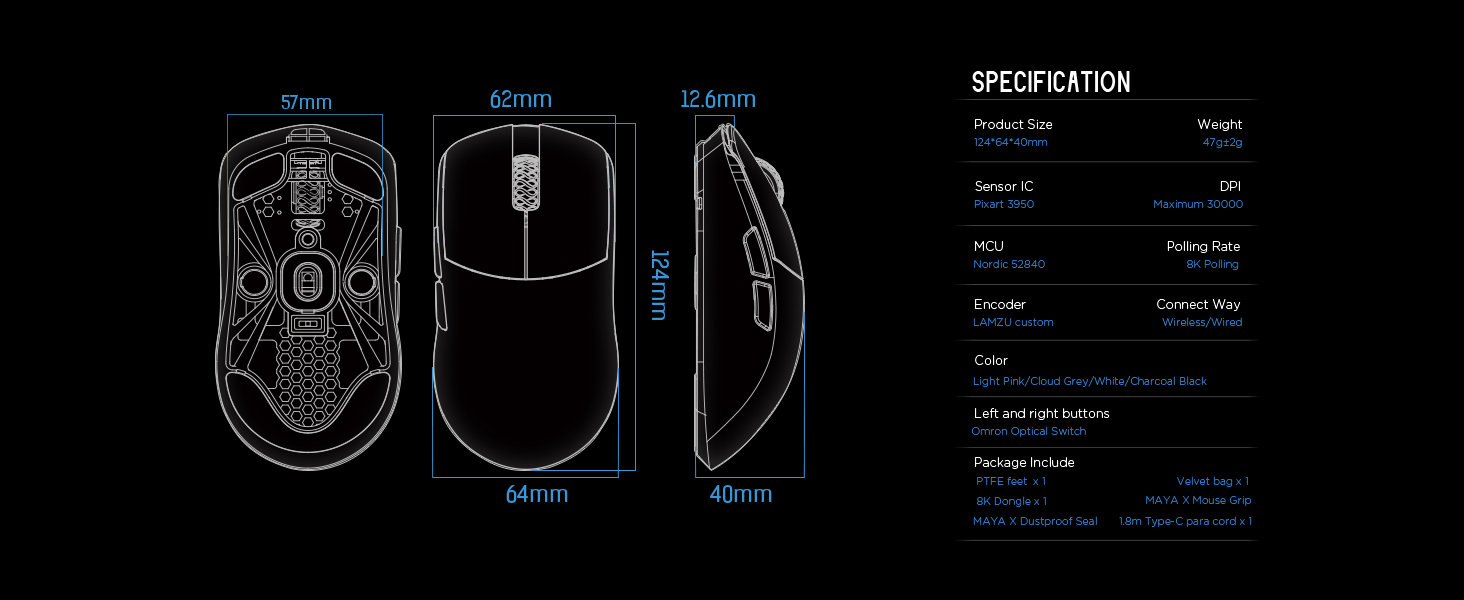
| Dimenzije izdelka | 4.88 x 2.52 x 0.04 palca (124 x 64 x 40 mm) |
| Teža predmeta | 1.66 unč (47 g) |
| Senzor IC | Pixart PAW 3950 |
| Največja DPI | 30,000 |
| MCU | Nordijski 52840 |
| Polling Rate | Up to 8,000 Hz (with 8K dongle) |
| Tehnologija povezljivosti | 2.4G Wireless, USB Type-C Wired |
| Stikala | Optical Switches (Left/Right buttons) |
| Kodirnik | Dust-Proof Encoder |
| Baterija | 1 litij-ionska baterija (priložena) |
| Proizvajalec | Lamzu |

Slika 7.1.1: A technical diagram detailing the dimensions (length, width, height) of the Lamzu Maya X mouse and a summary of its key specifications, including weight, sensor, MCU, DPI, and polling rate.
8. Garancija in podpora
For warranty information and technical support, please refer to the official Lamzu website or contact their customer service directly. Details regarding product registration, warranty claims, and frequently asked questions can typically be found in the support section of the webmesto.
Uradno Webspletno mesto: www.lamzu.com