
Uvod
Hvala za nakupasing the KTC H27S17 27-inch WQHD 180Hz Curved Gaming Monitor. This manual provides essential information for the safe and efficient use of your new monitor. Please read it thoroughly before use and retain it for future reference.
Konec izdelkaview Video
Video: Uradna video predstavitev izdelkaasing the key features and design of the KTC H27S17 27-inch Curved Gaming Monitor.
Vsebina paketa
Preverite, ali so v vašem paketu priloženi vsi spodaj navedeni elementi:
- Napajalni kabel
- Kabel DisplayPort
- Napajalni adapter
- Stojalo za monitor
- Podstavek za stojalo
- Driver CD (or download link)
- Montažni vijaki
- Instruction Manual (Japanese version)
- Vodnik za hiter začetek
- Garancijska kartica
Navodila za namestitev
1. Sestavljanje stojala
Attach the stand base to the monitor stand using the provided screws. Then, securely attach the assembled stand to the back of the monitor.
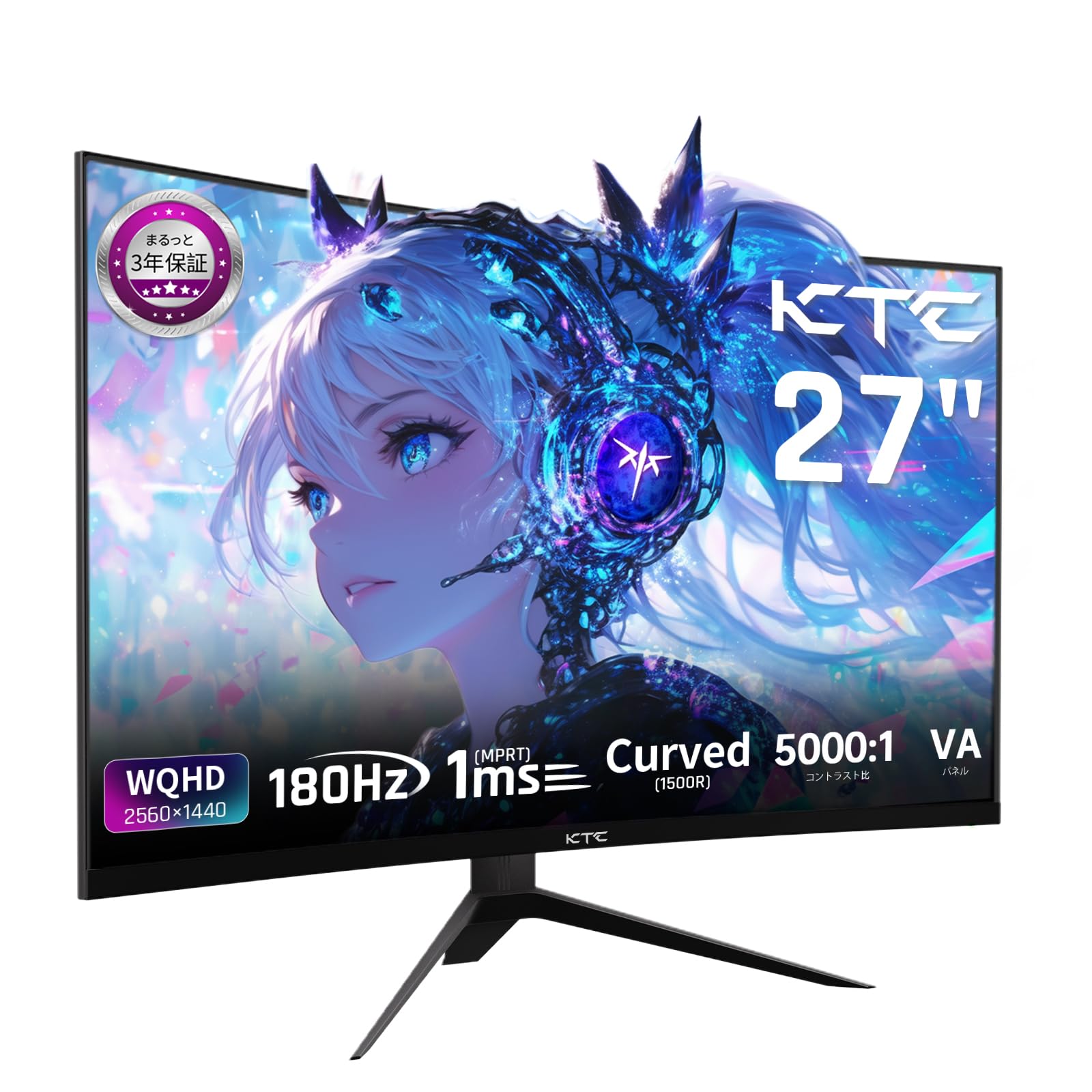
Image: The KTC H27S17 monitor fully assembled with its stand, viewed od spredaj.
2. Priklop na vir napajanja
Connect the power adapter to the monitor's DC input port, then plug the power cable into a wall outlet.
3. Povezovanje z napravo
Use the appropriate cable (DisplayPort or HDMI) to connect your computer or gaming console to the monitor. Ensure the cable is securely connected to both the monitor and your device.

Slika: Zadaj view of the monitor showing the various input ports including DC, USB, HDMI, DisplayPort, and headphone jack.
4. Pritrditev VESA (neobvezno)
The monitor supports VESA 100mm x 100mm mounting. If using a VESA mount, remove the stand and attach the monitor to your VESA-compatible arm or wall mount using appropriate screws.
Image: Diagram illustrating the VESA 100x100mm mounting pattern and tilt adjustment range on the back of the monitor.
Navodila za uporabo
Vklop/izklop
Pritisnite gumb za vklop, ki se običajno nahaja na zadnji ali spodnji strani monitorja, da ga vklopite ali izklopite. Lučka indikatorja napajanja sveti, ko je monitor vklopljen.
Zaslonski meni (OSD).
Use the joystick or buttons on the monitor to navigate the OSD menu. This menu allows you to adjust various display settings such as brightness, contrast, color temperature, input source, and gaming features.
Izbira vhodnega vira
If multiple devices are connected, use the OSD menu to select the desired input source (HDMI 1, HDMI 2, DisplayPort 1, DisplayPort 2).
Funkcije zaslona
Curved Display (1500R)
Ukrivljenost 1500R zagotavlja poglobljen vtis viewing experience, reducing eye strain during extended use by matching the natural curve of the human eye.

Image: A curved monitor displaying a vibrant image, highlighting the 1500R curvature for an immersive experience.
WQHD Resolution (2560x1440)
Experience detailed visuals with WQHD (2560x1440) resolution, offering approximately 1.7 times the pixel density of Full HD displays.

Image: A monitor displaying a high-resolution image, emphasizing the clarity of WQHD (2560x1440) compared to lower resolutions.
High Refresh Rate (180Hz) and Fast Response Time (1ms MPRT)
The 180Hz refresh rate and 1ms (MPRT) response time ensure smooth, blur-free visuals, crucial for fast-paced gaming and action scenes.

Image: A split screen comparison on the monitor, demonstrating the difference between 180Hz/1ms and 60Hz/5ms, highlighting reduced motion blur.
Vibrant Color Reproduction and HDR10
With sRGB 132%, DCI-P3 104%, Adobe RGB 112% color volume, and HDR10 support, the monitor delivers accurate and vivid colors with enhanced contrast between bright and dark areas.

Image: A monitor displaying a colorful scene, illustrating the wide color gamut and high contrast ratio (5000:1).
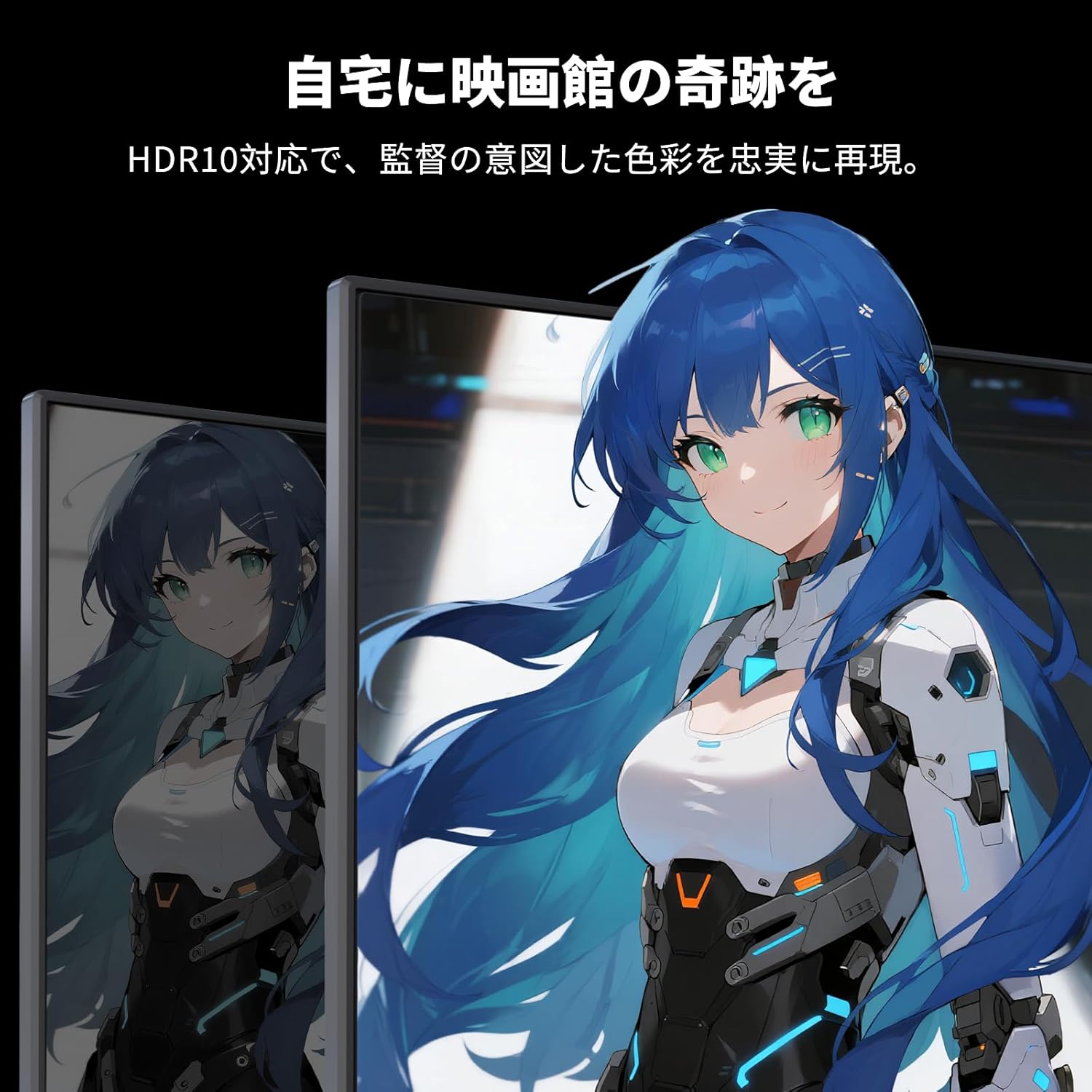
Image: A monitor showing a scene with HDR10 enabled, demonstrating improved dynamic range and detail in both bright and dark areas.
Tehnologija prilagodljive sinhronizacije
Adaptive Sync (FreeSync and G-Sync compatible) eliminates screen tearing and stuttering, providing a fluid gaming experience.

Image: A split screen comparison on the monitor, showing the difference between Adaptive Sync OFF (screen tearing) and ON (smooth image).
Funkcije za nego oči
The monitor includes Flicker-Free technology and a Low Blue Light mode to reduce eye strain during prolonged use.

Image: Illustrations demonstrating Flicker-Free technology and Low Blue Light mode, designed to reduce eye fatigue.
Povezljivost
The KTC H27S17 monitor offers multiple connectivity options:
- 2x HDMI 2.0: Supports WQHD (2560x1440) at 144Hz.
- 2 x DisplayPort 1.4: Supports WQHD (2560x1440) at 180Hz.
- 1 x USB 2.0: For firmware upgrades only.
- 1 x 3.5mm Headphone Jack: Za avdio izhod.
- 1 x DC Input: Za priklop napajanja.
Slika: Podrobna view of the monitor's rear panel, highlighting the DC input, USB port, HDMI ports, DisplayPort inputs, and headphone jack.
Physical Adjustments
Nastavitev naklona
The monitor stand allows for tilt adjustment from -5 to 15 degrees, enabling you to find an optimal viewkot za udobje.
Image: Diagram illustrating the tilt adjustment range of the monitor stand.
Združljivost VESA
The monitor is compatible with VESA 100mm x 100mm mounting standards, allowing for flexible installation with monitor arms or wall mounts.
Vzdrževanje
Čiščenje zaslona
Zaslon nežno obrišite z mehko krpo, ki ne pušča vlaken. Za trdovratne madeže rahlo obrišiteampKrpo sperite z vodo ali raztopino za čiščenje zaslona. Izogibajte se uporabi agresivnih kemikalij ali abrazivnih materialov.
Čiščenje ohišja monitorja
Wipe the monitor body with a soft, dry cloth. Do not use liquid cleaners directly on the monitor.
Shranjevanje
Ko monitorja dalj časa ne uporabljate, ga shranite na hladnem in suhem mestu, stran od neposredne sončne svetlobe in ekstremnih temperatur.
Odpravljanje težav
Če imate težave z monitorjem, si oglejte naslednje pogoste rešitve:
- Brez napajanja: Ensure the power cable and adapter are securely connected and the power outlet is functional.
- Brez signala: Verify that the input cable (HDMI/DisplayPort) is correctly connected to both the monitor and the source device. Select the correct input source via the OSD menu.
- Utripajoča/popačena slika: Check cable connections. Ensure your graphics card drivers are up to date. Try adjusting the refresh rate in your device's display settings.
- Mrtve slikovne pike: While rare, a small number of dead pixels may be within manufacturing tolerances. Refer to the warranty policy for details.
- Audio Issues (Headphone Jack): Ensure headphones are fully plugged in. Check audio settings on your connected device.
For further assistance, please contact KTC customer support.
Specifikacije
| Funkcija | Specifikacija |
|---|---|
| Znamka | KTC razširitev |
| Model | H27S17 |
| Velikost zaslona | 27 palcev |
| Resolucija | WQHD (2560 x 1440 slikovnih pik) |
| Razmerje stranic | 16:9 |
| Ukrivljenost | 1500R |
| Vrsta plošče | VA |
| Hitrost osveževanja | 180 Hz |
| Odzivni čas | 1 ms (MPRT) |
| Kontrastno razmerje | 5000:1 |
| Svetlost | 300 cd/m² |
| Barvna lestvica | sRGB 132% / DCI-P3 104% / Adobe RGB 112% |
| Podpora za HDR | HDR10 |
| Prilagodljiva sinhronizacija | FreeSync, G-Sync Compatible |
| Povezljivost | 2x HDMI 2.0, 2x DisplayPort 1.4, 1x USB 2.0 (Upgrade only), 1x Headphone Jack |
| VESA nosilec | 100 mm x 100 mm |
| Nastavitev naklona | -5 do 15 stopinj |
| Funkcije za nego oči | Brez utripanja, nizka modra svetloba |
Garancija in podpora
KTC provides a 3-year warranty and a 12-month exchange service for this product. For any questions or issues, please contact customer support.
- telefon: 050-3606-8990
- E-pošta: support@ktcplay.com

Image: Information regarding KTC's 3-year warranty and contact details for customer support.
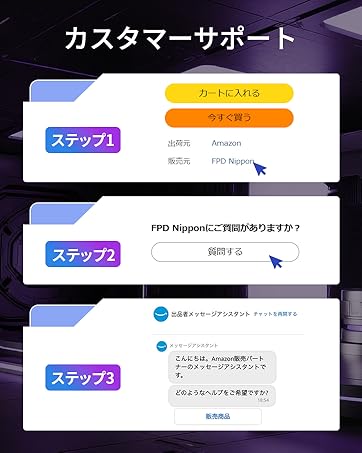
Image: Step-by-step guide on how to contact customer support via Amazon.