
BOXPUT H96 MAX 3528
User Manual: H96 Max RK3528 Android 13.0 Smart TV Box
Model: H96 MAX 3528 | Brand: BOXPUT
Uvod
This user manual provides comprehensive instructions for setting up, operating, and maintaining your H96 Max RK3528 Android 13.0 Smart TV Box. This device is designed to transform your television into a smart entertainment hub, offering access to a wide range of streaming services, applications, and multimedia content with advanced features like 8K decoding and Wi-Fi 6 connectivity.
Kaj je v škatli

The package for your H96 Max RK3528 Android 13.0 Smart TV Box includes all necessary components to get started. Please verify that all items listed below are present:
- 1x Android TV Box (H96 MAX 3528)
- 1x IR Remote control
- 1x HD cable (HDMI cable)
- 1x Power Adapter (US Plug)
- 1x uporabniški priročnik
Vodnik za namestitev
1. Priključitev naprave
- Povežite se s televizorjem: Insert one end of the provided HD cable (HDMI) into the HDMI OUT port on the TV Box and the other end into an available HDMI input on your television.
- Priključite napajanje: Plug the power adapter into the DC IN port on the TV Box, then plug the adapter into a wall outlet.
- Omrežna povezava (neobvezno):
- Ethernet: For a stable wired connection, connect an Ethernet cable from your router to the LAN port on the TV Box.
- Wi-Fi: You can connect to Wi-Fi later during the initial setup process or via the settings menu.
2. Začetni zagon
Once connected, the TV Box should power on automatically. If not, press the power button on the remote control. Select the correct HDMI input on your TV using your TV's remote control. The Android 13.0 home screen will appear after a brief loading period.
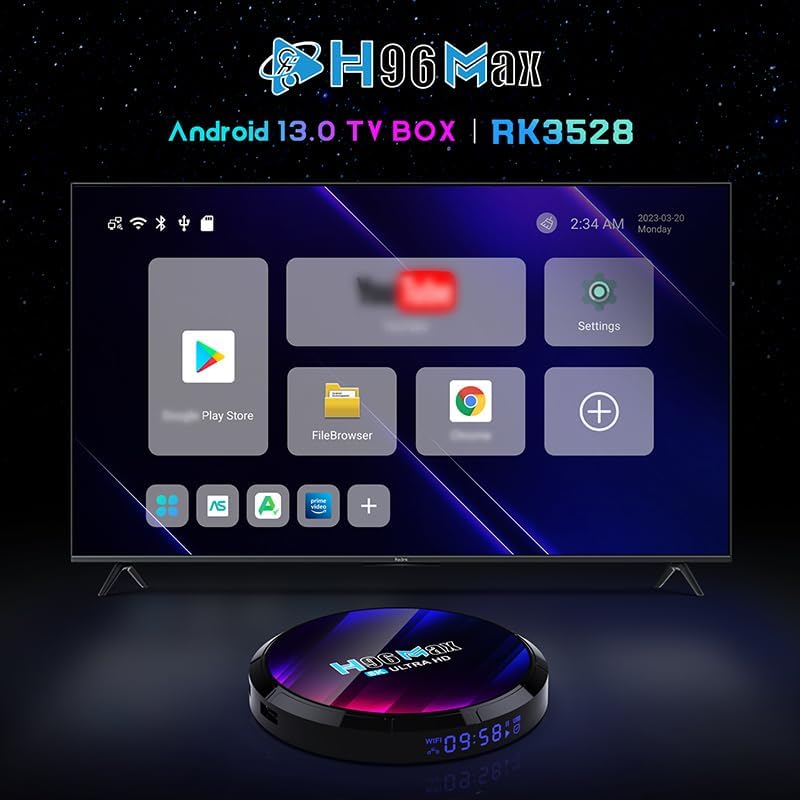
The H96 Max TV Box displaying its Android 13.0 user interface on a connected television.
Navodila za uporabo
Krmarjenje po vmesniku
Use the provided IR remote control to navigate the Android 13.0 interface. The directional buttons (up, down, left, right) move the cursor, and the "OK" button selects items. The "Back" button returns to the previous screen, and the "Home" button returns to the main home screen.

The H96 Max TV Box and its included IR remote control for navigation.
Povezovanje z Wi-Fi
- From the home screen, navigate to the nastavitve icon and press "OK".
- Izberite Omrežje in internet.
- Vklopi Wi-Fi if it's not already enabled.
- Na seznamu izberite želeno omrežje Wi-Fi.
- Enter the Wi-Fi password using the on-screen keyboard and select Povežite se.

The H96 Max TV Box supports Wi-Fi 6 for faster and more reliable network performance.
Installing and Managing Applications
The H96 Max TV Box runs on Android 13.0, allowing you to download and install applications from the Google Play Store. Ensure you are logged in with a Google account.
- Namesti aplikacije: Pomaknite se do Trgovina Play icon on the home screen, search for your desired app, and select Namestite.
- Odstrani aplikacije: Pojdi na Nastavitve > Aplikacije, select the app you wish to uninstall, and choose Odstrani.
Mirroring and Casting (DLNA, Miracast, Airplay)
The TV Box supports various screen mirroring protocols, allowing you to display content from your smartphone or tablet directly onto your TV screen.

Multi-screen interaction features like Airplay, DLNA, and Miracast are supported for seamless content sharing.
To use these features, ensure your mobile device and the TV Box are connected to the same Wi-Fi network. The specific steps for mirroring will depend on your mobile device's operating system and the casting app you use.
Dekodiranje 8K videa
The H96 Max TV Box supports Ultra HD 8K H.265 video decoding, providing a high-quality visual experience. Ensure your TV supports 8K resolution to fully utilize this feature.

Experience stunning visuals with 8K video decoding capabilities.
Customizing UI and Wallpaper
You can personalize the user interface and change the background wallpaper of the main UI.
- Find the "Wallpaper" app in the box's application list.
- Using the Wallpaper app, you can set images from your USB drive or the device's storage as the wallpaper. Image format required: *.png, 1920*1080 pixels.
You can also customize UI buttons:
- Customize UI buttons by clicking "OK" and selecting any app logo.
- Press and hold "OK" to remove or replace an app logo.
Spletna nadgradnja OTA
The device supports Over-The-Air (OTA) updates to receive the latest firmware versions, bug fixes, and new features.
- Connect the box to the internet by Ethernet or Wi-Fi.
- Find the "System update" app, click "CHECK NOW".
- If a new version is released, it will be displayed, and then you can update according to the prompt.
- The system cannot be powered off during the upgrade, and the box will restart. After the successful upgrade, the box will automatically enter the main screen.
Vzdrževanje
- Čiščenje: Use a soft, dry cloth to clean the surface of the TV Box. Do not use liquid cleaners or aerosols.
- Prezračevanje: Poskrbite, da bo TV-sprejemnik nameščen v dobro prezračevanem prostoru, da preprečite pregrevanje. Ne blokirajte prezračevalnih odprtin.
- Ugasniti: When not in use for extended periods, it is recommended to unplug the power adapter from the wall outlet.
- Izogibajte se vlagi: Napravo hranite stran od vode in okolij z visoko vlažnostjo.
Odpravljanje težav
| Težava | Možen vzrok | rešitev |
|---|---|---|
| Ni napajanja/Naprava se ne vklopi | Power adapter not connected; Power outlet issue; Device malfunction. | Check power connections. Try a different power outlet. Contact support if issue persists. |
| Ni prikaza na televizorju | Incorrect HDMI input selected; Loose HDMI cable; TV Box not powered on. | Ensure TV is on correct HDMI input. Check HDMI cable connection. Power cycle the TV Box. |
| Težave s povezavo Wi-Fi | Napačno geslo; usmerjevalnik predaleč; omrežne motnje. | Re-enter Wi-Fi password. Move TV Box closer to router. Restart router. |
| Daljinski upravljalnik se ne odziva | Low batteries; Obstruction between remote and box; Remote not paired (if Bluetooth). | Replace batteries. Ensure clear line of sight. For BT remotes, re-pair if necessary (refer to remote's specific instructions). |
| Aplikacije se sesuvajo ali delujejo počasneje | Too many apps running; Low storage; Outdated app version. | Close background apps. Clear app cache/data. Uninstall unused apps. Update apps. |
Specifikacije
| Funkcija | Podrobnost |
|---|---|
| Operacijski sistem | Android 13.0 |
| Procesor | Rockchip RK3528 Quad Core Cortex-A53 |
| GPU | Mali-450 |
| RAM | 4 GB |
| ROM (notranji pomnilnik) | 64 GB |
| Wi-Fi | 2.4GHz/5.8GHz Dual-band Wi-Fi 6 |
| Bluetooth | BT 5.0 |
| Ethernet | 100M |
| Video dekodiranje | 8K H.265 Ultra HD, 4K supported |
| Vrata USB | USB 3.0 (for fast transfer) and USB 2.0 |
| Posebne lastnosti | DLNA, Miracast, 3D support |
| Dimenzije | 7.49 x 4.84 x 2.46 palcev |
| Teža | 13.6 unč |

Key features of the H96 Max TV Box, including Android 13.0 and 8K support.
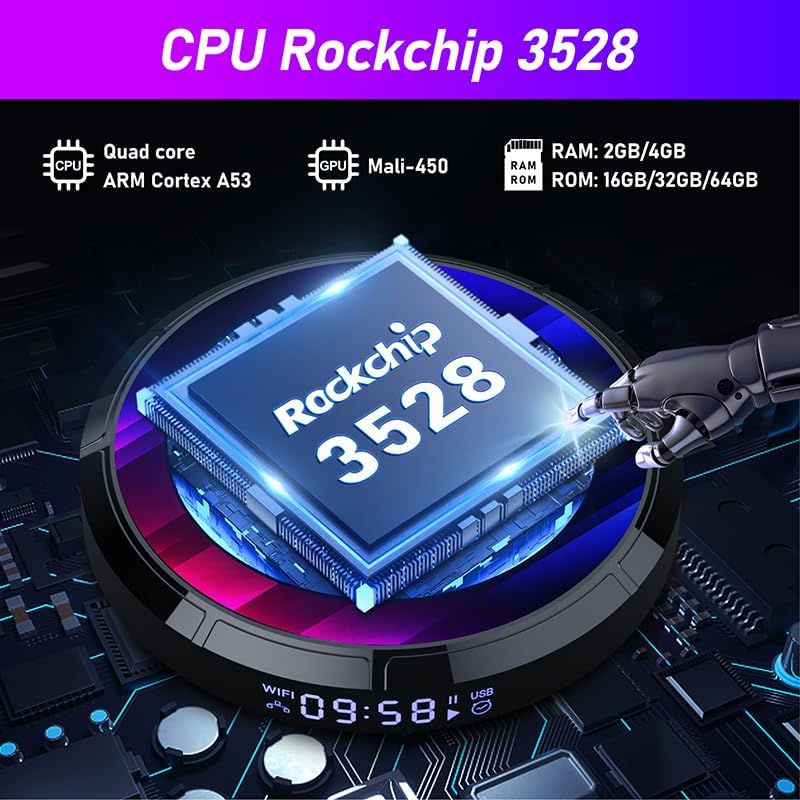
Detailed specifications of the Rockchip RK3528 processor.
Konec izdelkaview Video
Ta videoposnetek ponuja razpakiranje in ponovnoview of the H96 MAX 3528 Android TV Box, showcasing its components and initial setup.
Garancija in podpora
For warranty information and technical support, please refer to the official BOXPUT webspletno mesto ali se obrnite neposredno na njihovo službo za stranke. Račun shranite kot dokazilo o nakupu za morebitne garancijske zahtevke.
Official BOXPUT Store: BOXPUT Amazon Store
Ask a question about this manual
Ask about setup, troubleshooting, compatibility, parts, safety, or missing instructions. Manuals+ will review the question and use this page’s manual context to help answer it.