
1. Uvod
The vretti BQ1 Bluetooth Label Printer is a compact, portable thermal label printer designed for various labeling needs in home, office, school, and small business environments. It connects wirelessly to your smartphone via Bluetooth, allowing for quick and easy label creation and printing through the dedicated "xeasy label" application.
This printer utilizes thermal printing technology, eliminating the need for ink or toner, which saves on replacement costs and maintenance. It supports label sizes from 25mm to 58mm, offering flexibility for printing address labels, price tags, food labels, clothing tags, barcodes, QR codes, and more.

Image 1.1: The vretti BQ1 Bluetooth Label Printer, highlighting its Bluetooth connectivity and compatibility with iOS and Android devices.
2. Nastavitev
2.1 Vsebina paketa
Preden začnete, preverite, ali so v paketu vsi elementi:
- 1 x vretti BQ1 Label Printer
- 1 x Uporabniški priročnik (ta dokument)
- 1 x 50x30mm Label Paper Roll (pre-installed inside the machine)
- 1 x USB polnilni kabel tipa C
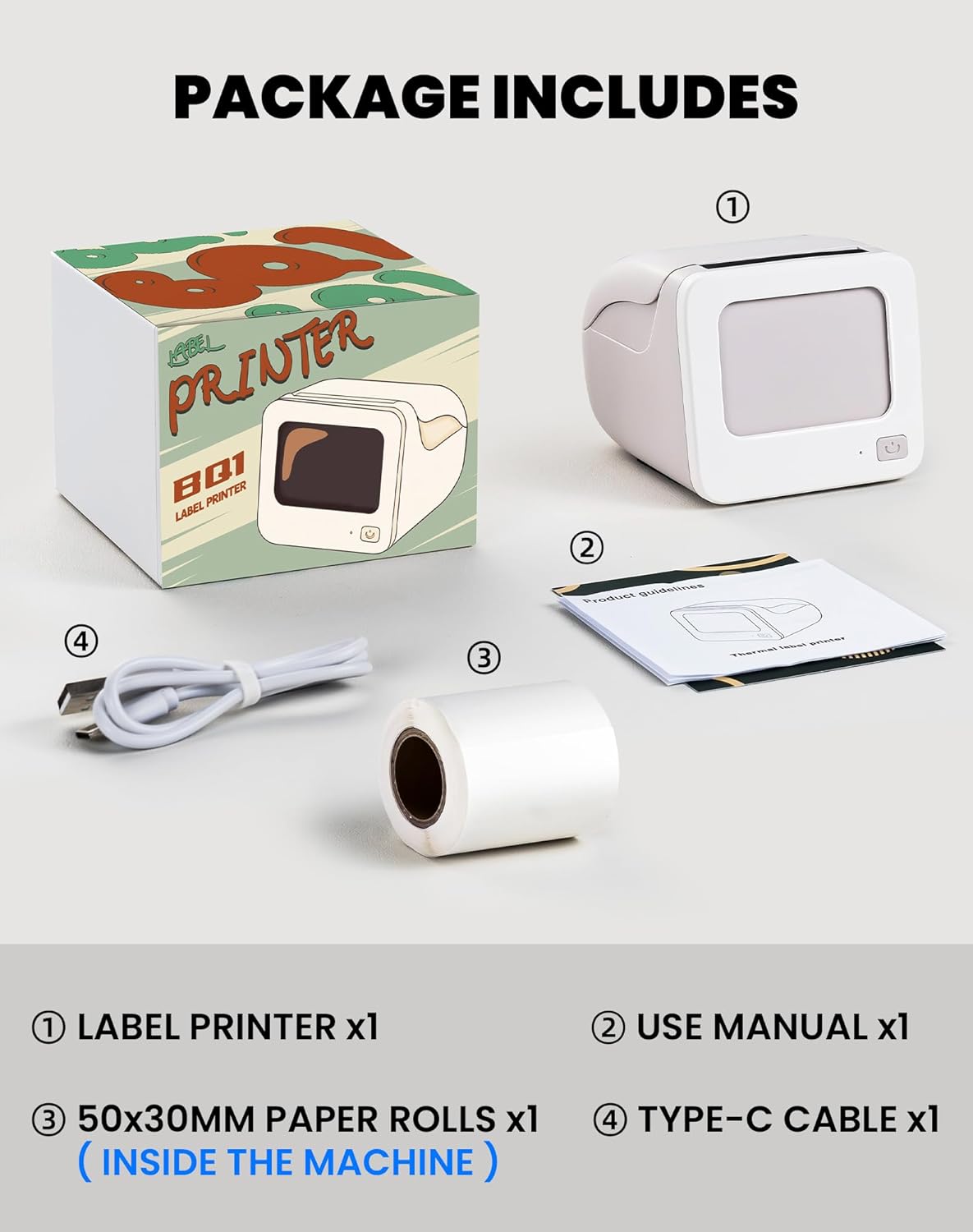
Image 2.1: Visual representation of the items included in the vretti BQ1 label printer package.
2.2 Vstavljanje etiketnega papirja
The printer comes with a label roll pre-installed. If you need to replace or load a new roll:
- Nežno odprite pokrov tiskalnika.
- Insert the new label roll into the compartment, ensuring the labels feed out smoothly. The printable side of the label should face upwards.
- Trdno zaprite pokrov tiskalnika.

Image 2.2: Proper insertion of a label roll into the vretti BQ1 printer, demonstrating the supported label width range.
2.3 Namestitev aplikacije in povezava Bluetooth
To use your vretti BQ1 printer, you need to download and connect it via the "xeasy label" application.
- Prenesite aplikacijo: Iskanje "xeasy label" in your smartphone's app store (Google Play Store for Android or Apple App Store for iOS) and install it.
- Vklopite Bluetooth: Prepričajte se, da je Bluetooth na vašem pametnem telefonu omogočen.
- Odprite aplikacijo in se povežite: Open the "xeasy label" app. The app will guide you to connect to your printer. Select "BQ1" from the list of available devices.
- Vklop: Pritisnite in držite gumb za vklop na tiskalniku, dokler se ne prižge indikatorska lučka.

Image 2.3: Step-by-step guide for downloading the "xeasy label" app, connecting to the printer via Bluetooth, and preparing to edit a label.
3. Navodila za uporabo
3.1 Ustvarjanje in tiskanje etiket
Once connected, the "xeasy label" app provides a user-friendly interface for designing and printing labels.
- Select a Template or Create New: The app offers a variety of pre-designed templates, fonts, icons, and frames. You can choose an existing template or start a new design.
- Customize Your Label: Edit text, add images, barcodes, QR codes, and adjust the layout to fit your needs. The app supports various customization options.
- Prejview in natisni: Pred tiskom, predview your label to ensure it looks as desired. Then, tap the print button in the app to send the design to your vretti BQ1 printer.
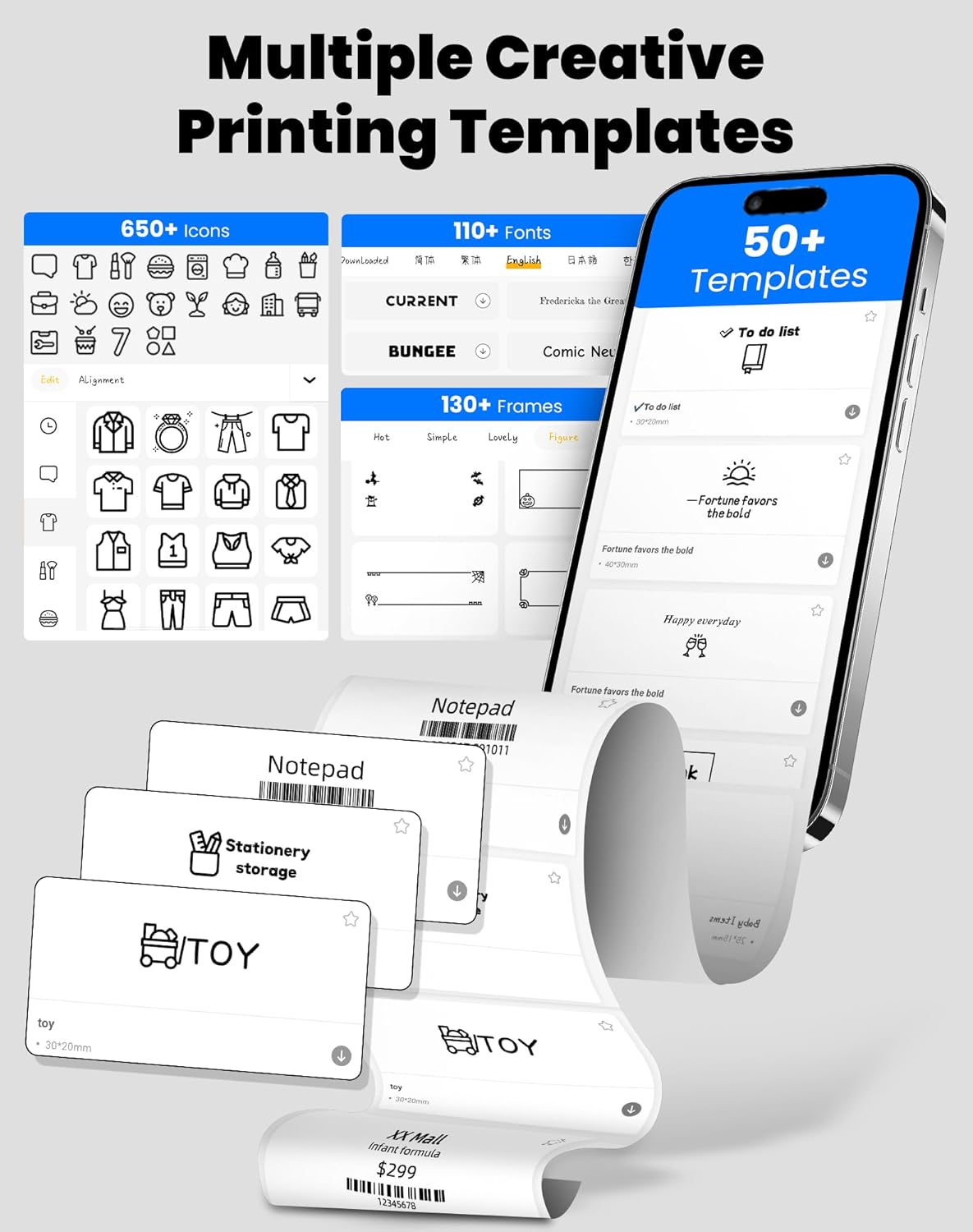
Image 3.1: The "xeasy label" app interface, showcasing a wide range of creative printing templates, icons, and fonts available for label design.

Slika 3.2: Konecview of the multi-functional applications within the "xeasy label" app, including support for barcodes, QR codes, images, various borders, font shapes, and hundreds of icons.
3.2 Common Label Applications
The vretti BQ1 printer is versatile and suitable for a wide range of applications:
- Domača organizacija: Label storage bins, pantry items, spice jars, and more.
- Pisarna in šola: Organizirajte files, label stationery, create name tags, or mark assets.
- Retail & Small Business: Print price tags, product labels, address labels for shipping, and inventory management labels.
- Osebna uporaba: Create decorative labels for gifts, DIY projects, or personal items.

Slika 3.3: Primeramples of the vretti BQ1 printer's versatility, showing labels used for toy classification, light switches, to-do lists, clothing, and gifts.

Image 3.4: Demonstrations of common label types that can be printed, including address labels, price labels, food labels, and customizable DIY labels.
4. Vzdrževanje
4.1 Čiščenje tiskalnika
To ensure optimal performance and print quality, regular cleaning is recommended:
- Zunanjost: Zunanjost tiskalnika obrišite z mehko, suho krpo. Izogibajte se uporabi abrazivnih čistil ali topil.
- Tiskalna glava: If print quality degrades, gently clean the thermal print head with an alcohol swab. Ensure the printer is turned off and cooled down before cleaning.
4.2 Label Roll Storage
Store label rolls in a cool, dry place away from direct sunlight and excessive heat to preserve their adhesive properties and print quality.
5. Odpravljanje težav
If you encounter issues with your vretti BQ1 printer, try the following steps:
- Tiskalnik se ne vklopi: Ensure the printer is charged. Connect it to a power source using the provided Type-C cable.
- Povezave prek Bluetootha ni mogoče:
- Prepričajte se, da je Bluetooth omogočen na vašem pametnem telefonu.
- Prepričajte se, da je tiskalnik vklopljen in v dosegu.
- Restart both the printer and your smartphone.
- Try reconnecting through the "xeasy label" app.
- Slaba kakovost tiskanja:
- Check if the label roll is inserted correctly and is not damaged.
- Očistite termično tiskalno glavo, kot je opisano v razdelku Vzdrževanje.
- Ensure the label type is compatible with thermal printing.
- Nalepke se ne podajajo pravilno:
- Verify the label roll is properly seated and not jammed.
- Prepričajte se, da je pokrov tiskalnika popolnoma zaprt.
Video 5.1: A general product overview video for the vretti BQ1 label printer, demonstrating its features and operation. If the video does not load, please ensure your browser supports HLS streaming.
6. Specifikacije
| Znamka | vretti |
| Ime modela | BQ1 |
| Tehnologija povezljivosti | Bluetooth |
| Tehnologija tiskanja | Toplotna |
| Največja velikost medija | 58 mm (supports 25-58mm width) |
| Ločljivost tiskanja | 203 dpi (Monochrome) |
| Združljive naprave | Pametni telefon (Android, iOS) |
| Vključene komponente | 1 Label Printer, 1 Label Roll (starter), 1 Type-C Cable |
| Dimenzije izdelka | 10.3D x 10.4Š x 8V centimetrov |
| Posebna funkcija | Elegant TV-like design |
7. Garancija in podpora
7.1 Informacije o garanciji
The vretti BQ1 Label Printer typically comes with a enoletna garancija od datuma nakupa. Za uveljavljanje garancije shranite dokazilo o nakupu. Garancija krije proizvodne napake, ne pa škode, ki jo povzroči nepravilna uporaba, nesreče ali nepooblaščene spremembe.
7.2 Podpora strankam
For further assistance, technical support, or warranty inquiries, please refer to the official vretti website or contact their customer service through the contact information provided on their official channels. Ensure you have your product model number (BQ1) and purchase details ready when contacting support.