
AutoSky WCPAA-DUAL
AutoSky Wireless CarPlay & Android Auto AI Box Lite Plus 2.0 Instruction Manual
Model: WCPAA-DUAL | Brand: AutoSky
1. Uvod
The AutoSky Wireless CarPlay and Android Auto AI Box Lite Plus 2.0 is designed to enhance your in-car infotainment experience. This device allows you to seamlessly switch between wireless Apple CarPlay or Android Auto and popular streaming services like Netflix and YouTube directly on your vehicle's factory-wired CarPlay screen. It offers a plug-and-play solution without requiring modifications to your car's stereo system.
2. Ključne značilnosti
- Dual WiFi Module: Seamlessly switch between Wireless CarPlay/Android Auto and streaming services (Netflix, YouTube) without reconnecting.
- Brezžični Android Auto: Enjoy all wired Android Auto functionalities wirelessly, eliminating cable clutter.
- Brezžični CarPlay: Access all wired CarPlay features wirelessly for a convenient and cable-free experience.
- Zmogljivosti pretakanja: Stream Netflix and YouTube using a mobile hotspot. Supports local video and music playback via SD card slot.
- Plug & Play namestitev: Designed for vehicles with built-in factory wired CarPlay. Simply plug into the USB port; no original car stereo dismantling required.
3. Navodila za namestitev
- Združljivost z vozilom: Ensure your vehicle has a factory-installed wired CarPlay system. The AutoSky AI Box Lite Plus 2.0 is designed to work with existing wired CarPlay ports.
- Povežite napravo: Plug the AutoSky AI Box Lite Plus 2.0 into your car's wired CarPlay USB port. Use the provided USB-C to USB-A cable or USB-C to USB-C cable depending on your car's port type. The device will power on automatically.
- Začetni zagon: The device will boot up and display its interface on your car's screen. You may see a caution message regarding video playback while driving; agree to proceed.
- Bluetooth Pairing (for Wireless CarPlay/Android Auto):
- On your car's screen, select either 'Apple CarPlay' or 'Android Auto'.
- On your smartphone, go to Bluetooth settings and search for the AutoSky device (e.g., 'AutoSky-XXXX').
- Pair your phone with the AutoSky device. Confirm any pairing codes if prompted.
- Once paired, your phone will automatically connect wirelessly to CarPlay or Android Auto every time you start your car.
- Wi-Fi Connection (for Streaming Services):
- To use streaming apps like Netflix or YouTube, the AutoSky device requires an internet connection.
- Go to the 'Settings' menu on the AutoSky device interface.
- Izberite »Omrežje in internet« ali »Wi-Fi«.
- Turn on Wi-Fi and connect to your mobile phone's personal hotspot or another available Wi-Fi source.
- Ensure your mobile hotspot is active on your phone.
4. Navodila za uporabo
4.1. Using Wireless CarPlay / Android Auto
- After successful Bluetooth pairing, your smartphone's CarPlay or Android Auto interface will appear on your car's screen.
- Navigate through apps, make calls, send messages, and use navigation (e.g., Apple Maps, Google Maps, Waze) directly from your car's touchscreen or steering wheel controls.
- The device supports voice commands (Siri for CarPlay, Google Assistant for Android Auto) for hands-free operation.
4.2. Accessing Streaming Services (Netflix, YouTube)
- Ensure the AutoSky device is connected to a Wi-Fi source (e.g., mobile hotspot).
- From the main interface, tap on the Netflix or YouTube app icon.
- Log in with your existing account credentials.
- You can now browse and stream content. Remember that video playback while driving may be restricted by local laws and is not recommended for safety.
4.3. Playing Local Media
- Insert an SD card containing video or music files into the designated slot on the AutoSky device.
- Pomaknite se do 'Files' or 'Video' app on the device's interface to access and play your local media.
5. Integracija medijev

Image: The AutoSky AI Box Lite Plus 2.0 connected to a car's USB port, ready for use.

Image: Car infotainment screen demonstrating the dual Wi-Fi module's capability to switch between Apple CarPlay/Android Auto and streaming apps like Netflix or YouTube.

Image: Car screen showing seamless access to various applications, including Netflix, Spotify, YouTube, and other communication apps.

Image: Car infotainment screen showing Netflix streaming, highlighting the device's entertainment capabilities.

Image: Car infotainment screen showing YouTube streaming, demonstrating the device's video playback features.
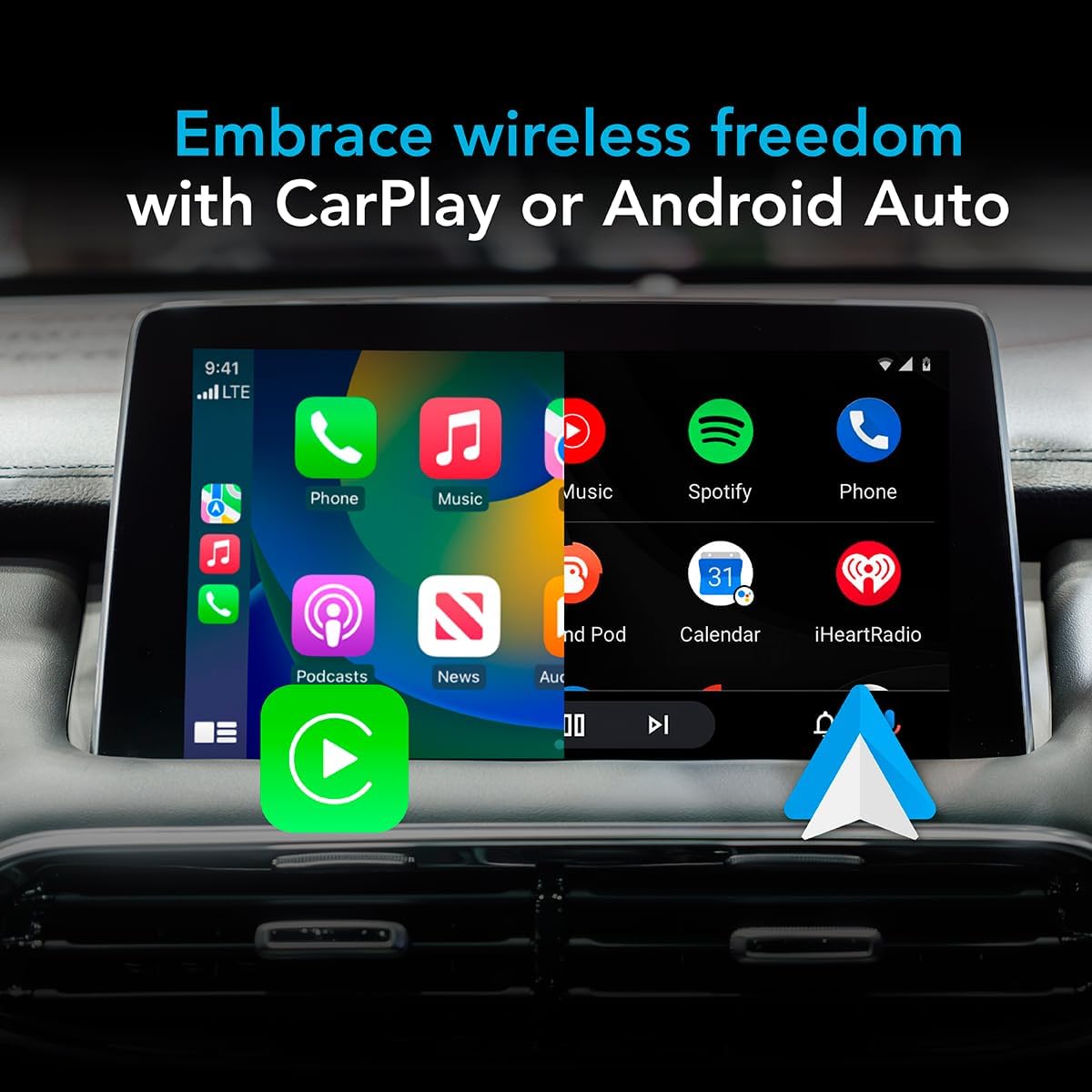
Image: Car infotainment screen displaying the Apple CarPlay interface, showcasing the wireless connectivity for navigation, music, and communication.
Uradni videoposnetki izdelkov
Video: This video demonstrates the installation process of a TV adapter in a vehicle, providing a step-by-step guide for users.
Video: This video showcases the AutoSky adapter playing YouTube and Netflix on the car's screen, highlighting its entertainment features.
Video: This video provides instructions on how to set up screen mirroring with the device.
6. Vzdrževanje
- Čiščenje: Za čiščenje naprave uporabljajte mehko, suho krpo. Izogibajte se tekočim čistilom ali abrazivnim materialom.
- Posodobitve programske opreme: Periodically check the device's settings for available software updates to ensure optimal performance and compatibility. Follow on-screen instructions for any updates.
- Shranjevanje: Ko naprave dalj časa ne uporabljate, jo shranite na hladnem in suhem mestu, stran od neposredne sončne svetlobe in ekstremnih temperatur.
7. Odpravljanje težav
- Naprava se ne vklopi: Ensure the device is securely plugged into a functional USB port that supports wired CarPlay. Check your car's ignition status.
- Brez povezave CarPlay/Android Auto:
- Verify your phone's Bluetooth is on and paired with the AutoSky device.
- Ensure your car's factory wired CarPlay is active and recognized by the vehicle.
- Restart both your phone and the AutoSky device (by unplugging and replugging).
- Streaming Apps Not Working (Netflix/YouTube):
- Confirm the AutoSky device is connected to a stable Wi-Fi network (e.g., your mobile hotspot).
- Check your mobile hotspot's data plan and signal strength.
- Ensure you are logged into your streaming service accounts.
- Screen Freezing or Lag:
- Restart the AutoSky device.
- Check for any available software updates for the device.
- Prepričajte se, da je operacijski sistem vašega telefona posodobljen.
8. Specifikacije
| Teža predmeta | 1.34 unče (38 grama) |
| Dimenzije izdelka | 0.4 x 2 x 3.3 palcev |
| Številka modela artikla | WCPAA-DUAL |
| Velikost zaslona | 20 Inches (projected) |
| Glasovni ukaz | Zaslon na dotik |
| Znamka | AutoSky |
| Ime modela | Lite Plus 2.0 |
| Vrsta storitve vozila | avto |
| Tehnologija povezljivosti | Bluetooth, WiFi |
| Operacijski sistem | Android |
| Zmogljivost pomnilnika | 16 GB |
9. Garancija in podpora
For warranty information and technical support, please refer to the documentation included with your product or visit the official AutoSky webmesto. Shranite račun za garancijske zahtevke.
Ask a question about this manual
Ask about setup, troubleshooting, compatibility, parts, safety, or missing instructions. Manuals+ will review the question and use this page’s manual context to help answer it.