
1. Uvod
This manual provides essential information for the safe and efficient use of your Google TV 7000 Series 4K Ultra HD LED Television. Please read these instructions thoroughly before operating the device and retain them for future reference.
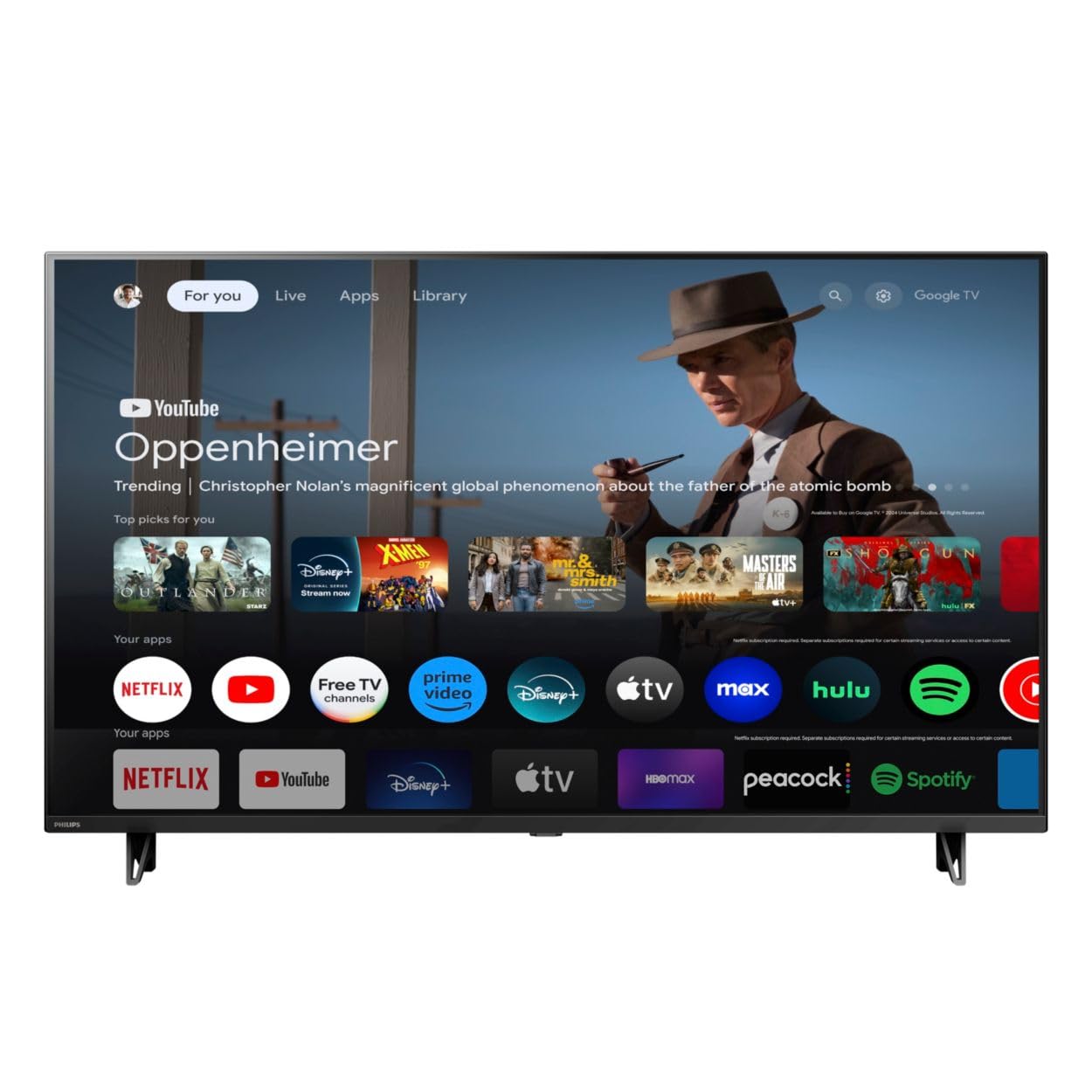
Spredaj view of the Google TV 7000 Series 4K Ultra HD LED Television, showcasinnjegov tanek okvir in zaslon.
2. Nastavitev
2.1 Razpakiranje in vsebina paketa
Previdno vzemite vse predmete iz embalaže. Prepričajte se, da so prisotni vsi sestavni deli:
- Google TV 7000 Series Television
- Daljinski upravljalnik
- Baterije za daljinski upravljalnik
- Namizno stojalo
- Screws for tabletop stand
- Vodnik za hiter začetek
- Uporabniški priročnik (ta dokument)
2.2 Priključitev napajanja
Connect the power cord to the TV's power input, then plug the other end into a wall outlet. Ensure the power outlet is easily accessible.
2.3 Priključitev zunanjih naprav
Your television supports various connectivity options:
- HDMI: Connect devices like Blu-ray players, game consoles, or set-top boxes to the HDMI ports. This model features Audio Return Channel (HDMI 2).
- USB: Use the USB port for media playback or connecting compatible accessories.
- Ethernet: Za stabilno žično internetno povezavo priključite ethernetni kabel v vrata LAN.
- Izhod za slušalke: Priključite slušalke za zasebno poslušanje.
- Digitalni avdio izhod (optični): Za povezavo z zunanjimi avdio sistemi.
- CVBS+Audio L/R In: Za priklop starejših analognih naprav.
2.4 Začetna nastavitev
Ob prvem vklopu vas bo televizor vodil skozi postopek začetne nastavitve. To vključuje:
- Izbira jezika
- Connecting to a Wi-Fi network or using Ethernet
- Signing in with your Google account to access Google TV features and apps
- Scanning for available channels (ATSC, NTSC)
2.5 Možnosti namestitve
You can place your TV on a tabletop using the included stand or mount it on a wall.
- Namizno stojalo: Attach the tabletop stand using the provided screws as per the quick start guide.
- Stenski nosilec: For wall mounting, use a VESA compatible mount (600 x 400 mm). Consult a professional for wall mounting to ensure safety and proper installation.
3. Navodila za uporabo
3.1 Daljinski upravljalnikview
The remote control allows you to navigate the Google TV interface, adjust settings, and control playback. It supports voice control for Google Assistant.
3.2 Osnovne funkcije
- moč: Pritisnite gumb za vklop, da vklopite ali izklopite televizor.
- obseg: Z gumbi za glasnost prilagodite raven zvoka.
- Kanali: Use the channel buttons to switch between TV channels.
- Vnos: Izberite želeni vhodni vir (HDMI, USB itd.).
3.3 Navigacija po vmesniku Google TV
Use the directional pad and 'OK' button on your remote to navigate the Google TV home screen. The home screen provides access to your installed apps, recommended content, and settings.
3.4 Pametne funkcije
- Vgrajen Chromecast: Cast content from your compatible mobile devices or computer directly to your TV.
- Vgrajen Google Assistant: Press the Google Assistant button on your remote to use voice commands for searching content, controlling smart home devices, getting information, and more.
- Aplikacije za pretakanje: Access popular streaming services like Netflix, YouTube, Discovery+, Tubi TV, and Prime Video directly from the Google TV interface.
3.5 Nastavitve slike in zvoka
Prilagodite svoje viewizkušnjo poslušanja in predvajanja prek menija z nastavitvami televizorja:
- Slog slike: Choose from various preset picture modes or customize settings like brightness, contrast, color, and sharpness. Features include Dynamic contrast, Film mode, Blue stretch, and Custom Color management.
- HDR podpora: The TV supports HDR10 and HLG for enhanced contrast and color with compatible content.
- Igralni način: Optimize picture settings for gaming to reduce input lag.
- Zvočni slog: Select sound presets or adjust bass and treble. Features include Dolby Audio and Auto Volume Leveling.
- Razmerje stranic: Adjust the screen aspect ratio (e.g., Automatic, 4:3, Movie Expand, Full).
3.6 Povezljivost
Your TV offers various ways to connect to networks and devices:
- Wi-Fi: Za dostop do interneta se brezžično povežite z domačim omrežjem.
- Bluetooth: Priključite združljive naprave Bluetooth, kot so slušalke ali igralni krmilniki.
- Ethernet: Zagotavlja stabilno žično internetno povezavo.
4. Vzdrževanje
4.1 Cleaning the Screen and TV Body
- Pred čiščenjem vedno izključite televizor iz električnega omrežja.
- Zaslon in ohišje televizorja nežno obrišite z mehko, suho krpo, ki ne pušča vlaken.
- Za trdovratne madeže rahlo obrišiteampKrpo obrišite z vodo ali specializiranim čistilom za zaslone. Čistila nikoli ne pršite neposredno na zaslon.
- Izogibajte se uporabi abrazivnih čistil, voskov ali topil.
4.2 Posodobitve programske opreme
Your Google TV may receive automatic software updates to improve performance and add new features. Ensure your TV is connected to the internet to receive these updates. You can also manually check for updates in the settings menu.
4.3 Nega daljinskega upravljalnika
Replace batteries when the remote control's response becomes sluggish. Do not mix old and new batteries or different types of batteries. Keep the remote control away from moisture and direct sunlight.
5. Odpravljanje težav
If you encounter issues with your television, refer to the following common solutions:
| Težava | Možna rešitev |
|---|---|
| Brez moči | Preverite, ali je napajalni kabel varno priključen v televizor in stensko vtičnico. Prepričajte se, da vtičnica deluje. |
| Ni slike, vendar je zvok prisoten | Preverite, ali je izbran pravilen vhodni vir. Preverite povezave zunanjih naprav. |
| Ni zvoka, vendar je slika prisotna | Check the volume level and mute status. Ensure external audio systems are properly connected and powered on. |
| Daljinski upravljalnik ne deluje | Zamenjajte baterije. Prepričajte se, da med daljinskim upravljalnikom in infrardečim senzorjem televizorja ni ovir. |
| Težave z omrežno povezavo | Znova zaženite usmerjevalnik in modem. Ponovno se povežite z omrežjem Wi-Fi ali preverite povezavo ethernetnega kabla. |
| Picture quality issues (e.g., pixelation) | Check the signal strength for broadcast channels. For streaming content, ensure a stable internet connection. Adjust picture settings. |
5.1 Ponastavitev na tovarniške nastavitve
If problems persist, a factory reset may resolve them. This will erase all personal settings and installed apps, returning the TV to its original factory state. Consult the on-screen menu for the factory reset option, usually found under System or Device Preferences in Settings.
6. Specifikacije
Key technical specifications for the Google TV 7000 Series 4K Ultra HD LED Television:
| Funkcija | Specifikacija |
|---|---|
| Velikost zaslona | 43 palcev |
| Tehnologija zaslona | LCD UltraHD Display, LED Backlight |
| Resolucija | 4K (2160p) |
| Hitrost osveževanja | 120 PMR (Picture Motion Rate) |
| Podprt format HDR | HDR10, HLG |
| Operacijski sistem | Android 11 (Google TV) |
| Tehnologija povezljivosti | Bluetooth, Ethernet, USB, Wi-Fi |
| Avdio funkcije | Dolby Audio, Auto Volume Leveling |
| Posebne lastnosti | Chromecast Built-in, Google Assistant Built-in, Game Mode, Digital Noise Reduction, MPEG artifact reduction, Dynamic contrast |
| Mere izdelka (D x Š x V) | 9.8"D x 37.9"Š x 23.9"V |
| Teža predmeta | 14.99 funta |
| Standard VESA za montažo | 600 x 400 mm |
| Proizvajalec | Philips |
| Številka modela | 43PUL7652/F7 |
| UPC | 609585254893 |
7. Garancija in podpora
7.1 Informacije o garanciji
This product comes with a Limited Warranty. Please refer to the warranty card included in your package or contact the manufacturer for specific terms and conditions regarding coverage and duration.
7.2 Podpora strankam
For technical assistance, troubleshooting beyond this manual, or warranty claims, please contact the manufacturer, Philips, or your retailer. Have your model number (43PUL7652/F7) and serial number ready when contacting support.